
1. Введение
This manual provides instructions for the CLABEL 3 Inch Thermal Label Printer and T27H Auto-Sensing 1D/2D/QR Code Scanner Kit. This integrated system is designed to streamline labeling and data entry tasks in various environments such as warehouses, retail stores, bakeries, and clothing shops. The kit includes a thermal printer capable of printing labels from 1 to 3.15 inches wide and a plug-and-play USB scanner for efficient barcode reading.
2. Компоненты продукта
- CLABEL 3 Inch Thermal Label Printer
- CLABEL T27H Auto-Sensing Barcode Scanner
- USB-кабели для подключения
- Power Adapter (for printer)
Изображение: Оверview of the CLABEL 3 Inch Thermal Label Printer and Scanner Kit, showing both devices and their connections.
3. Инструкции по настройке
3.1 Настройка принтера
- Распакуйте принтер: Осторожно извлеките принтер из упаковки.
- Подключите питание: Подключите адаптер питания к принтеру, а затем к розетке.
- Загрузить этикетки: Open the printer cover. Insert the thermal label roll with the printable side facing up. Ensure the labels are properly aligned with the guides. Close the cover. The printer supports label widths from 25mm to 80mm (1 to 3.15 inches).
- Подключение к ПК: Подключите принтер к компьютеру с помощью прилагаемого USB-кабеля.
3.2 Настройка сканера
- Распакуйте сканер: Remove the T27H scanner from its packaging.
- Подключение к ПК: Connect the scanner to your computer using its USB cable. The scanner is plug-and-play and does not require additional driver installation.

Image: The T27H scanner connected to a computer, illustrating its plug-and-play USB connectivity and adjustable design.
3.3 Установка программного обеспечения
For label design and advanced printer functions, download and install the "clabel trade" application on your PC. This application provides templates and tools for creating QR codes, barcodes, tables, text, and icons.
4. Инструкция по эксплуатации
4.1 Эксплуатация принтера
- Design Labels: Use the "clabel trade" application to design your labels. Select desired templates or create custom layouts.
- Печать этикеток: Once your design is complete, send the print job from the application to the CLABEL thermal printer. The printer features high-speed, ink-free printing.

Image: The CLABEL thermal printer in operation, demonstrating its high-speed printing capability of up to 150mm/s.
4.2 Scanner Operation
- Автоматическое сканирование: The T27H scanner features auto-sensing technology. Simply present a 1D, 2D, or QR code to the scanner, and it will automatically detect and read the code.
- Использование без помощи рук: The scanner's adjustable angle allows for fixed-position, hands-free scanning, ideal for checkout counters or inventory stations.
- Совместимость: The scanner works with various systems including POS, computer, and inventory software.

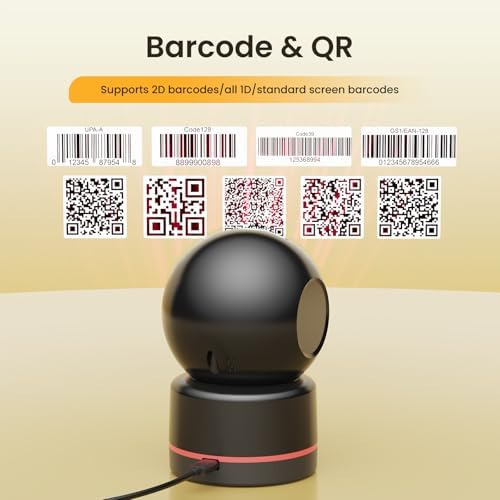
Image: The T27H scanner demonstrating its ability to read various barcode types, including 1D and 2D codes.

Image: The T27H scanner in auto-sensing mode, automatically triggering when a barcode is presented without needing a button press.

Изображение: Бывшийamples of the T27H scanner's applications, including scanning products, verifying coupons, and use in logistics and warehousing.
5. Техническое обслуживание
5.1 Обслуживание принтера
- Очистка печатающей головки: Regularly clean the thermal print head with an alcohol wipe to ensure optimal print quality. Ensure the printer is off and cool before cleaning.
- Удаление пыли: Keep the printer free from dust and debris. Use a soft, dry cloth to wipe the exterior.
- Хранение этикеток: Store thermal labels in a cool, dry place away from direct sunlight to prevent degradation.
5.2 Scanner Maintenance
- Очистка окна сканирования: Use a soft, lint-free cloth to gently clean the scanner's window. Avoid abrasive materials that could scratch the surface.
- Проверка кабеля: Periodically check the USB cable for any signs of wear or damage.
6. Поиск Неисправностей
6.1 Common Printer Issues
- Нет вывода на печать:
- Ensure the printer is powered on and connected to the computer.
- Check if labels are loaded correctly and the cover is closed.
- Verify that the correct printer driver is selected in your application.
- Плохое качество печати:
- Очистите печатающую головку, как описано в разделе «Техническое обслуживание».
- Убедитесь, что вы используете высококачественные термоэтикетки.
- Adjust print density settings in the "clabel trade" application if available.
- Замятие бумаги:
- Выключите принтер и осторожно откройте крышку.
- Gently remove any jammed labels.
- Reload labels, ensuring they are aligned properly.
6.2 Common Scanner Issues
- Сканер не отвечает:
- Убедитесь, что USB-кабель надежно подключен к сканеру и компьютеру.
- Try connecting the scanner to a different USB port.
- Перезагрузите компьютер.
- Unable to Read Barcodes:
- Убедитесь, что штрихкод чистый, неповрежденный и хорошо подсвечен.
- Отрегулируйте расстояние и угол между сканером и штрих-кодом.
- Clean the scanner's window.
- The scanner supports 1D, 2D, and QR codes. Verify the barcode type is supported.

Image: The T27H scanner's advanced decoding capabilities, showing its ability to read various imperfect barcodes including incomplete, damaged, colored, distorted, and blurred codes.
7. Технические характеристики
| Особенность | Спецификация |
|---|---|
| Бренд | ЭТИКЕТКА |
| Технология связи | USB |
| Технология печати | Термальный |
| Цвет | Черный |
| Вывод на принтер | Монохромный |
| Максимальный размер носителя | 3 дюймов |
| Печатные СМИ | Термобумага |
| Sheet Size (Width) | 25-80 millimeters (1" to 3.15") |
| аппаратный интерфейс | USB |
| Дополнительные функции принтера | Scan (via included scanner) |
| Тип сканера | Auto-Sensing 1D/2D/QR Code Scanner (T27H) |
8. Гарантия и поддержка
8.1 Информация о гарантии
The CLABEL 3 Inch Label Printer and Scanner Kit comes with a Гарантия 12 месяца. This warranty covers manufacturing defects and quality issues. For warranty claims, please retain your proof of purchase.

Image: The T27H scanner with text indicating a 12-month warranty and professional service team support.
8.2 Поддержка клиентов
For technical assistance, troubleshooting, or any questions regarding your CLABEL product, please contact our customer support team. Refer to the contact information provided with your product packaging or visit the official CLABEL webсайт ресурсов поддержки.