
1. Введение
Thank you for choosing the RUPA Android TV Box 14.0, Model 2025. This device transforms your television into a smart entertainment hub, offering access to a wide range of streaming services, applications, and media content. Featuring Android 14.0, 4K/8K resolution support, Wi-Fi 6, and a powerful RK3518pro chipset, this TV box delivers a high-performance and user-friendly experience. This manual provides detailed instructions for setup, operation, maintenance, and troubleshooting to ensure you get the most out of your device.
2. Что в коробке
Пожалуйста, проверьте содержимое вашей посылки. Если какие-либо товары отсутствуют или повреждены, обратитесь в службу поддержки клиентов.
- RUPA Android TV Box 14.0 (Model 2025)
- Голосовое дистанционное управление
- Адаптер питания
- HDMI-кабель
- Руководство пользователя (этот документ)
3. Продукт закончилсяview
Familiarize yourself with the ports and components of your RUPA Android TV Box.
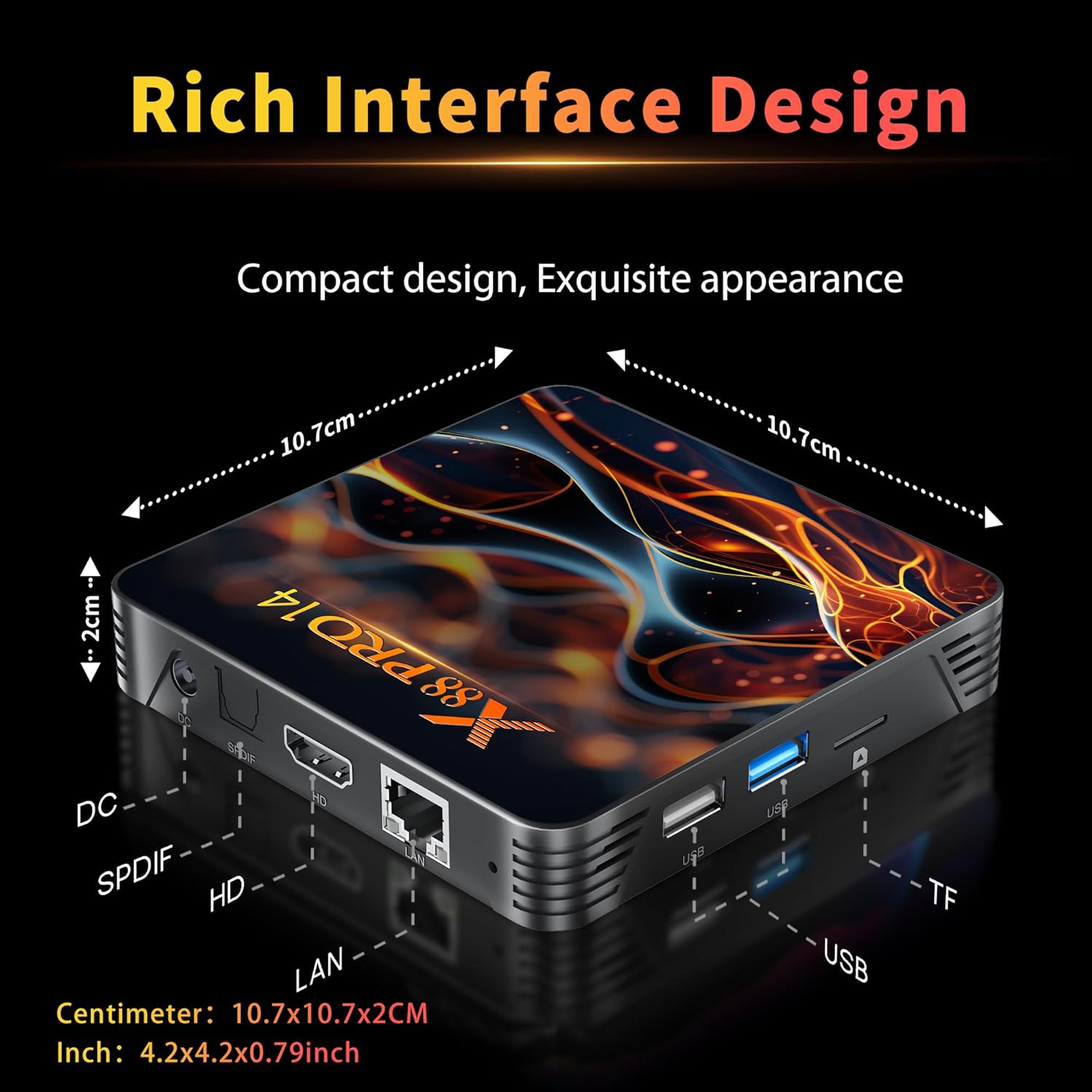
Рисунок 3.1: Rear and Side Panel Ports of the RUPA Android TV Box.
This image displays the various connectivity options available on the RUPA Android TV Box. On the rear, from left to right, are the DC power input, SPDIF audio output, HDMI port for video and audio, and a LAN (Ethernet) port. On the side, there are multiple USB ports (including USB 3.0) and a TF (MicroSD) card slot for expandable storage.
- Вход постоянного тока: Подключите здесь прилагаемый адаптер питания.
- SPDIF-выход: Цифровой аудиовыход для подключения к внешним аудиосистемам.
- HDMI: Connect to your TV or display for video and audio output.
- LAN: Порт Ethernet для проводного подключения к интернету.
- USB-порты: For connecting external devices such as USB drives, keyboards, or mice. Includes USB 3.0 for faster data transfer.
- Слот для TF-карты: Insert a MicroSD card for additional storage.
4. Руководство по установке
Follow these steps to set up your RUPA Android TV Box for the first time.

Рисунок 4.1: Basic Setup Steps.
This image visually guides the user through the initial setup process. Step 1 shows connecting the TV box to a television using an HDMI cable. Step 2 depicts connecting the TV box to a power outlet using the power adapter. Step 3 illustrates connecting to the internet via Ethernet or Wi-Fi, and using the remote control to navigate the interface.
- Подключение к ТВ: Use the provided HDMI cable to connect the HDMI port on the TV box to an available HDMI input on your television.
- Подключите питание: Plug the power adapter into the DC input port on the TV box, then plug the adapter into a wall outlet. The device should power on automatically or can be turned on using the remote control.
- Выберите ввод: Turn on your TV and select the correct HDMI input source using your TV's remote control.
- Мастер первоначальной настройки: Следуйте инструкциям на экране, чтобы завершить первоначальную настройку, включая выбор языка, часового пояса и подключения к сети.
- Подключение к сети:
- Wi-Fi: Select your Wi-Fi network from the list, enter the password, and connect. The device supports Wi-Fi 6 (2.4G/5.8G Dual-Band).
- Ethernet: If using a wired connection, connect an Ethernet cable from your router to the LAN port on the TV box. The connection should be established automatically.
- Аккаунт Google: Войдите в свою учетную запись Google, чтобы получить доступ к Google Play Store и другим сервисам Google.
5. Инструкция по эксплуатации
5.1. Using the Voice Remote Control
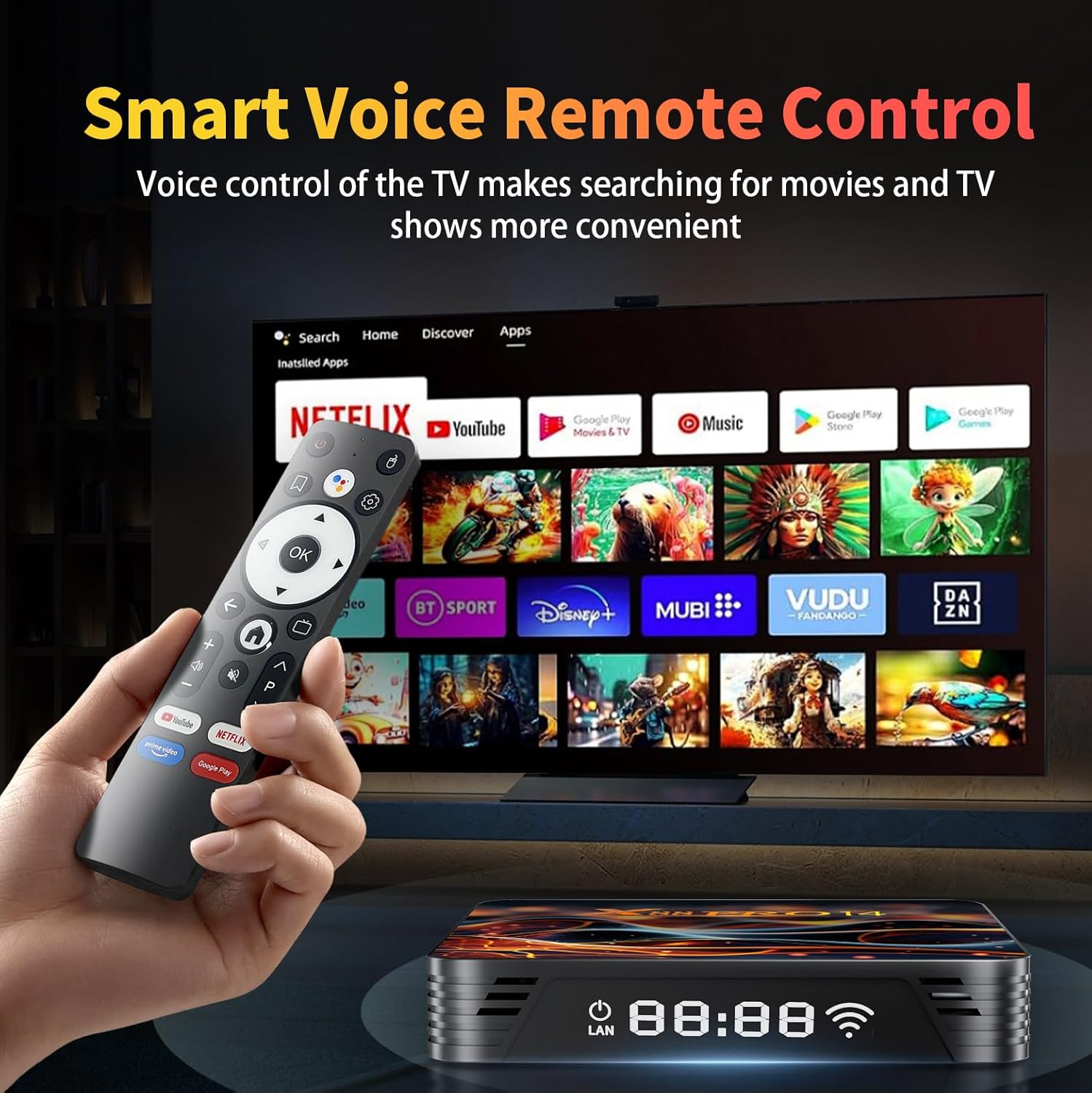
Рисунок 5.1: Voice Remote Control and User Interface.
This image shows the RUPA Android TV Box alongside its voice-enabled remote control. The TV screen in the background displays the Android TV interface with various streaming app icons like Netflix, YouTube, Disney+, and more, highlighting the ease of navigation and content access.
The included voice remote control allows for intuitive navigation and voice commands.
- Кнопка питания: Включает и выключает устройство.
- Навигационная панель (кнопки направления): Используется для перемещения по меню и выбора пунктов.
- Кнопка ОК: Подтверждает выбор.
- Кнопка «Назад»: Возврат к предыдущему экрану.
- Домашняя кнопка: Возврат на главный домашний экран.
- Кнопка голосового помощника: Press and hold to activate voice commands for searching content, opening apps, or controlling the device.
- Кнопки громкости: Отрегулируйте громкость звука.
- Кнопки быстрого доступа к приложению: Dedicated buttons for popular streaming services (e.g., YouTube, Netflix).
5.2. Навигация по интерфейсу Android TV
The Android 14.0 interface is designed for easy access to your favorite content.
- Главный экран: Displays recommended content, recently used apps, and customizable app shortcuts.
- Приложения: Получите доступ ко всем установленным приложениям. Вы можете загрузить еще больше из магазина Google Play.
- Настройки: Configure network settings, display options, sound, storage, and other system preferences.
5.3. Screen Mirroring (DLNA)
The RUPA Android TV Box supports screen mirroring, allowing you to display content from your mobile phone or tablet on your TV.
Рисунок 5.2: Screen Mirroring Functionality.
This image illustrates the screen mirroring capability of the RUPA Android TV Box, showing content from a smartphone being displayed on a large television screen. This feature allows users to share photos, videos, or other media from their mobile devices directly to their TV.
- Убедитесь, что ваше мобильное устройство и ТВ-приставка подключены к одной и той же сети Wi-Fi.
- On your mobile device, open the screen mirroring or cast feature (often found in quick settings or display settings).
- Select the RUPA Android TV Box from the list of available devices.
- Your mobile device's screen will now be displayed on your TV.
6. Описание ключевых особенностей
6.1. 4K 8K Ultra HD Resolution

Рисунок 6.1: 4K HDR10 Visual Quality.
This image demonstrates the superior visual quality of 4K Ultra HD and HDR10 compared to 1080p Full HD. The 4K side shows significantly sharper details, richer colors, and higher contrast, providing a more immersive viewопыт.
The RUPA Android TV Box supports video resolutions up to 4K and 8K, delivering exceptional visual clarity and detail. With HDR10+ support, you can experience super bright colors, sharper contrast, and richer details in compatible content, creating a cinematic viewопыт.
6.2. RK3518pro Chipset and Performance

Рисунок 6.2: RK3518pro Chipset Performance.
This image highlights the RK3518 Quad-Core Cortex-A53 chipset, emphasizing its low power consumption and good performance. It includes bar graphs indicating significant improvements in multicore computing and response speed compared to previous generations, ensuring smooth operation and multitasking.
Equipped with the powerful RK3518pro Quad-Core Cortex-A53 chipset, 2GB RAM, and 16GB/32GB internal storage, this TV box ensures smooth and responsive operation. It efficiently handles multitasking, allowing you to switch between applications, stream high-definition content, and play games without lag.
6.3. Wi-Fi 6 Dual-Band and Bluetooth 5.0

Рисунок 6.3: Wi-Fi 6 Performance Comparison.
This image visually compares the performance of Wi-Fi 6 against Wi-Fi 5, illustrating that Wi-Fi 6 offers a significantly higher transmission rate and average network speed. This translates to an ultra-fast and stable internet experience, especially beneficial in crowded network environments and for high-bandwidth streaming.
Enjoy stable and fast internet access with dual-band Wi-Fi 6 (2.4 GHz and 5.8 GHz). Wi-Fi 6 provides higher speeds, lower latency, and improved performance in crowded network environments. Bluetooth 5.0 allows for seamless connection of wireless accessories such as headphones, speakers, keyboards, and game controllers.
6.4. Операционная система Android 14.0
The TV box runs on the latest Android 14.0 system, offering enhanced security features, optimized performance, and access to a vast library of applications through the Google Play Store. The 64-bit Android operating system ensures compatibility with a wide range of powerful apps for endless entertainment options.
7. Техническое обслуживание
- Уборка: Use a soft, dry cloth to clean the exterior of the TV box. Do not use liquid cleaners or abrasive materials.
- Вентиляция: Убедитесь, что ТВ-приставка размещена в хорошо проветриваемом месте, чтобы предотвратить перегрев. Не закрывайте вентиляционные отверстия.
- Обновления программного обеспечения: Periodically check for system updates in the settings menu to ensure optimal performance and access to the latest features and security patches.
- Управление хранилищем: Regularly clear cache and uninstall unused apps to free up storage space and maintain performance.

Рисунок 7.1: Efficient Heat Dissipation System.
This image highlights the powerful exhaust heat dissipation design of the RUPA Android TV Box. It shows a comparison between an efficient cooling air group and an ordinary cooling unit, indicating that the TV box's design significantly improves heat dissipation and stability, protecting hardware and ensuring stable operation.
8. Поиск Неисправностей
| Проблема | Возможная причина | Решение |
|---|---|---|
| Нет электричества | Адаптер питания не подключен или неисправен. | Убедитесь, что адаптер питания надежно подключен к ТВ-приставке и к исправной розетке. Попробуйте другую розетку. |
| Нет изображения на телевизоре | Выбран неправильный вход HDMI или неисправен кабель HDMI. | Check that your TV is set to the correct HDMI input. Try a different HDMI port on your TV or a different HDMI cable. |
| Нет Wi-Fi соединения | Incorrect Wi-Fi password, router issue, or out of range. | Verify the Wi-Fi password. Restart your router. Ensure the TV box is within range of your Wi-Fi router. Try a wired Ethernet connection if available. |
| Пульт дистанционного управления не работает | Разряженные батареи или препятствие. | Replace the batteries in the remote control. Ensure there are no obstructions between the remote and the TV box. |
| Приложения работают медленно или дают сбои | Too many apps running, low storage, or outdated app version. | Close unused apps. Clear app cache (Settings > Apps > [App Name] > Clear Cache). Update apps from the Google Play Store. Consider a factory reset if issues persist (backup data first). |
9. Технические характеристики
| Особенность | Деталь |
|---|---|
| Название модели | 2025 |
| Операционная система | Андроид 14.0 |
| Процессор | RK3518pro Quad-Core Cortex-A53 |
| БАРАН | 2 ГБ |
| Внутреннее хранилище | 16 GB / 32 GB (depending on variant) |
| Разрешение видеовыхода | Up to 4K (3840x2160 pixels), 8K (7680x4320 pixels) |
| Видеокодек | H.265/HEVC |
| Wi-Fi | Wi-Fi 6 (2.4G/5.8G Dual-Band) |
| Bluetooth | Блютус 5.0 |
| Ethernet | 10/100M |
| Порты подключения | HDMI, USB 2.0/3.0, LAN, SPDIF, TF Card Slot, DC Power |
| Особые возможности | HDR10+, DLNA (Screen Mirroring), Voice Remote Control |
| Размеры (Д x Ш x В) | 7.2 дюйма (Д) x 4.4 дюйма (Ш) x 2.2 дюйма (В) (10.7 x 10.7 x 2 см) |
10. Гарантия и поддержка
The RUPA Android TV Box 14.0 (Model 2025) comes with a standard manufacturer's warranty. Please refer to the warranty card included in your package for specific terms and conditions.
For technical support, troubleshooting assistance, or warranty claims, please contact RUPA customer service through the retailer where you purchased the product or visit the official RUPA webсайт для контактной информации.
Интернет-ресурсы:
- Для получения дополнительной информации и ответов на часто задаваемые вопросы посетите RUPA Store on Amazon.