
1. Введение
This manual provides essential information for setting up, operating, maintaining, and troubleshooting your HP 14-em 14-inch HD Laptop. Please read this guide thoroughly to ensure optimal performance and longevity of your device.
The HP 14-em laptop features an AMD Athlon Silver 7120U processor, 4GB RAM, 512GB eMMC storage, and runs on Windows 11 Pro. It is designed for everyday tasks, offering a balance of performance and portability.
2. Настройка
2.1 Распаковка и первоначальный осмотр
Аккуратно извлеките ноутбук и все аксессуары из упаковки. Убедитесь в наличии всех компонентов:
- HP 14-inch Laptop
- Адаптер питания
- Mytrix 2.4GHz Wireless Gaming Headset
- Документация
Осмотрите ноутбук на предмет физических повреждений. При обнаружении каких-либо повреждений немедленно обратитесь к продавцу.
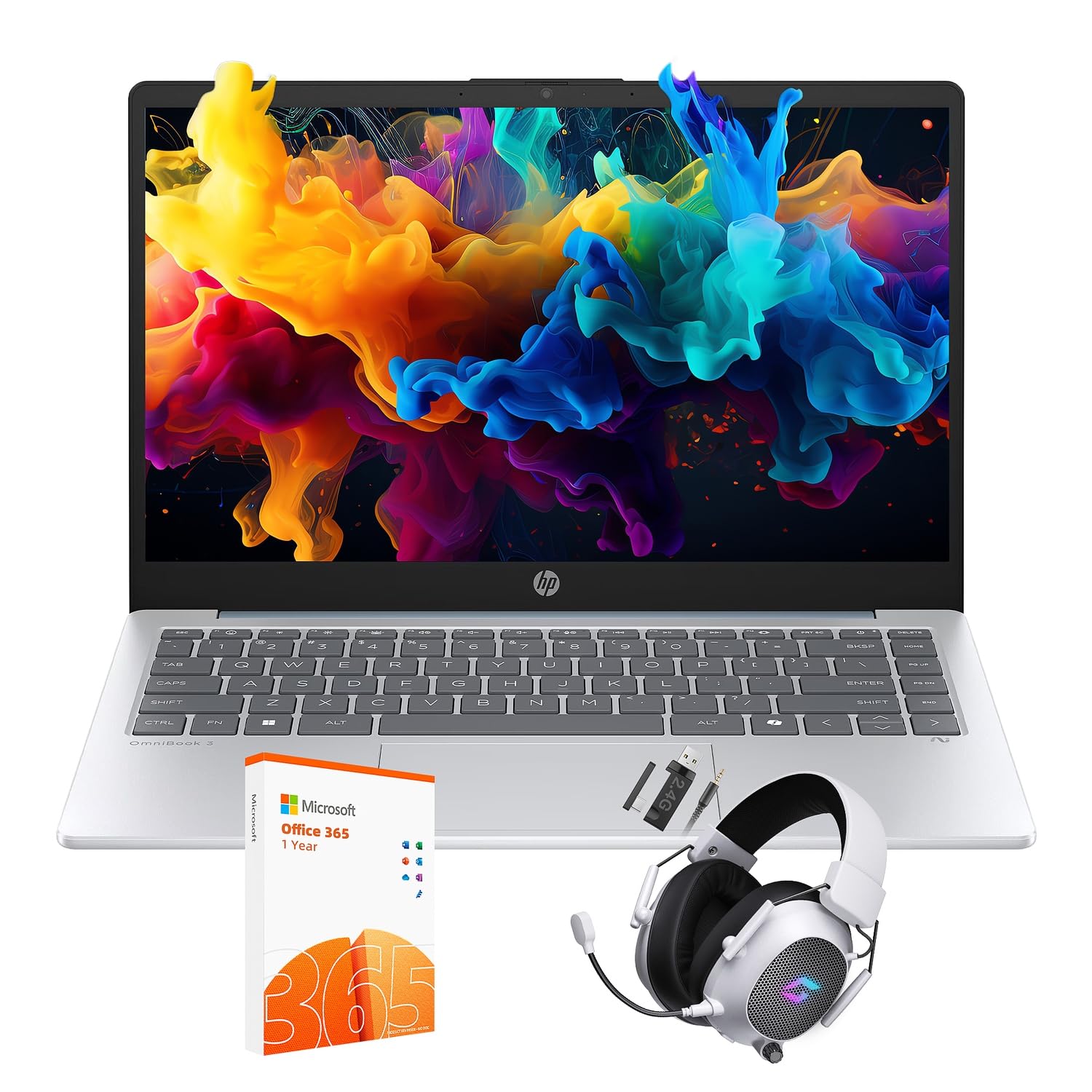
Figure 2.1: The HP 14-inch HD Laptop in Moonlight Blue, showcasing его элегантный дизайн.
2.2 Подключение адаптера питания
Подключите адаптер питания к разъему питания ноутбука, а затем вставьте его в розетку. Рекомендуется полностью зарядить аккумулятор перед первым использованием.
2.3 Initial Power On and Windows 11 Pro Setup
Press the power button located on the keyboard deck. The laptop will boot up and guide you through the Windows 11 Pro setup process. Follow the on-screen instructions to:
- Выберите свой регион и язык.
- Подключитесь к сети Wi-Fi.
- Примите условия лицензии.
- Создайте учетную запись пользователя или войдите в систему с помощью учетной записи Microsoft.
- Настройте параметры конфиденциальности.
2.4 Setting up the Mytrix Wireless Gaming Headset
Refer to the separate instructions provided with the Mytrix 2.4GHz Wireless Gaming Headset for detailed setup. Generally, this involves:
- Зарядка гарнитуры.
- Connecting the wireless dongle to an available USB port on the laptop.
- Powering on the headset and ensuring it pairs with the dongle.
- Configuring audio input/output settings in Windows 11 Pro.
3. Работа с ноутбуком
3.1 Управление питанием
- Включение питания: Нажмите кнопку питания.
- Спящий режим: Закройте крышку или выберите пункт «Спящий режим» в меню «Пуск».
- Неисправность: Выберите пункт «Выключить» в меню «Пуск».
- Перезапуск: Выберите «Перезагрузить» в меню «Пуск».
3.2 Использование сенсорной панели
The touchpad supports multi-touch gestures for navigation. Common gestures include:
- Кран: Single finger tap for left-click.
- Нажатие двумя пальцами: Щелкните правой кнопкой мыши.
- Прокрутка двумя пальцами: Прокрутите вверх или вниз.
- Масштабирование с помощью жестов сжатия: Увеличивайте или уменьшайте масштаб.
3.3 Connecting to Networks (Wi-Fi 6 and Bluetooth 5.4)
Чтобы подключиться к сети Wi-Fi:
- Щелкните значок Wi-Fi на панели задач.
- Выберите нужную сеть из списка.
- Введите сетевой пароль, если будет предложено.
Чтобы подключить Bluetooth-устройство:
- Перейти к Настройки > Bluetooth и устройства.
- Убедитесь, что Bluetooth включен.
- Select "Add device" and follow the pairing instructions for your device.
3.4 External Port Usage
Ваш ноутбук оснащен различными портами для подключения внешних устройств:

Figure 3.1: Available ports on the HP 14-inch HD Laptop.
- USB типа A: For connecting standard USB devices like mice, keyboards, and external storage.
- USB-порт типа C: Для передачи данных.
- HDMI: Для подключения к внешним дисплеям или проекторам.
- Комбинация наушников и микрофона: For connecting a headset or external speakers/microphone.
3.5 Возможности Windows 11 Pro
Windows 11 Pro offers advanced security, management tools, and productivity features. Explore the Start Menu, Taskbar, and Settings app to customize your experience. The laptop also supports a 180-degree hinge for flexible viewуглы.
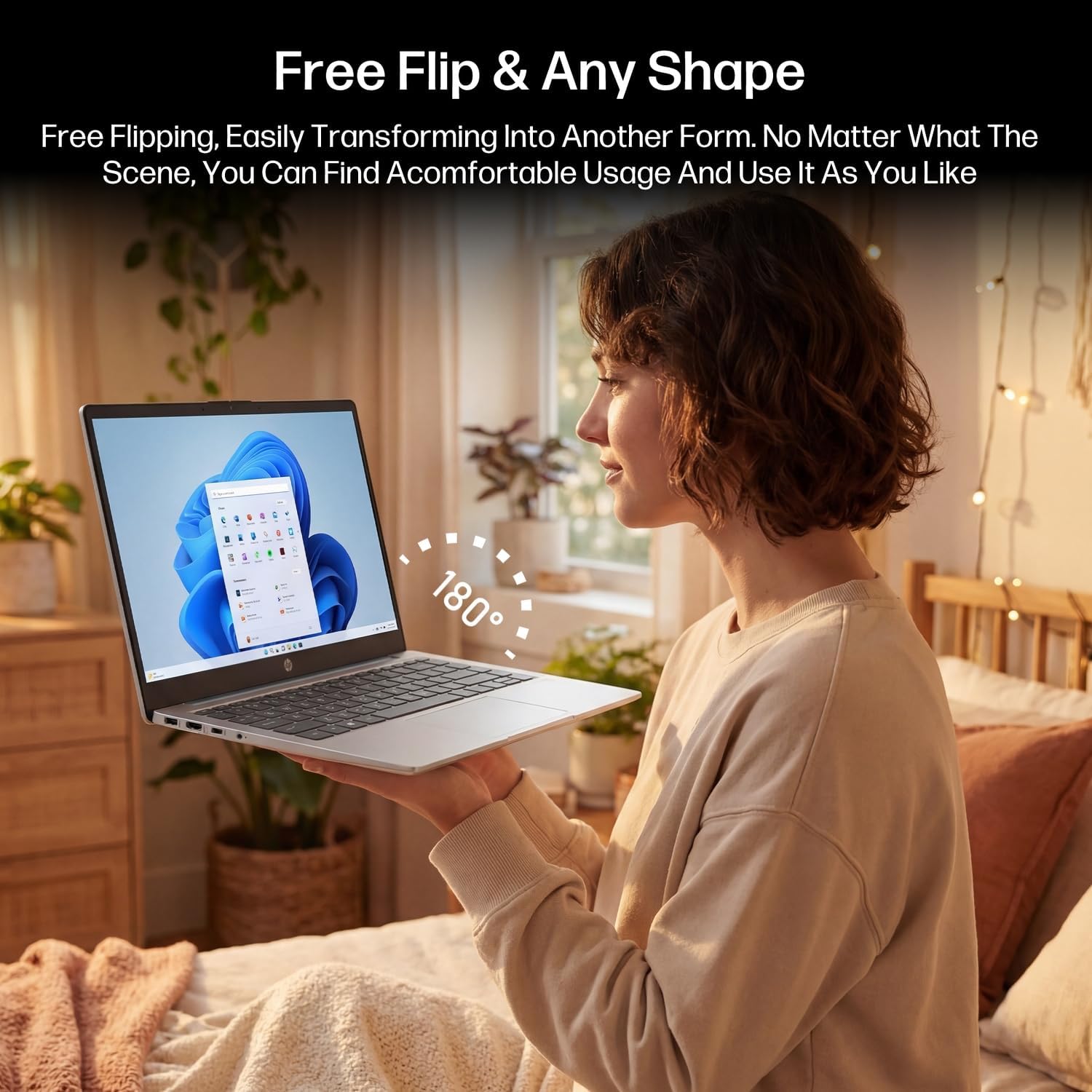
Figure 3.2: The laptop's 180-degree hinge for versatile use.

Figure 3.3: The HP laptop efficiently handles daily tasks.
4. Техническое обслуживание
4.1 Чистка ноутбука
- Экран: Слегка используйте мягкую безворсовую ткань.ampОбработайте водой или средством для чистки экранов. Не распыляйте чистящее средство непосредственно на экран.
- Корпус и клавиатура: Используйте мягкую сухую ткань. Для удаления стойких загрязнений используйте слегка мягкую ткань.amp Можно использовать ткань. Избегайте чрезмерной влажности.
- Порты: Аккуратно очистите порты от пыли с помощью сжатого воздуха.
4.2 Уход за аккумулятором
Чтобы увеличить срок службы батареи:
- Избегайте экстремальных температур.
- Не допускайте частой полной разрядки аккумулятора.
- Utilize HP Fast Charge technology for quick recharging when needed.
4.3 Обновления программного обеспечения
Регулярно проверяйте наличие обновлений Windows и устанавливайте их, чтобы ваша система была оснащена последними исправлениями безопасности и улучшениями производительности. Перейти к Настройки > Центр обновления Windows.
4.4 Управление хранением
The 512GB eMMC storage provides fast boot-ups and file access. To maintain performance, periodically:
- Удалить ненужное files.
- Удалите неиспользуемые приложения.
- Воспользуйтесь встроенной в Windows программой очистки диска.
5. Поиск Неисправностей
В этом разделе рассматриваются распространённые проблемы, с которыми вы можете столкнуться. Для решения более сложных проблем обратитесь к официальным ресурсам поддержки HP.
5.1 Ноутбук не включается
- Убедитесь, что адаптер питания надежно подключен к ноутбуку и рабочей розетке.
- Проверьте работоспособность розетки, подключив к ней другое устройство.
- Если батарея полностью разряжена, дайте ей зарядиться не менее 30 минут, прежде чем пытаться включить ее снова.
5.2 Проблемы с подключением Wi-Fi
- Проверьте, включен ли Wi-Fi в настройках Windows.
- Перезагрузите маршрутизатор и модем.
- Удалите сеть из списка и подключитесь заново, снова введя пароль.
- Ensure your laptop is within range of the Wi-Fi signal.
5.3 External Display Not Detected
- Ensure the HDMI cable is securely connected to both the laptop and the external display.
- Check the input source on your external display (e.g., HDMI 1, HDMI 2).
- Нажимать Клавиша Windows + P and select a display option (Duplicate, Extend, Second screen only).
5.4 Проблемы со звуком
- Check volume levels in Windows and on any connected external audio devices.
- Ensure the correct audio output device is selected in Windows sound settings.
- If using the Mytrix headset, ensure it is powered on and properly paired.
6. Технические характеристики
Detailed technical specifications for your HP 14-em 14-inch HD Laptop:
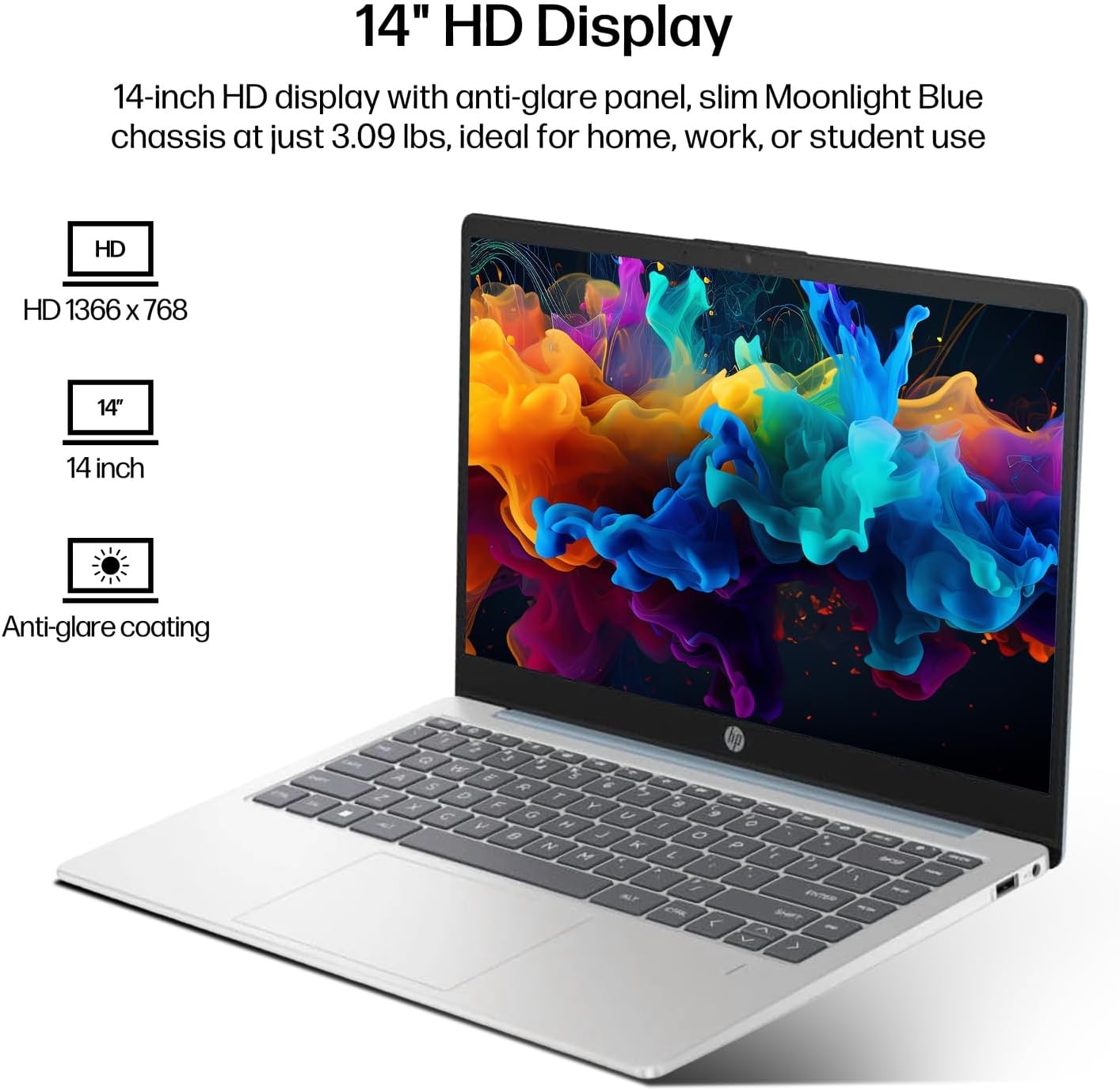
Figure 6.1: The 14-inch HD display features a resolution of 1366 x 768 pixels and an anti-glare coating.

Figure 6.2: The laptop is powered by an AMD Athlon Silver 7120U Processor with integrated AMD Radeon Graphics.
| Особенность | Спецификация |
|---|---|
| Бренд | HP |
| Название модели | 14-em |
| Процессор | AMD Athlon Silver 7120U (2 Cores, 2 Threads, up to 3.5 GHz Boost Clock) |
| Графика | AMD Radeon Graphics (интегрированная) |
| БАРАН | 4 ГБ DDR4 SODIMM |
| Хранилище | 512 ГБ eMMC (твердотельный накопитель) |
| Отображать | 14-inch HD (1366 x 768) LED, Anti-Glare |
| Операционная система | Windows 11 Профессиональная |
| Беспроводное подключение | Wi-Fi 6 (802.11ax), Bluetooth 5.4 |
| Порты | 2x USB Type-A, 1x USB Type-C (Data Transfer), 1x HDMI, 1x Headphone/Microphone Combo |
| Камера | Фронтальная |
| Аудио | HD-аудио |
| Размеры (Д x Ш x В) | 12.74" x 8.46" x 0.7" |
| Масса | Приблизительно 3.09 фунтов |
| Включенные аксессуары | Mytrix 2.4GHz Wireless Gaming Headset |

Figure 6.3: Physical dimensions of the HP 14-inch HD Laptop.
7. Гарантия и поддержка
7.1 Гарантия на продукт
Your HP 14-em laptop comes with a 12-month manufacturer's warranty. This warranty covers defects in materials and workmanship under normal use. For specific terms and conditions, please refer to the warranty documentation included with your product or visit the official HP support webсайт.
7.2 Техническая поддержка
For technical assistance, troubleshooting beyond this manual, or warranty claims, please contact HP Customer Support. You can find contact information on the official HP webили через приложение поддержки, предустановленное на вашем ноутбуке.
Additional protection plans are available for purchase, including 2-Year and 4-Year Protection Plans, and a monthly Complete Protect plan. Details can be found where you purchased the product.