
1. Введение
This manual provides essential information for setting up, operating, and maintaining your Plimpton Kids Tablet 10 Inch, Model Kids 20. This device is designed to offer a secure and engaging digital experience for children, featuring the Android 15 operating system, an octa-core processor, and integrated Google Kids Space.
2. Что в коробке
- 1 x PlimPad Kids Android 15 Tablet
- 1 x USB-адаптер
- 1 х USB-кабель для зарядки
- Руководство пользователя

3. Особенности продукта
- Расширенная производительность: Equipped with an enhanced Android 15 system, a 2.0GHz 8-core processor, 4GB RAM, and 64GB storage (expandable to 1TB).
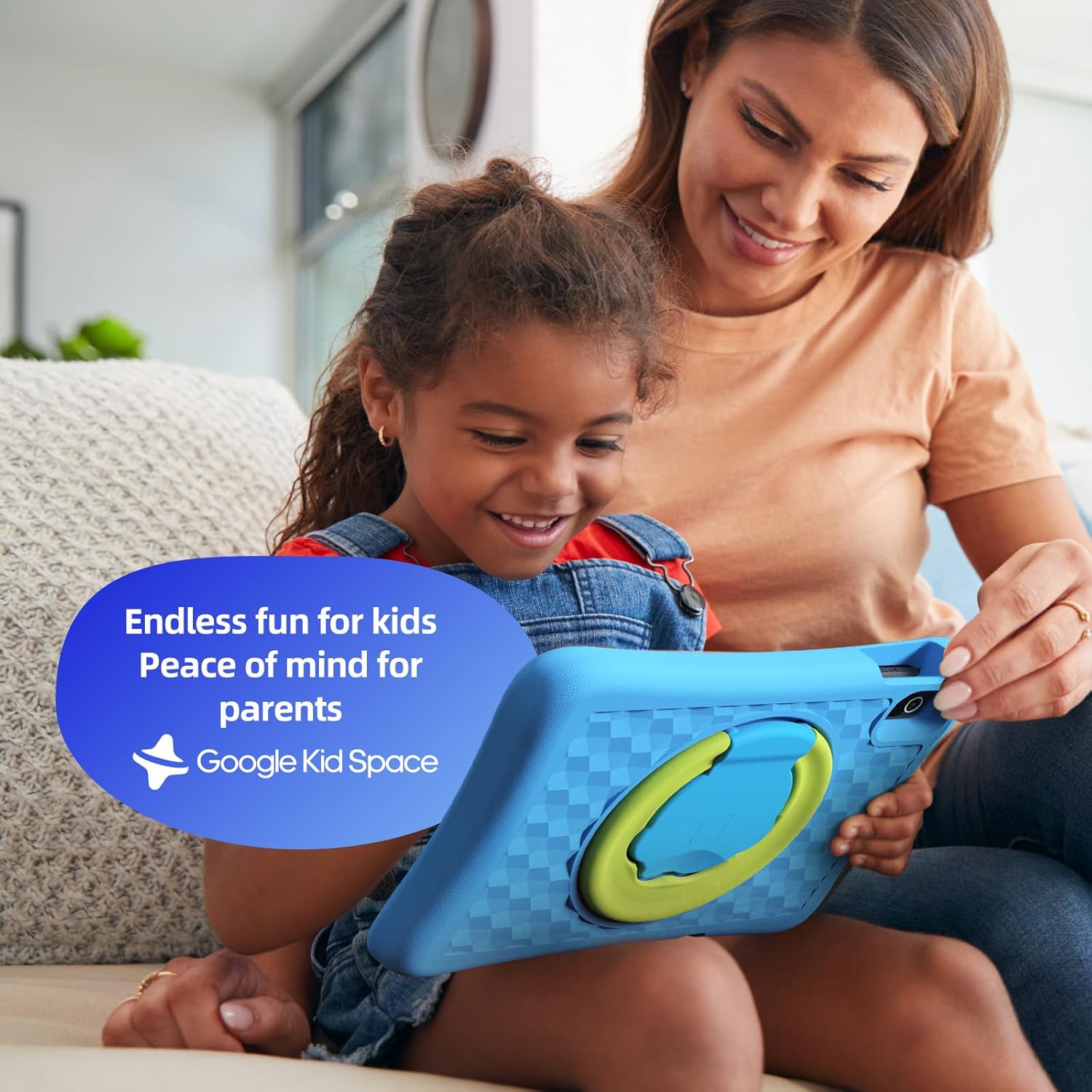
- Google Kids Space & Parental Control: Pre-installed with Google Kids Space and educator-endorsed apps. User-friendly parental controls allow content filtering, educational targets, and time restrictions.
- Eye Protection Display: 10.1" HD IPS glass screen (1280 x 800 resolution) with low blue light technology and automatic brightness adjustment to reduce eye fatigue.
- Прочная конструкция: Rugged, anti-drop EVA protective case, odorless and resistant to deformation, with a 360° rotatable bracket.
- Optimized Battery: Upgraded power system for extended daily use, leveraging Android 15's efficiency for smarter power management.

4. Настройка
4.1 Первоначальное включение питания
- Нажмите и удерживайте кнопку питания, расположенную сбоку планшета, пока не загорится экран.
- Следуйте инструкциям на экране, чтобы выбрать предпочитаемый язык и регион.
4.2 Wi-Fi-соединение
- From the initial setup screen or Settings menu, select 'Wi-Fi'.
- Choose your home Wi-Fi network from the list.
- Enter your Wi-Fi password and tap 'Connect'.
4.3 Настройка учетной записи Google
- Sign in with an existing Google account or create a new one. This account will be used for parental controls and app downloads.
- Follow the instructions to link your child's profile to your Google Family Link account for parental management.
4.4 Google Kids Space Configuration
- Once your Google account is set up, the tablet will guide you through configuring Google Kids Space.
- Select your child's age and interests to personalize content recommendations.
- Review and adjust parental control settings within Google Kids Space or via the Google Family Link app on your own device.
5. Эксплуатация планшета
5.1 Navigating Google Kids Space
Google Kids Space provides a child-friendly interface with curated content. Children can navigate through different categories like 'Play', 'Read', and 'Watch' to discover apps, books, and videos tailored to their age and interests.
5.2 Parental Controls with Google Family Link
Manage your child's digital experience remotely using the Google Family Link app on your smartphone. This allows you to:
- Установите ежедневные ограничения на время, проводимое за экраном.
- Approve or block apps from the Google Play Store.
- Track app usage and activity.
- Set device bedtime.
- Manage content restrictions for websites and searches.

5.3 Потребление медиа
The tablet supports various media types:
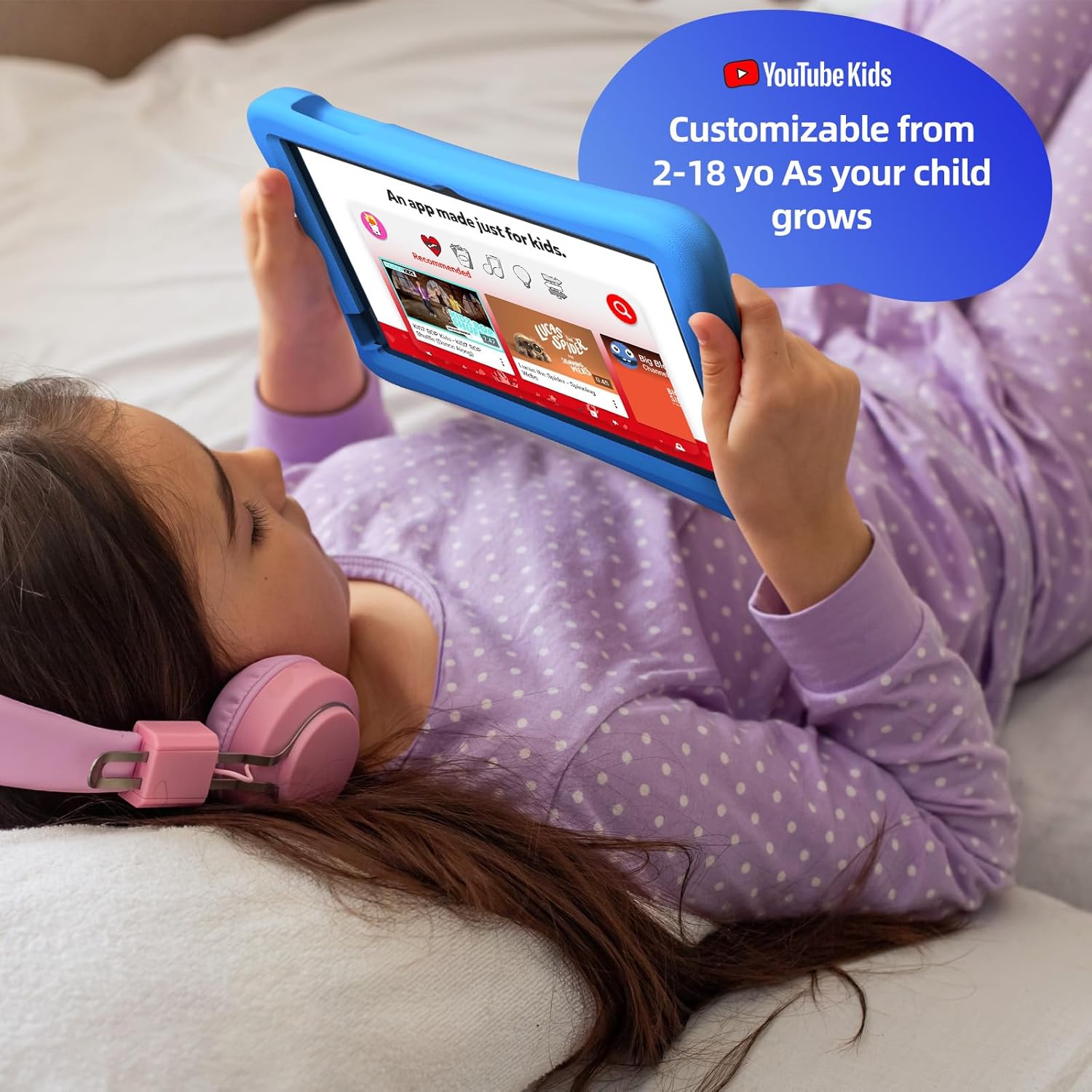
- Видео: Access YouTube Kids for age-appropriate video content. Parental controls can further refine available videos.
- Книги: Explore a library of digital books within Google Kids Space, promoting reading and literacy.
- Игры: A wide selection of educational and entertaining games are available, with new content regularly updated.

6. Техническое обслуживание
6.1 Уход за аккумулятором
- Charge the tablet fully before first use.
- Чтобы продлить срок службы батареи, избегайте её полной разрядки.
- Use only the provided USB Adaptor and Charge Cable.
6.2 Очистка
- Turn off the tablet before cleaning.
- Для протирки экрана и корпуса используйте мягкую безворсовую ткань.
- Избегайте использования едких химикатов и абразивных материалов.
6.3 Обновления программного обеспечения
Ensure the tablet's software is up-to-date for optimal performance and security. Connect to Wi-Fi and check for updates periodically in the Settings menu.
7. Поиск Неисправностей
7.1 Планшет не включается
- Убедитесь, что батарея заряжена. Подключите планшет к зарядному устройству и подождите несколько минут, прежде чем снова пытаться включить его.
- Нажмите и удерживайте кнопку питания в течение 10–15 секунд, чтобы выполнить полный сброс настроек.
7.2 Низкая производительность
- Закройте неиспользуемые приложения, работающие в фоновом режиме.
- Clear cache data for frequently used apps in Settings > Apps.
- Убедитесь, что на диске достаточно места. Удалите ненужное. files или приложения.
7.3 Проблемы с подключением Wi-Fi
- Перезагрузите Wi-Fi-роутер и планшет.
- Забудьте сеть в настройках Wi-Fi и подключитесь заново.
- Убедитесь, что планшет находится в зоне действия сигнала Wi-Fi.
8. Технические характеристики
| Особенность | Спецификация |
|---|---|
| Размер дисплея постоянного экрана | 10.1 дюйма |
| Разрешение экрана | 1280 x 800 пикселей |
| Процессор | 2 ГГц, восьмиядерный |
| Операционная система | Андроид 15 |
| Размер флэш-памяти | 64 ГБ |
| БАРАН | 4 ГБ |
| Расширяемое хранилище | Up to 1 TB (SD card not included) |
| Средний срок службы батареи | 8 часов |
| Вес товара | 1.76 фунта |
| Размеры продукта | 10.86 x 7.83 x 1.22 дюйма |
| Цвет | Синий |
9. Гарантия и поддержка
The Plimpton Kids Tablet comes with a Гарантия 2 год. Кроме того, 30-day worry-free return and replacement policy is provided. For any questions or concerns, please contact Plimpton customer support. Our team is dedicated to resolving any issues you may encounter.
For detailed support, refer to the customer support card included in your product packaging or visit the official Plimpton webсайт.