
1. Введение
This manual provides instructions for the ZBT AC1200 4G LTE Router, Model WE1326-BKC. This device is designed to provide reliable internet connectivity using a 4G LTE SIM card or a traditional WAN connection, distributing it via dual-band Wi-Fi and Gigabit Ethernet ports. It is suitable for home, apartment, and small office environments, offering features like USB storage sharing and OpenWrt compatibility.

The ZBT AC1200 4G LTE Router converts a 4G LTE signal into a Wi-Fi network for multiple devices.
2. Содержимое упаковки
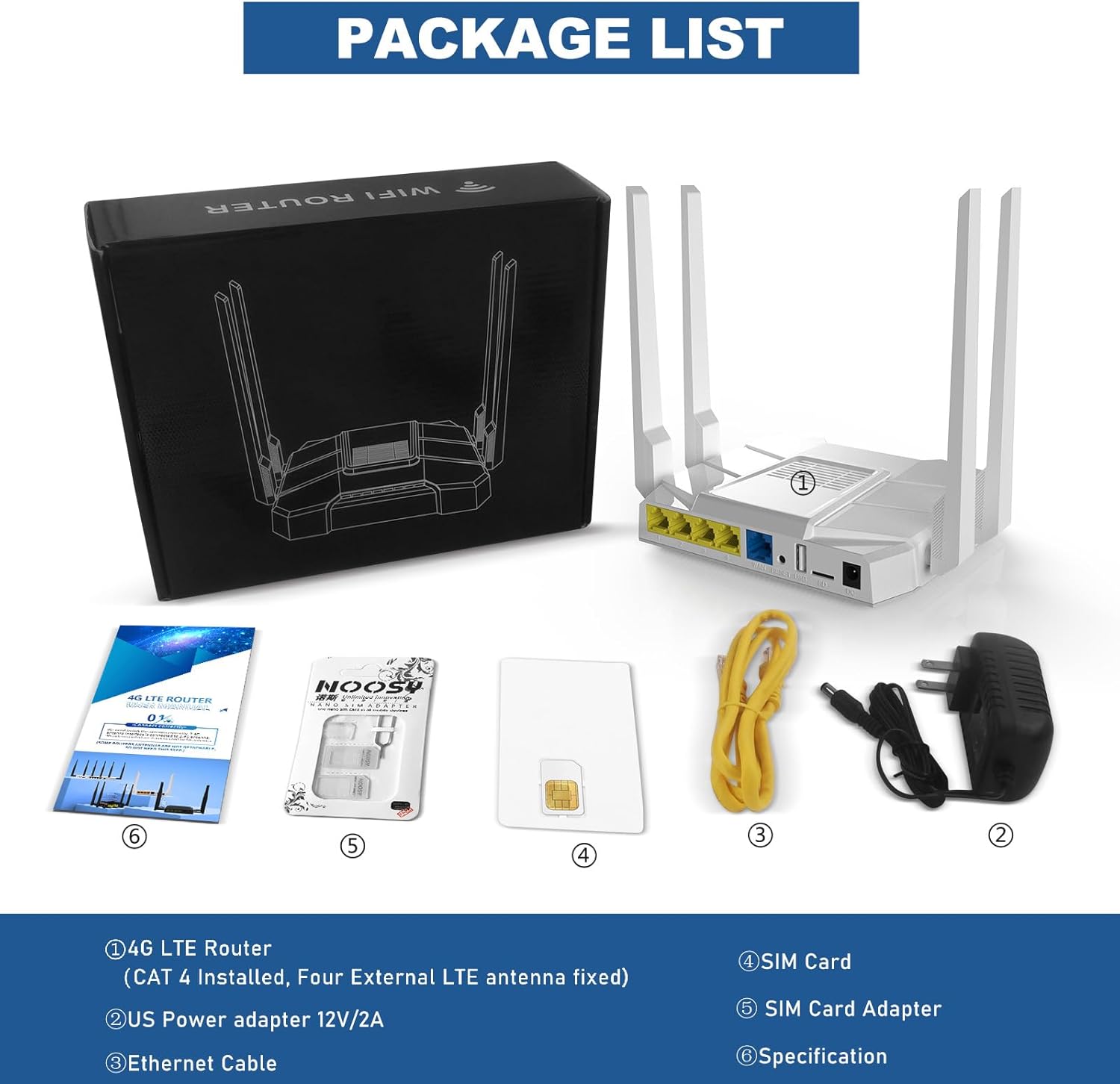
Убедитесь, что все перечисленные ниже предметы входят в комплект. Если какие-либо предметы отсутствуют или повреждены, обратитесь в службу поддержки клиентов.
- 1x ZBT AC1200 4G LTE Router (WE1326-BKC)
- 1x адаптер питания (12 В/2 А)
- 2x 2.4GHz Antennas
- 2x 5.8GHz Antennas
- 1x SIM Card Adapter
- 1x кабель Ethernet
- 1x Руководство пользователя (этот документ)
- 1x Quality Certificate
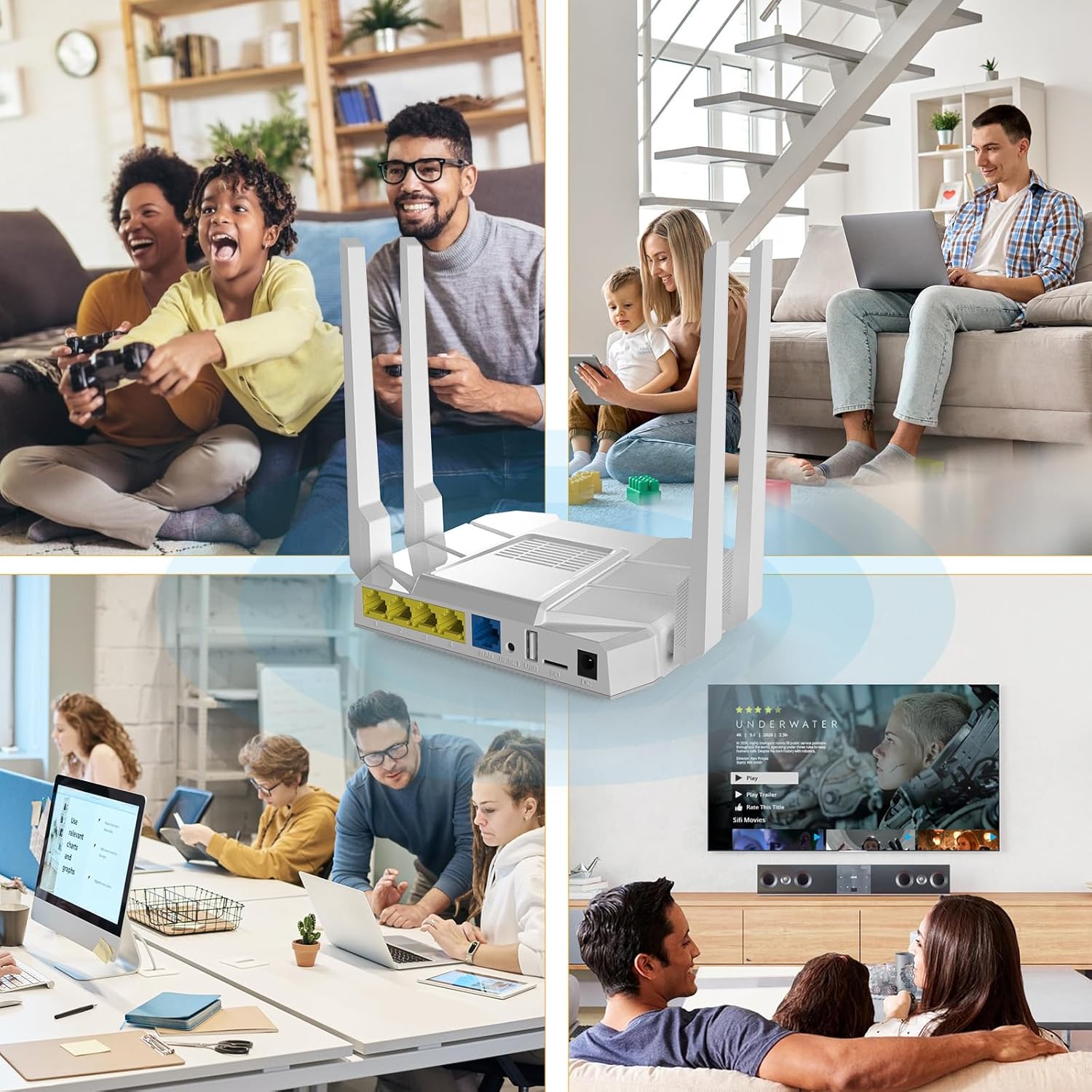
Image showing the router, antennas, power adapter, SIM card adapter, Ethernet cable, and documentation included in the box.
3. Продукт закончилсяview
3.1 Аппаратные компоненты
The ZBT AC1200 router features a robust design with clearly labeled ports and indicators for easy setup and monitoring.

Подробный view of the router's rear panel, highlighting the 4 Gigabit LAN ports, Gigabit WAN port, Reset button, USB 2.0 port, SD card slot, and 12V DC power input.
- 4 Gigabit LAN Ports: For wired connections to computers, gaming consoles, or other network devices.
- Gigabit WAN Port: Connects to a traditional broadband modem (DSL/Cable/Fiber) for internet access.
- Кнопка сброса: Used to restore factory default settings or enter firmware rescue mode.
- Порт USB 2.0: For connecting USB storage devices to create network-attached storage (NAS).
- Слот для SD-карты: For connecting MicroSD cards to create network-attached storage (NAS).
- Слот для SIM-карты: Insert a 4G LTE SIM card for cellular internet connectivity.
- Входная мощность 12 В постоянного тока: Подключите прилагаемый адаптер питания.
- Антенные разъемы: Four connectors for the included omnidirectional antennas (two for 2.4GHz, two for 5GHz).
3.2 светодиодных индикатора
The router features LED indicators to show the status of the device:
- Светодиод питания: Указывает состояние питания.
- Индикатор Интернета: Indicates internet connection status (4G LTE or WAN).
- Индикатор Wi-Fi: Dual-color LED indicating Wi-Fi band activity (Green for 2.4G, Red for 5G, Orange when both are active).
- Индикаторы локальной сети: Укажите активность на соответствующих портах локальной сети.
4. Настройка
4.1 Установка SIM-карты
To use the 4G LTE functionality, a compatible SIM card must be installed.
- Убедитесь, что маршрутизатор выключен.
- Найдите слот для SIM-карты на задней панели.
- Insert your standard SIM card into the slot until you hear a click. If you do not hear a sound, gently push the SIM card again. To remove, push the SIM card in again, and it will spring out slightly, allowing you to pull it out.
- If your SIM card is a Micro SIM or Nano SIM, use the provided SIM card adapter to fit it into the standard SIM card slot.

Illustration of the SIM card insertion process into the router's dedicated slot.
4.2 Установка антенны
Screw the four included omnidirectional antennas onto their respective connectors on the rear panel of the router. Ensure they are securely tightened but do not overtighten.
4.3 Подключение питания
Connect the included 12V/2A power adapter to the router's DC power input port and then plug the adapter into a power outlet. The Power LED should illuminate.
4.4 Начальная конфигурация
After powering on, the router will boot up. You can access the router's web management interface for configuration:
- Connect your computer to one of the router's LAN ports using an Ethernet cable, or connect to its default Wi-Fi network (SSID and password usually found on a label on the router).
- Откройте web браузер и введите
192.168.1.1в адресной строке. - Войдите в систему, используя учетные данные по умолчанию: Имя пользователя
root, Passwordadmin. - Follow the on-screen prompts to configure your internet connection (4G LTE or WAN) and Wi-Fi settings.
5. Инструкция по эксплуатации
5.1 Подключение устройств
- Wi-Fi-соединение: Искать the router's Wi-Fi network (SSID) on your wireless devices (smartphones, laptops, tablets) and enter the Wi-Fi password.
- Ethernet-подключение: Connect devices directly to the router's LAN ports using Ethernet cables for stable, high-speed wired connections.
5.2 Подключение 4G LTE
Once a valid SIM card is inserted and configured, the router will automatically establish a 4G LTE internet connection. The Internet LED will indicate the connection status. This provides internet access in areas without traditional broadband or as a primary connection.
5.3 Двухдиапазонный Wi-Fi
The router supports dual-band Wi-Fi (2.4GHz and 5GHz) for flexible connectivity:
- Диапазон 2.4 ГГц: Offers wider coverage and better penetration through walls, suitable for general browsing, smart home devices, and devices further away from the router.
- Диапазон 5 ГГц: Provides faster speeds and lower interference, ideal for bandwidth-intensive tasks like 4K streaming, online gaming, and video calls.

Visual representation of the router's AC1200 dual-band Wi-Fi capabilities, showing 2.4GHz (300Mbps) and 5.8GHz (867Mbps) bands, and the four antennas.
5.4 WAN Failover (Backup Internet)
The router can be configured to use the 4G LTE connection as a backup internet source if the primary WAN (Ethernet) connection fails. This ensures continuous internet access.

Illustration of the WAN Failover feature, where the router switches from a wired WAN connection to the 4G LTE SIM card for uninterrupted internet.
5.5 USB and MicroSD Shared Storage (NAS)
The USB 2.0 port and TF (MicroSD) card slot allow you to connect external storage devices. These can be configured as network-attached storage (NAS) accessible via SAMBA or FTP by all devices on your Wi-Fi network, enabling easy sharing of files, photos, and media.
5.6 Network Management and OpenWrt
The web интерфейс управления (доступен через 192.168.1.1) allows you to monitor network status, manage connected devices, configure Wi-Fi settings, and set up advanced features like VPN, VLAN, firewall, and QoS. The router is OpenWrt compatible, and an upgrade is available via customer service for advanced users seeking greater control and customization.

Exampле маршрутизатора web interface, showing network status, device management, and AD blocking features.
6. Техническое обслуживание
6.1 обновлений прошивки
Regular firmware updates can improve performance, add new features, and enhance security. Check the manufacturer's website or contact customer service for the latest firmware versions and upgrade instructions. The router supports a one-click firmware rescue mode by long-pressing the Reset button.
6.2 Сброс настроек маршрутизатора
To restore the router to its factory default settings, press and hold the Reset button for approximately 10 seconds while the router is powered on. Release the button when the LEDs flash. The router will then restart with default settings.
6.3 Тепловыделение
The router is designed with heat dissipation features to ensure stable operation. Ensure adequate airflow around the device and avoid placing it in enclosed spaces that could restrict ventilation.
Visual representation of the router's heat dissipation design, showing airflow for cooling.
7. Поиск Неисправностей
- Нет соединения с интернетом:
- Check if the SIM card is correctly inserted and activated with your carrier.
- Verify that the WAN cable is securely connected if using a wired internet source.
- Restart the router and your modem (if applicable).
- Check the Internet LED status.
- Невозможно получить доступ Web Интерфейс управления:
- Убедитесь, что ваше устройство подключено к маршрутизатору через Wi-Fi или Ethernet.
- Убедитесь, что вы вводите данные.
192.168.1.1правильно в браузере. - Очистите кэш браузера или попробуйте другой браузер.
- Временно отключите все брандмауэры и антивирусные программы на вашем компьютере.
- Slow Wi-Fi Speed or Disconnections:
- Ensure antennas are properly installed and oriented.
- Чтобы уменьшить помехи, переместите маршрутизатор подальше от других электронных устройств (микроволновых печей, беспроводных телефонов).
- Если ваше устройство поддерживает этот диапазон и находится близко к роутеру, попробуйте подключиться к сети 5 ГГц для более высокой скорости.
- Обновите драйверы Wi-Fi вашего устройства.
- SIM-карта не обнаружена:
- Ensure the SIM card is inserted correctly and fully seated.
- Убедитесь, что SIM-карта активна и подключен тарифный план передачи данных.
- Try the SIM card in another compatible device to confirm it is functional.
8. Технические характеристики
| Особенность | Описание |
|---|---|
| Название модели | WE1326-BKC |
| Бренд | збтлинк |
| Модуль 4G LTE | Quectel EC25AFXDGA (Cat4, 150Mbps DL / 50Mbps UL) |
| LTE Bands (NA) | B2/B4/B5/B12/B17/B29/B30/B66 (LTE-FDD), WCDMA B2/B4/B5 |
| Wi-Fi Стандартный | 802.11a/b/g/n/ac (AC1200) |
| Скорость Wi-Fi | 2.4 ГГц: до 300 Мбит/с, 5 ГГц: до 867 Мбит/с |
| Процессор | MT7621A 880MHz Dual-Core |
| БАРАН | 256MB DDR3 |
| Ethernet-порты | 1x Gigabit WAN, 4x Gigabit LAN (10/100/1000 Mbps) |
| Антенны | 4x Fixed 5dBi Omnidirectional (2x 2.4GHz, 2x 5GHz) |
| Другие порты | 1x USB 2.0, 1x TF (MicroSD) Card Slot, 1x SIM Card Slot |
| Протоколы безопасности | WEP, WPA, WPA2-PSK |
| Операционная система | OpenWrt compatible |
| Входная мощность | 12 В/2 А постоянного тока |
| Размеры (Д x Ш x В) | 6.26" x 5.16" x 1.45" (159 мм x 131 мм x 36 мм) |
| Вес товара | 1.5 фунта |
| Рабочая температура | -20 до 60°С |

The router is powered by an MT7621A 880MHz dual-core processor.
9. Гарантия и поддержка
9.1 Информация о гарантии
The ZBT AC1200 4G LTE Router comes with a 1-Year Manufacturer's Warranty. This warranty covers defects in materials and workmanship under normal use. Please retain your proof of purchase for warranty claims.
9.2 Техническая поддержка
For technical assistance, troubleshooting, or warranty inquiries, please contact Zbtlink customer support through their official website or the retailer where the product was purchased. Online resources, FAQs, and firmware updates may also be available on the manufacturer's support pages.


