
1 Важная информация по безопасности
Внимательно прочтите все инструкции перед использованием этого монитора. Сохраните это руководство для дальнейшего использования.
- Не подвергайте монитор воздействию дождя, влаги или экстремальных температур.
- Обеспечьте надлежащую вентиляцию вокруг монитора во избежание перегрева.
- Используйте только адаптер питания, входящий в комплект поставки монитора.
- Не ставьте тяжелые предметы на шнур питания или монитор.
- Если монитор не будет использоваться в течение длительного времени, отсоедините вилку питания от розетки.
- Не пытайтесь ремонтировать монитор самостоятельно. Все работы по обслуживанию должны выполняться квалифицированным персоналом.
2. Содержимое упаковки
Проверьте наличие всех предметов в посылке:
- 27-inch QHD 210Hz Monitor (1 unit)
- Подставка для монитора (1 шт.)
- Quick Start Guide (QSG) (1 unit)
- DP Cable (1 unit)
- Power Adaptor (1 unit)
- Шнур питания (1 шт.)
- Shielding Hood (2 units)

Video: KTC 27M1 27 Inch 210Hz Gaming Monitor. This video provides a visual overview of the monitor and its features.
3. Инструкции по настройке
3.1 Сборка подставки для монитора
- Осторожно извлеките компоненты монитора и подставки из упаковки.
- Attach the stand base to the stand arm using the provided screw.
- Align the stand arm with the mounting slot on the back of the monitor and push until it clicks into place.
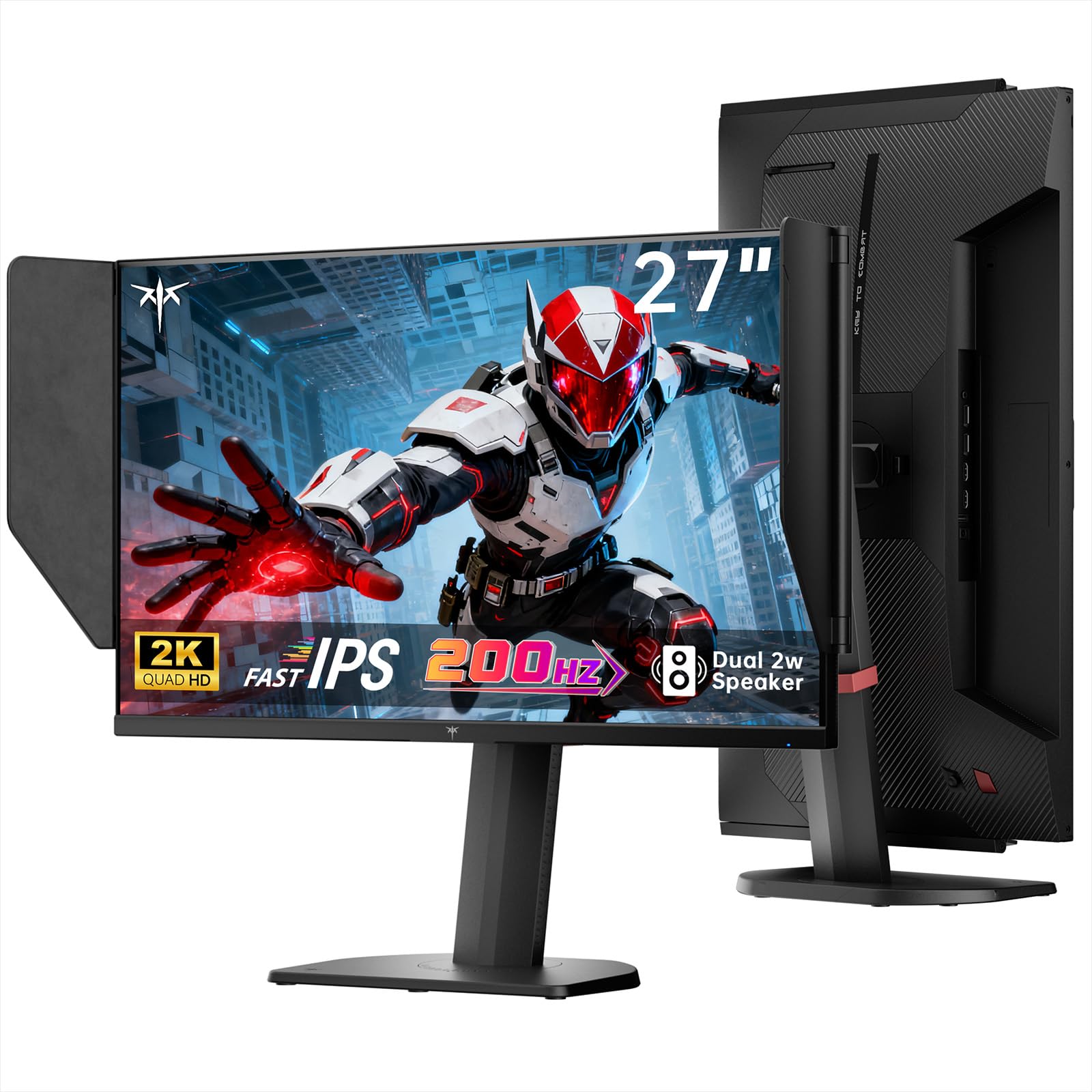
Image: The KTC 27M1 monitor with its stand fully assembled, ready for use.
3.2 Attaching the Shielding Hood
The shielding hood helps reduce glare and reflections for an optimal viewопыт.
- Locate the two shielding hood pieces.
- Align each piece with the designated slots on the sides of the monitor and gently slide them into place until secure.

Image: The KTC 27M1 monitor shown with the shielding hood attached, designed to block reflected light.
3.3 Подключение кабелей
Подключите монитор к компьютеру или другим устройствам с помощью соответствующих кабелей:
- DisplayPort (ДП): For 200Hz (overclockable to 210Hz) refresh rates, connect the DP cable from your graphics card to the monitor's DP 1.4 port.
- HDMI: For 144Hz refresh rates, connect an HDMI 2.0 cable from your device to one of the monitor's HDMI ports.
- Власть: Connect the power adapter to the DC input on the monitor, then plug the power cord into a wall outlet.
- Аудио: Connect headphones or external speakers to the 3.5mm earphone jack if desired.

Изображение: Крупный план view of the KTC 27M1 monitor's rear ports, including HDMI, DisplayPort, USB, and earphone jack.
4. Инструкция по эксплуатации
4.1 Включение/выключение питания
Press the 5-way navigation joystick located on the back of the monitor to power it on or off.
4.2 Навигация по экранному меню
The 5-way navigation joystick is used to access and navigate the On-Screen Display (OSD) menu:
- Нажмите джойстик, чтобы открыть экранное меню.
- Для навигации по пунктам меню перемещайте джойстик вверх/вниз/влево/вправо.
- Press the joystick again to select an option or confirm a setting.
- Move the joystick Left to go back to the previous menu or exit the OSD.
4.3 Настройка параметров дисплея
В экранном меню можно настроить различные параметры отображения:
- Контраст яркости: Отрегулируйте общие уровни яркости и контрастности.
- Настройки цвета: Modify color temperature (Warm, Cool, User), gamma, hue, and saturation. The monitor offers 130% sRGB color gamut and ΔE<2 for accurate color reproduction.
- Игровая настройка: Enable/disable Adaptive Sync (FreeSync/G-Sync Compatible), adjust Overdrive (Ultra Fast recommended for gaming), and activate Game Assist features.
- Расширенные настройки: Toggle HDR (Auto/Off) and OverClock (to achieve 210Hz refresh rate).
- Вход: Manually select the input source (DP, HDMI1, HDMI2).
- Системный набор: Change OSD language, LED indicator, audio volume, and other system preferences.
4.4 Эргономические настройки
The monitor stand supports multiple ergonomic adjustments for comfortable viewing:
- Регулировка высоты: Adjust the monitor height by 150±5mm.
- Наклон: Tilt the screen from -5° to 35°.
- Поворотный: Swivel the monitor ±60°.
- Вращаться: Pivot the screen from -5° to 90° for vertical orientation.

Image: Visual representation of the KTC 27M1 monitor's tilt, swivel, elevate, and pivot adjustments.
5. Особенности
- Отображать: 27-inch QHD (2560x1440) Fast IPS panel.
- Частота обновления: 200Hz, overclockable to 210Hz.
- Время ответа: 1ms (MPRT) for sharp visuals.
- Точность цветопередачи: 130% sRGB color gamut, 99% DCI-P3 coverage, ΔE<2, 450 cd/m² brightness, 1.07 Billion Colors, 1000:1 Contrast Ratio.
- Адаптивная синхронизация: FreeSync and G-Sync Compatible to eliminate screen tearing.
- Уход за глазами: Flicker-free and low blue light modes for extended comfortable viewинж.
- Аудио: Встроенные два динамика мощностью 2 Вт.
- Связь: 2x HDMI 2.0 ports, 1x DisplayPort 1.4 port, 1x USB 2.0 port, 1x Earphone jack.
- Монтаж: 100x100mm VESA mount compatible.
- Дизайн: Includes a detachable shielding hood to block reflected light.

Image: The KTC 27M1 monitor displaying vibrant colors, highlighting its color accuracy and brightness features.
6. Технические характеристики
| Особенность | Спецификация |
|---|---|
| Бренд | КТС |
| Номер модели | H27T8 (Marketed as 27M1) |
| Размер экрана | 27 дюйма |
| Собственное разрешение | 2560x1440 (QHD) |
| Технология отображения | Почти IPS |
| Частота обновления | 200 Hz (Overclockable to 210 Hz) |
| Время отклика | 1 миллисекунда (MPRT) |
| Яркость | 450 кандел (кд/м²) |
| Коэффициент контрастности | 1000:1 |
| Цветовая гамма | 130% sRGB, 99% DCI-P3 |
| Viewугол наклона | 178 градусов |
| Поддержка HDR | Да |
| Адаптивная синхронизация | FreeSync, G-Sync Compatible |
| Встроенные динамики | 2x 2W Speakers |
| Связность | 2x HDMI 2.0, 1x DisplayPort 1.4, 1x USB 2.0, 1x Earphone |
| VESA Mount | 100x100мм |
| Эргономика | Регулировка высоты, наклона, поворота и вращения. |
| Потребляемая мощность | 48 Вт |
7. Техническое обслуживание и уход
- Очистка экрана: Аккуратно протрите экран мягкой тканью без ворса. Для удаления стойких загрязнений используйтеampen the cloth with a mild, non-abrasive screen cleaner.
- Очистка Casing: Для чистки монитора используйте мягкую сухую ткань.asinг. Избегайте использования сильных моющих средств или абразивных чистящих средств.
- Вентиляция: Ensure the ventilation openings on the monitor are clear and unobstructed to prevent overheating.
- Хранилище: При длительном хранении монитора отключите его от питания и храните в прохладном, сухом месте.
8. Поиск Неисправностей
8.1 Нет питания
- Проверьте, надежно ли подключен шнур питания к монитору и розетке.
- Убедитесь в исправности розетки, подключив к ней другое устройство.
- Убедитесь, что адаптер питания подключен правильно.
8.2 No Signal/Blank Screen
- Confirm that the video cable (DP or HDMI) is securely connected to both the monitor and your computer/device.
- Press the OSD joystick to open the menu and manually select the correct input source.
- Убедитесь, что ваш компьютер/устройство включено и не находится в спящем режиме.
- Try using a different video cable or port to rule out cable/port issues.
8.3 Flickering/Distorted Image
- Проверьте видеокабель на наличие повреждений или ослабленных соединений.
- Adjust the refresh rate in your computer's display settings to match the monitor's native refresh rate (200Hz or 210Hz if overclocked).
- Enable Adaptive Sync (FreeSync/G-Sync Compatible) in the monitor's OSD menu and your graphics card settings.
- Убедитесь, что драйверы вашей видеокарты обновлены.
8.4 No Sound from Built-in Speakers/Earphone Jack
- Check the volume settings in the monitor's OSD menu and your computer's operating system.
- Убедитесь, что в настройках звука вашего компьютера выбрано правильное устройство вывода звука.
- Verify that the audio cable (if using external speakers) or headphones are properly connected.
9. Гарантия и поддержка
KTC is committed to providing quality service and support for your monitor.
- Гарантия: This product comes with a 3-year quality guarantee.
- Техническая поддержка: Lifetime technical support is available for all KTC products.
- Связаться с нами: If you have any questions or encounter issues, please contact KTC customer support. Solutions will be provided within 24 hours.