
1. Введение и окончаниеview
This manual provides essential information for setting up, operating, maintaining, and troubleshooting your HP 17-inch Business Laptop. This device is designed for productivity and features a 13th Generation Intel Core i5 processor, a 17.3-inch HD+ anti-glare display, a backlit keyboard with a numeric keypad, and a fingerprint reader for enhanced security. It comes pre-installed with Windows 11 Home.
Ключевые особенности включают в себя:
- Процессор: 13th Gen Intel Core i5-1334U 10-core processor for efficient multitasking.
- Операционная система: Windows 11 Home for a modern and secure computing experience.
- Отображать: 17.3-inch HD+ (1366x768) anti-glare screen with micro-edge design.
- Память и хранение: Up to 64GB DDR4 RAM and up to 2TB NVMe M.2 SSD for fast performance and ampле хранения.
- Связь: USB 3.2 Gen 1 Type-C, USB 3.2 Gen 1 Type-A, HDMI 1.4, and a headphone/microphone combo jack.
- Безопасность: Integrated fingerprint reader.
- Удобство: Full-size backlit keyboard with numeric keypad and HP Fast Charge battery technology.
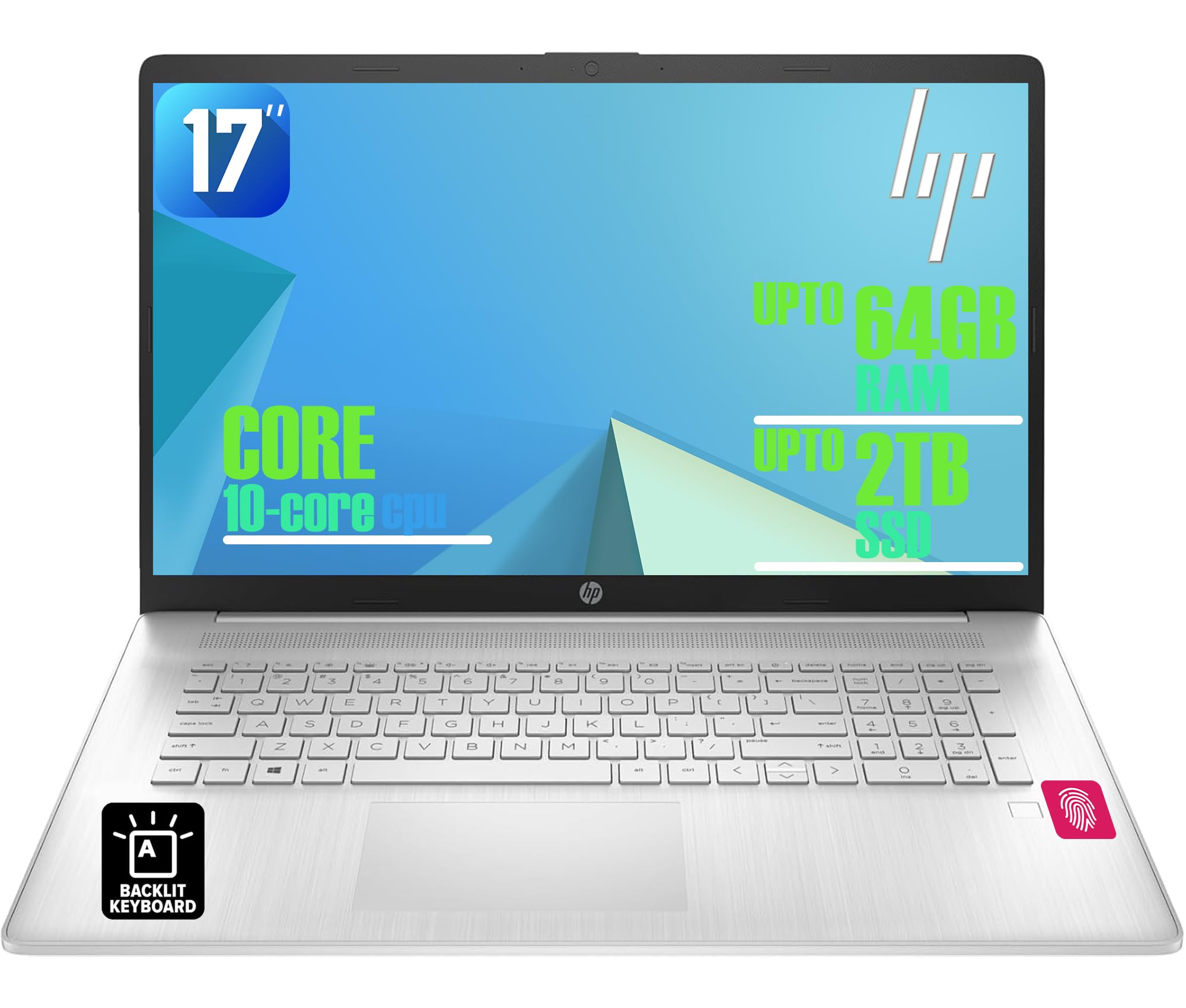
Figure 1: HP 17-inch Business Laptop (Silver)
2. Настройка
2.1 Распаковка и первоначальный осмотр
Carefully remove the laptop and all accessories from the packaging. Check for any visible damage. The package should include the HP 17-inch laptop, a power adapter, and documentation.
2.2 Подключение к источнику питания
- Connect the power adapter to the AC smart pin port on the side of the laptop.
- Подключите адаптер питания к розетке.
- Дайте ноутбуку заряжаться не менее 30 минут перед первым использованием или пока индикатор батареи не покажет достаточный уровень заряда.
2.3 Первоначальная загрузка и установка Windows
- Откройте крышку ноутбука и нажмите кнопку питания, которая обычно расположена в правом верхнем углу клавиатуры.
- Следуйте инструкциям на экране для завершения процесса настройки Windows 11 Домашняя. Это включает в себя выбор региона, языка, подключение к сети Wi-Fi и создание учётной записи пользователя.
2.4 Подключение периферийных устройств
Ваш ноутбук HP оснащен различными портами для подключения внешних устройств:
- USB-порты: Use the USB 3.2 Gen 1 Type-C port or the two USB 3.2 Gen 1 Type-A ports for connecting external drives, mice, keyboards, or other USB accessories.
- HDMI: Подключите внешний монитор или проектор через порт HDMI 1.4.
- Аудио: Plug headphones or an external microphone into the 3.5mm headphone/microphone combo jack.

Рисунок 2: Сторона view illustrating available ports (USB Type-C, USB Type-A, HDMI, Headphone/microphone combo, AC smart pin)
3. Работа с ноутбуком
3.1 Управление питанием
- Включение питания: Нажмите кнопку питания.
- Спящий режим: Закройте крышку или выберите «Сон» в меню «Пуск».
- Неисправность: Выберите пункт «Выключить» в меню «Пуск».
- Перезапуск: Выберите пункт «Перезапустить» в меню «Пуск».
3.2 Клавиатура и сенсорная панель
The laptop features a full-size backlit keyboard with a numeric keypad. Use the function keys (Fn) in combination with other keys for specific actions like adjusting screen brightness, volume, or toggling the keyboard backlight.
The integrated touchpad supports multi-touch gestures for navigation. Refer to Windows settings for customizing touchpad behavior.

Figure 3: Backlit keyboard with numeric keypad and integrated fingerprint reader
3.3 считывателей отпечатков пальцев
The integrated fingerprint reader allows for secure and quick login using Windows Hello. To set up, navigate to Настройки > Учетные записи > Параметры входа и следуйте инструкциям для регистрации отпечатков пальцев.
3.4. Беспроводное подключение
- Wi-Fi: The laptop supports Realtek Wi-Fi 6 (2x2). To connect to a wireless network, click the Wi-Fi icon in the taskbar, select your desired network, and enter the password if required.
- Bluetooth: Bluetooth 5.3 is integrated for connecting wireless accessories like headphones or mice. Enable Bluetooth from Настройки > Bluetooth и устройства and pair your devices.
3.5 Дисплей и Webкулачок
The 17.3-inch HD+ anti-glare display provides a clear viewing experience. The HP True Vision 720p HD webcam with dual microphones is suitable for video calls and online meetings.
3.6 л.с. QuickDrop
HP QuickDrop allows for wireless file transfer between your laptop and mobile devices without needing cables. Install the HP QuickDrop app on both your laptop and mobile device and follow the in-app instructions to pair and transfer files.

Figure 4: HP QuickDrop for wireless file transfer between laptop and phone
4. Техническое обслуживание
4.1 Чистка ноутбука
- Экран: Слегка используйте мягкую безворсовую ткань.ampСмочите экран водой или очистителем для экранов. Не распыляйте жидкость непосредственно на экран.
- Клавиатура и корпус: Используйте мягкую сухую ткань. Для удаления стойких загрязнений используйте слегка мягкую ткань.amp cloth can be used, ensuring no liquid enters the device. Compressed air can help remove debris from between keys.
4.2 Уход за аккумулятором
The laptop is equipped with a 41Wh Lithium-Ion Battery. To maximize battery lifespan:
- Избегайте экстремальных температур.
- Не допускайте полной разрядки аккумулятора регулярно.
- Utilize HP Fast Charge, which can charge the battery from 0 to 50% in approximately 45 minutes.

Figure 5: Battery life indicator (Up to 8 hours wireless streaming)
4.3 Обновления программного обеспечения
Регулярно проверяйте наличие обновлений Windows и устанавливайте их, чтобы ваша система была оснащена последними исправлениями безопасности и улучшениями производительности. Перейти к Настройки > Центр обновления Windows для управления обновлениями.
5. Поиск Неисправностей
В этом разделе рассматриваются распространенные проблемы, с которыми вы можете столкнуться при использовании ноутбука HP.
5.1 Проблемы с питанием
- Ноутбук не включается: Ensure the power adapter is securely connected to both the laptop and a working power outlet. Check if the power adapter's indicator light is on. Try a different outlet.
- Аккумулятор не заряжается: Проверьте подключение адаптера питания. Проверьте состояние аккумулятора в настройках Windows.
5.2 Проблемы с отображением
- Нет изображения на экране: Ensure the laptop is powered on. If an external monitor is connected, try disconnecting it or pressing Фн + Ф4 (or the corresponding display toggle key) to switch display output.
- Затемнить экран: Adjust brightness using the function keys (e.g., Fn + F2 / F3) or through Windows settings.
5.3 Проблемы с подключением
- Wi-Fi не подключается: Убедитесь, что Wi-Fi включен в настройках Windows. Перезагрузите маршрутизатор и ноутбук. Проверьте наличие обновленных сетевых драйверов.
- Устройство Bluetooth не подключается: Убедитесь, что Bluetooth включён как на ноутбуке, так и на устройстве. Убедитесь, что устройство находится в режиме сопряжения.
5.4 Общие вопросы производительности
- Низкая производительность: Close unnecessary applications. Check for malware. Ensure sufficient free space on the SSD.
- Система зависает: Нажимать Ctrl + Alt + Del to open Task Manager and end unresponsive tasks. If unresponsive, perform a hard shutdown by holding the power button for several seconds.
6. Технические характеристики
The following table outlines the key technical specifications for the HP 17-inch Business Laptop (Model: HP laptop).
| Особенность | Спецификация |
|---|---|
| Бренд | HP |
| Название модели | ноутбук HP |
| Процессор | 13th Gen Intel Core i5-1334U (10 Cores, up to 4.6 GHz) |
| Операционная система | Windows 11 Домашняя |
| Отображать | 17.3-inch HD+ (1366x768) Anti-glare, 250 nits |
| Графика | Intel Iris Xe Graphics (интегрированная) |
| Оперативная память | Up to 64GB DDR4 SDRAM 3200 MHz |
| Хранилище | Твердотельный накопитель NVMe M.2 объемом до 2 ТБ |
| Беспроводное подключение | Realtek Wi-Fi 6 (2x2), Bluetooth 5.3 |
| Порты | 1x USB 3.2 Gen 1 Type-C, 2x USB 3.2 Gen 1 Type-A, 1x HDMI 1.4, 1x Headphone/microphone combo jack |
| Клавиатура | Полноразмерная клавиатура с подсветкой и цифровой панелью. |
| Безопасность | Считыватель отпечатков пальцев |
| Камера | Камера HD 720p с защитной шторкой |
| Аккумулятор | 41Wh Lithium-Ion (HP Fast Charge) |
| Размеры (Д x Ш x В) | 15.78" x 10.15" x 0.81" (приблизительно) |
| Масса | 4.6 фунтов (приблизительно) |
| Цвет | Натуральное серебро |

Figure 6: Laptop dimensions (15.78" W x 10.15" D x 0.78" H) and weight (4.60 lbs)
7. Гарантия и поддержка
7.1 Гарантия производителя
Your HP laptop is covered by a manufacturer's warranty. Please refer to the warranty documentation included with your product for specific terms, conditions, and duration. Keep your proof of purchase for warranty claims.
7.2 Техническая поддержка
Для получения технической помощи, загрузки драйверов или дополнительной поддержки посетите официальный сайт поддержки HP. website. You will typically need your product's serial number or model number to access specific support resources.
Онлайн поддержка: https://support.hp.com