
1. Введение
This manual provides essential information for the safe and efficient use of your coocaa DOSHISHA 32Z65 32-inch Google TV. Please read these instructions thoroughly before operating the television and retain them for future reference. This smart TV integrates advanced features for an enhanced viewопыт.

Изображение: Спереди view of the coocaa DOSHISHA 32Z65 32-inch Google TV.
2. Особенности продукта
- Встроенные тюнеры: Equipped with terrestrial digital, BS, and CS tuners (two of each) for comprehensive broadcast reception.
- Pre-installed Streaming Apps: Access popular services like Netflix, YouTube, Prime Video, and Google Play directly. Additional applications can be downloaded from the Google Play Store.
- Google Ассистент: Utilize voice commands to search for movies, stream apps, play music, and control TV functions hands-free.
- Долби Вижн: Experience superior HDR technology with stunning brightness, deep blacks, and vibrant colors for a cinematic visual experience.
- Долби Атмос: Enjoy three-dimensional, dynamic sound that complements the visuals, providing an immersive audio experience with clear detail.
- Dolby Audio + DTS: Delivers an immersive soundscape with precise audio detail for movies, music, and games.
- Chameleon Extreme: An advanced image processing engine that optimizes clarity, sharpness, and color accuracy at the pixel level for an exceptional visual experience.
- Режим кинорежиссера: Activates a mode that bypasses unnecessary image processing, reproducing content as the director intended for an authentic cinematic feel.
- Remote Search Function: A built-in speaker in the remote control allows for easy location with a simple 3-step operation. Note: Remote pairing is required for this feature.
- Без мерцания: Reduces screen flicker to minimize eye strain and allow for focused viewing of movies and dramas.
- Низкий уровень синего света: coocaa's proprietary blue light reduction technology ensures comfortable and eye-friendly viewing even during extended periods.
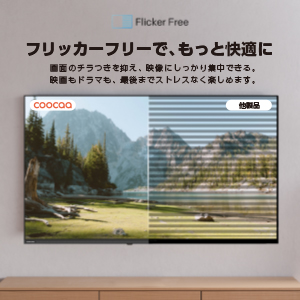
Image: Visual representation of Chameleon Extreme technology enhancing color and clarity.

Image: A television screen displaying a movie scene with palm trees, illustrating Filmmaker Mode.

Image: The Google TV home screen with various streaming app icons and content recommendations.

Image: Comparison showing a screen with and without blue light reduction, highlighting the Low Blue Light feature.
3. Настройка
3.1 Распаковка и первоначальное размещение
Аккуратно извлеките телевизор из упаковки. Установите его на устойчивую ровную поверхность или закрепите на стене с помощью совместимого крепления VESA (продаётся отдельно). Обеспечьте достаточную вентиляцию вокруг телевизора.
3.2 Подключение периферийных устройств
- Подключение питания: Подключите шнур питания к телевизору, а затем к розетке.
- Подключение антенны/кабеля: Connect your antenna or cable TV source to the appropriate input on the TV.
- HDMI-устройства: Connect external devices such as Blu-ray players, game consoles, or soundbars to the HDMI ports.
- External HDD: For recording, connect a compatible external HDD to the USB port.

Изображение: сзади view of the TV highlighting various input ports.
3.3 Мастер первоначальной настройки
При первом включении телевизор проведет вас через процесс первоначальной настройки. Он включает в себя:
- Выбор языка.
- Сетевое подключение (Wi-Fi или Ethernet).
- Вход в учетную запись Google для использования функций Google TV.
- Сканирование каналов для просмотра телепередач.
- Remote control pairing (if prompted).
4. Инструкция по эксплуатации
4.1 Функции дистанционного управления
The included remote control allows you to navigate the TV's interface, adjust settings, and access smart features. Familiarize yourself with the buttons for power, volume, channel, input selection, and dedicated app buttons.

Image: The remote control for the coocaa DOSHISHA 32Z65 TV.
4.2 Навигация Google TV
The Google TV interface organizes your content from various streaming services and live TV in one place. Use the remote's directional pad to browse recommendations, access your apps, and manage your library.
4.3 Использование Google Ассистента
Нажмите кнопку Google Assistant на пульте дистанционного управления и говорите в микрофон, чтобы:
- Искать фильмы, телешоу или актеры.
- Открытые приложения.
- Управление умными домашними устройствами.
- Получите сводку погоды или задайте общие вопросы.
4.4 External HDD Recording
To record broadcast programs, connect an external HDD to the TV's USB port. Follow the on-screen prompts to format the drive if necessary. You can schedule recordings or record the current program. The TV supports background recording, allowing you to watch one program while another is being recorded.
5. Техническое обслуживание
5.1 Чистка телевизора
Чтобы очистить экран, аккуратно протрите его мягкой сухой тканью без ворса. Для удаления стойких загрязнений слегка потрите.ampПротрите ткань водой или специальным раствором для чистки экрана. Избегайте использования агрессивных химикатов или абразивных материалов. Для корпуса телевизора используйте мягкую сухую ткань.
5.2 Обновления программного обеспечения
Ensure your TV's software is up to date for optimal performance and security. The TV may automatically prompt you for updates when connected to the internet. You can also manually check for updates in the settings menu.
6. Поиск Неисправностей
Если у вас возникли проблемы с телевизором, воспользуйтесь следующими распространенными решениями:
- Нет питания: Check if the power cord is securely connected to both the TV and the power outlet. Ensure the outlet is functioning.
- Нет изображения/звука: Убедитесь, что выбран правильный источник входного сигнала. Проверьте все кабельные соединения (HDMI, антенна).
- Удаленно не отвечает: Replace the batteries in the remote control. Ensure there are no obstructions between the remote and the TV. If the remote search function is not working, ensure it is paired.
- Проблемы с сетевым подключением: Перезагрузите маршрутизатор и модем. Подключите телевизор к сети Wi-Fi или проверьте подключение по кабелю Ethernet.
- Приложение не работает: Try restarting the app. If the issue persists, clear the app's cache or reinstall it from the Google Play Store.
По более сложным вопросам обращайтесь в службу поддержки клиентов.
7. Технические характеристики
| Особенность | Спецификация |
|---|---|
| Размер экрана | 32 дюймов |
| Тип дисплея | ЖК-дисплей |
| Разрешение | Высокое разрешение |
| Соотношение сторон | 16:9 |
| Частота обновления | 60 Гц |
| Коэффициент контрастности | 1200:1 |
| HDMI-порты | 2 |
| Сетевое подключение | HDMI, Wireless (Infrared) |
| Особенности динамика | Built-in Speakers (Dolby Audio + DTS) |
| Размеры продукта (Д x Ш x В) | 18.8 х 71.8 х 48 см |
| Вес продукта | 3.4 кг |
| Годовое потребление энергии | 39.9 кВтч/год |
| Номер модели | 32Z65 |
8. Официальные видеоролики о продукте
8.1 Google TV System Introduction
Video: An introduction to the Google TV system, showcasing its features and user interface. This video demonstrates how Google TV organizes content and provides personalized recommendations.
9. Гарантия и поддержка
Your coocaa DOSHISHA 32Z65 TV comes with a manufacturer's warranty. Please refer to the warranty card included in the packaging for details on coverage and duration. For technical support, service, or warranty claims, please contact DOSHISHA customer service through their official channels. Contact information can typically be found on the warranty card or the manufacturer's webсайт.