
1. Введение
Welcome to the user manual for your SGIN Android Tablet 10.1 Inch, Model GE8300. This manual provides essential information for setting up, operating, maintaining, and troubleshooting your new tablet. Designed with children in mind, this tablet features a durable case, parental controls, and pre-installed educational content through Kidoz software. Please read this manual thoroughly to ensure proper use and to maximize your tablet's potential.
2. Продукт закончилсяview
The SGIN Android Tablet 10.1 Inch is equipped with a 10.1-inch HD IPS display, a quad-core processor, 4GB RAM, and 64GB of internal storage. It runs on Android 13 and includes a protective case with an adjustable bracket.
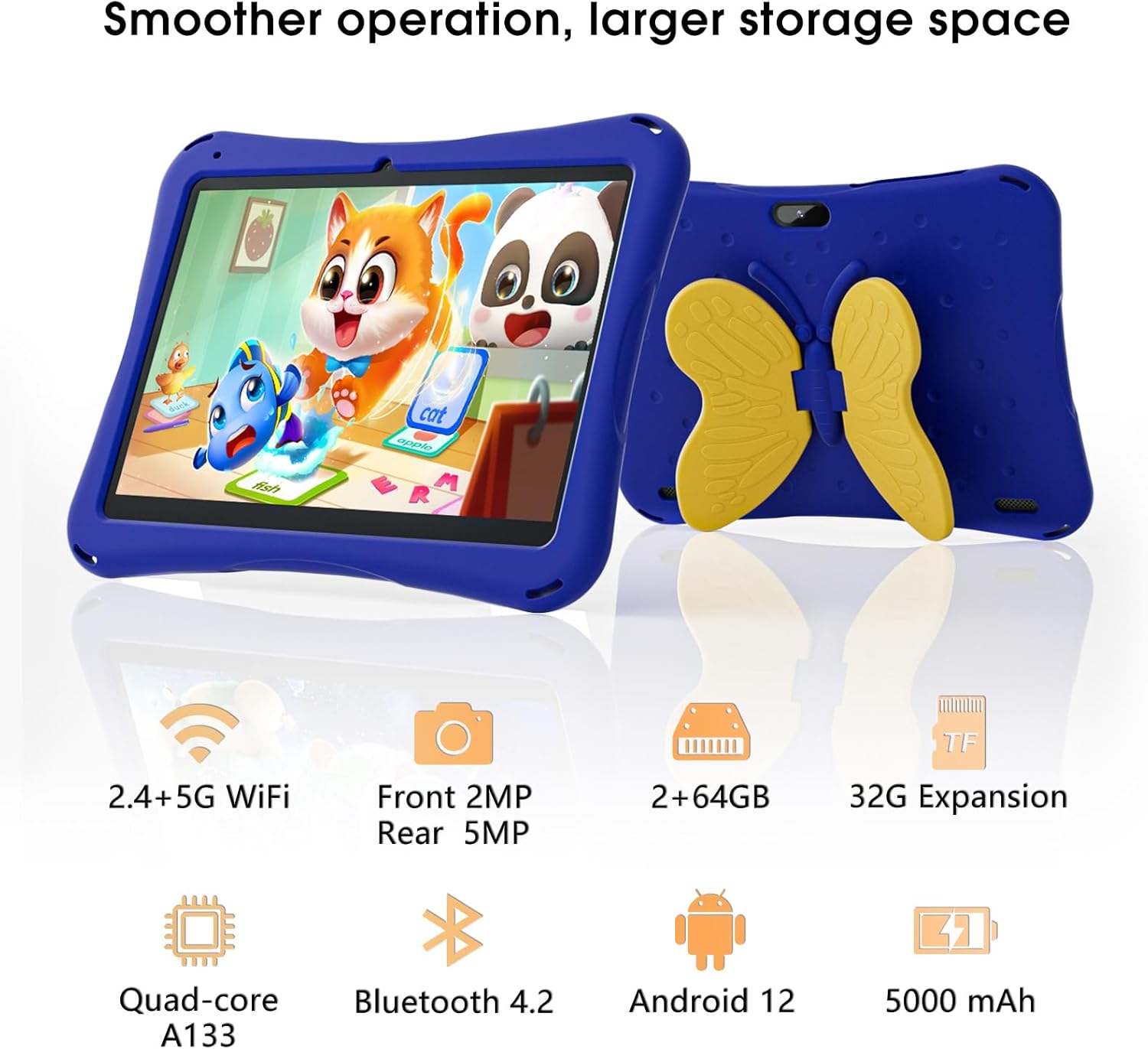
Image: SGIN Android Tablet 10.1 Inch with its protective blue case and yellow butterfly stand.
Компоненты планшета

Image: Detailed diagram illustrating the various components and ports of the SGIN Android Tablet.
- Фронтальная камера: Для видеозвонков и селфи.
- Задняя камера: Для фото- и видеосъемки.
- Спикеры: Для аудиовыхода.
- Порт Type-C: Для зарядки и передачи данных.
- Слот для TF-карты: Для расширяемого хранилища.
- Порт для наушников: Для подключения проводных наушников.
- Увеличить громкость: Button to raise the audio level.
- Уменьшить громкость: Button to lower the audio level.
- Кронштейн: Adjustable stand integrated into the protective case.
3. Настройка
3.1 Зарядка планшета
Before first use, fully charge the tablet using the provided Type-C cable and power adapter. The 5000mAh battery provides approximately 6-8 hours of usage on a full charge. A charging indicator will typically appear on the screen.
3.2 Включение/выключение питания
- Для включения: Press and hold the power button (usually located on the side) until the SGIN logo appears.
- Чтобы выключить: Нажмите и удерживайте кнопку питания, затем выберите «Выключить» в списке доступных опций на экране.
- Начать заново: Нажмите и удерживайте кнопку питания, затем выберите «Перезапустить» из предложенных вариантов.
3.3 Первоначальная настройка и подключение по Wi-Fi
Upon first power-on, follow the on-screen prompts to complete the initial Android 13 setup. This includes selecting your language, region, and connecting to a Wi-Fi network. The tablet supports both 2.4G and 5G Wi-Fi for stable internet connectivity.
- Перейти к Настройки > Сеть и интернет > Wi-Fi.
- Включить Wi-Fi On.
- Выберите нужную сеть из списка.
- Введите пароль, если потребуется, затем нажмите Соединять.
4. Инструкция по эксплуатации
4.1 Базовая навигация
The tablet uses a touch-sensitive screen for navigation. Common gestures include tapping to select, swiping to scroll, pinching to zoom, and long-pressing for additional options.
4.2 Использование камеры
The tablet features a 2MP front-facing camera and a 5MP rear camera. To use the camera:
- Откройте Камера приложение.
- Select between front and rear cameras using the switch icon.
- Нажмите кнопку спуска затвора, чтобы сделать фотографию или начать/остановить запись видео.
4.3 Управление хранением
The tablet comes with 64GB of internal storage. If more space is needed, you can expand it by inserting a TF (microSD) card into the TF card slot. The tablet supports expansion up to 34GB.
4.4. Bluetooth-подключение
The tablet supports Bluetooth 4.2 for connecting to wireless accessories such as headphones or speakers.
- Перейти к Настройки > Подключенные устройства > Настройки подключения > Bluetooth.
- Переключить Bluetooth On.
- Выберите своё устройство из списка доступных устройств для сопряжения.
5. Parental Control Features
The SGIN tablet includes a built-in parental control security system to manage your child's usage and content access.
- Установить пароли: Create a password to secure parental control settings.
- Ограничения экранного времени: Define daily usage limits for the tablet.
- Фильтрация контента: Eliminate unwanted ads and create specific media files or approved websites for your children.
- Multiple Accounts: Set up individual accounts for each child, allowing personalized settings and content access.
6. Kidoz Kids Software
The tablet comes with the Kidoz Kid's software pre-installed, offering a safe and engaging environment for children.
- Accessing Kidoz: Запустите приложение Kidoz с главного экрана.
- Детский магазин: Explore thousands of free games and educational apps available for download within the Kidoz environment.
- Образовательный контент: Kidoz provides content that supports learning in subjects like math, language, music, and painting.
7. Техническое обслуживание
7.1 Очистка
Use a soft, lint-free cloth to clean the screen and the tablet's body. For stubborn smudges, slightly dampСмочите ткань водой. Избегайте использования агрессивных химикатов и абразивных материалов.
7.2 Уход за аккумулятором
To prolong battery life, avoid exposing the tablet to extreme temperatures. Charge the tablet regularly and avoid letting the battery completely drain frequently.
7.3 Обновления программного обеспечения
Для обеспечения оптимальной производительности и безопасности периодически проверяйте наличие обновлений системы. Перейдите по ссылке: Настройки > Система > Обновление системы.
7.4 Защитный чехол
The included kid-proof case is designed to protect the tablet from dust, bumps, and drops. It also features a hollow design for heat dissipation. Ensure the tablet is properly seated within the case for maximum protection.

Image: The durable anti-drop protective case with its adjustable bracket.
8. Поиск Неисправностей
If you encounter issues with your SGIN tablet, refer to the following common solutions:
- Планшет не включается: Убедитесь, что планшет заряжен. Подключите его к зарядному устройству и подождите несколько минут, прежде чем снова попытаться включить.
- Неотвечающий экран: If the screen becomes unresponsive, try restarting the tablet by holding down the power button for approximately 10-15 seconds until it powers off, then power it on normally.
- Проблемы с подключением к Wi-Fi: Check if other devices can connect to the Wi-Fi network. Restart your Wi-Fi router. On the tablet, forget the network and reconnect.
- Низкая производительность: Close unused applications running in the background. Clear cache data for apps. Consider performing a factory reset if performance issues persist (back up important data first).
- Сбои приложений: Ensure apps are updated to their latest versions. Clear the app's cache and data via Настройки > Приложения > [Название приложения] > Хранилище и кэш.
Если проблемы не удалось решить с помощью этих шагов, обратитесь в службу поддержки клиентов.
9. Технические характеристики
Key technical specifications for the SGIN Android Tablet 10.1 Inch Model GE8300:
| Особенность | Спецификация |
|---|---|
| Номер модели | GE8300 |
| Размер экрана | 10.1 дюйма |
| Разрешение дисплея | 1280 x 800 пикселей (HD IPS) |
| Процессор | 1.6 ГГц, четырехъядерный (Allwinner A133) |
| БАРАН | 4 ГБ (2 ГБ физической + 2 ГБ расширяемой) |
| Внутреннее хранилище | 64 ГБ ПЗУ |
| Расширяемое хранилище | До 34 ГБ через карту памяти TF. |
| Операционная система | Андроид 13 |
| Емкость аккумулятора | 5000мАч |
| Передняя камера | 2МП |
| Задняя камера | 5МП |
| Беспроводное подключение | 2.4G/5G Wi-Fi, Bluetooth 4.2 |
| Цвет | Темно-синий |
| Размеры посылки | 32.2 x 20.4 x 4.7 см; 1.04 кг |
10. Гарантия и поддержка
10.1 Гарантия на продукт
The SGIN Android Tablet 10.1 Inch Model GE8300 comes with a Гарантия 1 год с даты покупки. Данная гарантия распространяется на производственные дефекты при условии нормального использования. Сохраните чек для предъявления гарантийных претензий.
10.2 Поддержка клиентов
If you require further assistance or have questions not covered in this manual, please contact SGIN customer support. Refer to the product packaging or the official SGIN webсайт для получения самой актуальной контактной информации.