
1. Введение
The ThermoPro WiFi Hygrometer Thermometer provides accurate, real-time monitoring of temperature and humidity levels in your environment. This device connects to your smartphone via Wi-Fi and Bluetooth, allowing for remote tracking, data storage, and instant alerts. Designed for reliability and ease of use, it helps maintain optimal conditions for various applications.

Image 1.1: ThermoPro WiFi Hygrometer Thermometer and its companion app interface.
2. Что в коробке
- WiFi Hygrometer Thermometer
- Зарядный кабель
- Руководство по эксплуатации
3. Особенности продукта
- Wireless Real-Time Tracking: Stable Wi-Fi and Bluetooth connectivity via the ThermoPro App for remote data monitoring. Requires a 2.4GHz Wi-Fi network.
- Высокоточный датчик: Equipped with an advanced NTC humidity sensor, providing ±0.5°F temperature and ±2% humidity accuracy with fast response.
- Хранение и экспорт данных в течение 2 лет: Supports 24/7 data tracking and allows export of minute/hourly records for detailed analysis.
- Уведомления об уведомлениях: Set personalized thresholds for humidity and temperature to receive instant notifications when levels exceed limits.
- Увеличенный срок службы батареи: Features a rechargeable design for stable signal transmission and extended operation without frequent battery replacement.
- Универсальное использование: Suitable for monitoring diverse locations such as bedrooms, offices, greenhouses, garages, RVs, crawl spaces, attics, and more.

Изображение 3.1: оконченоview of the Smart Thermo-Hygrometer's key features.

Image 3.2: Details on the device's temperature and humidity accuracy.
4. Настройка
4.1 Загрузка и установка приложения
To begin using your ThermoPro WiFi Hygrometer Thermometer, download the 'ThermoPro Sensor' app from your device's app store (available on iOS and Android).
4.2 Сопряжение устройств и подключение к Wi-Fi
- Open the 'ThermoPro Sensor' app and register for an account.
- Убедитесь, что Bluetooth включен на вашем смартфоне.
- In the app, tap the '+' icon to add a new device. The app will search for your ThermoPro sensor.
- Follow the on-screen instructions to connect your device to your 2.4GHz Wi-Fi network. This enables remote monitoring.
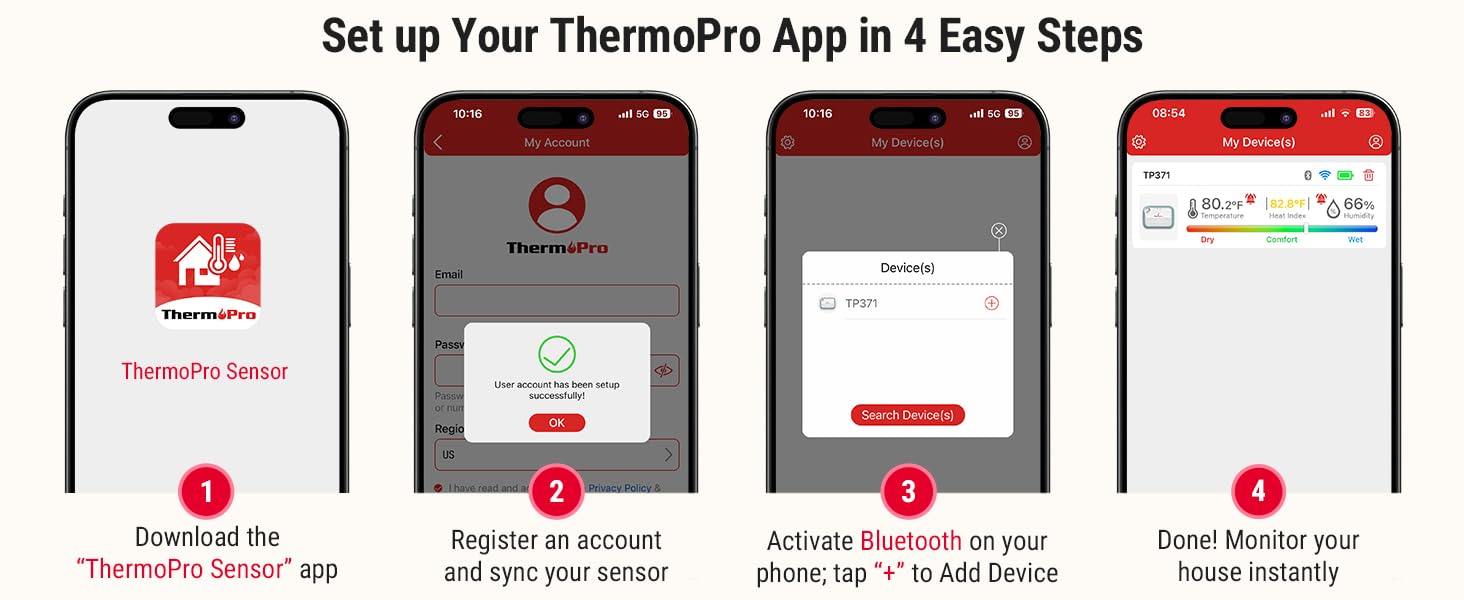
Image 4.1: Step-by-step guide for initial app setup and device connection.
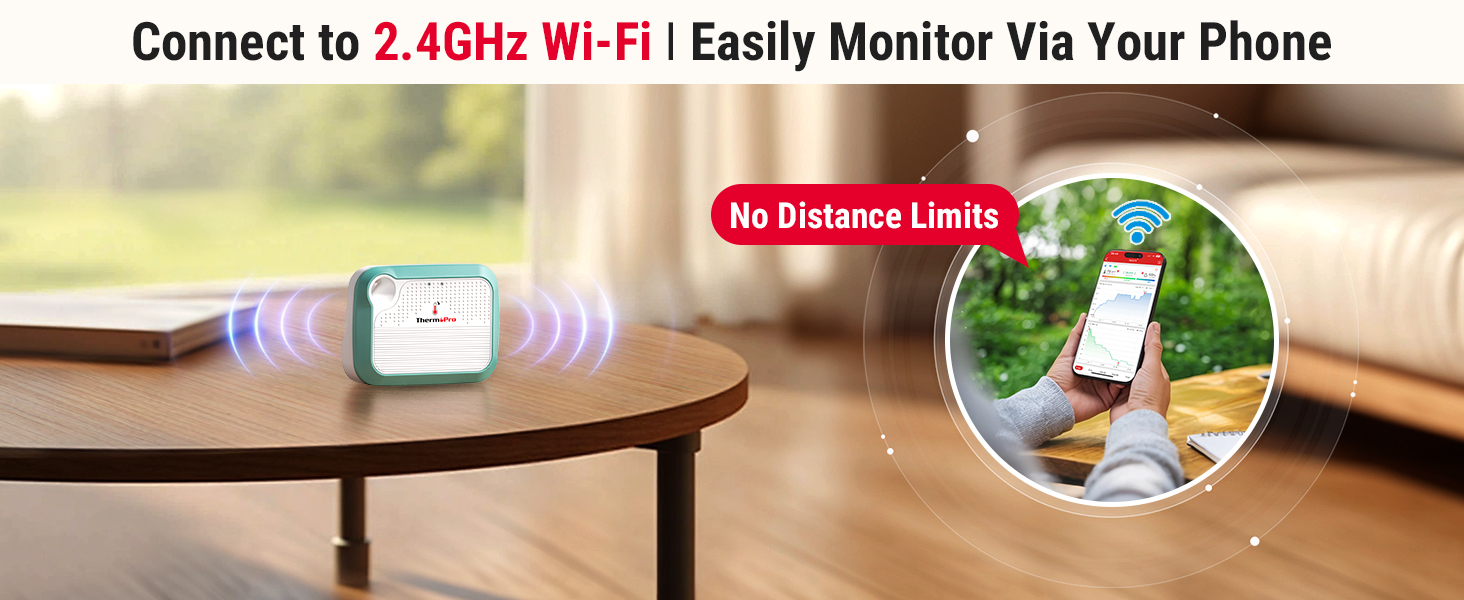
Image 4.2: Visual representation of seamless Wi-Fi connectivity.
5. Инструкция по эксплуатации
5.1 App Interface and Real-Time Monitoring
Once connected, the ThermoPro app displays real-time temperature and humidity readings. You can view historical data, current conditions, and a comfort indicator (Dry, Comfort, Wet) based on humidity levels.

Image 5.1: Comfort indicator displayed on the ThermoPro app.
5.2 Setting Up Alerts
To set custom temperature and humidity thresholds:
- Navigate to the 'Alert Setting' section within the app.
- Define your desired minimum and maximum values for temperature and humidity.
- The app will send instant notifications to your smartphone if readings fall outside these set ranges.

Изображение 5.2: Примерample of an instant temperature alert notification.
5.3 Хранение и экспорт данных
The device supports 24/7 data tracking, storing up to 2 years of minute/hourly records. You can access this historical data within the app and export it for further analysis.
5.4 Совместное использование устройств
The ThermoPro app allows you to share your device's monitoring data with family and friends. This feature enables multiple users to track environmental conditions from their own devices.

Image 5.3: Device sharing functionality within the ThermoPro app.
6. Техническое обслуживание
6.1 Зарядка устройства
The ThermoPro WiFi Hygrometer Thermometer features a rechargeable battery. Connect the provided charging cable to the device and a suitable USB power source when the battery level is low. A full charge ensures extended operation.

Image 6.1: The rechargeable battery design provides longer operational life.
6.2 Размещение устройства
The device can be placed on a flat surface using its integrated stand or hung using the included lanyard. Choose a location that provides accurate readings of the ambient environment, away from direct sunlight, heat sources, or drafts.
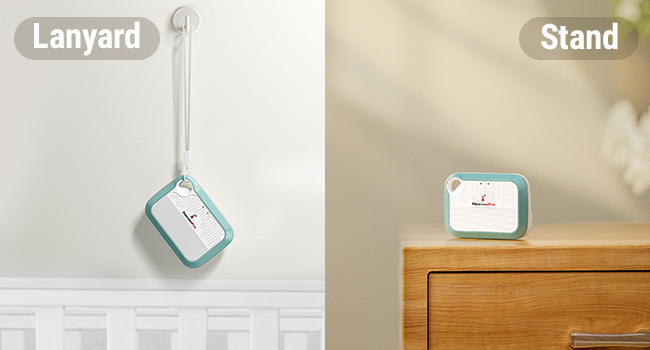
Image 6.2: Versatile placement options using the lanyard or integrated stand.
7. Поиск Неисправностей
- Устройство не подключается к приложению: Ensure Bluetooth is enabled on your phone and the device is within range. For Wi-Fi connection, verify your network is 2.4GHz and the password is correct. Try restarting both the device and your phone.
- Неточные показания: Ensure the device is placed in a location free from direct heat sources, cold drafts, or high humidity areas (e.g., directly above a humidifier). Allow the device to stabilize for at least 30 minutes after placement.
- App Not Updating Data: Check your internet connection. If using Wi-Fi, ensure the device is connected to your home network. If using Bluetooth, ensure your phone is close to the device.
- Аккумулятор быстро разряжается: Ensure the device is fully charged. Frequent disconnections and reconnections to Wi-Fi can consume more power.
8. Технические характеристики
| Спецификация | Деталь |
|---|---|
| Модель | B0DQ19WXBZ |
| Бренд | ThermoPro |
| Точность температуры | ±0.5°F |
| Диапазон температур | -22°F - 140°F |
| Точность влажности | ±2% ОВ |
| Диапазон влажности | Относительная влажность 10–99 % |
| Тип батареи | Rechargeable Nonstandard Battery (included) |
| Связность | Wi-Fi (2.4 ГГц), Bluetooth |
| Хранение данных | До 2 лет |
| Размеры упаковки | 4.29 x 3.9 x 1.14 дюйма |
| Масса | 4.16 унции |
9. Гарантия и поддержка
ThermoPro products are designed for quality and reliability. For warranty information, technical support, or any questions regarding your ThermoPro WiFi Hygrometer Thermometer, please visit the official ThermoPro website or contact their customer service directly. Contact details are typically found on the product packaging or the ThermoPro webсайт.
10. Информация по технике безопасности
- Не подвергайте устройство длительному воздействию экстремальных температур или прямых солнечных лучей.
- Avoid placing the device in areas with high moisture or direct water contact.
- Хранить в недоступном для детей месте.
- Не пытайтесь разбирать или модифицировать устройство, так как это приведет к аннулированию гарантии.
- Используйте только прилагаемый зарядный кабель или сертифицированный эквивалент.