
1. Введение
The Roland XPS-10X is a portable performance keyboard designed for musicians seeking high-quality sounds and versatile features. This manual provides essential information for setting up, operating, maintaining, and troubleshooting your instrument.
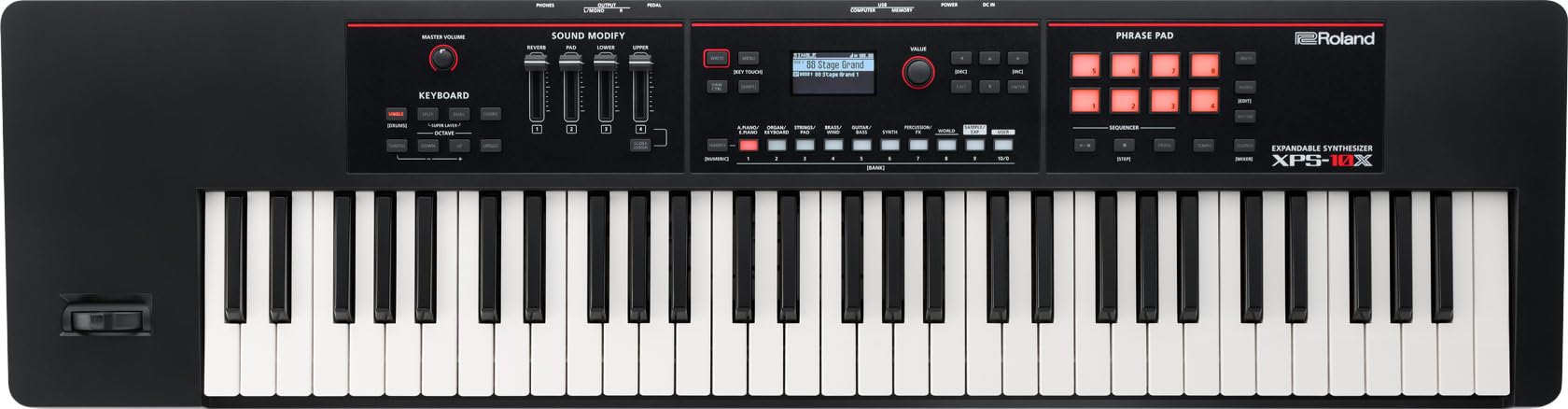
Рисунок 1: Передняя часть view of the Roland XPS-10X Expandable Synthesizer, showcasing его 61-клавишная клавиатура и панель управления.
Основные характеристики:
- Portable performance keyboard with high-quality sounds and features.
- Over 1600 sounds driven by Roland technology, including regional folk instruments.
- World Expansion series via Roland Cloud and XPS Tone Loader app for global instruments.
- Three expansion slots and memory for up to 12 minutes of user sampлес.
- Streamlined panel interface with intuitive controls.
- Audio Player function with pitch and time-stretch support.
- Accessible user scale settings for performance ease.
- Robust hardware design.
- Quick tone selection and speedy sound creation.
- Eight-track step sequencer for easy phrase creation.
2. Настройка
2.1 Распаковка
Carefully remove the XPS-10X from its packaging. Ensure all components are present: the synthesizer unit, AC adapter, and this user manual. Retain the packaging for future transport or storage.
2.2 Подключение питания
- Connect the supplied AC adapter to the DC IN jack on the rear panel of the XPS-10X.
- Подключите адаптер переменного тока к стандартной электрической розетке.
- Ensure the power switch is in the OFF position before connecting.
2.3 Аудиоподключения
Connect your headphones or external audio system to the appropriate jacks on the rear panel.
- ТЕЛЕФОНЫ Джек: Connect stereo headphones (3.5mm or 6.35mm jack).
- OUTPUT (L/MONO, R) Jacks: Подключиться к amplifier, mixer, or audio interface using standard 1/4-inch cables. Use L/MONO for mono output.
2.4 USB-подключение
The XPS-10X features USB ports for connecting to a computer or USB memory device.
- USB COMPUTER Port (Type B): Connect to a computer for MIDI communication.
- USB MEMORY Port (Type A): Connect a USB flash drive for data storage, loading samples, or using the Audio Player function.

Figure 2: Rear panel connections, including DC IN, USB ports, and audio output jacks.
3. Инструкция по эксплуатации
3.1 Включение/выключение питания
- Ensure all connections are secure and volume levels on connected audio equipment are low.
- Press the POWER switch on the rear panel to turn on the XPS-10X.
- To turn off, press the POWER switch again.
3.2 Выбор звука
The XPS-10X offers over 1600 sounds. Use the CATEGORY buttons (e.g., PIANO, ORGAN, SYNTH) and the VALUE dial to browse and select tones. The display will show the currently selected sound.

Figure 3: Detail of the control panel, highlighting sound category buttons and the display for tone selection.
3.3 Sound Creation and Modification
The XPS-10X allows for quick tone selection and sound creation. Use the dedicated sliders and buttons in the 'SOUND MODIFY' section to adjust parameters like reverb, pad, and other effects. You can also create layers and splits, dynamic arpeggios, and chords.
3.4 Using Expansion Slots and World Expansion Series
Expand your sound library with the World Expansion series. These can be installed via Roland Cloud or the XPS Tone Loader app. The XPS-10X has three expansion slots and memory for up to 12 minutes of user sampлес.

Figure 4: The Roland Cloud app interface, used for managing and installing World Expansion sounds.
3.5 Audio Player Function
The Audio Player function allows you to play WAV/AIFF files from a USB memory device. You can adjust pitch and time-stretch to match vocals or adjust tempo, enhancing your performance.
3.6 Eight-Track Step Sequencer and Phrase Pad
Create phrases and backing music using the eight-track step sequencer. The Phrase Pad allows you to trigger WAV/AIFF files from a USB drive, with independent pitch and speed control.

Figure 5: Close-up of the Phrase Pad section, used for triggering audio and sequencing.
4. Техническое обслуживание
4.1 Очистка
To clean the XPS-10X, use a soft, dry cloth. For stubborn dirt, a slightly damp cloth with mild, non-abrasive cleaner can be used, followed by a dry cloth. Avoid using harsh chemicals, solvents, or abrasive materials, as these can damage the finish.
4.2 Хранение
When not in use for extended periods, store the synthesizer in a cool, dry place away from direct sunlight, extreme temperatures, and high humidity. Consider using a dust cover or an optional carrying bag (like the CB-V61) to protect the instrument.
5. Поиск Неисправностей
5.1 Нет звука
- Проверьте, включено ли питание и выкручен ли регулятор громкости на максимум.
- Убедитесь, что наушники или внешние колонки правильно подключены и их громкость отрегулирована.
- Verify that a sound is selected and not muted.
- Check cable connections for damage or improper insertion.
5.2 Проблемы с питанием
- Confirm the AC adapter is securely connected to both the XPS-10X and a working power outlet.
- При использовании удлинителя убедитесь, что он включен.
5.3 Не реагирующие элементы управления
- Try restarting the unit by turning it off and then on again.
- If the issue persists, consult the Roland support webсайт для получения дальнейшей помощи.
6. Технические характеристики

Figure 6: Dimensions of the Roland XPS-10X.
| Особенность | Деталь |
|---|---|
| Бренд | Роланд |
| Название модели | XPS-10X BK |
| Количество ключей | 61 |
| Уровень мастерства | Профессиональный |
| Особые возможности | Digital Display, Digital Effects, Headphone Jack, Portable, Step Sequencer |
| Тип разъема | 3.5mm Jack, 6.35mm Jack, USB Type A, USB Type C |
| Технология связи | USB |
| Тип источника питания | Проводной электрический |
| Вес товара | 4.6 Килограмма |
| Размеры товара (Д x Ш x В) | 26.8 см x 100.2 см x 9.3 см |
| СКП | 761294522547 |
| Страна происхождения | Китай |
7. Информация о гарантии
The Roland XPS-10X Expandable Synthesizer comes with a Гарантия 1 года from the date of purchase. This warranty covers manufacturing defects under normal use. Please retain your proof of purchase for warranty claims. For detailed terms and conditions, refer to the warranty card included with your product or visit the official Roland webсайт.
8 Поддержка
For further assistance, technical support, or service inquiries, please visit the official Roland website or contact your local Roland distributor. Online resources often include FAQs, driver downloads, and additional documentation.
Производитель: Roland Corporation