
1. Введение
Welcome to the user manual for your NIMO N152S 15.6-inch Laptop. This guide provides essential information on setting up, operating, maintaining, and troubleshooting your new device. Please read this manual thoroughly to ensure optimal performance and longevity of your laptop.
2. Продукт закончилсяview
2.1 Основные характеристики
- Высокая производительность: Equipped with an AMD Ryzen 5 3500U processor and integrated Radeon graphics for smooth multitasking and efficient performance.
- Иммерсивный дисплей Full HD: A 15.6-inch Full HD (1920x1080) IPS display with a 180° wide hinge for vibrant visuals and wide viewуглы.
- Тонкий и легкий дизайн: Crafted with a sleek metal top cover, weighing under 3.7 lbs and measuring just 19.2 mm thin.
- Расширенные возможности подключения: Features 2 USB-A, 2 USB-C (full function PD/DP/Data), HDMI, MicroSD, and a 3.5mm audio jack.
- Расширяемая память и хранилище: Supports up to 32GB DDR4 RAM and M.2 PCIe 3.0 x4 SSD for future-proof upgrades.
- Smart Security & Comfort: Includes a fingerprint reader on the touchpad, a backlit keyboard for low-light use, and dual microphones.
2.2 Идентификация компонентов
Familiarize yourself with the various components of your NIMO N152S laptop as illustrated below.

Рисунок 2.1: Передняя часть view of the NIMO N152S laptop, showcasing its sleek design and key features like Windows 11, 32GB RAM, 1TB SSD, Full HD display, AMD Ryzen 5, Type-C PD Charger, Backlit Keyboard, and Fingerprint Reader.

Figure 2.2: Illustration of the AMD Ryzen 5 processor, detailing its specifications including 4 Cores, 8 Threads, 15W Power Consumption, and 3.7 GHz Turbo Boost, indicating its capability for daily tasks and light gaming.

Figure 2.3: The NIMO laptop screen showcasing a vivid Full HD (1920x1080) IPS display, highlighting features like bright view and eye protection, with an 85% screen-to-body ratio.

Рисунок 2.4: Подробная информация view of the NIMO laptop's expanded connectivity options, labeling ports such as Type-C (Charge Only), USB 3.0, HDMI, Type-C (Full Function), Charge LED, Micro SD Reader, USB 2.0, USB 3.0, Headphone Combo, and Kensington Lock.
3. Начальная настройка
3.1 Зарядка ноутбука
Before first use, fully charge your NIMO laptop. Connect the provided 65W Type-C PD charger to the USB-C charging port on the laptop and then to a power outlet. The charge LED indicator will illuminate to confirm charging.

Figure 3.1: The 65W Type-C PD Charger, designed for universal compatibility with laptops, tablets, and smartphones, simplifying your charging needs compared to multiple chargers.
3.2 Первое включение
- Откройте крышку ноутбука.
- Нажмите кнопку питания, расположенную на клавиатуре.
- Следуйте инструкциям на экране для завершения первоначальной настройки Windows 11, включая выбор языка, сетевое подключение и создание учетной записи пользователя.
4. Operating Your NIMO Laptop
4.1 Включение/выключение питания и спящий режим
- Включение питания: Нажмите кнопку питания.
- Неисправность: Нажмите кнопку «Пуск», затем «Питание» > «Завершение работы».
- Спящий режим: Закройте крышку или нажмите кнопку «Пуск», затем «Питание» > «Спящий режим».
4.2 Использование клавиатуры и сенсорной панели
Your NIMO laptop features a full-sized keyboard with a numeric keypad and a responsive touchpad.
- Подсветка клавиатуры: Нажимать Фн + Ф10 (или клавиша со значком подсветки) для включения/выключения подсветки клавиатуры или регулировки уровня яркости.
- Сенсорная панель: Поддерживаются мультисенсорные жесты для навигации. Для настройки параметров обратитесь к параметрам Windows.
- Цифровая клавиатура: Use the dedicated numeric keypad for efficient data entry.

Figure 4.1: The NIMO laptop keyboard, emphasizing its backlit keys, integrated touchpad, fingerprint reader, and numeric keypad, designed for comfortable typing in various lighting conditions.
4.3 считывателей отпечатков пальцев
The integrated fingerprint reader on the touchpad provides quick and secure access to your laptop.
- Откройте «Параметры Windows» > «Учетные записи» > «Параметры входа».
- Set up Windows Hello Fingerprint.
- Follow the on-screen prompts to register your fingerprints.
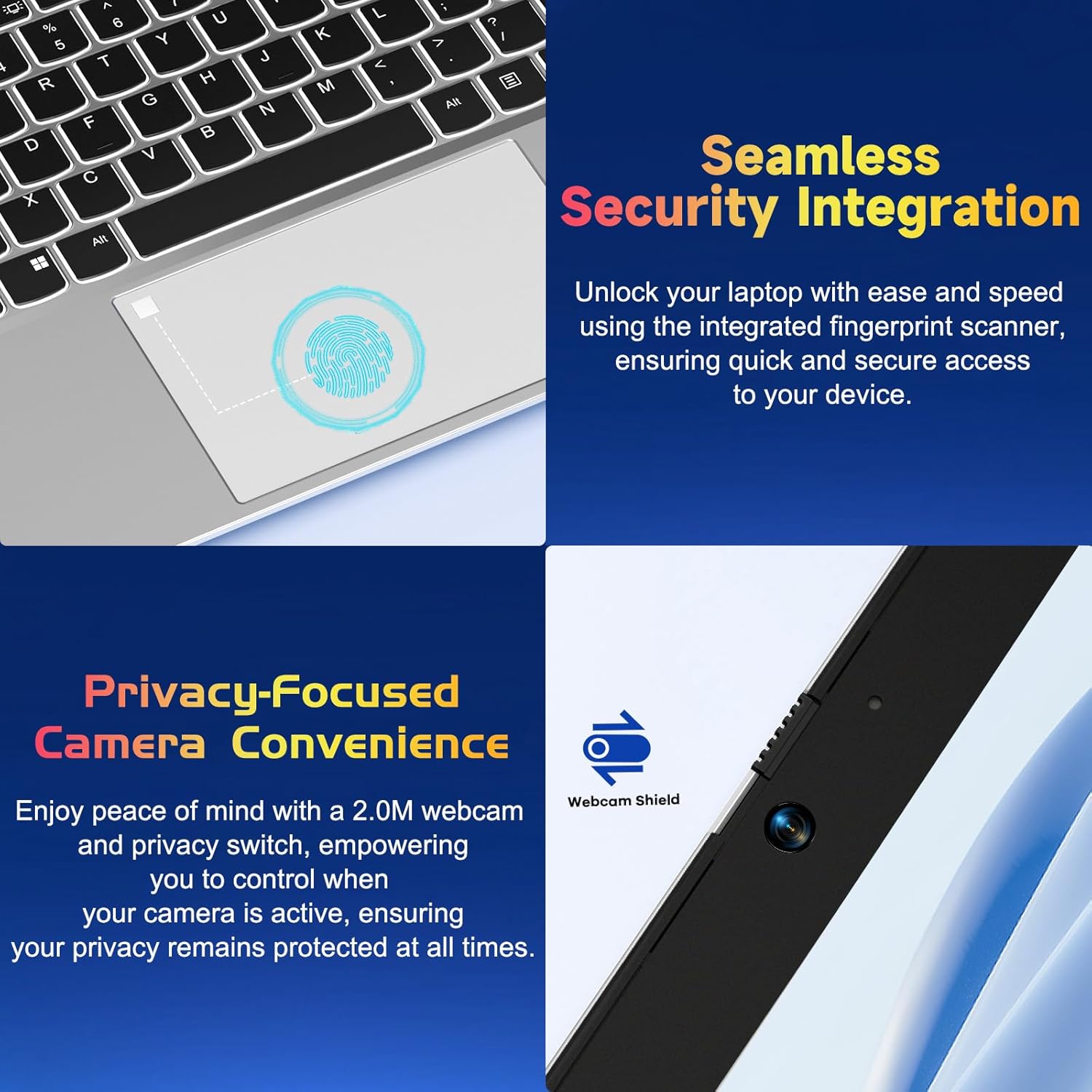
Рисунок 4.2: Крупный план view of the NIMO laptop's touchpad, highlighting the integrated fingerprint scanner for seamless security integration, alongside the privacy-focused webcam with a physical shield.
4.4 Подключение периферийных устройств
Ваш ноутбук имеет различные порты для подключения внешних устройств:
- Порты USB-A: Для подключения стандартных USB-устройств, таких как мыши, клавиатуры или внешние накопители.
- Порты USB-C: Two full-function USB-C ports support Power Delivery (PD), DisplayPort (DP), and data transfer. One is dedicated for charging.
- Порт HDMI: Подключитесь к внешним мониторам или проекторам.
- Устройство чтения карт MicroSD: Insert a MicroSD card for additional storage or data transfer.
- Аудиоразъем 3.5 мм: Для наушников или внешних динамиков.
4.5 WebКонфиденциальность камеры
The laptop includes a 2.0MP webcam with a physical privacy shield. Slide the shield to cover the camera lens when not in use to ensure your privacy.
5. Техническое обслуживание и уход
- Уборка: Используйте мягкую, безворсовую ткань, слегкаampened with water or a screen cleaner to clean the display and exterior. Avoid harsh chemicals.
- Обновления программного обеспечения: Регулярно обновляйте операционную систему Windows и драйверы, чтобы обеспечить оптимальную производительность и безопасность.
- Уход батареи: Чтобы продлить срок службы аккумулятора, избегайте экстремальных температур и старайтесь по возможности поддерживать уровень заряда аккумулятора в пределах от 20% до 80%.
- Хранилище: Храните ноутбук в прохладном, сухом месте, вдали от прямых солнечных лучей и экстремальных температур.
6. Поиск Неисправностей
This section addresses common issues you might encounter with your NIMO laptop.
| Проблема | Возможное решение |
|---|---|
| Ноутбук не включается. | Ensure the laptop is charged. Connect the charger and wait a few minutes before attempting to power on again. If unresponsive, perform a hard reset by holding the power button for 15 seconds. |
| Экран пустой или мерцает. | Try adjusting the screen brightness (Fn + F5/F6). If connected to an external monitor, ensure the cable is secure. Restart the laptop. |
| Подсветка клавиатуры не работает. | Press Fn + F10 (or the key with the backlight icon) to cycle through backlight settings. Ensure the function keys are enabled. |
| Считыватель отпечатков пальцев не распознан. | Ensure your finger is clean and dry. Re-register your fingerprint in Windows Hello settings if the issue persists. |
| Проблемы с подключением к Wi-Fi. | Check if Wi-Fi is enabled (Fn + F12 or Windows settings). Restart your router and laptop. Update Wi-Fi drivers if necessary. |
| Ноутбук работает медленно. | Закройте ненужные приложения. Проверьте диспетчер задач на наличие ресурсоемких процессов. Убедитесь, что Windows и драйверы обновлены. Рассмотрите возможность очистки диска. |
7. Технические характеристики
| Особенность | Спецификация |
|---|---|
| Бренд | NIMO |
| Название модели | NIMO N152S |
| Номер модели товара | NIMO N152 |
| Размер экрана | 15.6 дюйма |
| Максимальное разрешение экрана | 1920 x 1080 пикселей (Full HD) |
| Процессор | AMD Ryzen 5 3500U (3.7 ГГц) |
| БАРАН | 32 ГБ DDR4 (3200 МГц) |
| Жесткий диск | 1024 ГБ SSD (твердотельный накопитель) |
| Графический сопроцессор | AMD Integrated graphics |
| Операционная система | Виндовс 11 |
| Тип беспроводной связи | 802.11abg |
| Количество портов USB 2.0 | 1 |
| Средний срок службы батареи | 5 часов |
| Вес товара | 3.8 фунта |
| Размеры продукта | 14.07 x 8.98 x 0.76 дюйма |
| Цвет | Классика Серебро |
| Задний WebРазрешение камеры | 2 МП |
| Источник питания | Питание от батареи |
| Аккумуляторы | Требуются 1 литий-полимерные батареи (в комплекте) |
8. Гарантия и поддержка клиентов
8.1 Информация о гарантии
Your NIMO N152S laptop comes with a comprehensive warranty:
- Политика бесплатного возврата в течение 90 дней: You may return your NIMO laptop for any reason within 90 days of purchase.
- Гарантия 2 года: All NIMO products are covered by a 2-year warranty for after-sales support.

Figure 8.1: NIMO's commitment to customer satisfaction, featuring a 90-day free return policy and a 2-year warranty for reliable support.
8.2 Поддержка клиентов
For any product-related questions, technical assistance, or warranty claims, please contact our U.S.-based support team:
- Visit the official NIMO webСайт с ресурсами поддержки и контактными данными.
- Конкретные контактные данные см. в документации о покупке.
Our team is dedicated to providing professional and high-quality customer service to resolve any issues you may encounter.