
1. Введение
This manual provides essential information for the NIMO 15.6" Gaming Laptop (Model N159). It covers product features, setup procedures, operating instructions, maintenance guidelines, troubleshooting tips, and detailed specifications. Please read this manual thoroughly before using your new laptop to ensure optimal performance and longevity.

Image: The NIMO 15.6" Gaming Laptop, showcasing its display and key features like fingerprint unlock, Type-C PD charger, and backlit keyboard.
2. Что в коробке
Проверьте наличие всех предметов в упаковке:
- 1 x NIMO N159 Laptop
- 1 x Type-C 100W PD Fast Charger
- 1 x Руководство пользователя (этот документ)
- Windows 11 Home Operating System (pre-installed)
- Warranty Information (2 Years Warranty, 90 Days Return)
3. Продукт закончилсяview
3.1 Основные характеристики
- Процессор: AMD Ryzen 7 7735HS (8 Cores, 16 Threads, up to 4.75GHz)
- Графика: Integrated AMD Radeon 680M GPU
- Отображать: 15.6" Full HD (1920x1080) IPS Anti-Glare Display
- Память: 16 ГБ оперативной памяти DDR5 (с возможностью расширения)
- Хранилище: 1TB PCIe 4.0 SSD (upgradeable)
- Зарядка: 100W Type-C PD Fast Charger
- Безопасность: Fingerprint Reader for secure unlock
- Клавиатура: Клавиатура с подсветкой и цифровой панелью.
- Аудио: Dual 2W stereo speakers, dual beamforming microphones
- Webкамера: 2MP with physical camera shutter
- Операционная система: Windows 11 Домашняя

Image: An illustration detailing the AMD Ryzen 7 7735HS processor, highlighting its 8 cores, 16 threads, and integrated Radeon 680M graphics for balanced performance.
3.2 Порты и разъемы
Familiarize yourself with the available ports on your NIMO laptop:

Image: A detailed diagram illustrating the location and type of ports on the NIMO laptop, including USB 2.0, USB 3.2 Gen1, Type-C Gen2 (multifunction), HDMI 2.0, Audio Jack, Micro SD Reader, and Kensington Lock.
- Порт USB 2.0: Для подключения старых USB-устройств.
- Порты USB 3.2 Gen1 (4 шт.): Для высокоскоростной передачи данных с совместимыми USB-устройствами.
- Type-C Gen2 Ports (x2, Multifunction): Supports data transfer, video output, and power delivery (100W PD fast charging).
- Порт HDMI 2.0: Для подключения к внешним дисплеям или телевизорам.
- Аудиоразъем: Для подключения наушников или внешних динамиков.
- Micro SD Reader: Для чтения карт памяти Micro SD.
- Слот для замка Кенсингтона: Для защиты вашего ноутбука с помощью совместимого замка.
4. Настройка
4.1 Первоначальное включение питания
- Распакуйте ноутбук и все аксессуары из коробки.
- Connect the 100W Type-C PD Fast Charger to one of the Type-C ports on the laptop and then to a power outlet.
- Откройте крышку ноутбука. Ноутбук может включиться автоматически, или вам может потребоваться нажать кнопку питания.
- Следуйте инструкциям на экране, чтобы завершить настройку Windows 11 Home, включая выбор языка, подключение к сети и создание учетной записи пользователя.
4.2 Зарядка аккумулятора
Before first use, it is recommended to fully charge the laptop battery. The 100W Type-C PD Fast Charger can provide approximately 5 hours of usage time with just 1 hour of charging.

Image: A visual representation of the 100W Type-C lightning-fast charger connected to the NIMO laptop, demonstrating its ability to charge quickly and efficiently.
5. Инструкция по эксплуатации
5.1 Включение/выключение питания и спящий режим
- Включение питания: Нажмите кнопку питания, расположенную на клавиатуре.
- Выключение: Нажмите кнопку «Пуск» в Windows, затем выберите «Питание» > «Завершение работы».
- Спящий режим: Click the Start button, then select Power > Sleep, or close the laptop lid.
5.2 Using the Fingerprint Unlock
The fingerprint reader is integrated into the touchpad for quick and secure access.
- During Windows setup or later in Windows Settings, configure your fingerprint for login.
- To unlock, simply place your registered finger on the fingerprint reader on the touchpad.
5.3 Adjusting the Backlit Keyboard
The keyboard backlight can be adjusted for comfortable typing in various lighting conditions.

Image: A visual guide demonstrating the fingerprint unlock feature on the touchpad and the functionality of the backlit keyboard, including how to cycle through brightness settings using the F9 key.
- Нажмите F9 key to cycle through backlight settings:
- 1 Tap: Light (Temporary)
- 2 Taps: Light (Temporary)
- 3 Taps: Light (Constant)
- 4 Taps: Off
5.4 Использование Webкулачковый затвор
For privacy, the laptop includes a physical camera shutter.
- Slide the shutter to the left to open the camera.
- Slide the shutter to the right to close and cover the camera lens.

Image: A visual guide demonstrating the physical camera shutter, showing both the 'Camera Open' and 'Camera Close' statuses for enhanced privacy.
6. Техническое обслуживание
6.1 Чистка ноутбука
- Always power off the laptop and disconnect the charger before cleaning.
- Используйте мягкую, безворсовую ткань, слегкаampсмоченной водой или средством для чистки экранов.
- Для очистки клавиатуры и корпуса используйте мягкую сухую ткань. Избегайте использования агрессивных химикатов и абразивных материалов.
- Периодически используйте сжатый воздух для очистки вентиляционных отверстий от пыли.
6.2 Уход за аккумулятором
- Избегайте частой полной разрядки аккумулятора.
- Если вы не используете ноутбук в течение длительного времени, храните его в прохладном, сухом месте.
- Не подвергайте ноутбук воздействию экстремальных температур.
6.3 Обновления программного обеспечения
Регулярно проверяйте наличие и устанавливайте обновления операционной системы и драйверов для обеспечения оптимальной производительности и безопасности.
7. Поиск Неисправностей
| Проблема | Возможная причина | Решение |
|---|---|---|
| Ноутбук не включается. | Проблема с низким зарядом батареи или адаптером питания. | Connect the charger and wait a few minutes before attempting to power on. Ensure the charger is properly connected to both the laptop and the power outlet. |
| Экран пустой или черный. | Laptop in sleep mode, display settings issue, or hardware problem. | Press any key or the power button to wake from sleep. Try connecting an external monitor to check if the display output works. Restart the laptop. |
| Подсветка клавиатуры не работает. | Backlight turned off or at lowest setting. | Нажмите F9 key repeatedly to cycle through brightness levels and turn on the backlight. |
| Fingerprint unlock not working. | Finger not properly placed, or sensor issue. | Ensure your finger is clean and dry and covers the sensor completely. Re-register your fingerprint in Windows Settings if the issue persists. |
| Низкая производительность. | Too many applications running, insufficient storage, or outdated drivers. | Close unnecessary applications. Check available storage space. Update Windows and device drivers. |
If you encounter issues not listed here or require further assistance, please contact NIMO customer support.
8. Технические характеристики
| Бренд | NIMO |
| Название модели | НИМО N159B |
| Размер экрана | 15.6 дюйма |
| Разрешение экрана | 1920 x 1080 пикселей (FHD IPS) |
| Процессор | AMD Ryzen 7 7735HS (8 Cores, 4.75 GHz Max Turbo) |
| БАРАН | 16 ГБ DDR5 (4800 МГц) |
| Жесткий диск | SSD-накопитель объемом 1024 ГБ (PCIe 4.0) |
| Графический сопроцессор | AMD Radeon 680M (интегрированная) |
| Операционная система | Windows 11 Домашняя |
| Тип беспроводной связи | 802.11a/b/g/n/ac |
| Порты USB 2.0 | 1 |
| Порты USB 3.0 | 4 |
| Средний срок службы батареи | 5 Hours (54Wh, 11.4V/4700mAh) |
| Вес товара | 3.8 фунта |
| Размеры продукта | 14.07 x 8.98 x 0.76 дюйма |
| Цвет | Синий |
| Задний WebРазрешение камеры | 2 МП |
| Особые возможности | Backlit Keyboard, Fingerprint Reader, HD Audio, Numeric Keypad |
9. Гарантия и поддержка
9.1 Гарантия производителя
Your NIMO N159 laptop is covered by a comprehensive Гарантия производителя 2 год from Nimo Direct Inc. This warranty covers defects in materials and workmanship under normal use. For warranty claims, please contact customer support.
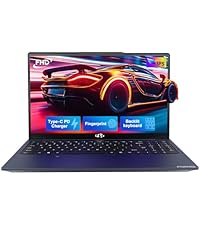
Image: A technician working on a laptop's internal components, representing the 2-year support provided for Nimo products.
9.2 Политика возврата
Nimo Direct Inc. offers a 90-Day Hassle-Free Return Policy. You may return any Nimo product for any reason within 90 days of purchase. Please refer to your purchase documentation for specific return procedures.
Image: A delivery person handing a package to a customer, illustrating the 90-day return policy for Nimo products.
9.3 Поддержка клиентов
For any product-related questions, technical assistance, or warranty claims, please contact our professional after-sales service team. Our dedicated support team is available to resolve issues or facilitate replacements.
- Электронная почта: service@nimopc.com
- Онлайн: Visit the official NIMO website or product page for contact options.
Image: Customer service representatives wearing headsets, indicating professional customer assistance available via phone and live chat.