
Введение
The Acer Predator Helios Neo 16 AI Gaming Laptop is engineered for high-performance gaming and demanding tasks. Featuring an Intel Core Ultra 9 processor 275HX and NVIDIA GeForce RTX 5070 Ti Laptop GPU, it delivers exceptional performance with AI technology. This manual provides essential information for setting up, operating, maintaining, and troubleshooting your device.
Основные характеристики
- Desktop-Level Performance: Intel Core Ultra 9 275HX processor with up to 13 NPU TOPS for smooth gameplay and AI-driven task offloading.
- Game-Changing Realism: NVIDIA GeForce RTX 5070 Ti Laptop GPU with 992 AI TOPS, featuring Blackwell architecture for full ray tracing and cinematic visuals.
- Supreme Speed & Visuals with AI: DLSS 4 with Multi Frame Generation, enhanced Ray Reconstruction, and Super Resolution for boosted FPS and improved image quality.
- Иммерсивный дисплей: 16-inch WQXGA (2560x1600) 240Hz G-SYNC display with 3ms overdrive response time and 100% DCI-P3 color accuracy.
- Advanced Thermal Solutions: Dual fans, including a 5th Gen AeroBlade 3D Metal Fan, and liquid metal thermal compound for peak performance.
- Связь: Intel Killer Ethernet E3100G and Killer Wi-Fi 6E AX1675, Thunderbolt 4, USB 3.2 Gen2, HDMI 2.1, and microSD Card Reader.
- PredatorSense and Experience Zone: Software for real-time system control, performance modes, fan speeds, RGB lighting customization, and AI-powered features like PurifiedView 2.0 and PurifiedVoice 2.0.
Что в коробке?
Your Acer Predator Helios Neo 16 AI Gaming Laptop package includes the following items:
- Игровой ноутбук Acer Predator Helios Neo 16 AI
- Адаптер переменного тока
- Шнур питания

Image: The product packaging box for the Acer Predator Helios Neo 16 AI Gaming Laptop.

Image: The included AC adapter and power cord, essential for charging and operating the laptop.
Физический Overview
Ознакомьтесь с различными портами и функциями вашего ноутбука.
Левые порты
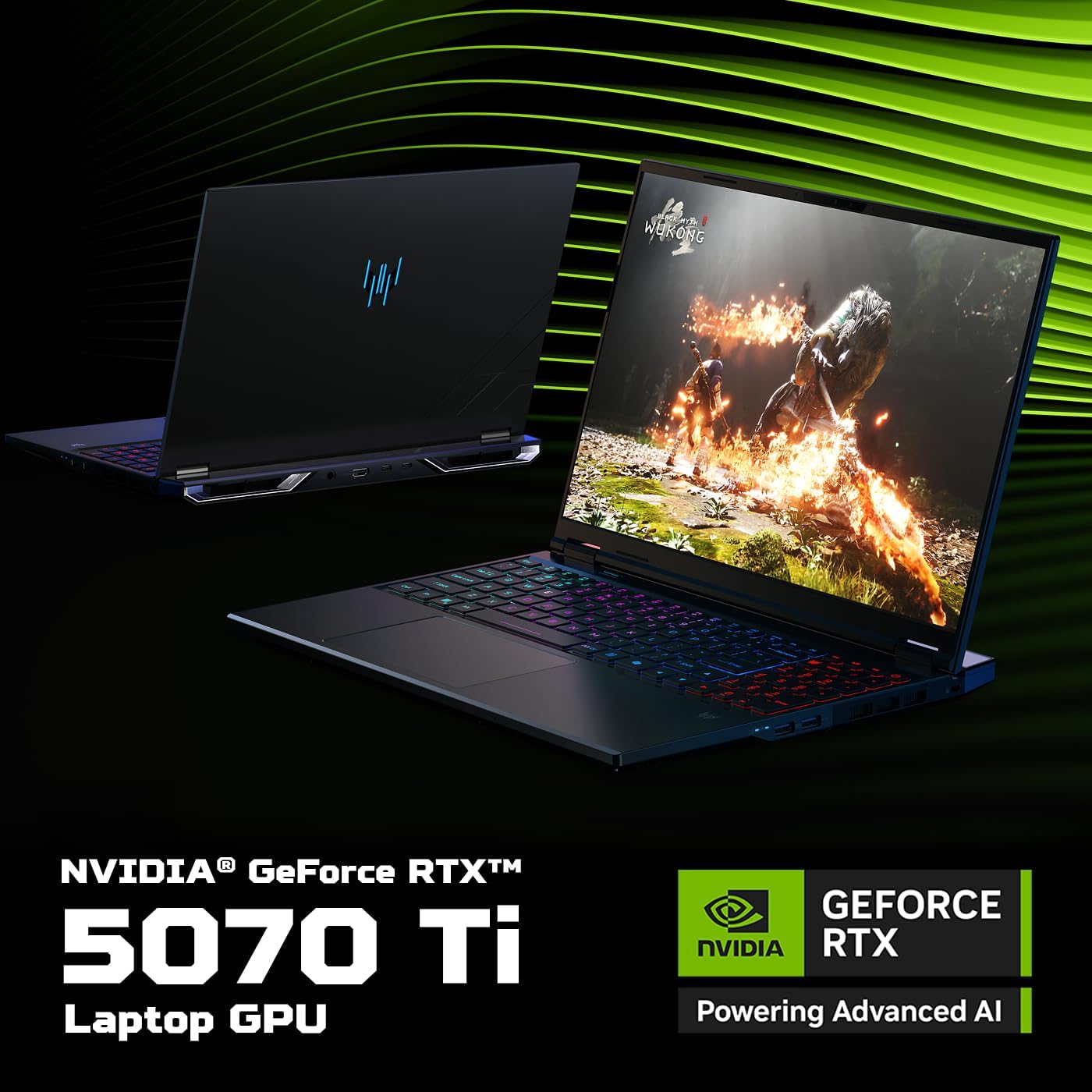
Image: The left side of the laptop featuring two USB 3.2 ports (one supporting offline charging) and a Kensington lock slot.
- Порты USB 3.2 (x2): For connecting USB devices. One port supports power-off charging.
- Слот для замка Кенсингтона: Для защиты вашего ноутбука с помощью совместимого замка.
Порты с правой стороны

Image: The right side of the laptop showing the Ethernet port, a USB 3.2 port, a MicroSD card slot, and a headset jack.
- Порт Ethernet (RJ-45): Для проводного сетевого подключения.
- Порт USB 3.2 (1 шт.): Для подключения USB-устройств.
- Слот для карты MicroSD: For reading microSD memory cards.
- Разъем для гарнитуры: Для подключения наушников или гарнитуры.
Задние порты
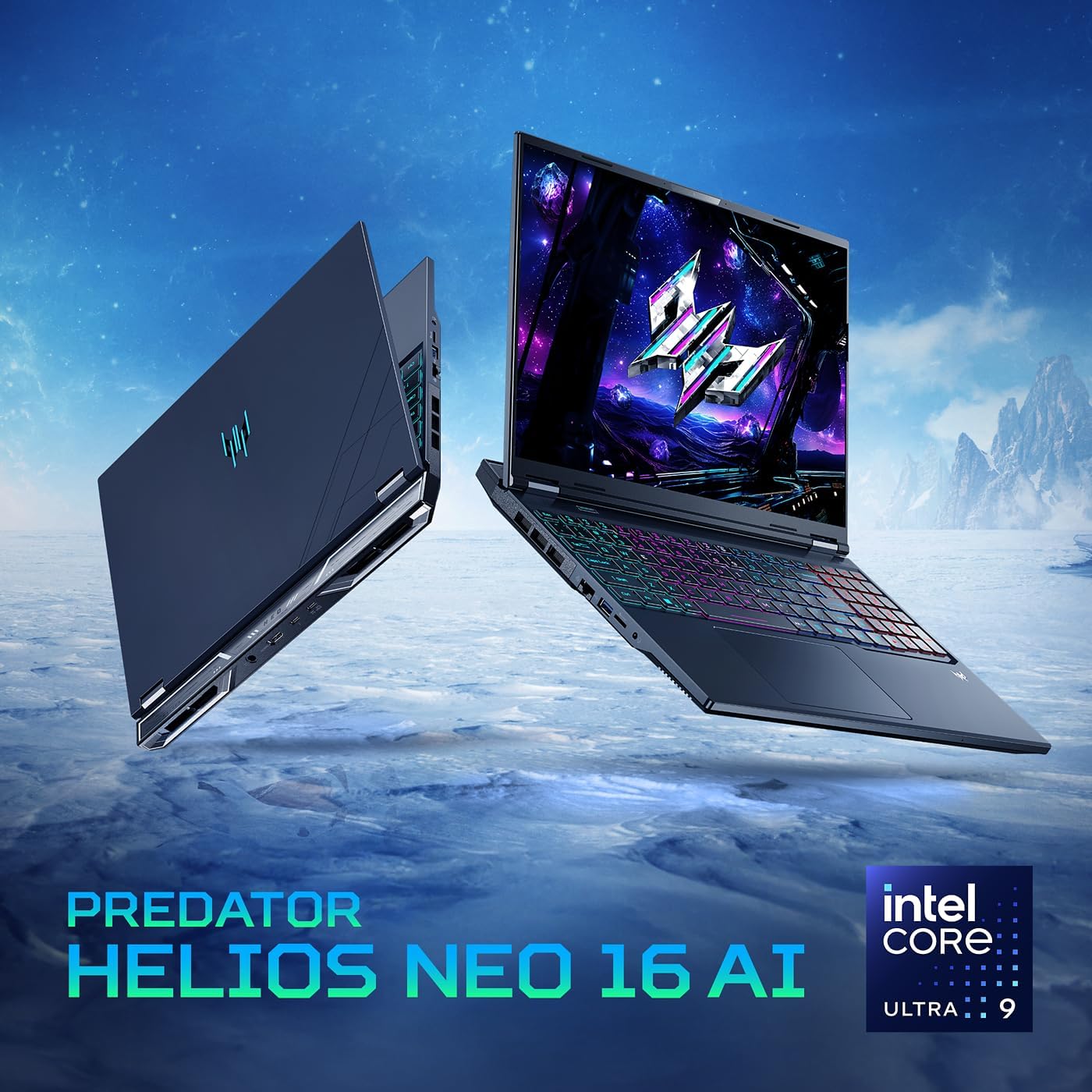
Image: The rear of the laptop, featuring the DC-in jack, HDMI 2.1 port, and two Type-C Thunderbolt 4 ports.
- Разъем DC-in: Для подключения адаптера переменного тока.
- Порт HDMI 2.1: For connecting to external displays, supporting up to 10K resolution.
- Thunderbolt 4 Ports (x2): Versatile USB Type-C ports supporting high-speed data transfer, DisplayPort over USB Type-C, and USB charging (up to 90W).
Настраивать
Первоначальное включение питания
Before first use, ensure your laptop is connected to the AC adapter and power cord. Press the power button located on the keyboard to turn on the device. The system will guide you through the initial Windows setup process.
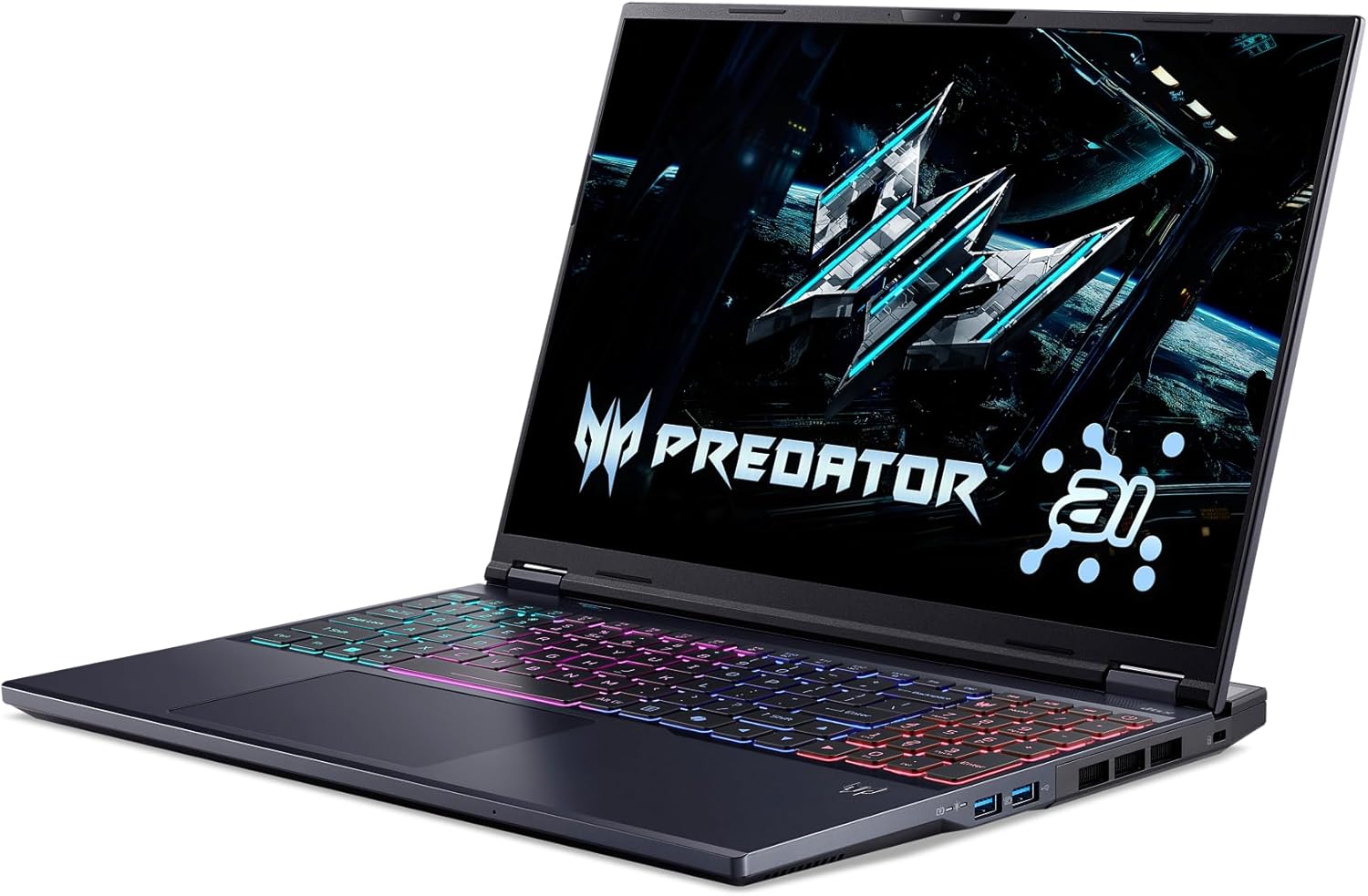
Image: The laptop screen displaying the Predator logo upon initial power-on, with the RGB keyboard illuminated.
Подключение периферийных устройств
Connect your mouse, keyboard, external monitor, and other peripherals to the appropriate ports as described in the 'Physical Overview' section. For optimal gaming performance, consider using a wired Ethernet connection.
Настройка операционной системы
Follow the on-screen instructions to complete the Windows 11 Home setup. This includes setting up your user account, connecting to a Wi-Fi network, and installing essential updates. Keep your laptop plugged in during this process to avoid interruptions.
Работа с ноутбуком
Клавиатура и тачпад
The laptop features a full-size keyboard with a numeric keypad and a responsive touchpad. The keyboard includes 4-zone RGB lighting, which can be customized via the PredatorSense software.

Image: The laptop's keyboard showcasing its customizable 4-zone RGB lighting, providing visual flair and functionality.
Характеристики дисплея
Experience stunning visuals on the 16-inch WQXGA display with a 240Hz refresh rate and 3ms overdrive response time. NVIDIA G-SYNC and Advanced Optimus technologies ensure tear-free and smooth gameplay.

Image: The laptop's display highlighting its 16-inch WQXGA resolution, 240Hz refresh rate, and G-SYNC compatibility for superior gaming visuals.
PredatorSense Software
PredatorSense provides a centralized hub for monitoring system performance, adjusting fan speeds, customizing RGB lighting, and switching between performance modes. Access it by pressing the dedicated Predator key on the keyboard.

Image: A visual representation of the PredatorSense software interface, allowing users to monitor and customize laptop settings.
Возможности ИИ
Leverage the power of AI with the Intel Core Ultra 9 processor and NVIDIA GeForce RTX 5070 Ti GPU. Features like DLSS 4 enhance graphics, while PurifiedView 2.0 and PurifiedVoice 2.0 improve communication and streaming experiences.

Image: Visual highlighting the Intel Core Ultra 9 processor, central to the laptop's AI capabilities and gaming performance.

Image: Emphasizing the NVIDIA GeForce RTX 5070 Ti Laptop GPU, which powers advanced AI features and realistic graphics.

Image: Illustrating NVIDIA DLSS 4, a neural rendering technology that uses AI to boost frame rates and improve image quality.

Image: Depicting Acer PurifiedView 2.0, an AI-enhanced feature for automatic framing, background blur, and gaze correction during video calls.

Image: Showing Acer PurifiedVoice 2.0, which uses AI algorithms and a 3rd mic to suppress background noise for clear communication.
Video: Official product video for the Predator Helios Neo 16 AI, showcasing its design, performance, and key features.
Обслуживание
Правильный уход обеспечивает долговечность и оптимальную производительность вашего ноутбука.
Уборка
- Регулярно протирайте экран мягкой безворсовой тканью, используя специальное чистящее средство, безопасное для экранов.
- Для удаления пыли с клавиш клавиатуры и вентиляционных решеток используйте сжатый воздух.
- Протрите внешние поверхности средствомamp, мягкая ткань. Избегайте едких химикатов.
Управление температурным режимом
The laptop's advanced thermal solutions, including dual fans and liquid metal thermal compound, are designed to keep temperatures in check. Ensure proper airflow by not blocking the ventilation openings, especially during intensive gaming sessions.
Изображение: сбоку view of the laptop, highlighting the ventilation grilles crucial for efficient thermal management.
Обновления программного обеспечения
Keep your operating system, drivers, and PredatorSense software updated to ensure stability, security, and optimal performance. Check for updates regularly through Windows Update and Acer's official support channels.
Устранение распространенных проблем
В этом разделе рассматриваются распространенные проблемы, с которыми вы можете столкнуться при использовании ноутбука.
- Ноутбук не включается: Убедитесь, что адаптер переменного тока надежно подключен как к ноутбуку, так и к работающей розетке. Проверьте индикатор питания.
- Нет дисплея: If the laptop powers on but the screen remains black, try connecting an external monitor to verify if the issue is with the laptop's display.
- Перегрев: Ensure ventilation grilles are clear of obstructions. Use PredatorSense to monitor temperatures and adjust fan speeds. Consider using a cooling pad for extended heavy use.
- Плохая производительность: Close unnecessary background applications. Update graphics drivers. Use PredatorSense to switch to a higher performance mode.
- Проблемы с подключением к Wi-Fi: Check if Wi-Fi is enabled. Restart your router and laptop. Update Wi-Fi drivers.
- Клавиатура/тачпад не реагируют: Перезагрузите ноутбук. Проверьте наличие обновлений драйверов.
Технические характеристики
| Особенность | Спецификация |
|---|---|
| Название модели | Predator Helios Neo 16 AI |
| Номер модели товара | PHN16-73-92B8 |
| Процессор | Процессор Intel Core Ultra 9 275HX (2.1 ГГц) |
| Графический сопроцессор | NVIDIA GeForce RTX 5070 Ti (12 GB GDDR6 Dedicated) |
| БАРАН | 16GB DDR5 6400MHz (2 DDR5 Slots Total, Max 64GB) |
| Хранилище | 1TB PCIe Gen 4 SSD (2 x PCIe M.2 Slots, 1 Slot Available) |
| Размер экрана | 16 дюйма |
| Разрешение экрана | 2560 x 1600 пикселей (WQXGA) |
| Максимальное разрешение экрана | 2560x1600 |
| Частота обновления | 240 Гц |
| Операционная система | Windows 11 Домашняя |
| Тип беспроводной связи | 802.11ax (Killer Wi-Fi 6E AX1675), Bluetooth |
| Порты | 1x Thunderbolt 4, 1x USB Type-C 3.2 Gen 2 (DisplayPort, 90W Charging), 2x USB 3.2 Gen 2 (1x Power-off Charging), 1x USB 3.2 Gen 1, 1x HDMI 2.1, 1x Headphone/Speaker/Line-out Jack, 1x Ethernet (RJ-45), 1x DC-in, 1x Kensington Lock Slot |
| Вес товара | 5.95 фунта |
| Размеры продукта | 14.05 x 1.05 x 10.85 дюйма |
| Специальная характеристика | Клавиатура с подсветкой |
Гарантия и поддержка
Your Acer Predator Helios Neo 16 AI Gaming Laptop comes with a limited warranty. For detailed information regarding warranty coverage and terms, please refer to the documentation included with your product or visit the official Acer support webсайт.
Планы защиты
Для расширения гарантийного покрытия сверх стандартной гарантии можно приобрести дополнительные планы защиты:
- Двухлетний план защиты: Продлевает действие страхового покрытия на 24 месяца.
- Двухлетний план защиты: Продлевает действие страхового покрытия на 48 месяца.
- Полная защита: Ежемесячный план, охватывающий соответствующие прошлые и будущие покупки.
Поддержка клиентов
For technical assistance, troubleshooting, or warranty claims, please contact Acer customer support. You can find more information and support resources on the official Acer Store or their dedicated support channels.