
1. Введение
This manual provides essential information for the proper setup, operation, and maintenance of your NIMO 15.6 inch Laptop Computer. Please read this manual thoroughly before using your device to ensure optimal performance and longevity. Keep this manual for future reference.
2. Продукт закончилсяview
2.1. Laptop Components
The NIMO 15.6 inch Laptop features a Full HD display, a backlit keyboard, and an integrated fingerprint reader for secure access. It is powered by an AMD Ryzen 5 3500U processor and runs on Windows 11.

Рисунок 2.1: Передняя часть view of the NIMO 15.6 inch Laptop, showcasing его дисплей и раскладка клавиатуры.
2.2. Порты и разъемы
Your NIMO laptop is equipped with various ports for comprehensive connectivity, allowing you to connect peripherals and external devices.

Figure 2.2: Expanded Connectivity Options. This image illustrates the location and type of ports available on the laptop, including Type-C (Charge Only), USB 3.0, HDMI, Type-C (Full Function), Charge LED, Micro SD Reader, USB 2.0, USB 3.0, Headphone Combo, and Kensington Lock.
- Type-C (только для зарядки): Для ввода мощности.
- USB 3.0: Для высокоскоростной передачи данных.
- HDMI: Для подключения к внешним дисплеям.
- Тип C (полный функционал): Supports Power Delivery (PD), DisplayPort (DP), and data transfer.
- Светодиод зарядки: Указывает состояние зарядки.
- Micro SD Reader: For reading Micro SD cards.
- USB 2.0: Для стандартных USB-устройств.
- USB 3.0: Для высокоскоростной передачи данных.
- Headphone Combo: Для аудиовыхода и микрофонного входа.
- Кенсингтонский замок: Для физической безопасности.
3. Настройка
3.1. Первоначальная зарядка
Before first use, connect the laptop to a power outlet using the provided 65W PD Type-C charger. The Charge LED indicator will illuminate. Allow the battery to charge fully.

Figure 3.1: Type-C 65W PD Charger. This image highlights the versatility of the 65W Power Delivery charger, capable of charging the laptop, tablets, and smartphones, reducing cable clutter.
3.2. Включение
Open the laptop lid. Press the power button located on the keyboard deck. The laptop will boot up, and you will be guided through the Windows 11 initial setup process.
3.3. Установка Windows 11
Follow the on-screen instructions to configure your Windows 11 operating system. This includes selecting your region, language, connecting to a Wi-Fi network, and setting up your user account.
4. Инструкция по эксплуатации
4.1. Клавиатура и ввод
The laptop features a backlit keyboard for comfortable typing in various lighting conditions, a responsive touchpad, and a numeric keypad for data entry.

Figure 4.1: Effortless Typing in Any Environment. This image demonstrates the backlit keyboard, touchpad, fingerprint reader, and numeric keypad, enhancing user experience and productivity.
- Подсветка клавиатуры: Нажмите Fn key and the appropriate function key (usually F3 or F4, indicated by a keyboard icon) to adjust the backlight brightness or turn it on/off.
- Сенсорная панель: Use the touchpad for navigation. Supports multi-touch gestures for scrolling, zooming, and other functions.
- Цифровая клавиатура: Provides dedicated number keys for efficient data entry.
4.2. Распознавание отпечатков пальцев
The integrated fingerprint reader allows for secure and quick login. Set up your fingerprint in Windows Settings under 'Sign-in options'.
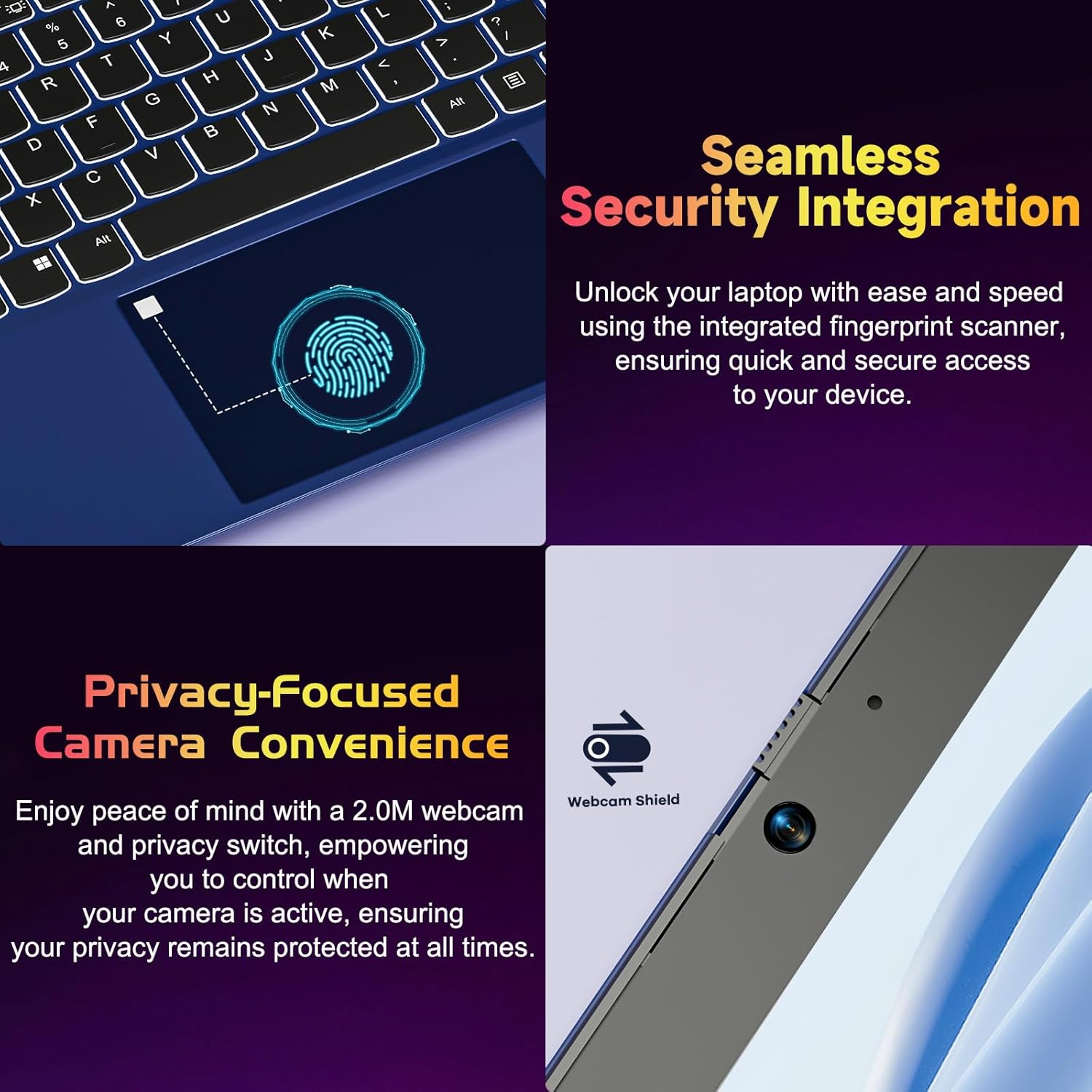
Figure 4.2: Seamless Security Integration and Privacy-Focused Camera. This image highlights the fingerprint scanner for quick and secure access, and the 2.0MP webcam with a physical privacy switch for enhanced user privacy.
4.3. Функции дисплея
The 15.6 inch Full HD (1920 x 1080 Pixel) IPS display offers vivid visuals and a wide viewing angle. The 180° lay-flat hinge allows for flexible screen positioning, ideal for sharing content.

Figure 4.3: Vivid Full HD Display. This image emphasizes the laptop's 15.6-inch Full HD (1920x1080) IPS display, offering bright visuals and eye protection.

Figure 4.4: 180° Lay-Flat Hinge. This image illustrates the laptop's ability to lay flat, expanding usage scenarios and facilitating content sharing.
4.4. WebКонфиденциальность камеры
The laptop includes a 2.0MP webcam with a physical privacy switch (Webcam Shield). Slide the switch to cover the camera lens when not in use to ensure your privacy.
5. Техническое обслуживание
- Уборка: Для очистки экрана и корпуса используйте мягкую безворсовую ткань. Для удаления стойких загрязнений слегка протрите поверхность.ampСмочите ткань водой или очистителем для экранов. Избегайте использования агрессивных химикатов.
- Уход батареи: Чтобы продлить срок службы батареи, избегайте частой полной разрядки аккумулятора. Храните ноутбук в прохладном, сухом месте, если он не используется в течение длительного времени.
- Обновления программного обеспечения: Регулярно обновляйте операционную систему Windows и драйверы, чтобы обеспечить оптимальную производительность и безопасность.
- Расширение хранилища: The laptop supports dual DDR4 SO-DIMM slots and M.2 NVMe SSD for memory and storage expansion. Consult a qualified technician for upgrades.
6. Поиск Неисправностей
6.1. Проблемы с электропитанием
- Ноутбук не включается: Ensure the laptop is charged. Connect the charger and wait a few minutes before attempting to power on again.
- Аккумулятор не заряжается: Verify the charger is properly connected to both the laptop and the power outlet. Try a different outlet.
6.2. Проблемы с отображением
- Экран пустой: Check if the laptop is powered on. Try adjusting screen brightness using the function keys. If an external monitor is connected, ensure it is properly configured.
6.3. Проблемы с производительностью
- Ноутбук работает медленно: Close unnecessary applications. Check for background processes consuming high resources. Ensure sufficient free storage space. Consider performing a system scan for malware.
6.4. Проблемы с подключением
- Wi-Fi не подключается: Ensure Wi-Fi is enabled. Restart your router and the laptop. Check network settings in Windows.
7. Технические характеристики
| Особенность | Деталь |
|---|---|
| Бренд | NIMO |
| Название модели | NIMO N152R |
| Размер экрана | 15.6 дюйма |
| Разрешение экрана | 1920 x 1080 пикселей (Full HD) |
| Процессор | AMD Ryzen 5 3500U (3.7 ГГц, 4 ядер, 8 потоков) |
| БАРАН | 8 GB DDR4 (Upgradable) |
| Скорость памяти | 3200 МГц |
| Жесткий диск | 256 GB SSD (Upgradable M.2 NVMe) |
| Графический сопроцессор | AMD Integrated graphics (Vega) |
| Операционная система | Виндовс 11 |
| Тип беспроводной связи | 802.11abg |
| USB-порты | 1x USB 2.0, 2x USB 3.0, 2x USB-C (1x Charge Only, 1x Full Function) |
| HDMI-порт | Да |
| Считыватель Micro SD | Да |
| Средний срок службы батареи | 5 часов |
| Вес товара | 3.8 фунта (1.72 кг) |
| Размеры продукта | 14.07 x 8.98 x 0.76 дюйма |
| Цвет | Роза |
| Задний WebРазрешение камеры | 2 МП |
8. Гарантия и поддержка
Your NIMO laptop comes with a 2-year warranty, covering manufacturing defects and hardware malfunctions under normal use. Additionally, a 90-day free return policy is provided.

Figure 8.1: After-Sales Support. This image outlines the 2-year warranty, 90-day return policy, and professional customer service available for NIMO products.
8.1. Обращение в службу поддержки
For technical assistance, warranty claims, or product-related questions, please contact the NIMO U.S.-based support team. Contact information can typically be found on the official NIMO webсайта или упаковки продукта.
9. Информация по технике безопасности
Чтобы предотвратить травмы или повреждение вашего устройства, соблюдайте следующие меры предосторожности:
- Не подвергайте ноутбук воздействию экстремальных температур, прямых солнечных лучей или высокой влажности.
- Не кладите на ноутбук тяжелые предметы.
- Use only the provided charger or a compatible 65W PD Type-C charger.
- Не пытайтесь разбирать или ремонтировать ноутбук самостоятельно. Обратитесь к квалифицированному специалисту.
- Во избежание поражения электрическим током или повреждения ноутбука, держите его подальше от жидкостей.
- Ensure proper ventilation when using the laptop to prevent overheating.