
CRUA CR340AU
CRUA 34-inch Ultrawide Gaming Monitor User Manual
Model: CR340AU
1. Информация по технике безопасности
Внимательно прочтите все инструкции перед использованием этого монитора. Сохраните это руководство для дальнейшего использования.
- Во избежание возгорания или поражения электрическим током не допускайте попадания дождя или влаги на монитор.
- Не открывайте монитор casing. Внутри нет деталей, подлежащих обслуживанию пользователем. По всем вопросам обслуживания обращайтесь к квалифицированному персоналу.
- Установите монитор на устойчивую ровную поверхность, чтобы предотвратить его падение.
- Обеспечьте достаточную вентиляцию вокруг монитора. Не закрывайте вентиляционные отверстия.
- Используйте только тот адаптер питания, который входит в комплект поставки монитора.
- Если монитор не будет использоваться в течение длительного времени, отсоедините вилку питания от розетки.
2. Содержимое упаковки
Проверьте наличие всех предметов в посылке:
- CRUA 34-inch Ultrawide Gaming Monitor
- Подставка для монитора (основание и горловина)
- Адаптер питания и кабель
- HDMI-кабель
- Кабель DisplayPort (DP)
- Руководство пользователя
- Винты для сборки подставки
3. Настройка
3.1 Сборка подставки
- Аккуратно извлеките монитор из упаковки, разместив его на мягкой поверхности для защиты.
- Прикрепите подставку к задней панели монитора с помощью прилагаемых винтов.
- Прикрепите основание подставки к шейке подставки и закрепите его указанным винтом.
- Установите собранный монитор на устойчивый стол.
The monitor stand allows for tilt adjustment to find your optimal viewугол наклона.
3.2 Настенный монтаж (опционально)
This monitor supports VESA wall mounting (75x75mm). To wall mount:
- Remove the stand from the monitor if it is already attached.
- Attach a compatible VESA 75x75mm wall mount bracket (not included) to the monitor's rear panel using appropriate screws.
- Для надежной установки следуйте инструкциям, прилагаемым к настенному креплению.

Изображение: сзади view of the monitor highlighting the 75x75mm wall mount area and various input ports.
3.3 Подключение к устройству
Connect your computer or gaming console to the monitor using one of the available ports:
- DisplayPort (DP 1.4): For optimal performance, especially for high refresh rates and FreeSync.
- HDMI (HDMI 1.4 x2): Compatible with most devices.
Connect the power adapter to the monitor's DC input and then plug it into a power outlet.
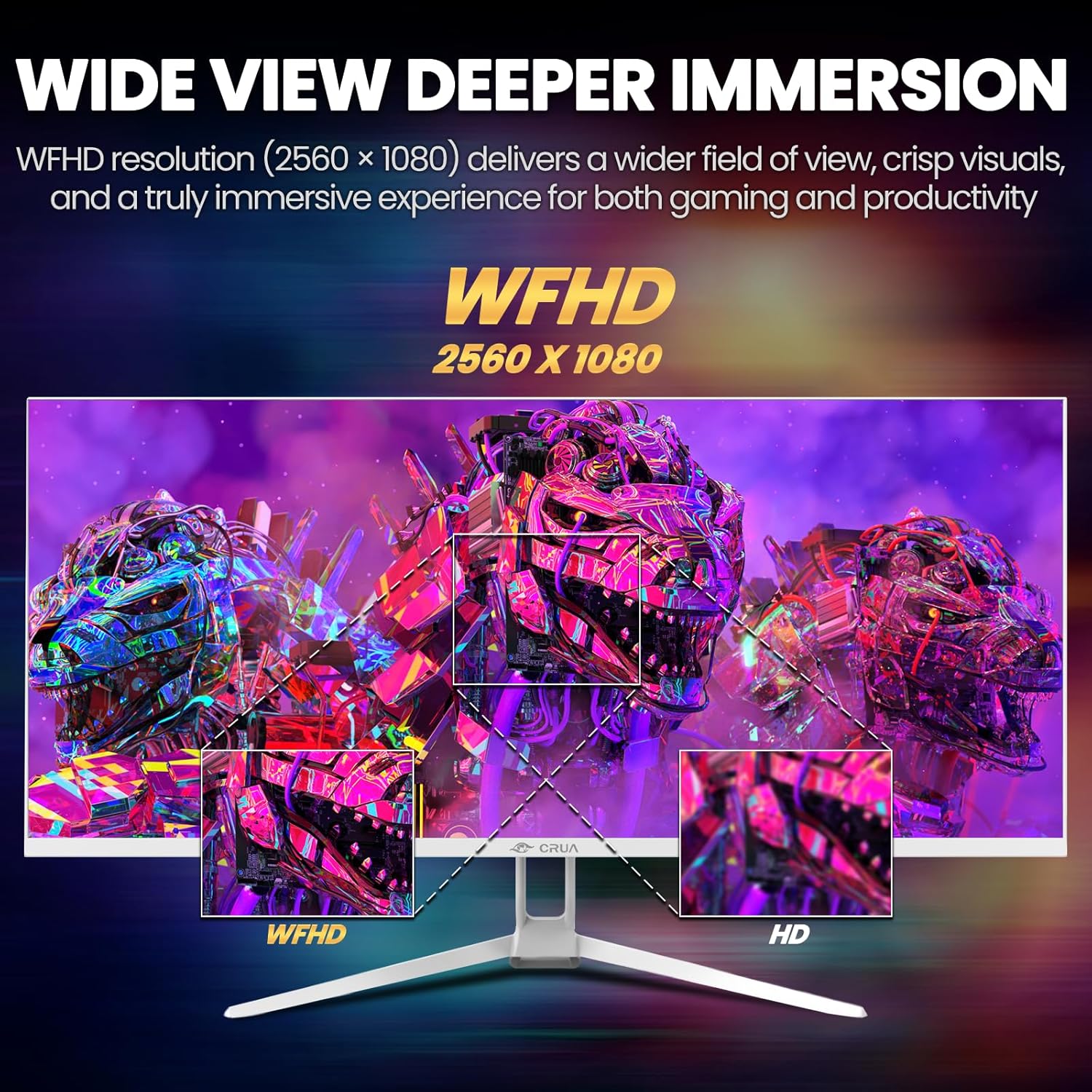
Image: A detailed diagram illustrating the monitor's connectivity options, including two HDMI 1.4 ports, one DisplayPort 1.4, an audio output, a USB charging port, and the DC power input.
4. Инструкция по эксплуатации
4.1 Включение/выключение питания
Press the power button, typically located on the bottom or rear of the monitor, to turn it on or off. The power indicator light will illuminate when the monitor is on.
4.2 Экранное меню (OSD)
The OSD menu allows you to adjust various monitor settings. Access it by pressing the OSD menu button (often a joystick-like button or a set of dedicated buttons) on the monitor.
- Навигация: Use the OSD buttons or joystick to navigate through the menu options.
- Выбор: Нажмите кнопку выбора, чтобы перейти в подменю или подтвердить настройку.
- Выход: Используйте кнопку «Выход», чтобы вернуться назад или закрыть экранное меню.
4.3 Настройки изображения
Настройте визуальные параметры для достижения оптимального результата. viewing:
- Яркость: Управляет общей яркостью экрана.
- Контраст: Регулирует разницу между светлыми и темными областями.
- Цветовая температура: Выбирает предустановленные цветовые режимы (например, Теплый, Холодный, Пользовательский).
- Фильтр синего света: Снижает излучение синего света, чтобы минимизировать нагрузку на глаза при длительном использовании.
- Соотношение сторон: Set to 21:9 for ultrawide content or other options as needed.

Image: The CRUA ultrawide monitor showcasing its 21:9 aspect ratio, demonstrating how it provides more horizontal screen space compared to a standard 16:9 display.
4.4 Настройки звука
The monitor includes built-in speakers. Adjust volume through the OSD menu or your connected device. An external audio output port is also available for headphones or external speakers.
4.5 AMD FreeSync
To enable AMD FreeSync for tear-free gaming, ensure your graphics card supports FreeSync and that it is enabled in your graphics card's control panel. Then, activate FreeSync within the monitor's OSD menu.

Image: A visual comparison demonstrating the effect of AMD FreeSync, showing a torn image when FreeSync is off and a smooth image when FreeSync is on, highlighting the 120Hz refresh rate.
5. Техническое обслуживание
5.1 Очистка экрана
- Выключите монитор и отсоедините шнур питания.
- Слегка используйте мягкую безворсовую ткань.ampпромыть водой или специальным средством для чистки экранов.
- Wipe the screen gently. Do not press hard or use abrasive cleaners.
5.2 Общий уход
- Держите монитор вдали от прямых солнечных лучей, источников тепла и чрезмерного количества пыли.
- Не кладите тяжелые предметы на монитор или его кабели.
- Do not spray cleaning liquids directly onto the monitor.
6. Поиск Неисправностей
Если у вас возникли проблемы с монитором, ознакомьтесь со следующими распространенными проблемами и решениями:
| Проблема | Возможное решение |
|---|---|
| Нет изображения на экране | Ensure power cable is securely connected and the monitor is turned on. Check video cable (HDMI/DP) connections to both monitor and computer. Select the correct input source via the OSD menu. |
| Изображение мерцает или нестабильно | Check video cable connections. Ensure your graphics card drivers are up to date. If using FreeSync, try disabling it temporarily to see if the issue persists. Adjust refresh rate in your computer's display settings. |
| Нет звука из встроенных динамиков | Increase volume via the OSD menu and your computer's sound settings. Ensure the correct audio output device is selected on your computer. Check if the audio cable (if used) is properly connected. |
| Цвета отображаются неправильно. | Reset picture settings to factory defaults via the OSD menu. Adjust color temperature and individual RGB values if available. |
If the problem persists after trying these solutions, please contact CRUA customer support.
7. Технические характеристики
Key technical specifications for the CRUA 34-inch Ultrawide Gaming Monitor (Model CR340AU):
| Особенность | Спецификация |
|---|---|
| Размер экрана | 34 дюйма |
| Тип панели | ИПС |
| Разрешение | 2560 x 1080 (WFHD) |
| Соотношение сторон | 21:9 |
| Частота обновления | 120 Гц |
| Время отклика | (Not specified in provided data, typical for IPS is 1-5ms GTG) |
| Яркость | 350 кд/м² |
| Цветовая гамма | 120% sRGB |
| Глубина цвета | 8 бит (16.7 миллионов цветов) |
| Viewуглы | 178° (по горизонтали/вертикали) |
| Адаптивная синхронизация | AMD FreeSync |
| Связность | 2x HDMI 1.4, 1x DisplayPort 1.4, Audio Out, USB Charging, DC Power Input |
| Встроенные динамики | Да |
| Настенное крепление | ВЕСА 75x75мм |
| Размеры продукта | 9.4 x 24.13 x 17.47 дюйма |
| Вес товара | 14.92 фунта |
8. Гарантия и поддержка
CRUA provides high-quality computer monitors and customer service. For any questions or support needs regarding your CRUA 34-inch Ultrawide Gaming Monitor, please contact CRUA customer support.
Refer to your purchase documentation or the official CRUA webсайт для получения подробной информации об условиях гарантии и контактной информации.
Ask a question about this manual
Ask about setup, troubleshooting, compatibility, parts, safety, or missing instructions. Manuals+ will review the question and use this page’s manual context to help answer it.