
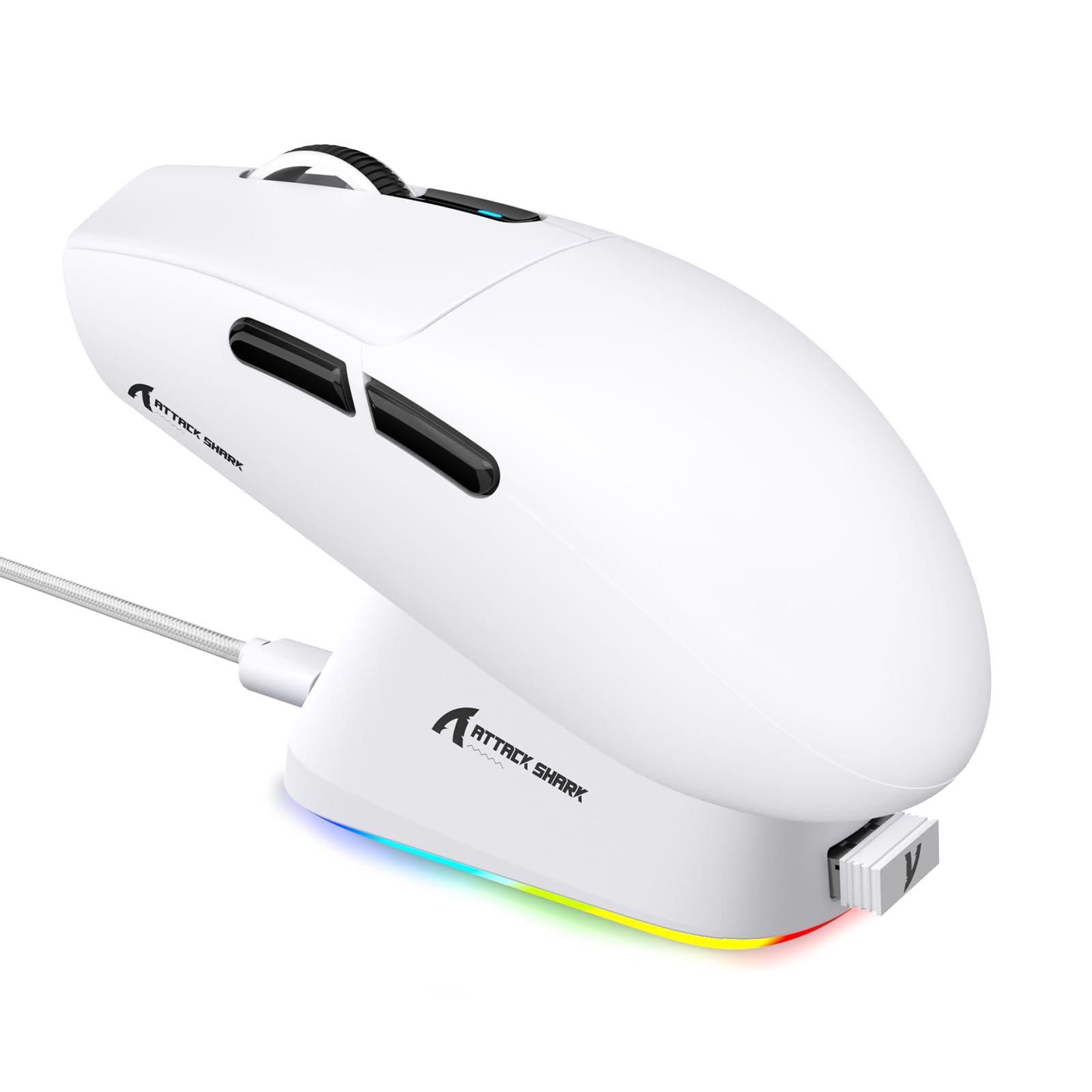
1. Введение
This manual provides detailed instructions for the setup, operation, maintenance, and troubleshooting of your ATTACK SHARK G3PRO Wireless Gaming Mouse. Please read this manual thoroughly to ensure proper use and to maximize your gaming experience.

Изображение: Оверview of the ATTACK SHARK G3PRO mouse and its features, including magnetic fast charging, PAW3311 sensor, web cloud drive, RGB rapid charging dock, and lightweight design.
2. Содержимое упаковки
Проверьте наличие всех предметов в посылке:
- ATTACK SHARK G3PRO Wireless Gaming Mouse
- Магнитная зарядная док-станция с RGB-подсветкой
- USB-приемник 2.4G
- Кабель USB-C — USB-A для зарядки/передачи данных
- Руководство пользователя
3. Настройка
3.1 Первоначальная зарядка
Before first use, it is recommended to fully charge the mouse. Connect the USB-C cable to the charging dock and a power source. Place the mouse onto the magnetic charging dock. The RGB lighting on the dock will indicate charging status.
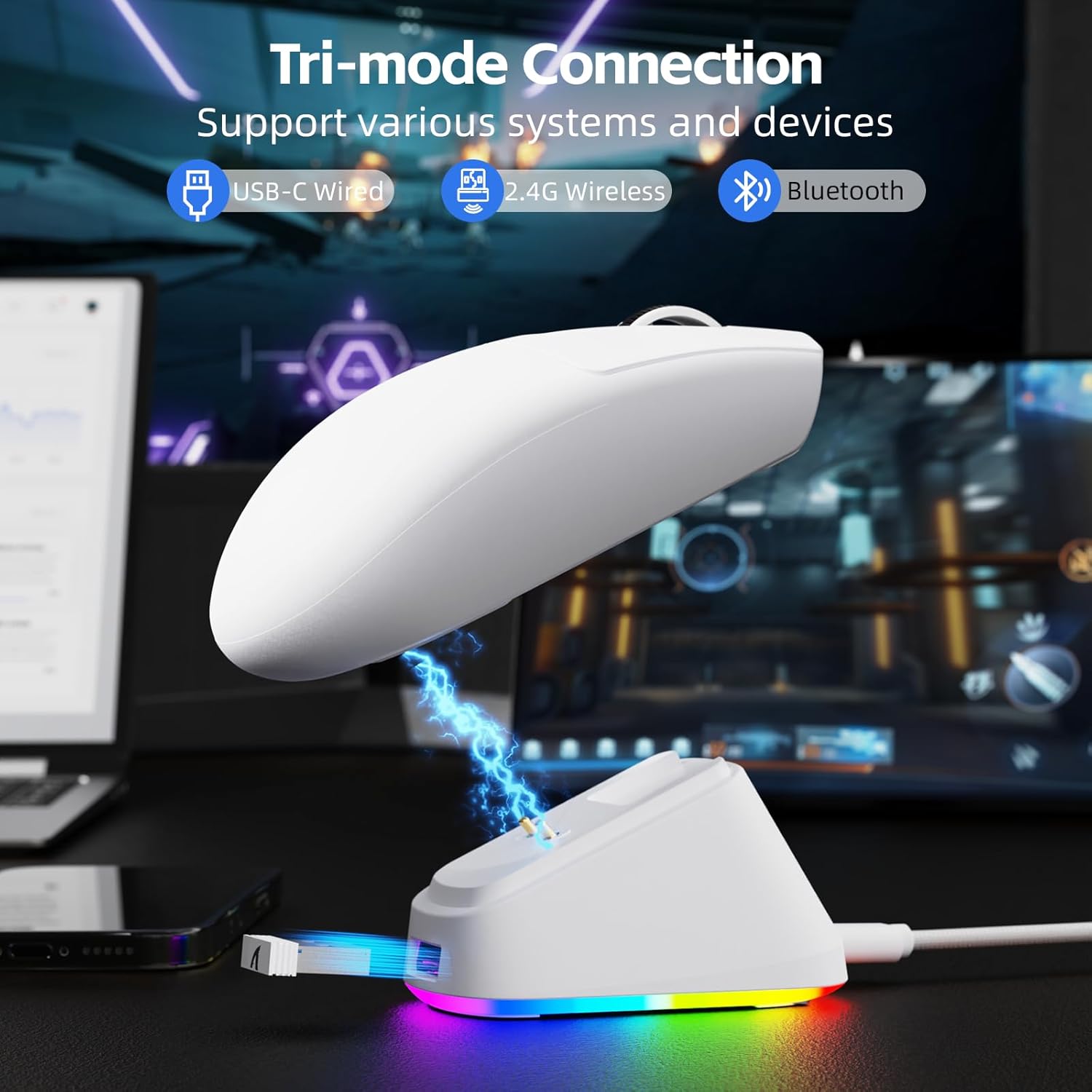
Image: The ATTACK SHARK G3PRO mouse magnetically attached to its RGB charging dock, showing the charging thimbles and USB-C port.
For a visual guide on charging, please watch the following video:
Video: This video demonstrates the magnetic charging dock and its features for the ATTACK SHARK G3PRO Wireless Gaming Mouse.
3.2 Подключение мыши
The G3PRO supports three connection modes: 2.4GHz Wireless, Bluetooth, and USB-C Wired. A switch on the bottom of the mouse allows you to select the desired mode.

Image: The ATTACK SHARK G3PRO mouse with visual indicators for Wired, 2.4G, and Bluetooth connectivity modes.
Беспроводной режим 2.4 ГГц:
- Locate the 2.4G USB receiver, typically stored within the charging dock or the mouse itself.
- Подключите USB-приемник к свободному USB-порту на вашем компьютере.
- Set the switch on the bottom of the mouse to "2.4G".
- Мышь должна подключиться автоматически.
Режим Bluetooth:
- Set the switch on the bottom of the mouse to "BT".
- На компьютере или устройстве перейдите в настройки Bluetooth и включите Bluetooth.
- Искать new devices and select "ATTACK SHARK G3PRO" to pair.
Проводной режим USB-C:
- Подключите кабель USB-C напрямую от мыши к компьютеру.
- Мышь будет функционировать как проводная мышь и одновременно заряжаться.
For a visual guide on product features and connectivity, please watch the following video:
Video: This video demonstrates the various color options and the magnetic charging feature of the ATTACK SHARK G3PRO Wireless Gaming Mouse, showcasinг его дизайн и функциональность.
4. Управление мышью
4.1 Функции кнопок
The ATTACK SHARK G3PRO features 5 programmable buttons:
- Щелчок левой кнопкой мыши: Первичное действие.
- Щелкните правой кнопкой мыши: Вторичное действие/контекстное меню.
- Средняя кнопка мыши/колесо прокрутки: Scroll up/down, middle click for universal scroll or other functions.
- Кнопка вперед: Навигация вперед по умолчанию web браузеры/папки.
- Кнопка назад: Навигация назад по умолчанию web браузеры/папки.
- Переключатель DPI: Перебирает предустановленные уровни DPI.

Image: A detailed diagram illustrating the location and default functions of the multi-functional buttons on the ATTACK SHARK G3PRO mouse.

Изображение: взорванный view and labeled diagram of the G3PRO mouse components, including buttons, switches, charging points, and the 2.4G/OFF/BT mode switch.
4.2 Настройка DPI
The mouse features a dedicated DPI switch to cycle through various sensitivity levels, ranging from 800 to 25,000 DPI. The current DPI setting is indicated by an LED light.

Image: A visual representation of the 25,000 DPI optical sensor's precision and how mouse movement trajectory sensitivity scales with DPI settings.
4.3 Частота опроса
The G3PRO supports a 1000Hz polling rate in both wired and 2.4GHz wireless modes, ensuring rapid response times for competitive gaming.

Image: A diagram illustrating the 1000Hz polling rate capability in both wired and wireless modes, highlighting millisecond response times.
5. Программное обеспечение и настройка
Customize your G3PRO mouse settings using the intuitive web driver or downloadable software from ATTACK SHARK. This allows for personalization of DPI, polling rate, macros, and more.
- Web Водитель: Доступ к web-based configuration tool for quick adjustments without installation.
- Downloadable Software: For advanced customization and profile management, download the dedicated software.

Image: A screenshot of the ATTACK SHARK Hub software interface, showing options for mouse settings, DPI settings, parameter settings, macro editing, and personal center.

Image: The cloud-driven programming interface for the G3PRO mouse, displaying options for button settings, DPI adjustments, polling rate settings, and power management.
6. Техническое обслуживание
6.1 Очистка
Для поддержания оптимальной производительности регулярно чистите мышь. Используйте мягкую сухую ткань для протирания поверхности. Для удаления стойких загрязнений используйте слегка грубую ткань.amp Для защиты внутренних компонентов можно использовать ткань, предотвращая попадание влаги внутрь. Избегайте агрессивных химикатов и абразивных материалов.
6.2 Хранение
When not in use for extended periods, store the mouse and charging dock in a cool, dry place. Ensure the USB receiver is securely stored, ideally within the charging dock's designated slot, to prevent loss.
7. Поиск Неисправностей
| Проблема | Возможная причина | Решение |
|---|---|---|
| Мышь не реагирует (2.4 ГГц) | Low battery; Receiver not plugged in; Incorrect mode selected; Driver issue. | Charge the mouse; Ensure receiver is firmly plugged in; Set mouse to "2.4G" mode; Reinstall mouse drivers. |
| Мышь не отвечает (Bluetooth) | Low battery; Bluetooth not enabled on device; Not paired; Incorrect mode selected. | Charge the mouse; Enable Bluetooth on your device; Re-pair the mouse in Bluetooth settings; Set mouse to "BT" mode. |
| Подсветка RGB зарядной док-станции не работает. | Cable not connected; Power source issue. | Ensure USB-C cable is securely connected to dock and power source; Try a different USB port or power adapter. |
| Непоследовательное отслеживание | Dirty sensor; Uneven surface; Interference (wireless). | Clean the optical sensor; Use a clean, even mouse pad; Reduce wireless interference by moving other devices or using wired mode. |
| Кнопки не отвечают | Конфликт программного обеспечения; физическое повреждение. | Check software settings for button remapping; Test on another computer; Contact support if physical damage is suspected. |
8. Технические характеристики
| Особенность | Деталь |
|---|---|
| Бренд | АТАКУЮЩАЯ АКУЛА |
| Модель | Г3ПРО |
| Цвет | Белый |
| Технология связи | Беспроводная связь 2.4 ГГц, Bluetooth, проводное подключение USB-C. |
| Технология обнаружения движения | Оптический (датчик PAW3311) |
| Максимальное количество точек на дюйм | 25,000 точек на дюйм |
| Скорость опроса | 1000 Гц |
| Ускорение | 40G |
| Скорость отслеживания | 400 IPS |
| Переключатели | Mechanical (100 Million Clicks) |
| Емкость аккумулятора | 500мАч |
| Срок службы батареи | До 200 часов |
| Масса | 59 г ± 3 г |
| Кнопки | 5 |
| Ориентация руки | Двусторонний |
| Совместимые устройства | Ноутбук, персональный компьютер, смартфон, планшет |
| Операционная система | Windows, macOS |
For a comparison of G3 and G3PRO models, refer to the image below:

Image: A table comparing the specifications of the ATTACK SHARK G3 and G3PRO models, highlighting differences in components and features.
9. Информация по технике безопасности
- Не подвергайте устройство воздействию экстремальных температур или влажности.
- Не роняйте устройство и не подвергайте его сильным ударам.
- Хранить в недоступном для детей месте.
- Не пытайтесь разбирать или модифицировать устройство, так как это приведет к аннулированию гарантии и может привести к повреждению.
- Используйте только прилагаемый зарядный кабель и док-станцию.
10. Гарантия и поддержка
The ATTACK SHARK G3PRO Wireless Gaming Mouse comes with a standard manufacturer's warranty. For detailed warranty information, please refer to the warranty card included in your package or visit the official ATTACK SHARK webсайт.
For technical support, troubleshooting assistance, or to inquire about replacement parts, please contact ATTACK SHARK customer service through their official webсайт или контактную информацию, указанную на упаковке вашего продукта.
Официально Webсайт: Магазин ATTACK SHARK на Amazon