
1. Введение
This manual provides essential instructions for the safe and efficient use of your Samsung Smart FHD 43'' TV, model LS43F6000FGXZD. Please read this manual thoroughly before operating the device and retain it for future reference. Your new television features Full HD resolution, HDR technology, PurColor, and the Tizen™ operating system for a rich viewопыт.
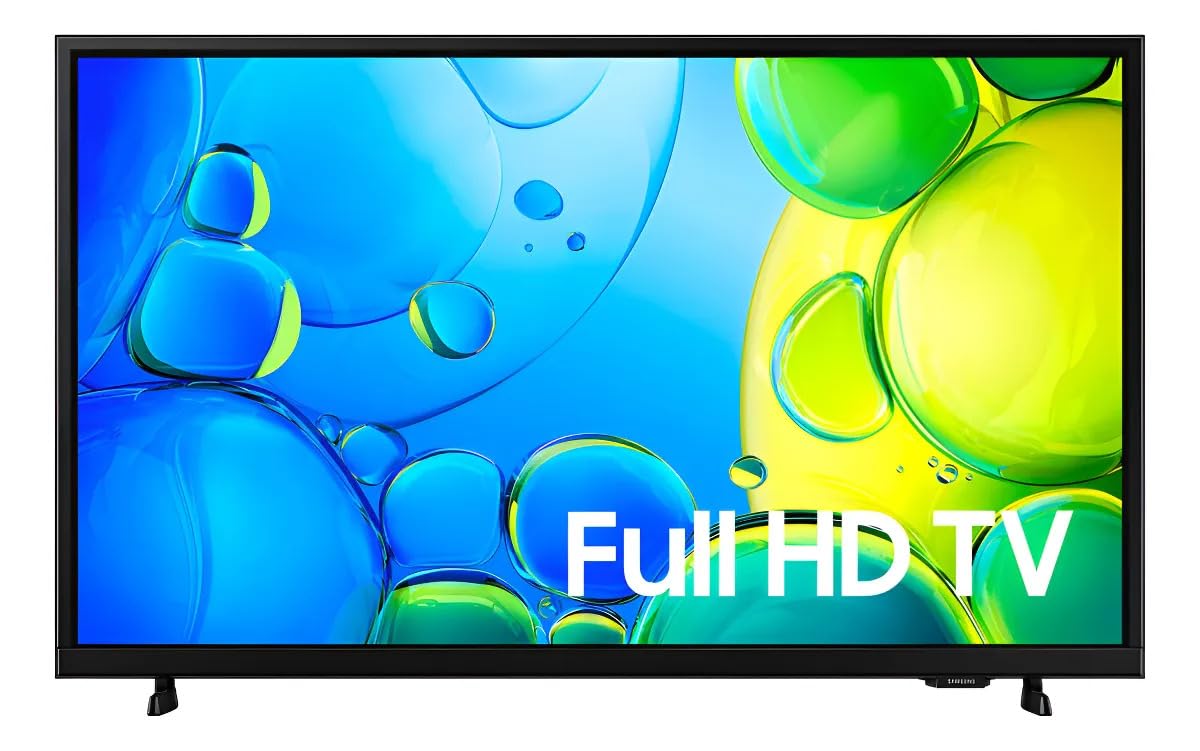
Рисунок 1: Передняя часть view of the Samsung Smart FHD 43'' TV.
2. Информация по технике безопасности
Всегда соблюдайте эти основные меры предосторожности, чтобы снизить риск возгорания, поражения электрическим током и травм.
- Не подвергайте данное устройство воздействию дождя или влаги.
- Не закрывайте вентиляционные отверстия. Устанавливайте в соответствии с инструкциями производителя.
- Не устанавливайте вблизи источников тепла, таких как радиаторы, обогреватели, печи или другие приборы (включая amp(жирообразующие вещества), которые вырабатывают тепло.
- Не допускайте, чтобы на шнур питания наступали или защемляли его, особенно в местах расположения вилок, розеток и в местах выхода из устройства.
- Используйте только те насадки/аксессуары, которые указаны производителем.
- Поручите все обслуживание квалифицированному обслуживающему персоналу. Обслуживание требуется, если устройство было повреждено каким-либо образом.
- Ensure the TV is placed on a stable surface or securely mounted to prevent tipping.
3. Что в коробке
Carefully unpack your TV and ensure all components are present. If any items are missing or damaged, contact your retailer.
- Samsung Smart FHD 43'' TV
- Remote Control (requires 2 AA batteries, not always included)
- Силовой кабель
- Video Adapter (if applicable)
- Stand Components (Base/Feet)
- Руководство пользователя (этот документ)
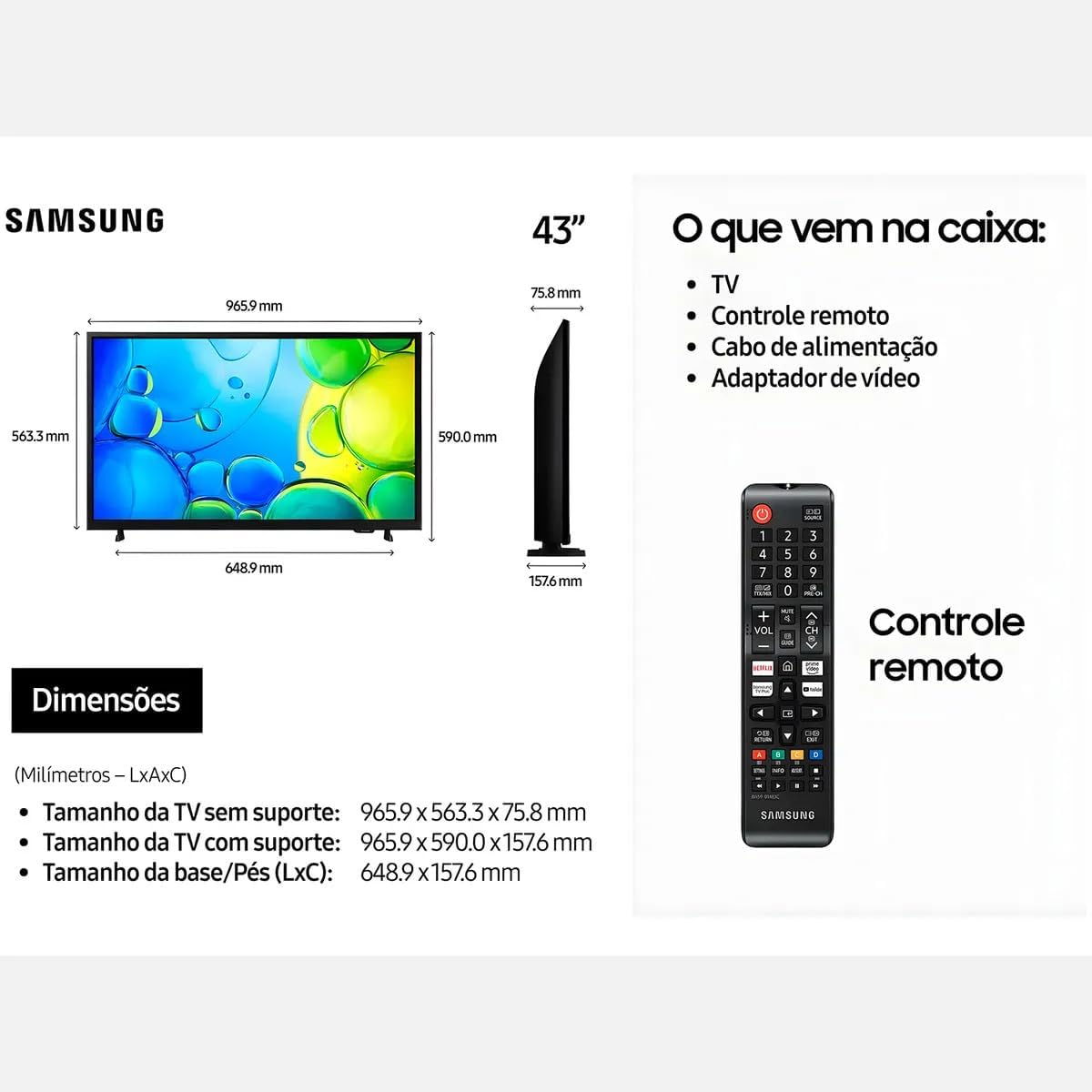
Figure 2: Illustration of items typically included in the product packaging, along with TV dimensions.
4. Настройка
4.1 Распаковка
Remove the TV and all accessories from the packaging. It is recommended to keep the original packaging for future transport or servicing.
4.2 Крепление подставки
If you are placing the TV on a table or cabinet, attach the included stand. Follow the instructions provided in the stand assembly guide. Ensure all screws are tightened securely.
4.3 Настенный монтаж
For wall mounting, use a VESA-compliant wall mount kit (100 x 200 mm, sold separately). Consult a professional for wall mounting to ensure proper installation and safety.
4.4 Подключение периферийных устройств
Подключите внешние устройства к телевизору, используя соответствующие порты.
- HDMI: Подключайте Blu-ray плееры, игровые приставки или телеприставки к портам HDMI. Этот телевизор имеет 2 порта HDMI.
- USB: Connect USB storage devices for media playback to the USB 3.0 port. This TV has 1 USB 3.0 port.
- Сеть (LAN): Для проводного подключения к Интернету подключите кабель Ethernet к порту LAN.
- Антенна/кабель: Подключите антенну или кабельное телевидение.
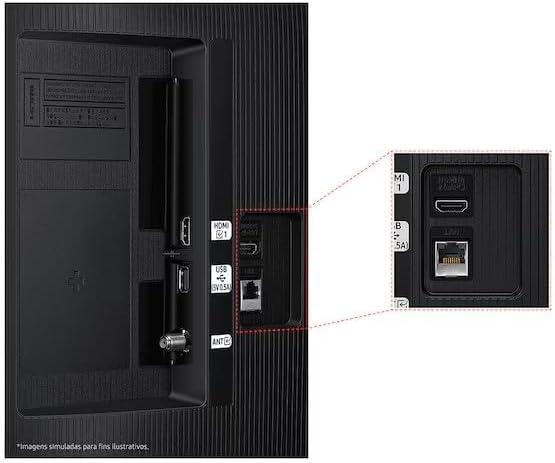
Figure 3: Rear panel connections, highlighting HDMI, USB, and LAN ports.
4.5 Первоначальное включение и мастер настройки
After connecting all necessary cables, plug the power cord into an electrical outlet. The TV will power on and guide you through the initial setup wizard, which includes language selection, network connection (Wi-Fi or wired), channel scanning, and smart features configuration.
5. Управление телевизором
5.1 Дистанционное управлениеview
Insert two AA batteries into the remote control. The remote allows you to navigate menus, change channels, adjust volume, and access smart features. Refer to the diagram on the remote control for button functions.
5.2 Основные функции телевизора
- Власть: Нажмите кнопку питания на пульте дистанционного управления, чтобы включить или выключить телевизор.
- Объем: Используйте кнопки увеличения/уменьшения громкости для регулировки уровня звука.
- Канал: Для переключения каналов используйте кнопки «Канал вверх/вниз».
- Источник: Нажмите кнопку «Источник» для переключения между подключенными устройствами ввода (HDMI 1, HDMI 2, ТВ и т. д.).
5.3 Функции Smart TV (ОС Tizen)
Your Samsung Smart TV runs on the Tizen™ operating system, providing access to a wide range of applications and services. Connect your TV to the internet via Wi-Fi or Ethernet to utilize these features.
- Магазин приложений: Download and install various applications like Netflix, YouTube, and Amazon Prime Video.
- Web Браузер: Просматривайте интернет-страницы прямо с телевизора.
- Смарт-хаб: Access all your smart features, apps, and connected devices from one central location.

Figure 4: The Tizen operating system interface, showing available applications.
The TV also features Knox Security, ensuring your data and privacy are protected.
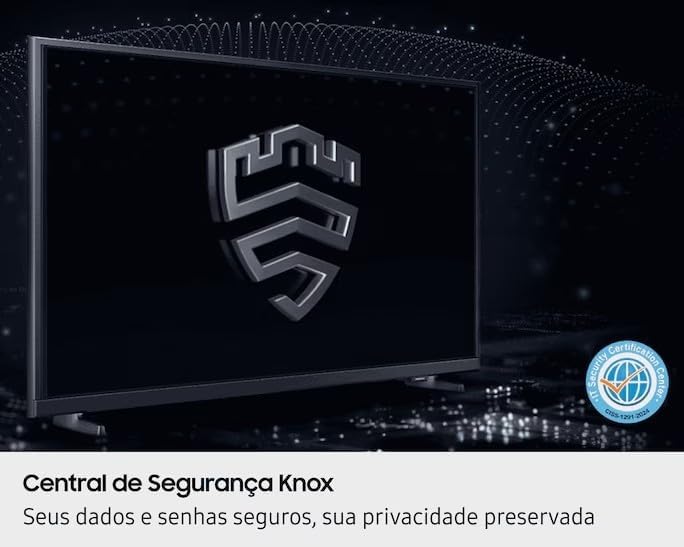
Figure 5: Knox Security Central, highlighting data and privacy protection.
5.4 Настройки изображения
Настройте параметры изображения для оптимизации вашего viewопыт.
- Режим изображения: Select from various preset modes (Standard, Dynamic, Movie, etc.) or customize your own.
- Контраст яркости: Настройте эти параметры в соответствии с вашими условиями.
- Технология HDR: This TV supports HDR10+, providing greater depth in details, even in very bright or dark scenes.
- PurColor: Enhances color accuracy and vibrancy for a more lifelike image.
- Усилитель контрастности: Automatically adjusts contrast for improved picture depth.

Figure 6: HDR Technology in action, showing enhanced detail in both bright and dark areas.
5.5 Настройки звука
Customize audio output through the sound settings menu. Options may include sound modes, equalizer settings, and audio output selection (TV speakers, external soundbar, Bluetooth audio).
5.6 Связь
- Bluetooth: Подключайте совместимые Bluetooth-устройства, такие как наушники или звуковые панели, по беспроводной сети.
- Wi-Fi: Connect to your home wireless network for internet access and smart features.
6. Техническое обслуживание
6.1 Чистка телевизора
- Экран: Аккуратно протрите экран мягкой тканью без ворса. Для удаления стойких загрязнений слегка потрите.ampСмочите ткань водой или специальным средством для чистки экранов. Никогда не распыляйте жидкость непосредственно на экран.
- Корпус телевизора: Use a soft, dry cloth to wipe dust from the TV's frame and back panel.
- Важный: Перед чисткой всегда отключайте телевизор от розетки.
6.2 Обновления программного обеспечения
Your TV may receive software updates to improve performance and add new features. You can usually configure the TV to update automatically or check for updates manually through the settings menu (typically under Support > Software Update).
7. Поиск Неисправностей
Если у вас возникли проблемы с телевизором, перед обращением в службу поддержки ознакомьтесь со следующими распространенными решениями.
| Проблема | Возможное решение |
|---|---|
| Нет электричества | Убедитесь, что шнур питания надёжно подключён к телевизору и работающей розетке. Проверьте розетку, подключив другое устройство. |
| Нет изображения, но есть звук | Проверьте источник входного сигнала. Убедитесь, что подключенное устройство включено и работает правильно. Попробуйте другой кабель HDMI. |
| Нет звука, но есть изображение | Check the volume level and ensure the TV is not muted. Verify audio output settings. If using external speakers, check their connections and power. |
| Пульт дистанционного управления не работает | Replace the batteries (AA type). Ensure there are no obstructions between the remote and the TV's IR sensor. |
| Невозможно подключиться к Wi-Fi | Ensure your router is on and functioning. Re-enter the Wi-Fi password. Try restarting both the TV and your router. |
| Проблемы с качеством изображения (например, размытость, искажение) | Проверьте разрешение источника. Отрегулируйте настройки изображения (яркость, контрастность, резкость). Убедитесь, что кабели надежно подключены. |
8. Технические характеристики
Key technical specifications for the Samsung Smart FHD 43'' TV (Model: LS43F6000FGXZD).
| Особенность | Деталь |
|---|---|
| Номер модели | LS43F6000FGXZD |
| Размер экрана | 43 дюйма |
| Технология отображения | FHD (полная высокая четкость) |
| Разрешение | FHD (1920 x 1080 pixels) |
| Частота обновления | 60 Гц |
| Операционная система | Tizen™ |
| Поддержка HDR | HDR10+ |
| Улучшение изображения | HDR Technology, PurColor, Contrast Enhancer |
| Связность | Bluetooth, Wi-Fi, 2x HDMI, 1x USB 3.0 |
| Поддерживаемые интернет-услуги | Netflix, YouTube, Amazon Prime |
| Стандарт крепления VESA | 100 х 200 мм |
| Dimensions (W x D x H) without stand | 965.9 х 75.8 х 563.3 мм |
| Dimensions (W x D x H) with stand | 965.9 х 157.6 х 590.0 мм |
| Вес (без подставки) | 6.5 кг |
| Томtage | 110-220 Volts (check product label for specific range) |
| Тип батареи дистанционного управления | АА (x2) |
9. Гарантия и поддержка
9.1 Гарантия на продукт
This Samsung Smart FHD 43'' TV (Model: LS43F6000FGXZD) comes with a 12-месячная ограниченная гарантия from the date of purchase. This warranty covers manufacturing defects and malfunctions under normal use. Please retain your proof of purchase for warranty claims. For detailed terms and conditions, refer to the warranty card included with your product or visit the official Samsung support webсайт.
9.2 Поддержка клиентов
For technical assistance, troubleshooting beyond this manual, or warranty service, please contact Samsung Customer Support. You can find contact information (phone numbers, chat support, service center locations) on the official Samsung webсайт для вашего региона.
When contacting support, please have your TV's model number (LS43F6000FGXZD) and serial number ready. The serial number is typically located on a sticker on the back of the TV.