
Genmitsu Kortek 10W
Genmitsu Kortek 10W Laser Engraver Instruction Manual
Model: Kortek 10W
1. Введение и окончаниеview
The Genmitsu Kortek 10W Laser Engraver is a versatile desktop laser cutting and engraving machine designed for precision and ease of use. It features a 10W (10000mW) laser module, offering deep cutting performance and high-precision engraving with ±0.01mm repeatability. This compact and portable device supports wireless control via the Genmitsu APP and is compatible with LightBurn and LaserGRBL software.
It is capable of cutting materials up to 10mm thick, such as wood and opaque acrylic, and engraving various materials including glass, ceramic, and stainless steel. Its design prioritizes safety with Class 1 laser certification, automatic tilt-stop protection, and an emergency safety switch.
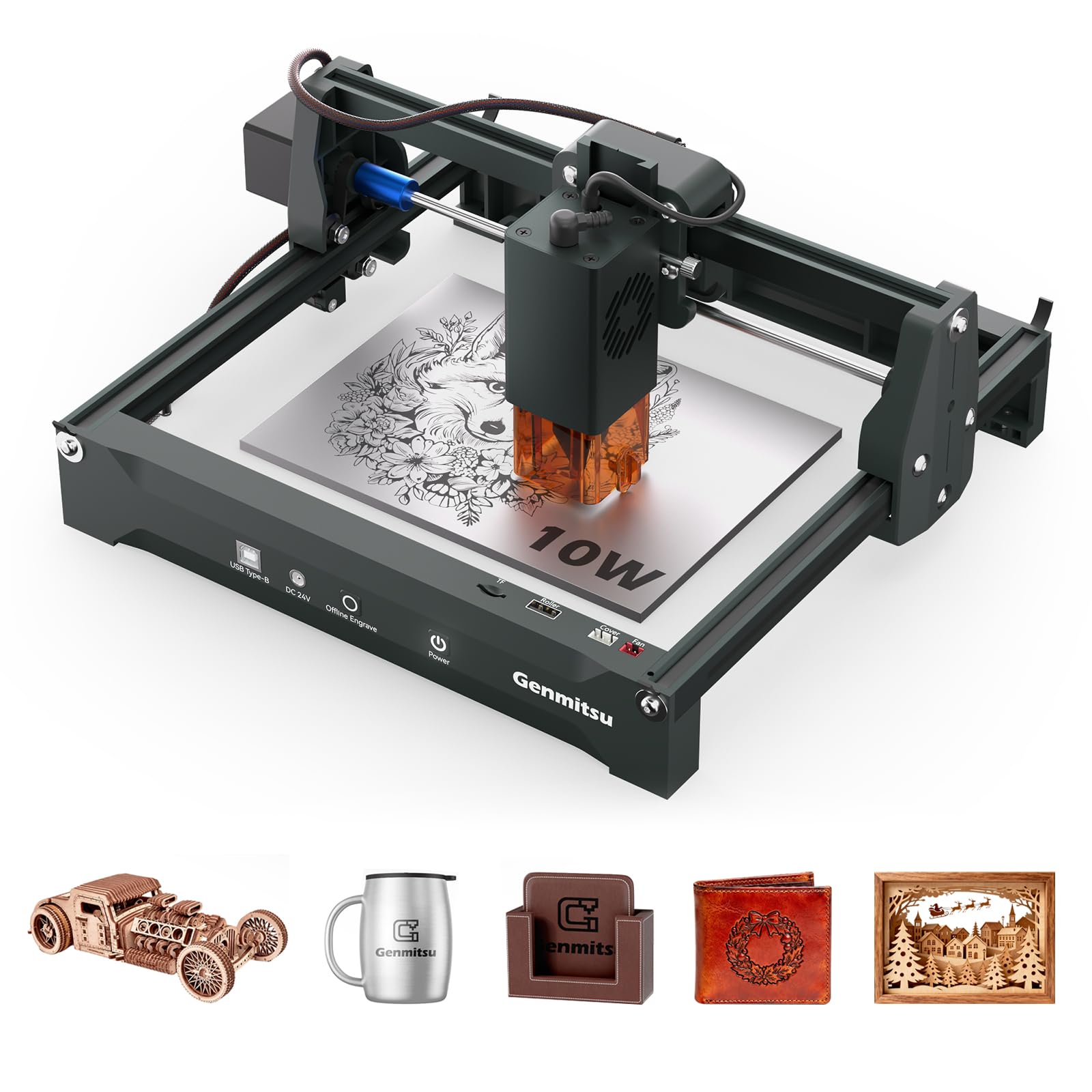
Figure 1: Genmitsu Kortek 10W Laser Engraver.
2. Информация по технике безопасности
Your Genmitsu Kortek 10W Laser Engraver is engineered with multiple safety features. Always adhere to the following guidelines to ensure safe operation:
- Сертификация лазера 1-го класса: The device meets Class 1 laser safety standards.
- Protective Laser Shield: The laser module includes a protective shield to minimize direct laser exposure.
- Laser Goggles: Always wear the provided laser goggles during operation to protect your eyes from scattered laser light.
- Automatic Tilt-Stop Protection: The machine is equipped with a sensor that automatically stops operation if the device is tilted or moved unexpectedly.
- Emergency Safety Switch: An emergency stop switch is present for immediate shutdown in critical situations.
- Ensure proper ventilation when operating the laser engraver, especially when cutting or engraving materials that produce fumes.
- Никогда не оставляйте машину без присмотра во время работы.
- Держите легковоспламеняющиеся материалы вдали от рабочей зоны.

Figure 2: Key safety features of the Kortek Laser Engraver.
3. Что в коробке
Upon opening the Genmitsu Kortek 10W Laser Engraver package, you will find the following components:
- Genmitsu Kortek Laser Engraver Machine (pre-assembled)
- Руководство пользователя
- 3mm Plywood sampле
- Защитные очки
- Лазерный модуль (10 Вт)
- Tools and Accessories (e.g., USB cable, power adapter)
- Power Pack (24V at 2.5A)
Video 1: Unboxing and initial look at the Genmitsu Kortek Laser Engraver. This video demonstrates the contents of the package and the pre-assembled nature of the machine.
4. Настройка
The Genmitsu Kortek 10W Laser Engraver comes largely pre-assembled. Follow these steps for initial setup:
- Размещение: Установите гравировальный станок на устойчивой, ровной поверхности в хорошо проветриваемом помещении.
- Подключение питания: Connect the power pack to the engraver and plug it into a suitable power outlet.
- Установка лазерного модуля: Ensure the laser module is securely attached to the gantry.
- Регулировка фокуса: Adjust the focus height of the laser module according to the material thickness. This is typically done by loosening a screw, moving the module up or down until the laser dot is at its smallest point on the material, and then tightening the screw.
- Установка программного обеспечения/приложений: Install the Genmitsu APP on your smartphone or tablet, or LightBurn/LaserGRBL software on your computer.

Figure 3: Different angles of the Kortek Laser Engraver, highlighting its compact structure.
5. Инструкция по эксплуатации
5.1 Using the Genmitsu APP
The Genmitsu APP provides wireless control for your Kortek Laser Engraver. Follow these steps to connect and operate:
- Загрузите и установите: Download the Genmitsu APP from your device's app store.
- Подключитесь к Wi-Fi:
- Open the APP and select "Laser Engraver".
- Click "Connect to New Machine".
- Go to your phone's Wi-Fi settings and connect to the network named "Genmitsu_Kortek" (default password: "12345678").
- Return to the Genmitsu APP and click "Next Step".
- Select "Kortek" as the machine model.
- Enter your home Wi-Fi network name and password to connect the engraver to your local network.
- Restart the Kortek engraver by turning it off and on.
- Go to your phone's Wi-Fi settings and ensure your phone is connected to the same home Wi-Fi network you entered in the APP.
- Return to the Genmitsu APP. The Kortek engraver should now be discoverable.
- Design and Engrave:
- In the APP, click the link icon next to the Kortek device and select "Creation" or "Control".
- For "Creation", select a photo from your phone.
- Use the "Trace the image" function and adjust settings (Fuzziness Threshold, Denoising, Smoothness) as needed.
- Adjust the size and engraving parameters (Power, Speed, Type - Line/Fill) based on your material.
- Нажмите «Предварительно»view" to name your work.
- Adjust the focus height on the machine manually.
- Use the "Outline" function in the APP to confirm the engraving position on your material.
- Click "Start" to begin the engraving process.
Video 2: Genmitsu APP User Guide for Kortek Laser Engraver. This video provides a step-by-step demonstration of connecting the engraver to the APP and initiating an engraving project.

Figure 4: Wireless control via the Genmitsu APP for preview, positioning, and engraving.
5.2 Использование программного обеспечения LightBurn
The Kortek 10W is compatible with LightBurn. Follow these steps to connect and operate:
- Соединять: Connect the Kortek to your PC using a USB cable.
- Установить драйвер: Install the corresponding driver for your operating system (MacOS or Windows). All necessary files are located on the provided SD card.
- Открытое программное обеспечение: Launch LightBurn.
- Выберите COM-порт: Select the correct COM number in the console.
- For Windows: Find the COM number in Device Manager under "Ports" (e.g., CH341 COM).
- For MacOS: The COM number should be "Wchusbserial" or similar.
- Import Device Profile: Click "Devices" and then "Import" to add the device file. Этот file, typically named "Kortek_Lightburn_Firmware.lbdev", can be found on the SD card under "Kortek_04_Software_GRBL - Lightburn Parameter".
- Проверить соединение: If the status shows "Ready", the connection is successful.
- Гравировка: Adjust engraving parameters (power, speed, passes) within LightBurn according to your material and desired outcome. Use the "Frame" function to confirm the engraving area before starting.
Video 3: LightBurn Tutorial for Kortek Laser Engraver. This video guides users through connecting the engraver to LightBurn software and setting up an engraving task.
5.3 Using LaserGRBL Software
The Kortek 10W is also compatible with LaserGRBL. Follow these steps to connect and operate:
- Соединять: Connect the Kortek to your PC using a USB cable.
- Установить драйвер: Install the corresponding driver for your operating system (MacOS or Windows). All necessary files are located on the provided SD card.
- Открытое программное обеспечение: Launch LaserGRBL.
- Выберите COM-порт: Select the correct COM number in the console.
- For Windows: Find the COM number in Device Manager under "Ports" (e.g., CH341 COM).
- For MacOS: The COM number should be "Wchusbserial" or similar.
- Гравировка: Load your design, adjust power and speed settings, and use the framing function to ensure correct placement before starting the engraving process.
6. Техническое обслуживание
Регулярное техническое обслуживание обеспечивает оптимальную производительность и долговечность вашего лазерного гравера:
- Очистите линзу: Для поддержания качества гравировки периодически очищайте линзу лазера мягкой безворсовой тканью, смоченной специальным раствором для чистки линз.
- Очистить мусор: Remove any dust or debris from the working area and the machine's rails to prevent interference with movement.
- Смажьте рельсы: Apply a small amount of lubricant to the linear rails occasionally to ensure smooth movement of the laser module.
- Обновления прошивки: Check the Genmitsu website or APP for any available firmware updates to ensure your machine has the latest features and improvements.
7. Поиск Неисправностей
Вот некоторые распространенные проблемы и их решения:
| Проблема | Решение |
|---|---|
| Cannot connect to Wi-Fi via APP | Ensure the engraver is powered on and your phone is connected to the "Genmitsu_Kortek" network (password: 12345678) during initial setup. After setting up your home Wi-Fi, ensure both your phone and the engraver are on the same network. Restart the engraver if connection issues persist. |
| Engraving is too light or inconsistent | Check the laser focus height. Ensure the laser module is properly focused on the material. Adjust power and speed settings in your software/APP. Higher power or slower speed generally results in deeper engraving. |
| Machine not responding to software commands | Verify the USB connection. Ensure the correct COM port is selected in LightBurn/LaserGRBL. Restart the software and the engraver. Reinstall drivers if necessary. |
| Can Kortek engrave metal? | Yes, with a 10W laser module, it can mark materials like brass, aluminum, and stainless steel. Ensure the metal surface is not reflective before engraving. Recommended settings:
|

Figure 5: Common questions and answers regarding the Kortek Laser Engraver.
8. Технические характеристики
| Особенность | Деталь |
|---|---|
| Номер модели | Kortek 10W |
| Мощность лазера | 10 Вт (10000 мВт) |
| Повторяемость | ±0.01 мм |
| Рабочая зона | 200 х 150 мм |
| Размеры продукта | 14.57 x 12.99 x 7.48 дюйма |
| Вес товара | 5.96 фунта (2.65 кг) |
| Тип двигателя | 35mm Stepper Motors |
| Функции безопасности | Class 1 Laser Certification, Automatic Tilt-Stop Protection, Emergency Safety Switch |
| Связность | Wireless APP Support, USB, TF Card |
| Совместимость программного обеспечения | Genmitsu APP, LightBurn, LaserGRBL |
| Режущая способность | Up to 10mm wood and opaque acrylic |
| Материалы для гравировки | Wood, Acrylic, Leather, Metal, Fiber, Glass, Ceramic, Stainless Steel |

Figure 6: The 200x150mm working area of the Kortek Laser Engraver.

Figure 7: The portable design of the Kortek Laser Engraver, weighing only 1.2 kg.

Figure 8: Precision of the 35mm stepper motor with ±0.01mm repeatability.

Figure 9: Demonstration of the 10W laser module's capability to cut 10mm pine wood in one pass.
9. Дополнительные аксессуары
Enhance the capabilities of your Genmitsu Kortek 10W Laser Engraver with these optional accessories:
- 1W Infrared Laser Head (1064nm): Ideal for marking metals and plastics with high precision.
- Rotary Roller: Enables engraving on cylindrical objects such as cups, bottles, or rings.
- Кровать с сотами: Provides a flat, stable, and heat-dissipating surface for cutting, improving airflow and reducing burn marks on the underside of materials.
- Насос подачи воздуха: Directs a stream of air to the laser's focal point, clearing smoke and debris, which results in cleaner cuts and engravings and prevents lens contamination.
- Очиститель дыма: Filters and extracts fumes and particles generated during laser processing, improving air quality in your workspace.
- Camera for Laser Engraver: Allows for precise positioning of designs on materials by providing a live view рабочей области.

Figure 10: The 1W 1064nm Infrared Laser Module accessory for metal engraving.

Figure 11: Honeycomb bed and air pump accessories for improved cutting and engraving.
10. Гарантия и поддержка
For warranty information, technical support, or service inquiries, please refer to the official Genmitsu webили обратитесь в службу поддержки клиентов. Сохраните чек о покупке для предъявления гарантийных претензий.
Ask a question about this manual
Ask about setup, troubleshooting, compatibility, parts, safety, or missing instructions. Manuals+ will review the question and use this page’s manual context to help answer it.