
NIMO Nimo N156
NIMO 15.6" FHD Business Laptop User Manual
Model: Nimo N156
Введение
This user manual provides comprehensive instructions for setting up, operating, maintaining, and troubleshooting your NIMO 15.6" FHD Business Laptop. Please read this manual carefully before using your device to ensure optimal performance and longevity. Keep this manual for future reference.
Что в коробке?
Проверьте наличие всех предметов в упаковке:
- 1 x Nimo N156 Laptop
- 1 x Type-C 100W PD Fast Charger
- 1 x Руководство пользователя (этот документ)
- Windows 11 Домашняя (предустановленная)
- 2 Years Warranty, 90 Days Return information
Продукт болееview
Familiarize yourself with the key components of your NIMO laptop.

Рисунок 1: Передний view of the NIMO 15.6 inch FHD Business Laptop, showcasing its full HD IPS display, Intel Core i5 processor, fingerprint reader, Type-C PD charger port, and backlit keyboard.

Рисунок 2: Close-up of the NIMO laptop's backlit full keyboard, highlighting the integrated webcam shield, fingerprint sensor, and numeric keypad for enhanced productivity and security.

Рисунок 3: Diagram illustrating the multiple ports on the NIMO laptop, including Micro SD slot, USB 2.0, USB 3.0, Headphone Jack, Kensington lock, Type-C (multifunction), Type-C (PD Charger Only), HDMI, and Charge LED.
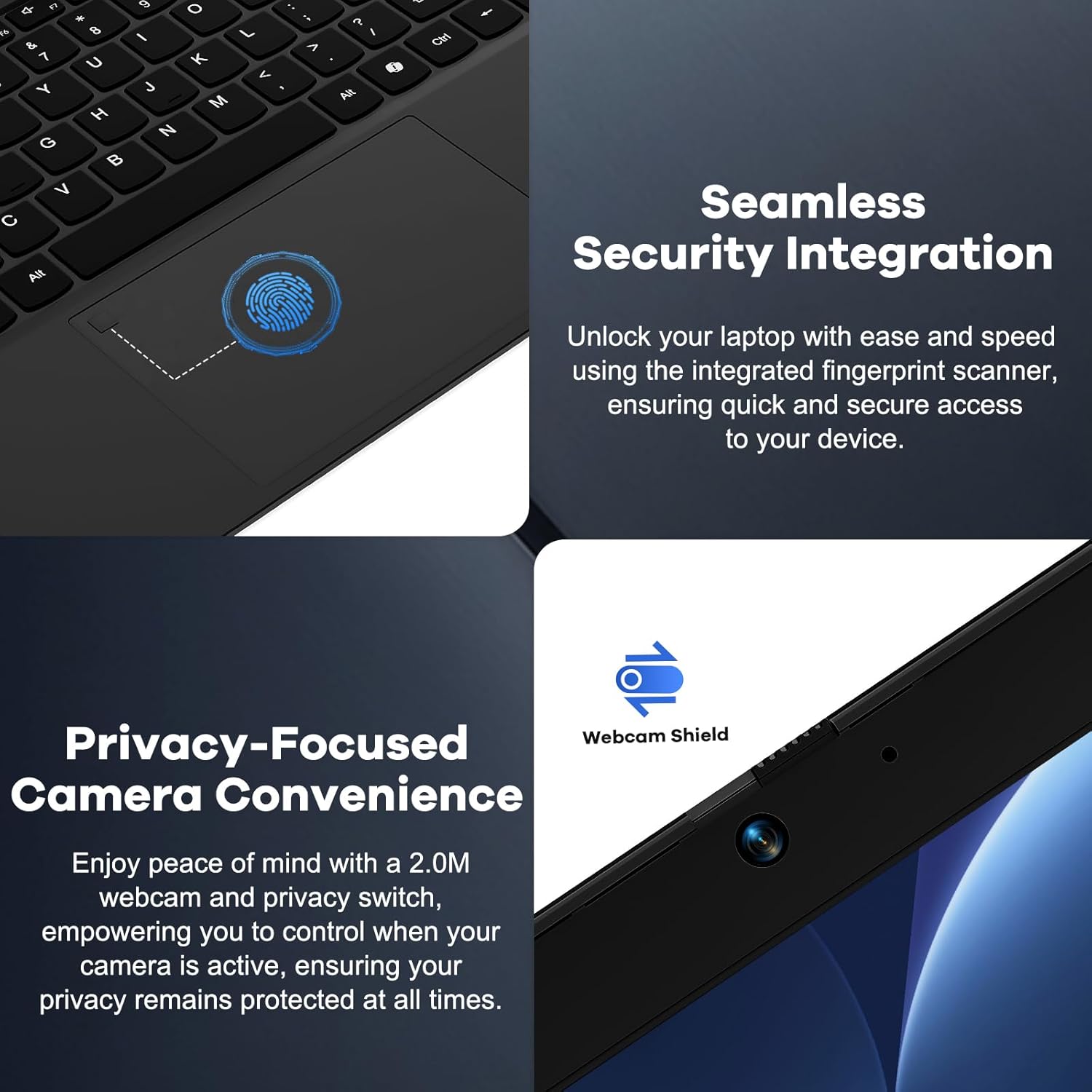
Рисунок 4: Details on the seamless security integration with the fingerprint sensor for quick login and the privacy-focused camera convenience with a built-in webcam shield.

Рисунок 5: The compact 100W GaN Type-C PD Fast Charger included with the NIMO laptop, capable of charging to 50% in 15 minutes and compatible with various devices.
Настраивать
1. Первоначальное включение
- Распаковать: Осторожно извлеките ноутбук и все аксессуары из упаковки.
- Подключите питание: Plug the 100W GaN Type-C PD Fast Charger into a power outlet and connect the USB-C cable to the laptop's Type-C charging port. The Charge LED will illuminate.
- Первая загрузка: Open the laptop lid. The system may power on automatically or you may need to press the power button (located on the top right of the keyboard).
- Настройка Windows: Следуйте инструкциям на экране для завершения процесса настройки Windows 11 Домашняя. Это включает в себя выбор региона, языка, подключение к сети Wi-Fi и создание учётной записи пользователя.
2. Подключение периферийных устройств
Your NIMO laptop offers various ports for connecting external devices:
- USB-устройства: Подключите USB-флеш-накопители, внешние жесткие диски, мыши или клавиатуры к портам USB 2.0 или USB 3.0.
- Внешний дисплей: Используйте порт HDMI для подключения внешнего монитора или проектора.
- Аудио: Plug headphones or external speakers into the 3.5mm Headphone Jack.
- Карты памяти: Insert a Micro SD card into the Micro SD slot for additional storage.
Инструкция по эксплуатации
1. Основные операции
- Включение/выключение питания: Press the power button to turn the laptop on. To shut down, click the Start button in Windows, then Power > Shut down.
- Спящий режим: Close the lid or click the Start button, then Power > Sleep to put the laptop into sleep mode.
- Fingerprint Login: Utilize the integrated fingerprint sensor for quick and secure login to Windows. Register your fingerprints through Windows Settings > Accounts > Sign-in options.
- Подсветка клавиатуры: The keyboard features backlighting for low-light conditions. Use the dedicated function key (Fn + F key combination, typically F3 or F4) to toggle or adjust the backlight brightness.
- WebКонфиденциальность камеры: The laptop includes a physical webcam shield. Slide the switch next to the webcam позволяет закрыть или открыть объектив камеры для обеспечения конфиденциальности.
2. Функции Windows 11
Your laptop comes with Windows 11 Home pre-installed. Explore its features for enhanced productivity and entertainment:
- Макеты с привязкой: Easily organize open windows on your screen.
- Виджеты: Access personalized information at a glance.
- Магазин Microsoft: Загрузите и установите приложения.
- Безопасность: Windows Defender provides built-in antivirus and firewall protection.
Обслуживание
- Уборка: Для очистки экрана и корпуса используйте мягкую безворсовую ткань. Для удаления стойких пятен слегка протрите поверхность.ampПротрите ткань водой или специальным раствором для чистки экранов. Избегайте использования агрессивных химикатов.
- Уход батареи: Для продления срока службы батареи избегайте частой полной разрядки. Рекомендуется по возможности поддерживать уровень заряда батареи в пределах от 20% до 80%. Если ноутбук не используется в течение длительного времени, храните его в прохладном, сухом месте.
- Обновления программного обеспечения: Regularly check for and install Windows updates and driver updates to ensure system stability and security. Go to Windows Settings > Windows Update.
- Управление хранилищем: Периодически убирайте ненужное. files and applications to free up storage space and improve performance.
Поиск неисправностей
| Проблема | Возможная причина | Решение |
|---|---|---|
| Ноутбук не включается. | Проблема с низким зарядом батареи или адаптером питания. | Убедитесь, что зарядное устройство правильно подключено и розетка исправна. Дайте ноутбуку зарядиться не менее 30 минут, прежде чем снова пытаться его включить. |
| Дисплей пустой или мерцает. | Incorrect display settings or driver issue. | Try connecting an external monitor to check if the issue is with the laptop's display. Update graphics drivers. Restart the laptop. |
| Проблемы с подключением к Wi-Fi. | Incorrect network settings or driver issue. | Ensure Wi-Fi is enabled. Restart your router and laptop. Update Wi-Fi drivers. Forget and reconnect to the network. |
| Подсветка клавиатуры не работает. | Backlight feature is off or driver issue. | Press the Fn + F key combination (e.g., F3 or F4) to toggle the backlight. Check keyboard settings in Windows. |
If the problem persists, please refer to the Warranty and Support section for assistance.
Технические характеристики
| Особенность | Деталь |
|---|---|
| Бренд | NIMO |
| Название модели | Nimo N156 |
| Размер экрана | 15.6 дюйма |
| Разрешение экрана | 1920 x 1080 пикселей (FHD IPS) |
| Процессор | Intel Core i5-12450H (8 Cores, up to 4.4 GHz) |
| БАРАН | 8 GB DDR4 (Upgradable) |
| Жесткий диск | 256 GB PCIe SSD (Upgradable) |
| Графический сопроцессор | Интегрированный Intel Graphics |
| Операционная система | Windows 11 Домашняя |
| Тип беспроводной связи | 802.11a/b/g/n/ac (WiFi 6) |
| Bluetooth | БТ5.2 |
| Порты | 1x USB 2.0, 3x USB 3.0, Type-C (PD Charger Only), Type-C (Multifunction), HDMI, Headphone Jack, Micro SD Slot |
| Адаптер питания | 100W GaN Type-C PD Fast Charger |
| Средний срок службы батареи | 5 Hours (54Wh Smart Battery for up to 9 Hours Standby) |
| Вес товара | 3.8 фунта |
| Размеры продукта | 14.07 x 8.98 x 0.76 дюйма |
| Особые возможности | Backlit Keyboard, Fingerprint Reader, HD Audio, Memory Card Slot, Numeric Keypad, Webcam Shield |
Гарантия и поддержка
NIMO stands behind the quality of its products. Your NIMO laptop comes with the following:
- Гарантия 2 года: A 2-Year Warranty from NIMO Direct Inc. covers manufacturing defects and hardware failures.
- Возврат товара без лишних хлопот в течение 90 дней: Для вашего спокойствия воспользуйтесь 90-дневной политикой возврата.
- 24/7 Dedicated Support: For any issues or inquiries, dedicated support is available to provide instant resolution.
For warranty claims or technical assistance, please contact NIMO customer support through the contact information provided on the official NIMO webсайте или в документации о покупке.
Видео: Болееview of the NIMO laptop, highlighting its features, performance, and the comprehensive 90-day return policy and 2-year warranty, demonstrating NIMO's commitment to customer satisfaction.
Ask a question about this manual
Ask about setup, troubleshooting, compatibility, parts, safety, or missing instructions. Manuals+ will review the question and use this page’s manual context to help answer it.