
Введение
The iHeylinkit X6 Wireless CarPlay and Android Auto Adapter is designed to convert your vehicle's existing wired CarPlay or Android Auto system into a wireless connection. This device facilitates hands-free navigation, music playback, voice commands, and phone calls, enhancing your driving experience by eliminating the need for physical cable connections to your smartphone.
Что в коробке?
- iHeylinkit X6 Wireless Adapter (Main Unit)
- USB to USB-C Converter
- Руководство пользователя

Image: The iHeylinkit X6 Wireless Adapter, a compact black device with a short USB-A cable, shown alongside a separate USB-A to USB-C converter. These are the primary components included in the package.
Совместимость
This wireless adapter is designed for vehicles that already support factory-installed wired Apple CarPlay or Android Auto. It is compatible with:
- iPhone: iOS 10 or later (iPhone 6 and above series).
- Android-телефоны: Android 11 или более поздняя версия.
- Vehicle Model Years: 2018-2025.
Важное примечание: This product is not compatible with Tesla or BMW models. It will not function in cars without built-in wired CarPlay or Android Auto functionality.
For a comprehensive list of compatible vehicles, please refer to the official compatibility lists:

Image: A visual representation of the adapter's wide compatibility, indicating support for iPhone iOS 10+ and Android 11+ devices, while explicitly stating non-compatibility with BMW and Tesla vehicles.
Инструкции по установке
Для первоначальной настройки и подключения выполните следующие действия:
- Подключите адаптер: Connect the iHeylinkit X6 adapter into your car's USB port that supports wired CarPlay or Android Auto. Use the provided USB to USB-C converter if your car has a USB-C port.
- Activate Phone's Wireless Features: Убедитесь, что на вашем смартфоне включены Wi-Fi и Bluetooth.
- Подключиться через Bluetooth: Open your phone's Bluetooth settings and search for available devices. Select the device named "Carsmart-Adapter-****" (the last four characters will be unique to your device).
- Подтвердите сопряжение: A Bluetooth pairing request will appear on your phone. Confirm the code displayed and tap "Pair."
- Allow Sync (Optional): You may be prompted to allow contacts and favorites to sync. You can choose to "Allow" or "Don't Allow" as desired; the adapter will still function.
- Автоматическое подключение: After the initial setup, the adapter will automatically connect to your phone within seconds when you start your car.

Image: An iPhone screen illustrating the steps to connect to the "Carsmart-Adapter" via Bluetooth for CarPlay, including the pairing request and confirmation.
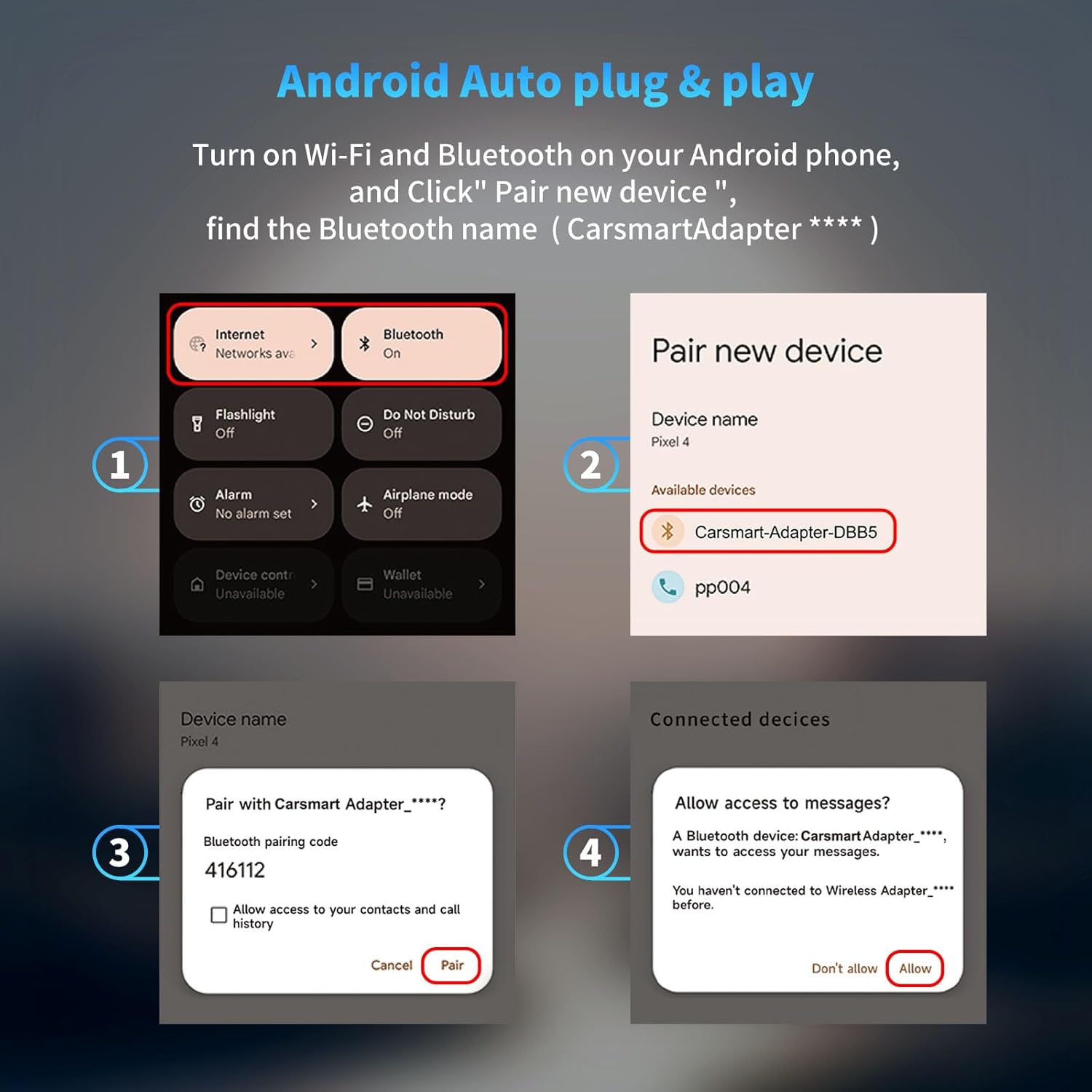
Image: An Android phone screen demonstrating the Bluetooth pairing process for Android Auto, showing how to find and connect to the "Carsmart-Adapter."
Setup Video Guides
Video: This video provides a detailed guide on setting up the iHeylinkit Wireless CarPlay Adapter, demonstrating the connection process and initial use.
Video: This video demonstrates the functionality of the iHeylinkit Wireless Adapter with Android Auto, showcasing its ease of use and seamless integration.
Эксплуатация адаптера
Once connected, the iHeylinkit X6 adapter provides a seamless wireless experience for both CarPlay and Android Auto. You can access all your favorite apps and features directly on your car's infotainment screen.
Основные характеристики:
- Навигация: Use your preferred navigation apps (e.g., Apple Maps, Google Maps) wirelessly.
- Музыка и аудио: Stream music, podcasts, and audiobooks from your phone.
- Голосовые команды: Utilize Siri or Google Assistant for hands-free control.
- Телефонные звонки: Make and receive calls directly through your car's system.
- Автоматическое переподключение: The adapter automatically connects to your paired phone upon starting the vehicle.
Методы контроля:
You can interact with CarPlay or Android Auto using your car's native controls:
- Сенсорный экран: Взаимодействуйте непосредственно с дисплеем автомобиля.
- Органы управления на рулевом колесе: Use existing buttons on your steering wheel.
- Ручка управления: Navigate menus using the car's rotary knob.
- Голосовой помощник: Активируйте Siri или Google Assistant для голосовых команд.

Image: A driver interacting with the car's infotainment system using voice commands, with the CarPlay interface visible on the screen, demonstrating hands-free operation.
Проигрывание видео:
Apple CarPlay and Android Auto do not natively support video playback on the car's screen due to safety regulations. While audio from video streaming apps on your phone can be played through the car stereo, direct video display is not supported by this adapter.
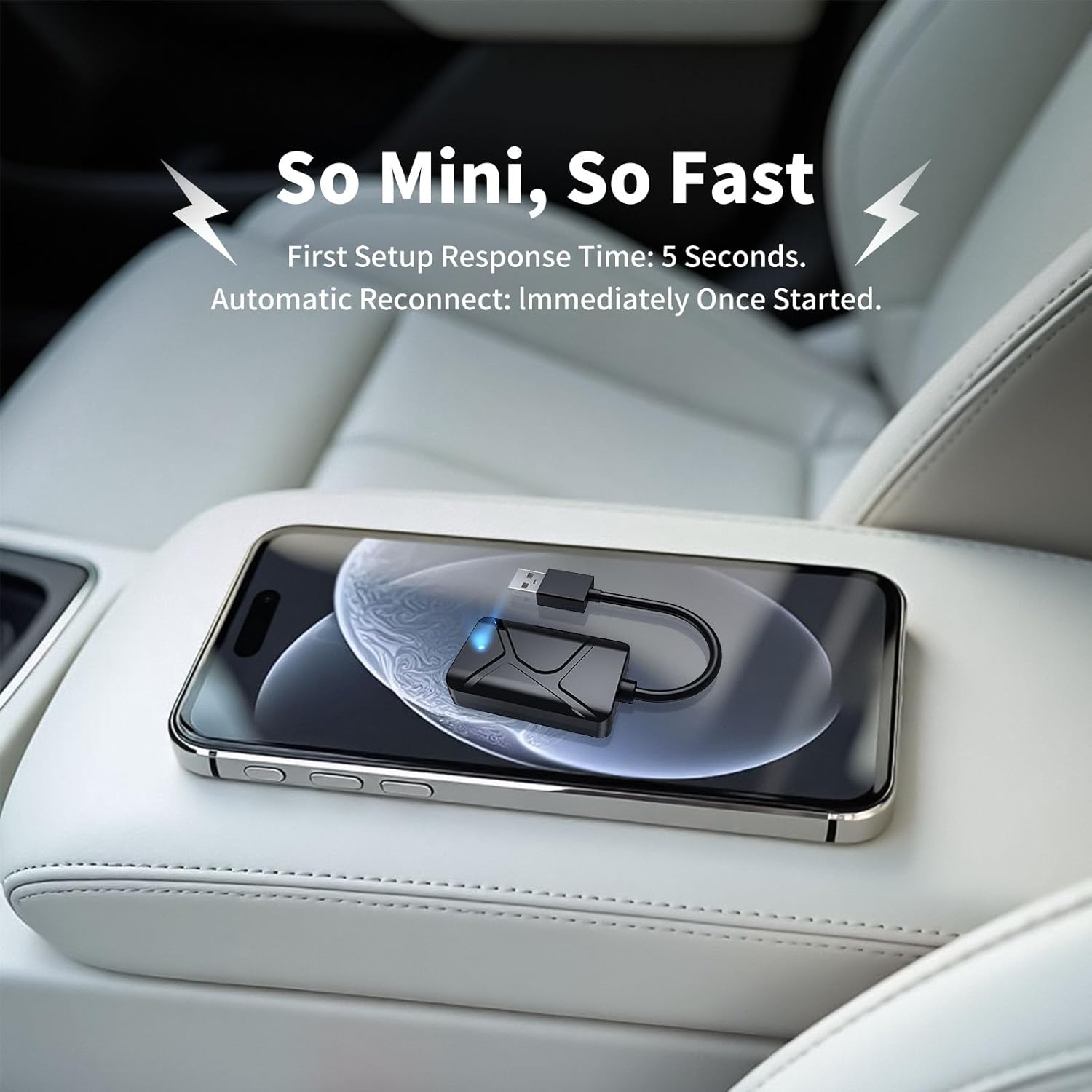
Image: A graphic clarifying that Apple CarPlay and Android Auto do not include support for video playback, though audio from streaming services can be played.
Maintenance: Firmware Updates
To ensure optimal performance and resolve potential connection issues, regularly check for and install firmware updates for your iHeylinkit X6 adapter. This process is straightforward:
- Подключитесь к Wi-Fi: Turn on your phone's Wi-Fi and Bluetooth. Connect to the Wi-Fi network named "Carsmart-Adapter-****". The default password is 88888888.
- Access Settings Page: Once connected to the adapter's Wi-Fi, open your phone's default web браузер и введите 192.168.8.1 в адресной строке.
- Reset & Update: On the settings page, locate and click "Restore Factory Settings." After this, the system will automatically check for the latest firmware version. If an update is available, follow the on-screen instructions to complete the installation.

Image: Two smartphone screens displaying the firmware update interface for the Carsmart Adapter, showing options for checking the build number, Wi-Fi AP, and initiating a factory reset or update.
Поиск неисправностей
If you encounter issues with your iHeylinkit X6 adapter, refer to the following common problems and solutions:
| Проблема | Решение |
|---|---|
| Adapter does not respond when plugged in. | First, confirm that your vehicle has factory wired CarPlay or Android Auto. If your car only has Android Auto, you may need to manually turn on your Android phone's Bluetooth and search for the adapter's SSID name. |
| Cannot connect to the adapter. | Check if your phone's Bluetooth is already occupied by another device. If not, restart your phone and try connecting to the adapter's Bluetooth SSID again. |
| No sound from the phone or sound delay. | Ensure the correct sound channel is selected to "Smart-XXXX" during calls. For sound or navigation delays, troubleshoot network issues and restart your phone. |
| Can this product be paired with more than one phone? | Yes, but to switch between phones, ensure the Bluetooth and Wi-Fi of the previously connected phone are turned off. |
Технические характеристики
| Особенность | Деталь |
|---|---|
| Номер модели | X6 |
| Размеры продукта | 4.17 x 0.9 x 0.4 дюйма |
| Вес товара | 1.13 унции |
| Тип разъема | USB Type C (with included USB-A converter) |
| Совместимые устройства | Apple CarPlay, Android Auto |
| Совместимые модели телефонов | iPhone 6 and above (iOS 10+), Android 11 and above |
| Vol входtage | 5 Вольт |
| Ampярость | 0.3 Amps |
| Общее количество портов USB | 2 (referring to car's ports, adapter uses one) |
| Специальная характеристика | Automatic Off, Automobile Connector |

Image: A diagram illustrating the compact and portable design of the iHeylinkit X6 adapter, with its dimensions clearly marked.
Гарантия и поддержка
The iHeylinkit X6 Wireless CarPlay and Android Auto Adapter comes with the following:
- Гарантия: 2 years replacement only (no repair service).
- Техническая поддержка: 7x24 hour online support from a North American local technical team, providing quick responses to compatibility and operational issues.