
Введение
This manual provides detailed instructions for the setup, operation, maintenance, and troubleshooting of your Axtel One BT Stereo Wireless Headset. This headset is designed for professional use, offering reliable Bluetooth connectivity, noise-cancelling microphones, and high-definition speakers for clear communication and audio playback.
Содержимое упаковки
Проверьте наличие всех предметов в посылке:
- Axtel One BT Stereo Wireless Headset
- USB-адаптер
- Зарядная станция
- Зарядный кабель USB-C
- Руководство пользователя (этот документ)

Image: Axtel One BT Stereo Wireless Headset placed on its charging base, showing the headset and base as a complete unit.
Продукт болееview
Familiarize yourself with the components of your Axtel One BT Stereo Wireless Headset.

Изображение: сбоку view of the Axtel One BT Stereo Wireless Headset with the microphone boom extended, highlighting the earcups and headband.
Компоненты гарнитуры:
- Регулируемая повязка на голову: Для комфортной посадки.
- Ушные подушки: Vegan leather and memory foam for comfort.
- Стойка микрофона: Flexible arm with dual noise-cancelling microphones.
- Кнопки управления: Located on the earcup for call management (answer/reject/mute) and volume.
- Порт USB-C: For direct charging of the headset.
- Busy Light Indicator: Signals availability during calls.
Charging Station & USB-A Dongle:

Image: The Axtel One BT Charging Station, a black stand designed to hold and charge the headset.
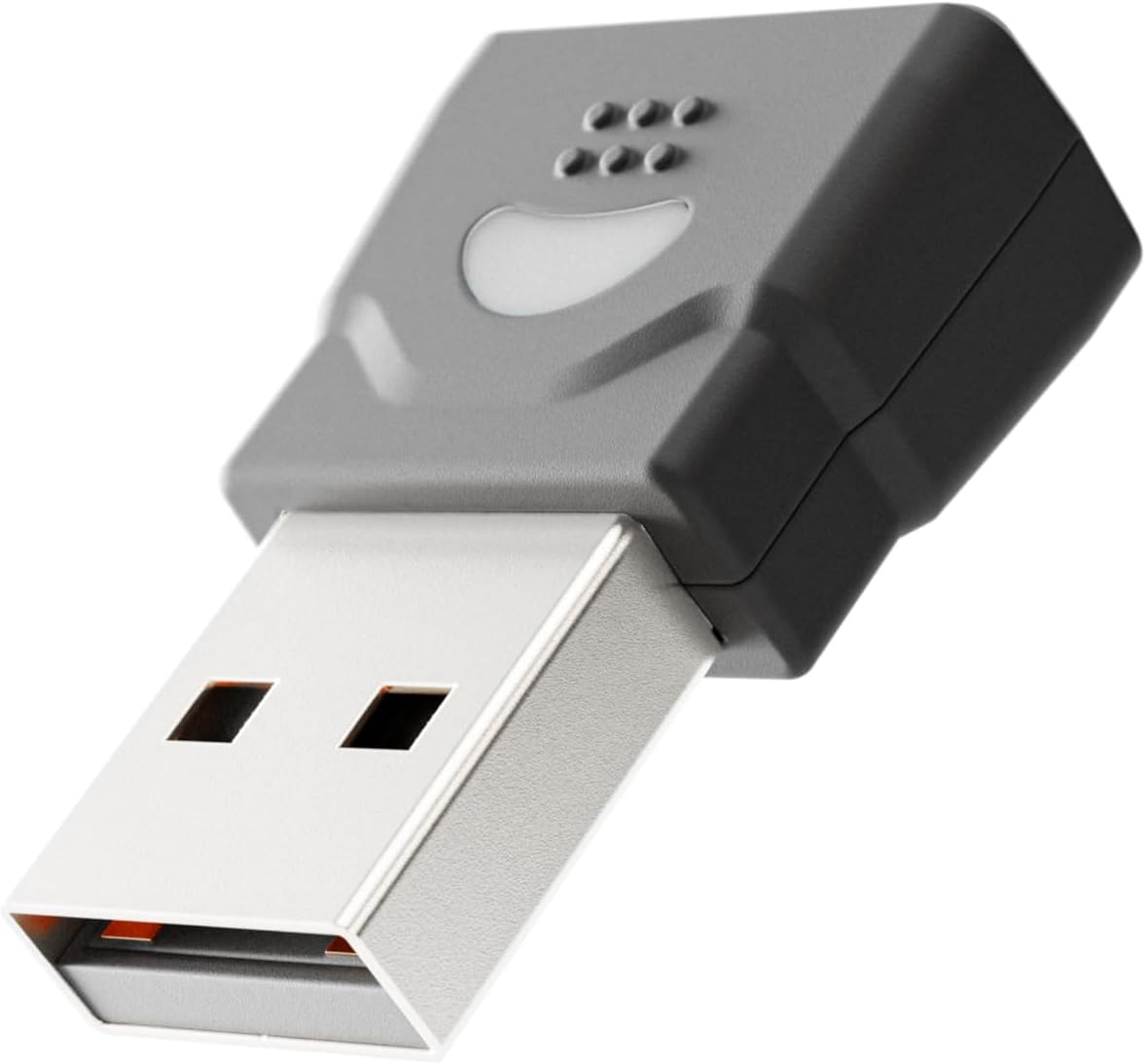
Image: The compact USB-A dongle, used for connecting the headset to a computer without built-in Bluetooth.
- Зарядная станция: Provides a convenient dock for charging and storing the headset.
- USB-A Dongle: Enables wireless connection to computers without Bluetooth or for enhanced stability.
Настраивать
1. Зарядка гарнитуры
Before initial use, fully charge your headset. A full charge takes approximately 2 hours and provides up to 40 hours of talk or music time. A 20-minute fast charge can provide several hours of use.
- Использование зарядной станции: Connect the USB-C charging cable to the charging station and then to a power source (e.g., computer USB port or wall adapter). Place the headset onto the charging station. The headset's indicator light will show charging status.
- Прямая зарядка через USB-C: Подключите зарядный кабель USB-C непосредственно к порту USB-C на гарнитуре, а затем к источнику питания.
2. Connecting to a Computer via USB-A Dongle (Plug & Play)
For seamless connection to your computer, use the included USB-A dongle.
- Insert the USB-A dongle into an available USB-A port on your computer.
- The dongle's indicator light will blink, then turn solid when connected to the headset.
- Power on your headset. It will automatically pair with the dongle.
- Your computer should recognize the headset as an audio device. You may need to select "Axtel One BT" as your default audio input/output device in your system settings.
3. Connecting via Bluetooth (Mobile Devices / Computers with Bluetooth)
To connect to a mobile device or a computer with built-in Bluetooth:
- Убедитесь, что гарнитура выключена.
- Press and hold the Power button on the headset until the indicator light flashes blue and red, indicating pairing mode.
- На вашем устройстве (смартфоне, планшете, компьютере) перейдите в настройки Bluetooth и включите Bluetooth.
- Select "Axtel One BT" from the list of available devices.
- После сопряжения индикатор на гарнитуре загорится синим цветом.
Инструкция по эксплуатации
Включение/выключение питания
- Включение питания: Нажмите и удерживайте кнопку питания в течение 2 секунд.
- Выключение: Нажмите и удерживайте кнопку питания в течение 3 секунд.
Управление вызовами
The headset features integrated controls for managing calls.
- Ответить/завершить вызов: Нажмите кнопку «Вызов» один раз.
- Отклонить вызов: Нажмите и удерживайте кнопку вызова в течение 2 секунд.
- Отключение/включение микрофона: Press the Mute button (usually located on the microphone boom or earcup) once during a call.
Управление звуком
- Увеличить громкость: Нажмите кнопку увеличения громкости.
- Убавить звук: Нажмите кнопку уменьшения громкости.
Microsoft Teams and UC Platform Compatibility
The Axtel One BT Stereo Headset is optimized for Microsoft Teams and compatible with other Unified Communications (UC) platforms such as Zoom, Skype, and Webex. For optimal performance, ensure the headset is selected as the default audio device within the application settings.
Световой индикатор занятости
The integrated busy light indicator automatically illuminates when you are on a call, signaling to others that you are occupied and minimizing interruptions.
Обслуживание
Уборка
- Wipe the headset and charging station with a soft, dry, anti-static cloth.
- Не используйте агрессивные химикаты, чистящие растворители или сильные моющие средства.
Уход за аккумулятором
- Чтобы продлить срок службы батареи, избегайте частой полной разрядки гарнитуры.
- Храните гарнитуру в прохладном, сухом месте, когда она не используется в течение длительного времени.
Earcup Maintenance
The vegan leather and memory foam ear cushions are designed for comfort and can be swapped for hygiene and durability. Refer to the manufacturer's website or support for instructions on replacing ear cushions.
Поиск неисправностей
| Проблема | Возможная причина | Решение |
|---|---|---|
| Нет звука в гарнитуре | Headset not powered on; Not paired; Incorrect audio device selected; Volume too low. | Ensure headset is powered on. Re-pair the headset. Check computer/device audio settings and select "Axtel One BT". Increase headset and device volume. |
| Микрофон не работает | Микрофон отключен; выбрано неправильное устройство ввода; штанга микрофона расположена неправильно. | Unmute the microphone. Check computer/device audio settings and select "Axtel One BT" as input. Ensure microphone boom is close to your mouth. |
| Невозможно подключиться через Bluetooth | Headset not in pairing mode; Device Bluetooth off; Out of range; Interference. | Put headset in pairing mode (flashing blue/red). Ensure device Bluetooth is on. Move headset closer to device. Turn off other Bluetooth devices temporarily. |
| Проблемы с зарядкой | Cable or charging station not connected properly; Faulty cable/port; Headset not seated correctly on station. | Check all cable connections. Try a different USB port or power adapter. Ensure headset is firmly seated on the charging station. |
| Плохое качество звука | Weak signal; Interference; Low battery. | Move closer to the connected device. Avoid sources of strong electromagnetic interference. Charge the headset fully. |
Технические характеристики
| Название модели | ONE BT Stereo with charging base |
| Номер модели | AXH-ONEBTD |
| Технология связи | Беспроводная связь (Bluetooth) |
| Расположение ушей | Над ухом |
| Форм-фактор | На ухо |
| Цвет | Черный |
| Размер динамика динамика | 40 mm HD Speakers |
| Микрофон | Dual Noise-Cancelling Microphones (ENC) |
| Емкость батареи | 500мАч |
| Время разговора | До 40 часов |
| Время музыки | До 40 часов |
| Время в режиме ожидания | До 8.5 дней |
| Время зарядки | Up to 2 hours (via USB-C) |
| Acoustic Protection Technology | Yes, < 118 dB(A) |
| Цифровая обработка сигналов (ЦОС) | Да |
| Автоматическая регулировка усиления (АРУ) | Да |
| Световой индикатор занятости | Да |
| Материал подушки | Memory foam with vegan leather finish |
| Совместимость с платформами | Compatible with major communication platforms (MS Teams, Zoom, Skype, Webех) |
| USB-адаптер | Включено в пакет |
| Производитель | Акстель |
Информация о гарантии
The Axtel One BT Stereo Wireless Headset comes with a 1-летняя ограниченная гарантия производителя. This warranty covers defects in materials and workmanship under normal use. Please retain your proof of purchase for warranty claims. For full terms and conditions, please refer to the official Axtel webсайт или обратитесь в службу поддержки клиентов.
Поддерживать
If you encounter any issues not covered in the troubleshooting section or require further assistance, please contact Axtel customer support. You can find contact information on the official Axtel webсайт.
Интернет-ресурсы: For the latest drivers, firmware updates, and FAQs, visit the Axtel support page.