1. Введение
This manual provides detailed instructions for the installation, operation, and maintenance of the Generic MT7925 WiFi 7 Network Card. This M.2 NGFF wireless adapter offers WiFi 7 (802.11be) connectivity with tri-band support (2.4GHz, 5GHz, 6GHz) and Bluetooth 5.3 capabilities, designed for Windows 10 and Windows 11 systems.
2. Информация по технике безопасности
- Перед установкой или извлечением любых внутренних компонентов всегда отключайте питание компьютера.
- Handle the network card by its edges to avoid touching the gold connectors or sensitive components.
- Для предотвращения повреждений, вызванных электростатическим разрядом, используйте соответствующие меры предосторожности против статического электричества (например, антистатический браслет).
- Берегите устройство от влаги и экстремальных температур.
3. Содержимое упаковки
Проверьте наличие всех предметов в упаковке:
- 1 x MT7925 WiFi Card
4. Настройка и установка
4.1 Контрольный список перед установкой
- Ensure your computer has an available M.2 NGFF slot (Key E).
- Confirm your operating system is Windows 10 or Windows 11 (64-bit).
- Download the latest drivers for the MT7925 from the manufacturer's or chipset provider's website onto a USB drive or accessible location before installation.
4.2 Физическая установка
The MT7925 network card is designed for M.2 NGFF Key E slots found in both desktop motherboards and laptops.

Изображение: спереди и сзади view of the MT7925 WiFi 7 network card, highlighting the Key E connector for installation.
- Выключите компьютер и отсоедините все кабели.
- Open your computer case (for desktop) or access the M.2 slot compartment (for laptop). Refer to your computer's manual for specific instructions.
- Locate an available M.2 NGFF slot (Key E).
- Carefully insert the MT7925 card into the M.2 slot at a slight angle.
- Gently press down the card and secure it with the screw provided with your motherboard or laptop.
- Connect the antenna cables (if applicable) to the corresponding 'Main' and 'Aux' connectors on the card.
- Close your computer case or compartment.
- Подключите все кабели и включите компьютер.
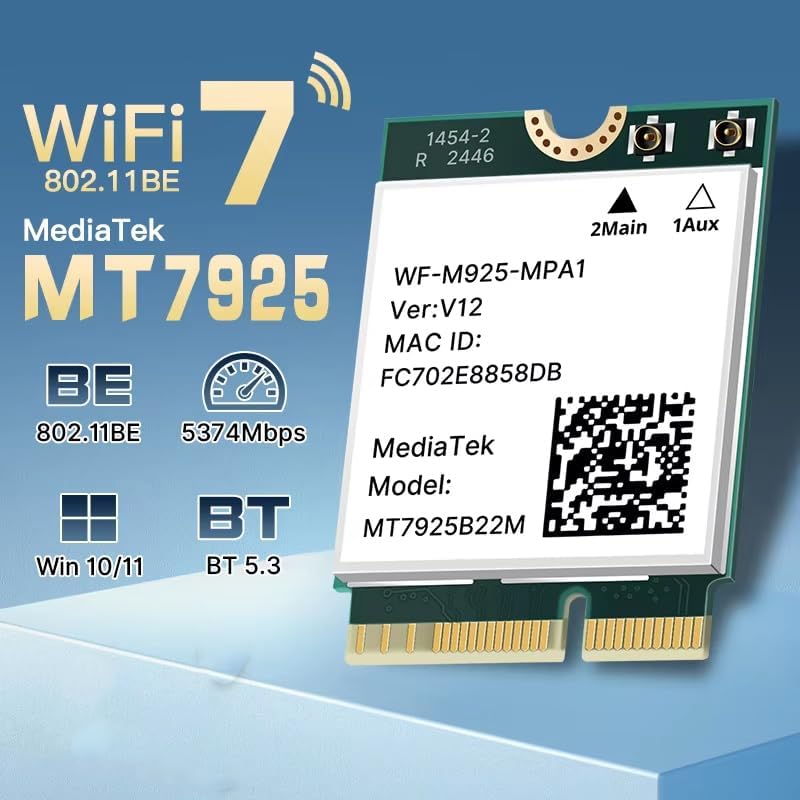
Image: Illustration of M.2 slot availability for both desktop and laptop installations. The image indicates 'Available' and 'Unavailable' slots for clarity.
4.3 Установка драйвера
- After booting into Windows, open Device Manager.
- Look for an unknown device or a network adapter with a yellow exclamation mark under 'Network adapters' or 'Other devices'.
- Right-click on the device and select 'Update driver'.
- Choose 'Browse my computer for drivers' and navigate to the folder where you saved the downloaded drivers.
- Следуйте инструкциям на экране для завершения установки драйвера.
- При появлении соответствующего запроса перезагрузите компьютер.
5. Инструкция по эксплуатации
5.1 Подключение к Wi-Fi
Once drivers are installed, the MT7925 card will enable Wi-Fi functionality. You can connect to available networks:
- Нажмите на значок Wi-Fi на панели задач Windows.
- Выберите нужную сеть из списка.
- Enter the network password if required and click 'Connect'.
- The MT7925 supports tri-band operation (2.4GHz, 5GHz, 6GHz) for optimal performance.

Image: Visual representation of the MT7925's data rates across different frequency bands: 6GHz (2400Mbps), 5GHz (2400Mbps), and 2.4GHz (574Mbps).
5.2 Сопряжение по Bluetooth
The MT7925 also provides Bluetooth 5.3 connectivity.
- Откройте Параметры Windows > Устройства > Bluetooth и другие устройства.
- Убедитесь, что Bluetooth включен.
- Нажмите «Добавить Bluetooth или другое устройство» и выберите «Bluetooth».
- Переведите устройство Bluetooth в режим сопряжения.
- Выберите свое устройство из списка и следуйте инструкциям на экране для завершения сопряжения.

Image: An illustration demonstrating the compatibility of the upgraded Bluetooth 5.3 with various devices, including printers, keyboards, gamepads, mice, headsets, speakers, cell phones, and tablets.
5.3 Совместимость с операционными системами
The MT7925 network card is compatible with 64-bit versions of Windows 10 and Windows 11.

Image: Logos for Windows 10 and Windows 11, confirming support for 64-bit versions of these operating systems.
6. Техническое обслуживание
- Обновления драйверов: Regularly check for updated drivers on the manufacturer's or chipset provider's webсайта для обеспечения оптимальной производительности и безопасности.
- Физический осмотр: Periodically inspect the card and antenna connections (if external) for any signs of damage or loose connections.
- Уборка: If necessary, gently clean the card with compressed air to remove dust buildup. Ensure the computer is powered off and unplugged before cleaning.
7. Поиск Неисправностей
7.1 Отсутствие Wi-Fi или Bluetooth-соединения
- Проверьте диспетчер устройств: Verify that the MT7925 card is recognized and has no error symbols. Reinstall drivers if necessary.
- Физическое подключение: Ensure the card is securely seated in the M.2 slot and any antenna cables are properly connected.
- Настройки BIOS/UEFI: Some motherboards may require enabling the M.2 slot or Wi-Fi/Bluetooth functionality in the BIOS/UEFI settings.
7.2 Низкая скорость Wi-Fi
- Обновление драйвера: Убедитесь, что у вас установлены последние версии драйверов.
- Размещение маршрутизатора: Move closer to your Wi-Fi router or ensure there are no significant obstructions.
- Диапазон частот: Connect to the 5GHz or 6GHz band for higher speeds, if available and supported by your router.
- Вмешательство: Other electronic devices can cause interference. Try changing your router's Wi-Fi channel.
7.3 Устройство Bluetooth не подключается
- Bluetooth включен: Confirm Bluetooth is enabled in Windows settings.
- Режим сопряжения устройств: Убедитесь, что ваше устройство Bluetooth находится в режиме сопряжения.
- Расстояние: Keep the Bluetooth device close to your computer during pairing.
- Вмешательство: Minimize other wireless devices nearby during pairing.
8. Технические характеристики
| Модель | МТ7925 |
| Беспроводной стандарт | WiFi 7 (802.11be) |
| Скорость передачи данных | До 5400 Мбит/с (2400 Мбит/с на частоте 6 ГГц, 2400 Мбит/с на частоте 5 ГГц, 574 Мбит/с на частоте 2.4 ГГц) |
| Диапазоны частот | 2.4 ГГц, 5 ГГц, 6 ГГц (трехдиапазонный) |
| Версия Bluetooth | Блютус 5.3 |
| Интерфейс | M.2 NGFF (Key E) |
| Совместимые операционные системы | Windows 10 (64-разрядная), Windows 11 (64-разрядная) |
| Беспроводные протоколы | 802.11n, 802.11ax (WiFi 6), 802.11a/g, 802.11ac, 802.11be (WiFi 7) |
| аппаратный интерфейс | 802.11 ак/б/г/н |
| Вес товара | 0.48 унции (13.61 г) |
9. Гарантия и поддержка
This product is sold under the 'Generic' brand. For specific warranty terms and conditions, please refer to the seller or retailer from whom you purchased this product. Keep your proof of purchase for any warranty claims.
For technical support, driver updates, or further assistance, please visit the website of the chipset manufacturer (MediaTek) or contact your product vendor.


