
1. Введение
The Innex DS200 is a professional USB book scanner designed for efficient digitization of various documents, including books, magazines, and loose papers. It features a 26MP camera, A3 scanning capability, and advanced software functions to enhance scanning quality and workflow. This manual provides detailed instructions for setting up, operating, and maintaining your DS200 scanner.

Figure 1.1: Innex DS200 Scanner in operation with an open book.
2. Содержимое упаковки
Убедитесь, что все перечисленные ниже предметы входят в комплект. Если какие-либо предметы отсутствуют или повреждены, обратитесь в службу поддержки клиентов.
- Innex DS200 Scanner Unit
- Сканирующая подушка
- USB-кабель
- Адаптер питания (тип A)
- Power Plugs (Type C, Type G)
- Кнопка руки
- Педаль
- Adapter (USB-C to USB-A)
- Краткое руководство пользователя
- Карточка обслуживания
- Заявление GPSR
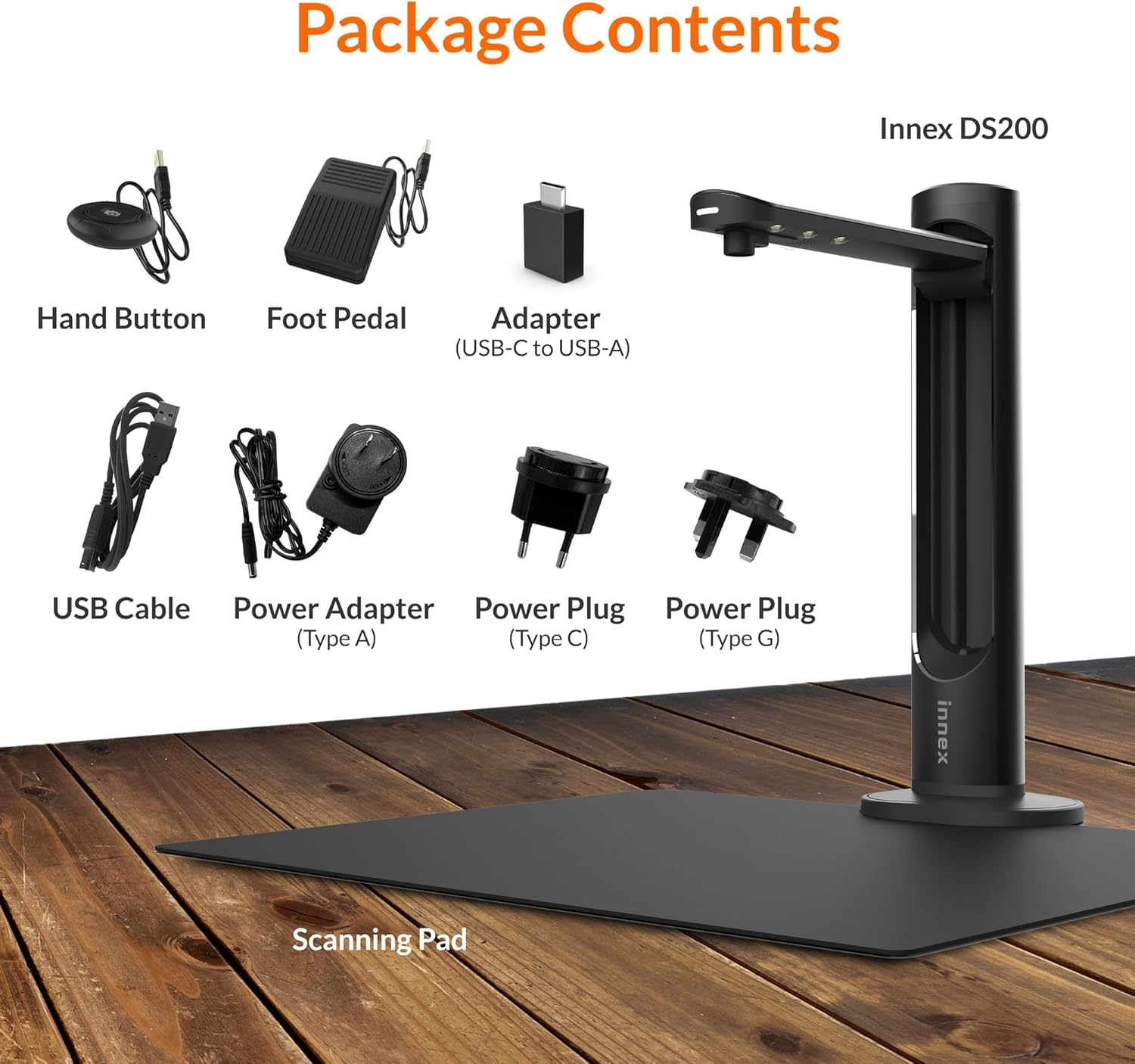
Figure 2.1: Contents of the Innex DS200 package.
3. Настройка
- Распаковываем компоненты: Осторожно извлеките все предметы из упаковки.
- Расположите сканер: Place the Innex DS200 scanner unit on a stable, flat surface.
- Place the Scanning Pad: Position the black scanning pad directly beneath the scanner head. Ensure it is centered and flat.
- Подключите питание: Connect the power adapter to the scanner and plug it into an electrical outlet. Use the appropriate power plug for your region.
- Подключиться к компьютеру: Connect the scanner to your computer using the provided USB cable. If your computer only has USB-C ports, use the included USB-C to USB-A adapter.
- Установить программное обеспечение: Download and install the Innex Scan software from the official Innex website. Follow the on-screen instructions for installation. The software is compatible with Windows and macOS.
- Подключите аксессуары: Plug in the hand button and foot pedal to the designated ports on the scanner unit.
4. Инструкция по эксплуатации
4.1. Основная процедура сканирования
- Launch Innex Scan Software: Open the Innex Scan application on your computer.
- Разместить документ: Place the document or book you wish to scan on the scanning pad. Ensure it is within the scanning area. The laser guide can assist with alignment.
- Настройте параметры: In the software, select your desired scanning mode (e.g., Document, Book, Photo) and adjust settings such as color mode, resolution, and output format.
- Начать сканирование: Trigger the scan using one of the available methods: the software capture button, the hand button, or the foot pedal.
- Review и сохранить: После сканирования, повторноview the image in the software. Apply any necessary corrections and save the file to your preferred location and format.

Figure 4.1: Using the laser guide for document alignment.

Figure 4.2: Multiple options for triggering a scan.
4.2. Функции программного обеспечения
The Innex Scan software includes several features to optimize your scanning experience:
- Curve Flattening: Automatically corrects the curvature of book pages for flat, readable scans.
- OCR (оптическое распознавание символов): Converts scanned images into editable and searchable text in over 120 languages.
- Auto-Cropping: Automatically detects and crops the document edges.
- Page-Turn Detection: For book scanning, the software can detect when a page has been turned and automatically initiate the next scan.
- Удаление пальца: Intelligently removes images of fingers holding down pages during scanning.
- Режим множественного сканирования: Allows scanning multiple small items simultaneously, such as business cards or photos, and separates them into individual files.
- Visualizer Mode: Enables the scanner to function as a document camera for presentations or live demonstrations.
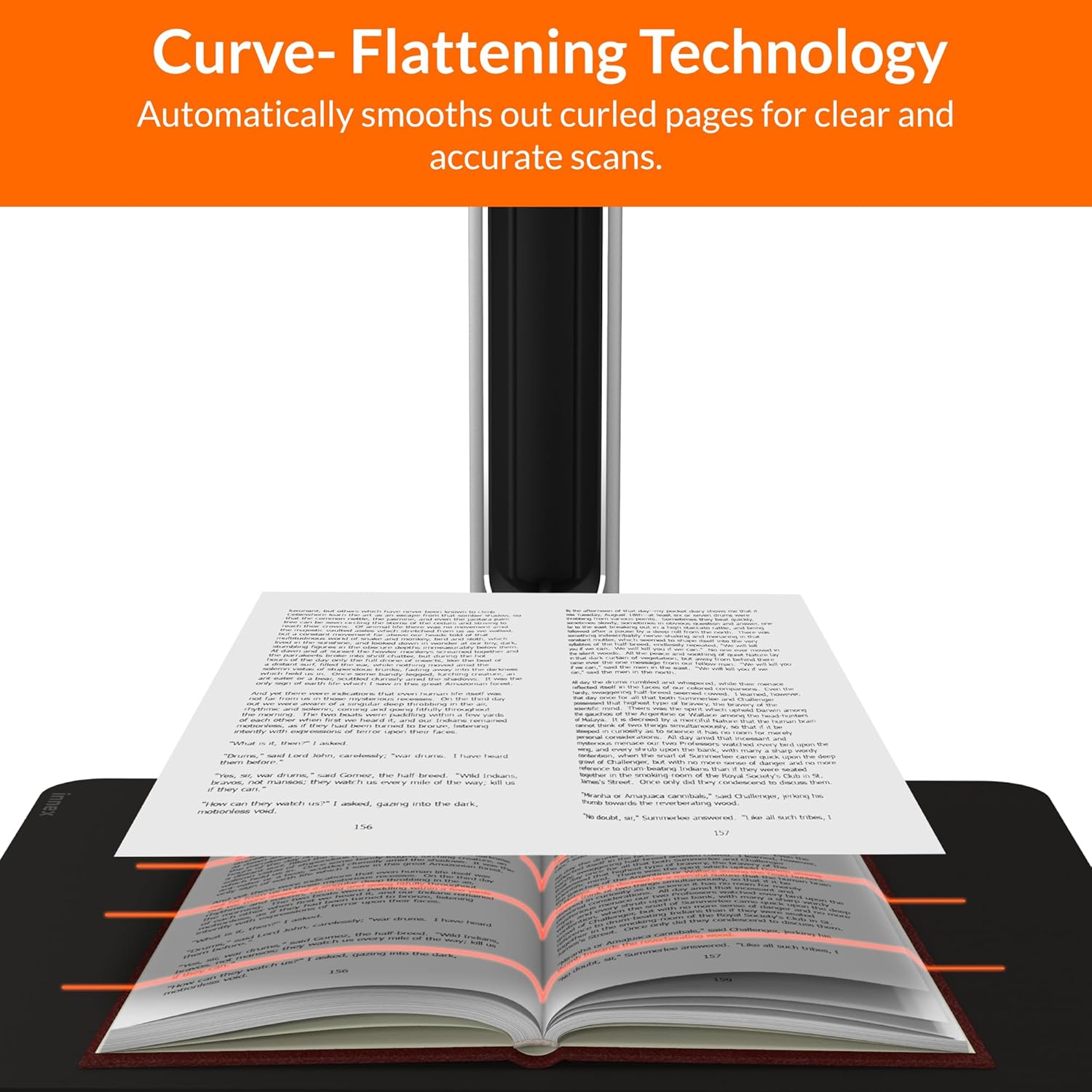
Figure 4.3: Curve Flattening Technology in use.

Figure 4.4: OCR Text Recognition and export options.

Рисунок 4.5: Болееview of Innex Scan software features.
4.3. Export Options
The Innex DS200 supports various export formats for both image and text files:
- Изображение Files: JPEG, PNG, BMP, TIFF
- Документ Files: PDF (searchable), DOC, EXCEL, TEXT
- Электронная книга Files: EPUB
- Аудио Files (Text-to-Speech): MP3, WAV
- Видео Files (Visualizer Mode): MP4, AVI, FLV, WMV

Figure 4.6: Available export formats in Innex Scan software.
5. Техническое обслуживание
- Уборка: Regularly wipe the scanner lens and LED lamp with a soft, dry, lint-free cloth to ensure optimal scan quality. Clean the scanning pad with a damp тканью при необходимости.
- Обновления программного обеспечения: Periodically check the official Innex webСайт для обновлений программного обеспечения, чтобы вы всегда имели доступ к новейшим функциям и улучшениям производительности.
- Хранилище: Когда сканер не используется, храните его в чистом, сухом месте, вдали от прямых солнечных лучей и экстремальных температур.
6. Поиск Неисправностей
6.1. Распространенные проблемы и решения
| Проблема | Возможная причина | Решение |
|---|---|---|
| Сканер не обнаружен | Loose USB connection, driver issue, power issue | Ensure USB cable is securely connected. Check power connection. Reinstall scanner drivers or software. Try a different USB port. |
| Низкое качество сканирования | Dirty lens, insufficient lighting, incorrect settings, document not flat | Clean the scanner lens. Ensure adequate ambient lighting or use the built-in LED lamp. Adjust resolution and color settings in software. Ensure documents are flat on the scanning pad. |
| Программное обеспечение зависает или вылетает. | Outdated software, system incompatibility, insufficient system resources | Update Innex Scan software to the latest version. Ensure your computer meets minimum system requirements. Close other demanding applications. Restart the software and computer. |
| OCR not working correctly | Poor scan quality, incorrect language setting, complex font | Improve scan quality. Verify the correct OCR language is selected in the software. For highly stylized or handwritten text, OCR accuracy may vary. |
7. Технические характеристики
Detailed technical specifications for the Innex DS200 scanner:

Figure 7.1: Innex DS200 Technical Specifications.
- Модель: ДС200
- Датчик изображения: КМОП-сенсор
- Макс. разрешение: 5800 x 4522 пикселей (26 МП)
- Output DPI: Approx. 300 dpi (A3)
- Максимум. Зона съемки: A3 (16.77" x 12.59" / 426 x 320mm)
- Глубина цвета: 24-битный
- Фокусировка объектива: Зафиксированный
- Скорость сканирования: 1.5 sec per A3 page
- Триггер сканирования: Ручная кнопка, ножная педаль, программная кнопка, автоматическое сканирование
- Форматы вывода: Picture (JPG, TIFF, BMP, PNG), Document (PDF, Image, PDF Searchable), Text (DOC, EXCEL, TEXT), E-book (EPUB), Audio (MP3, WAV), Video (AVI, MPEG, FLV, WMV)
- Laser Projection: Встроенный
- Источник света: Встроенный светодиод высокой яркости
- Интерфейс: USB 2.0 Type B x 1 (for PC Connection), USB 2.0 Type-A x 1 (for USB Extension)
- Власть: 5В/2А
- Минимальные системные требования: Windows 10, 11, macOS 11 or later; Intel i5 Processor or higher; 8GB RAM (Recommended 16GB or more); 20GB Available HDD Space; USB 2.0 Port
- Размеры продукта (в сложенном виде): 4.33"Г x 5.91"Ш x 15.75"В (110 x 150 x 400 мм)
- Product Dimensions (In Use): 12.05"Г x 5.91"Ш x 15.75"В (307 x 150 x 400 мм)
- Вес нетто: Приблизительно 2.64 фунта (1.2 кг)
8. Гарантия и поддержка
For warranty information and technical support, please refer to the service card included in your package or visit the official Innex website. You can also contact FunTech Innovation, the manufacturer, for assistance.
Производитель: FunTech Innovation
Webсайт: Innex Official Store on Amazon