
Введение
This manual provides detailed instructions for the setup, operation, maintenance, and troubleshooting of your BoxWave SlimKeys Bluetooth Keyboard with Trackpad. Please read this manual thoroughly before using the product to ensure optimal performance and longevity.
Продукт болееview
The BoxWave SlimKeys Bluetooth Keyboard with Trackpad is a portable, slim keyboard designed for seamless connectivity with various devices. It features responsive chiclet-style keys and a full-functioning trackpad, enhancing productivity on the go.

Изображение: сверху вниз view of the BoxWave SlimKeys Bluetooth Keyboard with Trackpad, showing the full QWERTY layout and integrated trackpad.

Изображение: под углом view of the BoxWave SlimKeys Bluetooth Keyboard with Trackpad, highlighting its slim profile.
Настраивать
1. Зарядка клавиатуры
Before initial use, fully charge the keyboard. Connect the included charging cable to the keyboard's charging port and to a USB power source. The charging indicator light will illuminate during charging and turn off when fully charged.

Image: The BoxWave SlimKeys keyboard connected to a charging cable, illustrating the charging process.
2. Включение и выключение
Locate the ON/OFF switch on the side of the keyboard. Slide the switch to the 'ON' position to power on the keyboard. Slide it to 'OFF' when not in use to conserve battery power.
3. Сопряжение по Bluetooth
- Убедитесь, что клавиатура заряжена и включена.
- Нажмите Соединять Кнопка на клавиатуре. Индикатор Bluetooth начнет мигать, указывая на то, что устройство находится в режиме сопряжения.
- On your device (e.g., HP Spectre X360, Android tablet, iOS device), go to the Bluetooth settings.
- Искать available devices. You should see "BoxWave SlimKeys Keyboard" or a similar name appear in the list.
- Select the keyboard from the list to initiate pairing. Follow any on-screen prompts, such as entering a pairing code, if required.
- Once successfully paired, the Bluetooth indicator light on the keyboard will stop flashing and remain solid or turn off, depending on the model.

Image: A hand using the integrated trackpad on the SlimKeys keyboard, demonstrating navigation capabilities.
4. Многоплатформенная совместимость
The SlimKeys keyboard is compatible with Android, Windows, and iOS devices. It automatically adapts to the operating system for optimal functionality.
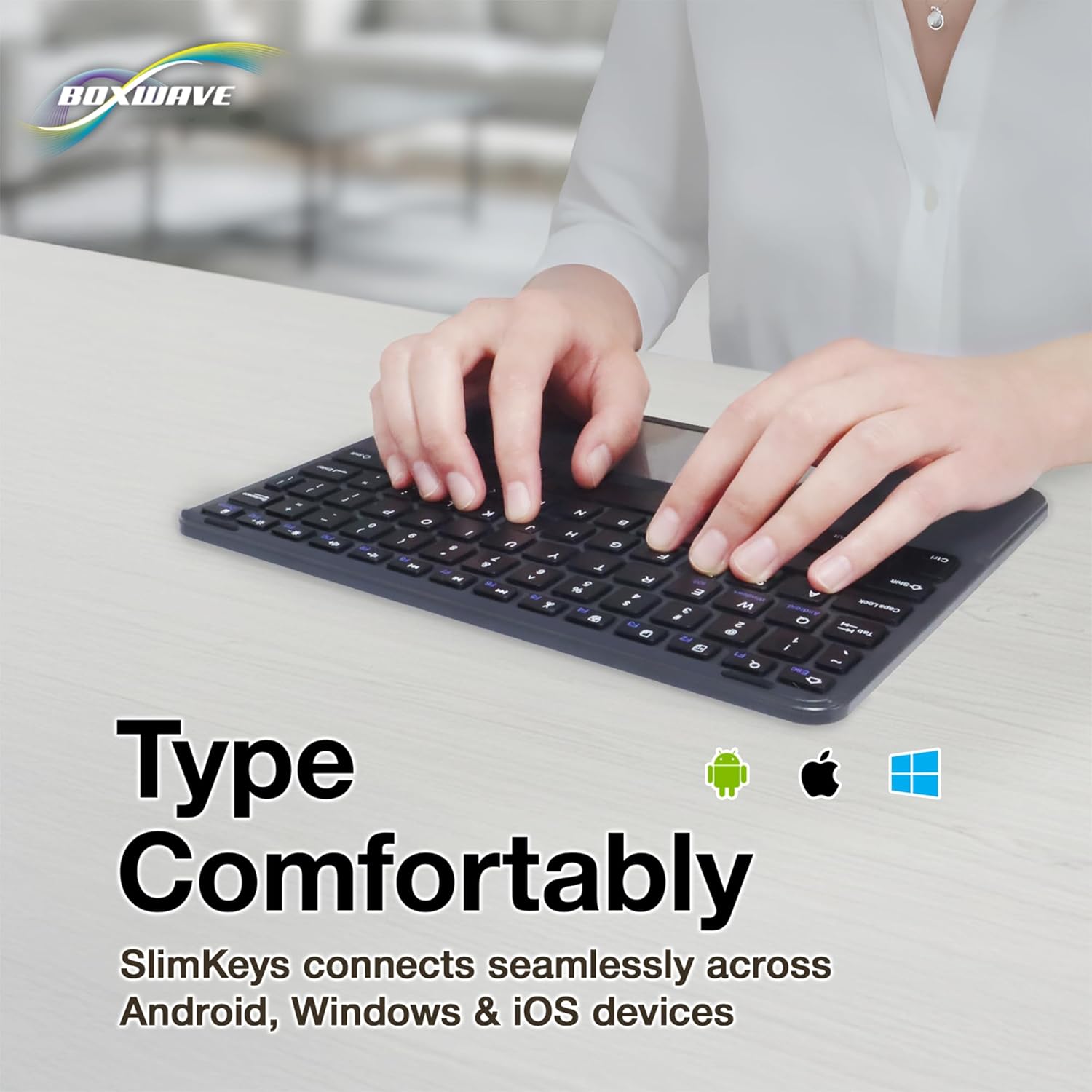
Image: Hands typing on the SlimKeys keyboard, with icons representing Android, Apple (iOS), and Windows operating systems, indicating multi-platform compatibility.
Инструкция по эксплуатации
1. Basic Keyboard Usage
The keyboard functions like a standard QWERTY keyboard. Simply type as you would on any other keyboard. The chiclet-style keys provide a comfortable and responsive typing experience.
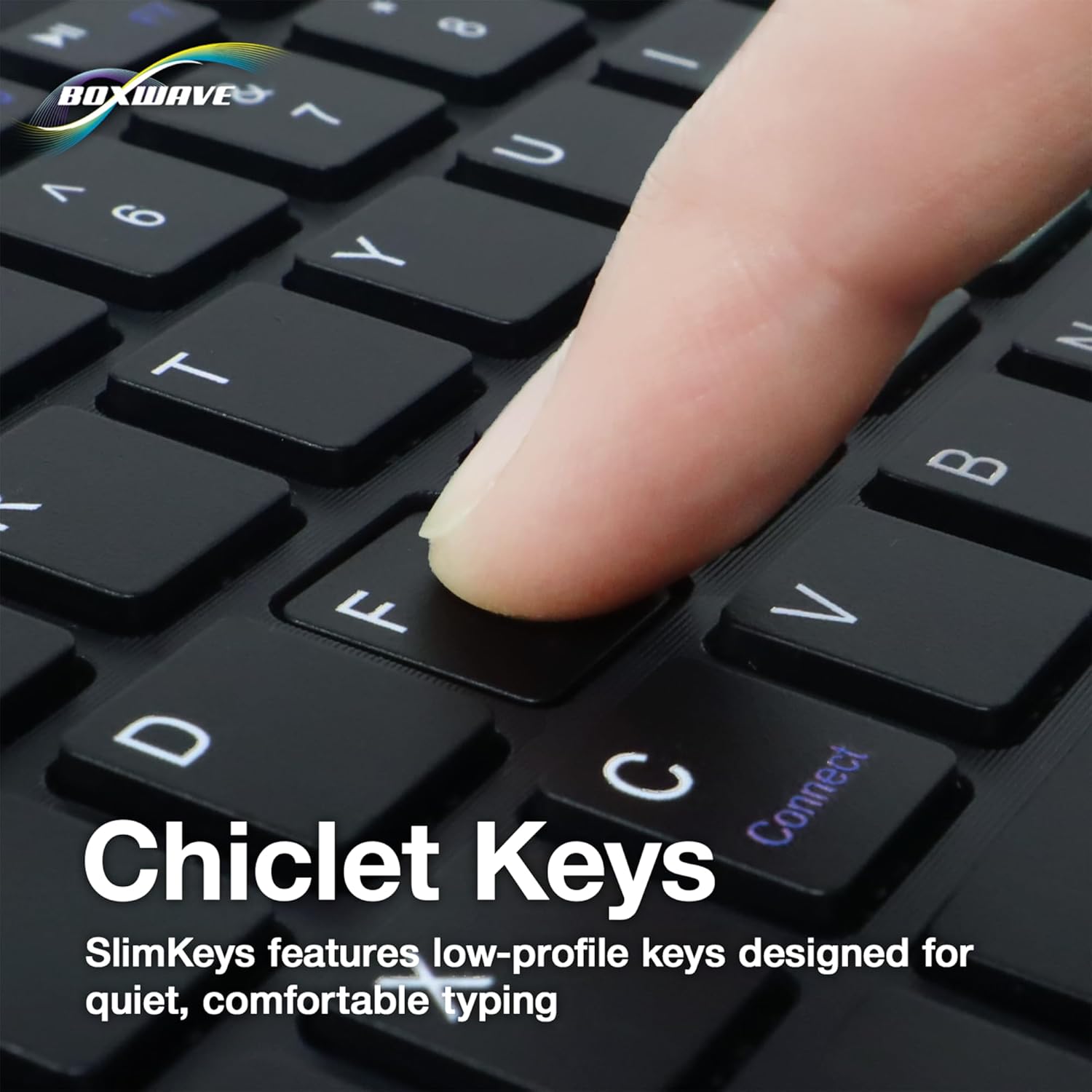
Изображение: крупный план view of a finger pressing a key on the SlimKeys keyboard, highlighting the chiclet key design.
2. Trackpad Functionality
The integrated trackpad allows for precise cursor control, similar to a laptop trackpad. Use single-finger gestures for basic navigation and clicking. Multi-touch gestures may be supported depending on your device's operating system.
3. Специализированные функциональные клавиши
The keyboard includes a row of specialized function keys (F1-F12) that provide quick access to common commands. These functions may vary slightly depending on the connected device's operating system.
- Esc / Home: Returns to the home screen or acts as Escape.
- F1 / Search: Opens search function.
- F2 / Select All: Selects all content.
- F3 / Copy: Copies selected content.
- F4 / Paste: Pastes copied content.
- F5 / Cut: Cuts selected content.
- F6 / Skip Back: Skips to the previous track/media.
- F7 / Play/Pause: Воспроизводит или приостанавливает воспроизведение медиафайлов.
- F8 / Skip Forward: Skips to the next track/media.
- F9 / Volume Down: Уменьшает громкость звука.
- F10 / Volume Up: Увеличивает громкость звука.
- F11 / Brightness Down: Уменьшает яркость экрана.
- F12 / Brightness Up: Увеличивает яркость экрана.
- Delete / Lock: Deletes characters or locks the device.

Image: A detailed diagram illustrating the specialized function keys and their corresponding actions on the SlimKeys keyboard.
Обслуживание
1. Уборка
Чтобы очистить клавиатуру, аккуратно протрите ее поверхность мягкой тряпкой.amp cloth. Avoid using harsh chemicals or abrasive materials, as these can damage the finish. Ensure no liquid enters the keyboard's internal components.
2. Уход за аккумулятором
The keyboard features a long-lasting battery. To maximize battery life:
- Turn off the keyboard using the ON/OFF switch when not in use.
- При появлении индикатора низкого заряда батареи зарядите ее.
- Не подвергайте клавиатуру воздействию экстремальных температур.
The keyboard offers up to 30 days of active use and up to 6 months of standby time when powered off.
Поиск неисправностей
- Клавиатура не подключается:
- Убедитесь, что клавиатура включена и полностью заряжена.
- Убедитесь, что на вашем устройстве включен Bluetooth.
- Try re-pairing the keyboard by following the Bluetooth Pairing steps in the Setup section.
- Ensure the keyboard is within the effective Bluetooth range (typically 10 meters or 33 feet).
- Клавиши не отвечают:
- Проверьте, подключена ли клавиатура через Bluetooth.
- Перезагрузите клавиатуру и ваше устройство.
- Убедитесь, что заряд батареи клавиатуры не критически низкий.
- Трекпад не работает:
- Убедитесь, что клавиатура подключена правильно.
- Check your device's settings for any trackpad or mouse-related configurations.
- Очистите поверхность трекпада от мусора.
- Прерывистое соединение:
- Чтобы уменьшить помехи, подойдите ближе к устройству.
- Убедитесь, что другие сильные беспроводные сигналы не мешают соединению Bluetooth.
- Отключите и снова подключите соединение Bluetooth.
Технические характеристики
| Особенность | Деталь |
|---|---|
| Бренд | BoxWave |
| Модель | SlimKeys Bluetooth Keyboard with Trackpad |
| Цвет | Черный как смоль |
| Материал | Поликарбонат |
| Вес товара | 10.9 унции |
| Версия Bluetooth | 3.0 |
| Размеры (Ш x Г x В) | 9.5 дюйма x 7.0 дюйма x 0.2 дюйма (23.2 см x 17.8 см x 0.5 см) |
| Срок службы батареи (активное использование) | До 30 дней |
| Срок службы батареи (в режиме ожидания) | До 6 месяцев |
| ASIN | B0DZ7MNDRF |
| Дата первой доступности | 3 декабря 2021 г. |

Image: A diagram illustrating the width, depth, and height of the SlimKeys keyboard.
Гарантия и поддержка
Specific warranty information and detailed support contacts are not provided within this manual. For warranty details, technical support, or further assistance, please refer to the official BoxWave webсайт или свяжитесь напрямую со службой поддержки клиентов.