
1. Введение
This manual provides essential information for setting up, operating, maintaining, and troubleshooting your new CyberPowerPC Gamer Xtreme GXiVR8060A47 Gaming PC. This system is designed for high-performance gaming and demanding multimedia tasks, featuring an Intel Core i5-14400F processor and NVIDIA GeForce RTX 5060 graphics.
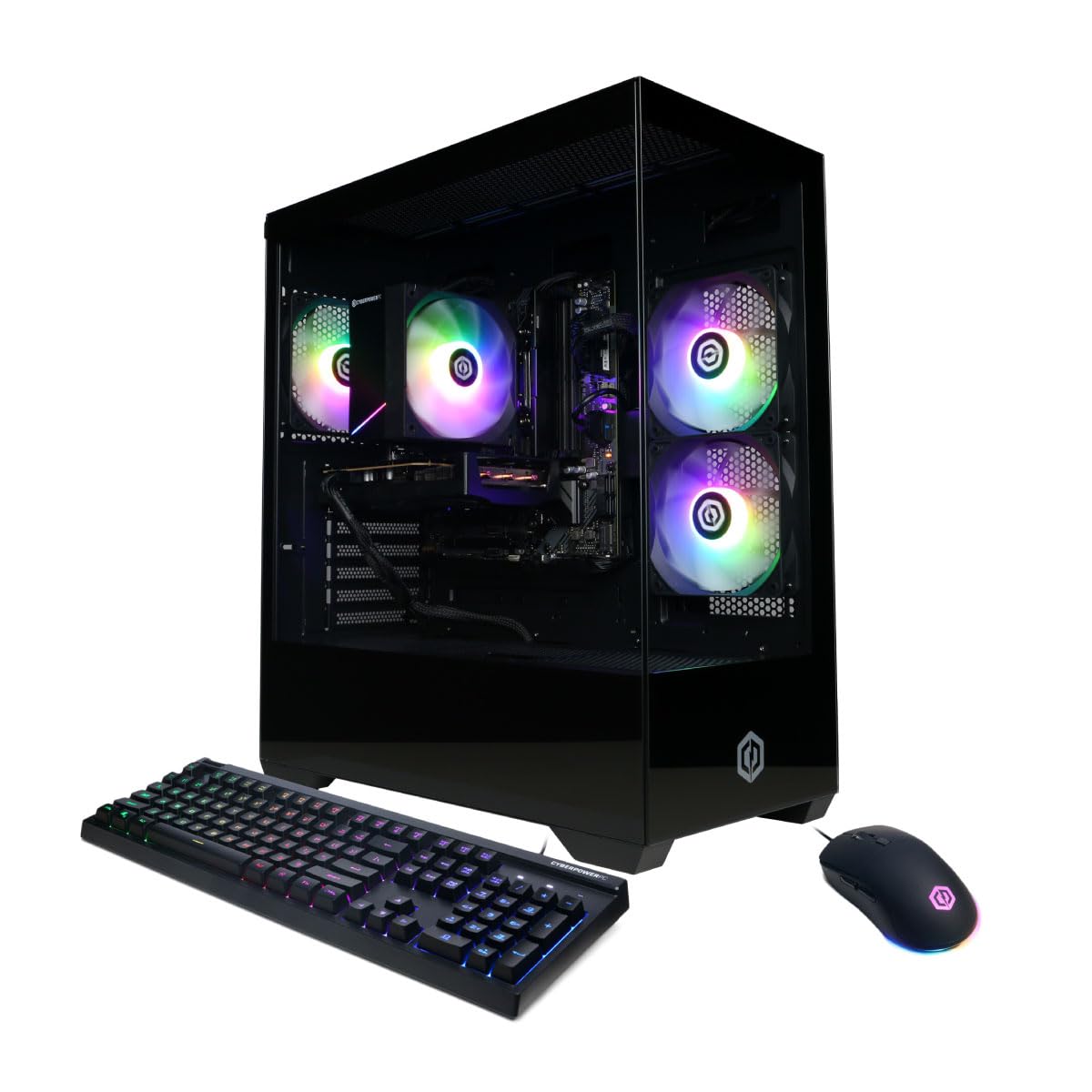
Изображение: Спереди view of the CyberPowerPC Gamer Xtreme GXiVR8060A47 Gaming PC with RGB lighting.
2. Содержимое упаковки
Проверьте наличие всех предметов в упаковке:
- CyberPowerPC Gamer Xtreme GXiVR8060A47 Gaming PC
- Шнур питания
- Игровая клавиатура
- Игровая мышь
- Документация (включая это руководство)

Image: The CyberPowerPC gaming desktop tower, keyboard, and mouse.
3. Руководство по установке
3.1 Распаковка и размещение
- Carefully remove the PC and all accessories from the packaging. Retain packaging for future transport or warranty claims.
- Place the PC on a stable, flat surface with adequate ventilation. Ensure there is clear space around the air intake and exhaust vents.
- Remove any internal packing foam or protective films from the PC components.
3.2 Подключение периферийных устройств
Connect your monitor, keyboard, mouse, and other peripherals to the appropriate ports on the back of the PC.
- Монитор: Connect your monitor to the graphics card (NVIDIA GeForce RTX 5060) ports (HDMI or DisplayPort). Do not connect to the motherboard's video outputs if a dedicated graphics card is installed.
- Клавиатура и мышь: Подключитесь к любому доступному USB-порту.
- Власть: Подключите шнур питания к блоку питания компьютера, а затем к заземленной электрической розетке.
- Сеть: For wired internet, connect an Ethernet cable to the LAN port. For wireless internet, the system is WiFi 6 ready.

Изображение: сзади view of the PC showing various connectivity ports for peripherals.
3.3 Первоначальная загрузка
- Нажмите кнопку питания, расположенную на передней или верхней панели компьютера.
- The system will boot into Windows 11 Home. Follow the on-screen instructions to complete the initial Windows setup, including language, region, and user account creation.
- It is recommended to check that the graphics card is securely seated in its slot after shipping. Gently press down on the graphics card near the PCIe slot to ensure it is fully engaged.
4. Инструкция по эксплуатации
4.1 Включение/выключение питания
- Включение питания: Нажмите кнопку питания один раз.
- Неисправность: Click the Start button in Windows, then select Power > Shut down. Avoid directly holding the power button to turn off the PC, as this can lead to data loss or system corruption.
- Перезапуск: Нажмите кнопку «Пуск» в Windows, затем выберите «Питание» > «Перезагрузка».
4.2 Windows 11 Домашняя
Your PC comes pre-installed with Windows 11 Home. Familiarize yourself with its interface and features. Regular updates are crucial for security and performance.
4.3 Игры и производительность
The CyberPowerPC Gamer Xtreme GXiVR8060A47 is optimized for gaming. For optimal performance:
- Ensure graphics drivers are up to date. Visit the NVIDIA webсайт для последних драйверов.
- Close unnecessary background applications when gaming.
- Настройте внутриигровые параметры графики, чтобы сбалансировать качество изображения и частоту кадров в соответствии со своими предпочтениями.
4.4 Управление RGB-подсветкой
Your PC features custom RGB lighting. Control options may include:
- Кнопка корпуса: A dedicated button on the PC case allows cycling through various lighting modes and colors.
- Управление программным обеспечением: For advanced customization, connect the RGB fan cables to the motherboard's RGB headers and use compatible motherboard software (if available) to synchronize and control lighting effects. Refer to your motherboard manual for specific instructions.

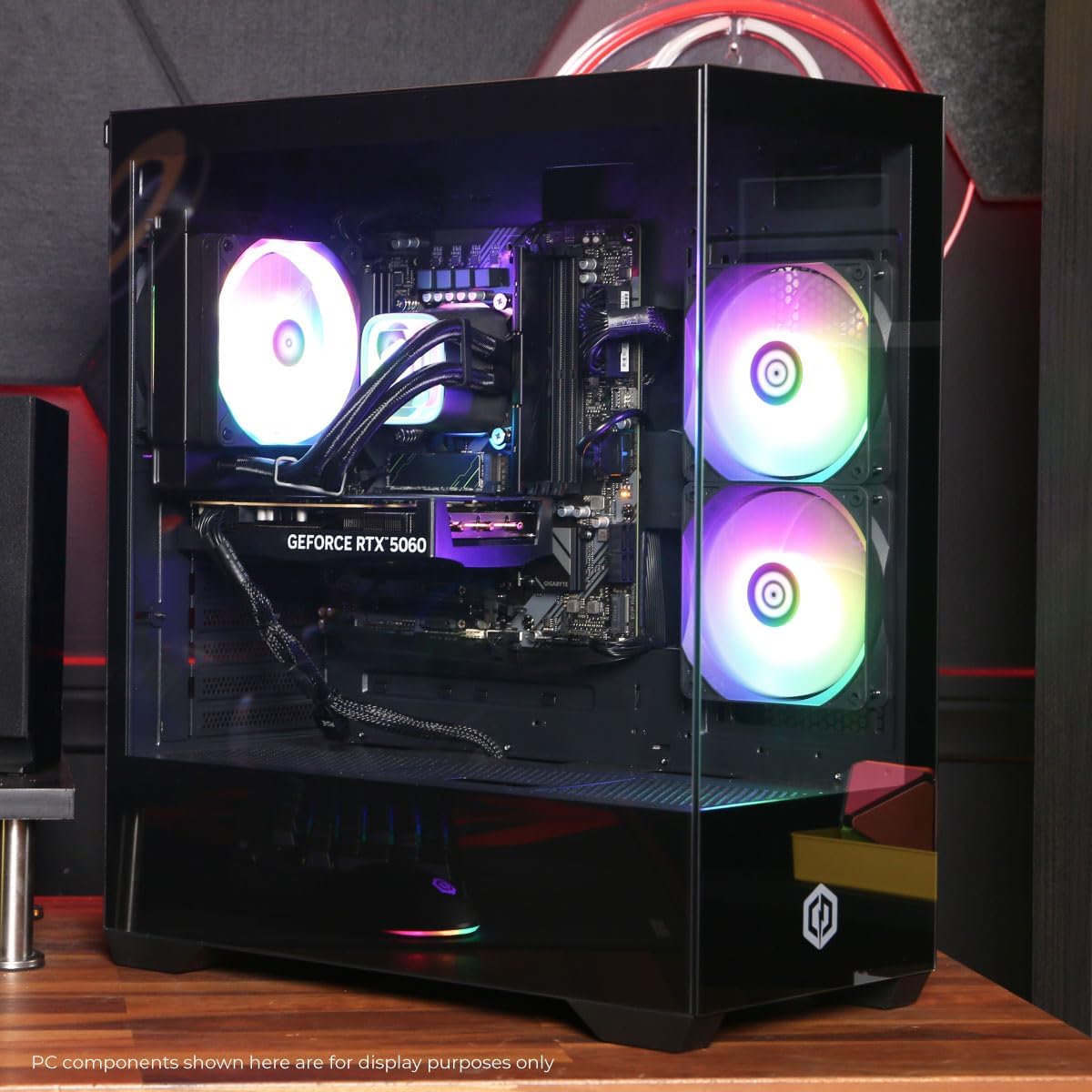
Изображение: внутреннее view of the PC showcasing the RGB fans and components.
5. Техническое обслуживание
5.1 Cleaning Your PC
- Экстерьер: Используйте мягкий, damp cloth to wipe down the exterior of the case. Avoid harsh chemicals.
- Интерьер: Periodically clean dust from inside the PC using compressed air. Focus on fans (CPU cooler, case fans, GPU fans) and heatsinks. Ensure the PC is powered off and unplugged before opening the case.
- Пылевые фильтры: Если в вашем корпусе есть съёмные пылевые фильтры, регулярно чистите их для поддержания оптимальной циркуляции воздуха.
5.2 Обновления программного обеспечения
Regularly update your operating system, drivers (especially graphics drivers), and antivirus software to ensure system stability, security, and performance.
5.3 Воздушный поток и охлаждение
Proper airflow is critical for component longevity. Ensure the PC is placed in an open area, not confined in a cabinet, to allow for unrestricted air circulation.
Изображение: сверху view of the PC, highlighting the mesh panel for ventilation.
6. Поиск Неисправностей
Если у вас возникли проблемы, воспользуйтесь следующими общими шагами по устранению неполадок:
- Нет дисплея: Ensure your monitor is connected to the graphics card's output, not the motherboard's. Check all cable connections (power, video). Try a different video cable or monitor if possible.
- Компьютер не включается: Verify the power cord is securely connected to both the PC and the wall outlet. Check the power switch on the PSU (if present) is in the 'On' position. Try a different power outlet.
- Чрезмерный шум вентилятора: This can indicate dust buildup or a fan issue. Clean the interior of the PC as described in the Maintenance section. If the noise persists, contact support.
- System Instability/Blue Screen Errors (BSOD): Ensure all drivers are updated. Check for Windows updates. Run a memory diagnostic tool (Windows Memory Diagnostic) to check RAM integrity. Ensure components are properly seated.
- Периферийные устройства не работают: Try connecting the keyboard or mouse to different USB ports. Ensure drivers are installed for specialized peripherals.
В случае постоянных проблем обратитесь к разделу «Гарантия и поддержка» для получения контактной информации.
7. Технические характеристики
| Компонент | Деталь |
|---|---|
| Название модели | Gamer Xtreme GXiVR8060A47 |
| Процессор | Intel Core i5-14400F 2.5GHz (10 Cores) |
| Чипсет | Интел B760 |
| Видеокарта | NVIDIA GeForce RTX 5060 8 ГБ GDDR7 |
| БАРАН | 16GB DDR5 (4800 MT/s) |
| Хранилище | Твердотельный накопитель 1 ТБ PCIe 4.0 NVMe |
| Операционная система | Windows 11 Домашняя |
| Связность | WiFi 6, Bluetooth 5.3, 1x LAN |
| USB-порты | 2 x USB-A 3.2, 6 x USB-A 2.0 (Total 8) |
| Видеовыход | 1x HDMI, 2x DisplayPort |
| Аудио | 7.1-канальный звук |
| Размеры (Д x Ш x В) | прибл. 19.09 х 8.27 х 18.90 дюймов (54.5 х 52.5 х 29.5 см) |
| Масса | Около 13.96 кг |

Изображение: Подробный внутренний вид view of the PC showing the CPU cooler, RAM, and graphics card.
8. Гарантия и поддержка
8.1 Информация о гарантии
Your CyberPowerPC Gamer Xtreme GXiVR8060A47 Gaming PC comes with a Ограниченная гарантия на 1 года распространяется на запчасти и работу. Сохраните чек о покупке для предъявления гарантийных претензий.
8.2 Техническая поддержка
CyberPowerPC offers Бесплатная пожизненная техническая поддержка for your product. For assistance with setup, troubleshooting, or any other technical inquiries, please contact CyberPowerPC customer service.
Contact information can typically be found on the CyberPowerPC official website or in the documentation included with your PC.


