
Введение
This manual provides essential information for the proper setup, operation, maintenance, and troubleshooting of your KTC H27T27 27-inch WQHD IPS Flat Monitor. Please read this manual thoroughly before using the product to ensure optimal performance and safety.
The KTC H27T27 monitor features a 27-inch WQHD (2560x1440) IPS panel with a 100Hz refresh rate, designed to deliver clear and detailed images with smooth motion. It includes FreeSync technology for enhanced visual fluidity during dynamic content. The IPS panel ensures vivid colors and wide viewуглы.

Figure 1: KTC H27T27 27-inch WQHD IPS Flat Monitor Front View
Настраивать
1. Распаковка
Carefully remove all components from the packaging. Ensure all items listed in the packing list are present and undamaged. Retain the original packaging for future transport or service needs.
2. Сборка подставки
- Положите монитор экраном вниз на мягкую чистую поверхность, чтобы не поцарапать его.
- Прикрепите основание подставки к шейке подставки с помощью прилагаемых винтов.
- Совместите собранную подставку с монтажным пазом на задней панели монитора и надежно закрепите ее.
3. Крепление VESA (опционально)
The monitor supports VESA 100x100mm mounting. If using a VESA mount, remove the stand and attach the VESA compatible bracket to the monitor's rear panel using appropriate screws.
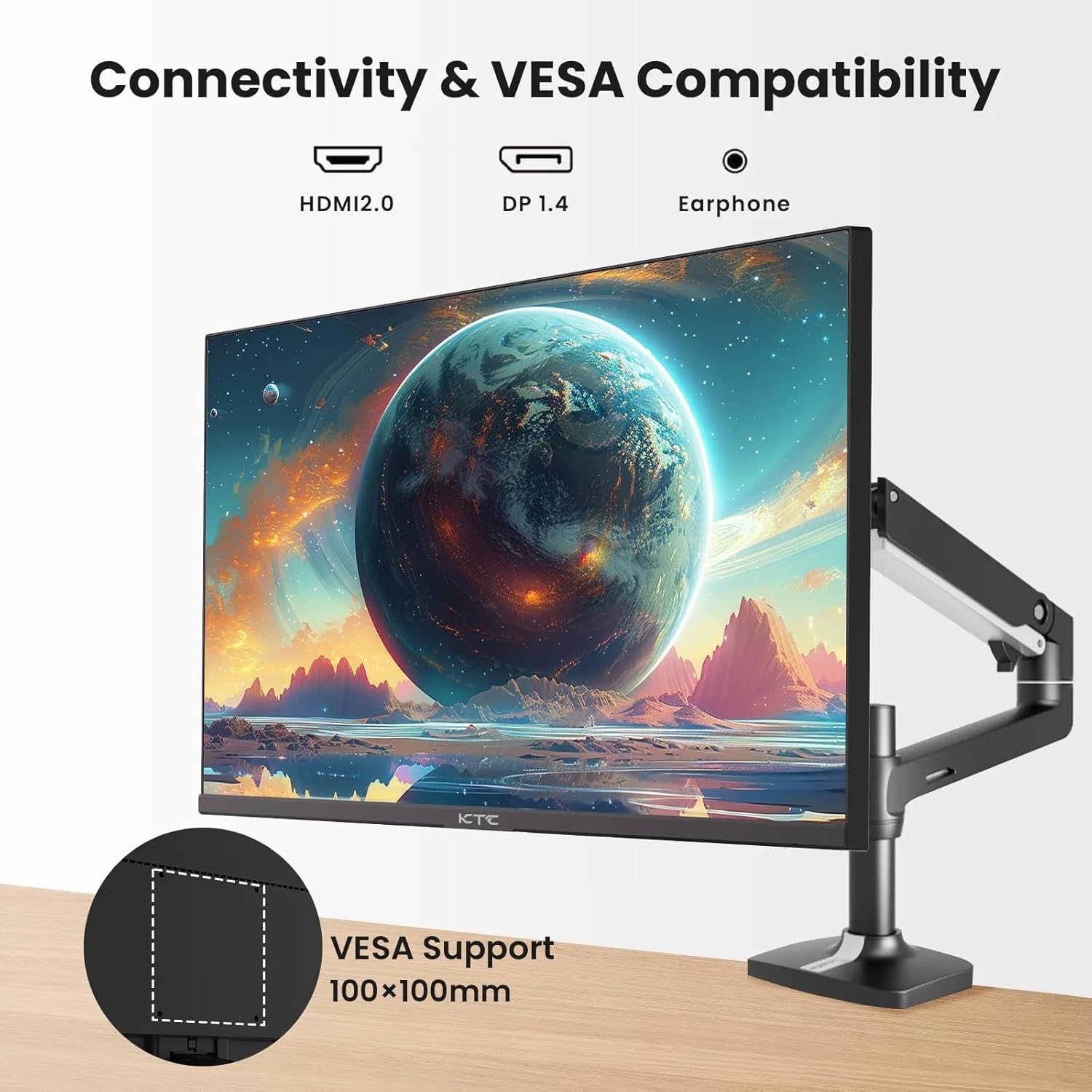
Figure 2: VESA Compatibility and Connectivity Ports
4. Соединительные кабели
Подключите необходимые кабели к монитору и компьютеру или другим устройствам. Убедитесь, что все соединения надёжны.
- Силовой кабель: Подключите адаптер питания к разъему постоянного тока на мониторе, а затем вставьте кабель питания в розетку.
- Видеокабель: Connect either an HDMI cable (HDMI 2.0) or a DisplayPort cable (DP 1.4) from your computer's graphics card to the corresponding input port on the monitor.
- Аудиовыход: If desired, connect headphones or external speakers to the 3.5mm audio output jack.

Рисунок 3: Входные порты монитора
5. Первоначальное включение
Press the power button on the monitor. The power indicator light will illuminate. If no image appears, ensure your computer is powered on and the correct input source is selected on the monitor.
Операционная
1. Включение/выключение питания
Press the power button located on the monitor to turn it on or off. The power indicator will show the monitor's status.
2. Экранное меню (OSD)
Экранное меню (OSD) позволяет настраивать различные параметры монитора. Для навигации по меню используйте кнопки управления (обычно расположенные на задней или нижней панели монитора).
- Нажмите кнопку, чтобы активировать экранное меню (OSD).
- Для перемещения по пунктам меню используйте кнопки навигации.
- Нажмите кнопку выбора, чтобы перейти в подменю или подтвердить настройку.
- Нажмите кнопку выхода, чтобы закрыть экранное меню.
3. Настройка параметров
К числу часто регулируемых параметров относятся:
- Контраст яркости: Отрегулируйте общую яркость и разницу между светлыми и темными областями.
- Настройки цвета: Измените цветовую температуру, гамму и отдельные значения RGB.
- Источник ввода: Выберите вручную один из входов: HDMI 1, HDMI 2 или DisplayPort.
- Режим изображения: Select predefined display modes (e.g., Standard, Game, Movie).
4. Частота обновления
The KTC H27T27 supports a 100Hz refresh rate, providing smoother motion compared to standard 60Hz displays. Ensure your graphics card and operating system are configured to output at 100Hz for the best experience.

Figure 4: 100Hz Refresh Rate Benefit
5. Технология FreeSync
This monitor is compatible with AMD FreeSync technology, which synchronizes the monitor's refresh rate with your graphics card's frame rate. This helps eliminate screen tearing and stuttering for a smoother gaming and video experience. Ensure FreeSync is enabled in both the monitor's OSD menu and your graphics card's control panel.
Figure 5: FreeSync Technology in Action
Обслуживание
1. Очистка экрана
- Выключите монитор и отсоедините шнур питания.
- Аккуратно протрите экран мягкой безворсовой тканью.
- Для удаления стойких пятен слегка потритеampСмочите ткань водой или специальным средством для чистки экранов (не распыляйте средство непосредственно на экран).
- Избегайте использования абразивных чистящих средств, спирта или растворов на основе аммиака, так как они могут повредить поверхность экрана.
2. Общий уход
- Держите монитор вдали от прямых солнечных лучей, чрезмерного тепла и влажности.
- Обеспечьте достаточную вентиляцию вокруг монитора, чтобы предотвратить перегрев.
- Не кладите тяжелые предметы на монитор или его кабели.
Поиск неисправностей
Если у вас возникли проблемы с монитором, ознакомьтесь со следующими распространенными проблемами и решениями:
- Нет питания:
- Ensure the power cable is securely connected to both the monitor and the power outlet.
- Убедитесь, что розетка исправна. - Нет сигнала:
- Check that the video cable (HDMI or DisplayPort) is securely connected to both the monitor and your computer.
- Ensure your computer is powered on and not in sleep mode.
- Select the correct input source via the monitor's OSD menu. - Мерцающее или искаженное изображение:
- Check the video cable for damage or loose connections.
- Adjust the refresh rate settings on your computer.
- Disable or enable FreeSync in the OSD menu and graphics card settings to test. - Неправильные цвета:
- Reset color settings to factory defaults in the OSD menu.
- Adjust color temperature or individual RGB values.
Если проблема сохраняется после попытки устранения этих неполадок, обратитесь в службу поддержки клиентов.
Технические характеристики
| Особенность | Спецификация |
|---|---|
| Бренд | КТС |
| Номер модели | H27T27 |
| Размер экрана | 27 дюймов |
| Разрешение | 2560x1440 (WQHD) |
| Частота обновления | 100 Гц |
| Тип дисплея | ИПС |
| Время отклика | 7 миллисекунды |
| Адаптивная синхронизация | FreeSync |
| Связность | 2 разъема HDMI 2.0, 1 разъем DisplayPort 1.4, 1 аудиовыход 3.5 мм. |
| Соотношение сторон | 1.78:1 |
| Поверхность экрана | Матовый |
| Размеры товара (Д x Ш x В) | 1.85"Д x 24.25"Ш x 14.33"В |
| Вес товара | 4 Килограмма |
Гарантия и поддержка
Информация о гарантии
This KTC monitor is covered by a manufacturer's warranty. Please refer to the warranty card included in your product packaging for specific terms, conditions, and duration of coverage. Keep your purchase receipt as proof of purchase for warranty claims.
Поддержка клиентов
For technical assistance, warranty service, or any product-related inquiries, please contact KTC customer support. Contact details can typically be found on the official KTC webсайте или в гарантийном талоне.
When contacting support, please have your monitor's model number (H27T27) and serial number ready.