
FoMaKo K20UHx3+KC608 Pro
FoMaKo 4K 20X PTZ Camera System (K20UHx3+KC608 Pro) User Manual
Model: K20UHx3+KC608 Pro
1. Введение
This manual provides comprehensive instructions for the installation, operation, and maintenance of your FoMaKo 4K 20X PTZ Camera system. This system includes three K20UH 4K PTZ Cameras and one KC608 Pro NDI PTZ Controller. Please read this manual thoroughly before using the product to ensure proper functionality and to prevent damage.
2. Продукт закончилсяview
The FoMaKo 4K 20X PTZ Camera system is an all-in-one professional video solution designed for various applications including churches, classrooms, live events, and conferences. It features 4K UHD resolution, 20x optical zoom, AI auto-tracking, and NDI 6 & NDI HX3 certification for seamless multi-camera workflows.
2.1 Основные характеристики
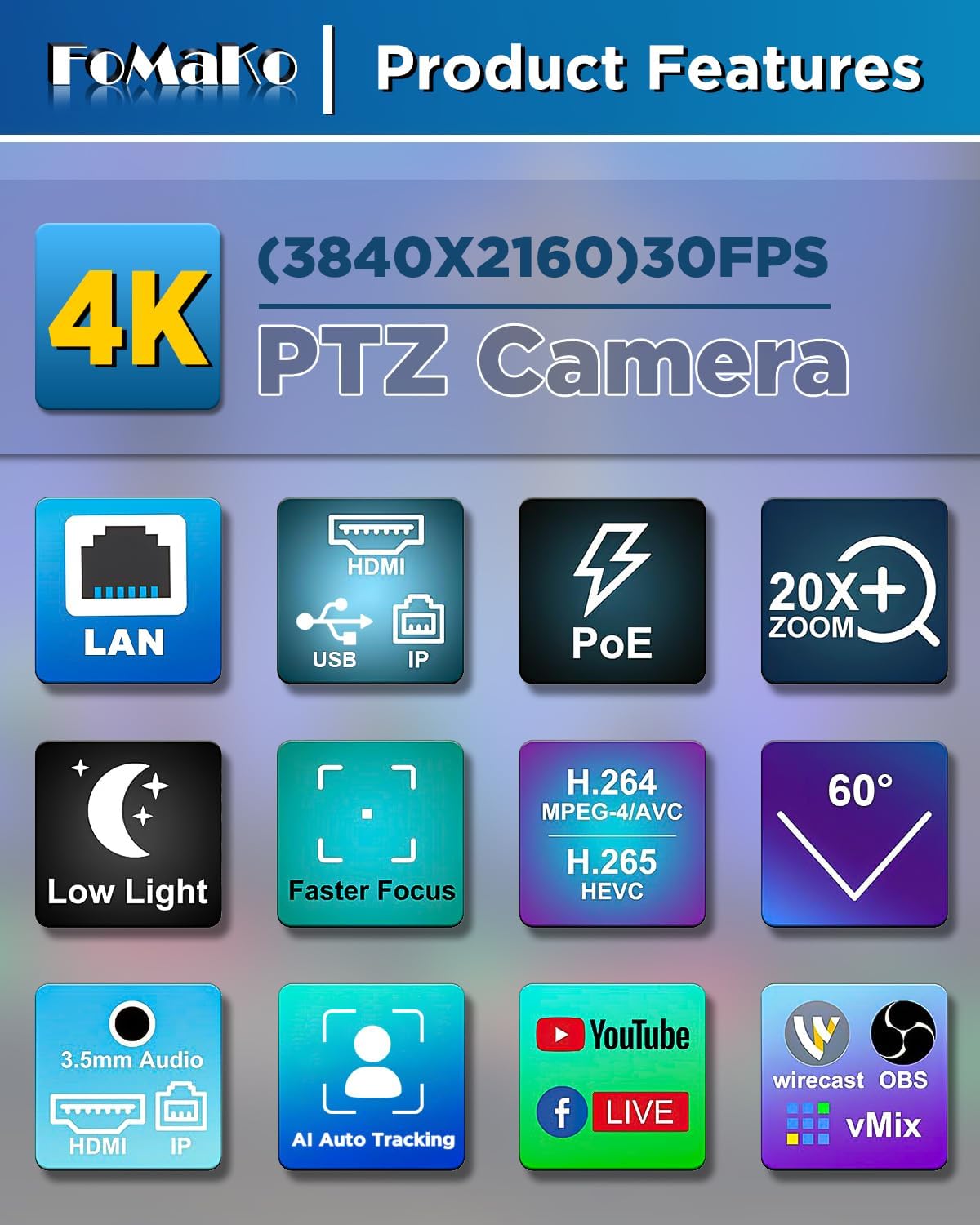
- 4K UHD Clarity (3840x2160): Capture crisp, true-to-life 4K video with a high-end 1/2.8" CMOS sensor (8.42MP) and 20x optical zoom.
- AI Auto-Tracking (3rd Generation): Customizable tracking modes, sensitivity, figure size, character position, and lost target action. Supports real-time and regional tracking.
- NDI 6 & NDI HX3 Certified: Seamless integration with NewTek’s NDI ecosystem for ultra-low-latency, high-quality video over standard networks. NDI HX3 ensures stable streaming with limited bandwidth.
- Поддержка PoE: Power over Ethernet simplifies setup with a single cable for both power and data.
- Несколько интерфейсов: Supports HDMI 2.0, USB 3.0, LAN, RS232, RS422, RS485.
- KC608 Pro NDI PTZ Controller: PoE PTZ IP Controller Keyboard with 4D Joystick, compatible with VISCA, PELCO-P & D protocols.
2.2 Содержимое упаковки
В комплект входят следующие предметы:
- 3 x FoMaKo K20UH 4K PTZ Camera
- 1 x FoMaKo KC608 Pro NDI PTZ Controller
- Силовые кабели
- Кабель USB 3.0
- RS232/RS485 Cable
- Настенный кронштейн
- Потолочный кронштейн
- Монтажное оборудование
- IR Wireless Remote Control
- Руководство пользователя
Видео 1: Распаковка и многое другое.view of the FoMaKo 4K PTZ Camera and included accessories. This video demonstrates the contents of the package, including the camera, cables, mounting options, and remote control.
3. Настройка
3.1 Размещение и крепление камеры
The camera can be placed on a flat surface, mounted on a wall, or suspended from the ceiling. Ensure the camera is positioned to capture the desired area without obstruction.
- Настенный монтаж: Use the provided metal wall bracket and hardware. Secure the bracket firmly to a sturdy wall surface before attaching the camera.
- Монтаж на потолке: Use the provided metal ceiling mount and hardware. Ensure the ceiling can support the camera's weight.

Изображение 1: FoMaKo K20UH 4K NDI PTZ Camera mounted on a wall, demonstrating its pan and tilt range in a church environment.
3.2 Связи
Подключите камеру, используя соответствующие кабели для вашей системы:
- Власть: Connect the power adapter to the DC12V port and plug it into a power outlet. If using PoE, connect an Ethernet cable from a PoE-enabled switch to the LAN port.
- Видеовыход:
- HDMI: Подключите кабель HDMI от порта HDMI камеры к дисплею или видеокоммутатору.
- USB 3.0: Connect the USB 3.0 cable from the camera to a computer for video capture and control.
- LAN (потоковая передача NDI/IP): Connect an Ethernet cable to the LAN port for NDI streaming and IP control.
- Аудиовход: Connect an audio source to the LINE IN port.
- Контроль:
- RS232/RS485: Use the provided cable to connect to a PTZ controller or control system.
- LAN (IP Control): Control the camera via its IP address using the KC608 Pro controller or web интерфейс.

Изображение 2: Rear panel of the FoMaKo K20UH camera, highlighting the various input and output ports for connectivity.

Изображение 3: Example connection diagram for a multi-camera setup using FoMaKo PTZ cameras, illustrating how to integrate with a video mixer, PoE switch, and computer for live streaming.
4. Инструкция по эксплуатации
4.1 Включение/выключение питания
After connecting the power supply, toggle the ON/OFF switch on the rear of the camera to power it on. The camera will perform a self-test and initialize.
4.2 Using the KC608 Pro NDI PTZ Controller
The KC608 Pro controller provides comprehensive control over your PTZ cameras. Connect the controller to your network via Ethernet. Ensure the cameras are also connected to the same network.
- Выбор камеры: Use the camera selection buttons (CAM 1-7) to choose which camera to control.
- 4D-джойстик: Use the joystick for precise pan, tilt, and zoom control.
- PTZ Speed Adjustment: Adjust the pan/tilt/zoom speed using the dedicated knobs or buttons on the controller.
- Управление предустановками: Store and recall camera positions using the preset buttons.
- Управление фокусом: Adjust focus manually or use the auto-focus function.
- Контроль экспозиции: Adjust exposure settings as needed.
Видео 2: FoMaKo KC608 Pro web control panel operation workflow. This video demonstrates how to configure and manage camera settings through the controller's web интерфейс.

Изображение 4: The FoMaKo KC608 Pro PTZ controller in use, displaying its 4D joystick and LCD screen with a camera feed.
4.3 Автоматическое отслеживание с помощью ИИ
The 3rd generation AI Auto-Tracking feature allows the camera to automatically follow a presenter or subject. This feature can be activated and configured via the remote control or the web интерфейс.
- Активировать отслеживание: Press F2 on the remote control to turn on automatic tracking.
- Switch Tracking Target: Press F4 on the remote control to switch between tracking targets.
- Настройка: Доступ к web interface to adjust tracking modes (Presenter/Zone), tracking sensitivity, figure size (Close, Half, Full), character position, and action upon lost target.

Изображение 5: The FoMaKo 4K PTZ Camera demonstrating its AI auto-tracking feature, with a speaker highlighted by a green tracking box.

Изображение 6: Web interface settings for AI tracking, illustrating options for adjusting target size (Full, Half, Close) and other advanced tracking parameters.
4.4 Функции дистанционного управления
The IR wireless remote control provides quick access to essential camera functions:
- Власть: Включите или выключите камеру.
- Выбор камеры: Switch between multiple cameras (Cam 1-4).
- Панорамирование/Наклон/Масштабирование: Adjust camera direction and zoom level.
- Фокус: Manual and auto-focus controls.
- Предустановка: Set and recall preset positions.
- F1/F2/F3/F4: Customizable function keys, pre-assigned for AI tracking on/off.
Изображение 7: The IR wireless remote control for the FoMaKo PTZ camera, showing its layout and key functions.
5. Техническое обслуживание
- Уборка: Для чистки корпуса камеры используйте мягкую сухую ткань. Для чистки объектива используйте специальную салфетку и раствор. Избегайте использования агрессивных химикатов.
- Обновления прошивки: Регулярно проверяйте информацию производителя. website for firmware updates to ensure optimal performance and access to new features. Firmware can be updated via the web интерфейс.
- Хранилище: При длительном неиспользовании храните камеру в сухом, защищенном от пыли месте.
6. Поиск Неисправностей
| Проблема | Возможная причина | Решение |
|---|---|---|
| Нет видеовыходов. | Incorrect cable connection, camera not powered on, incorrect input selected on display. | Check all cable connections (HDMI, USB, LAN). Ensure camera is powered on. Select the correct input source on your display/switcher. |
| Camera not responding to controller. | Incorrect network settings, wrong camera selected, remote control batteries low. | Verify IP addresses and network settings for both camera and controller. Ensure the correct camera is selected on the controller. Replace remote control batteries. |
| Отслеживание с помощью ИИ не работает. | Tracking feature disabled, subject out of range, incorrect tracking settings. | Activate AI tracking using F2 on the remote or via the web interface. Ensure the subject is within the camera's field of view. Adjust tracking sensitivity and mode in the web интерфейс. |
| Плохое качество видео. | Insufficient lighting, dirty lens, incorrect resolution settings. | Ensure adequate lighting. Clean the camera lens. Check video output resolution settings on the camera and receiving device. |
7. Технические характеристики
| Особенность | Деталь |
|---|---|
| Бренд | ФоМаКо |
| Номер модели | K20UHx3+KC608 Pro |
| Технология фотодатчика | CMOS (1/2.8 inch, 8.42MP Effective Pixels) |
| Разрешение видеозахвата | 4K (3840x2160) @ 30fps, 1080P @ 60fps |
| Оптический зум | 20x |
| Особые возможности | 4K Resolution, AI Auto-Tracking (3rd Gen), PoE Capability, NDI 6 & NDI HX3 Certified |
| Технология связи | Ethernet, HDMI 2.0, USB 3.0, RS232, RS422, RS485 |
| Поддерживаемый аудиоформат | PCM, AAC, MP3 |
| Размер экрана (контроллер) | 3 дюйма |
8. Гарантия и поддержка
FoMaKo provides the following warranty and support for this product:
- Ограниченная гарантия сроком на 3 года: Покрывает производственные дефекты и неисправности при нормальном использовании.
- 30-дневная гарантия возврата денег: Risk-free purchase.
- Бесплатное онлайн-обучение: Resources available to help you get started.
- Круглосуточная экспертная поддержка: Responses within 24 hours. Please include your Order ID for faster service.
- Пожизненная техническая поддержка клиентов: Ongoing support for the product's lifespan. Remote assistance can be provided if necessary.

Изображение 8: FoMaKo customer support information, detailing warranty, money-back guarantee, and technical assistance.
Ask a question about this manual
Ask about setup, troubleshooting, compatibility, parts, safety, or missing instructions. Manuals+ will review the question and use this page’s manual context to help answer it.