
Введение
This manual provides detailed instructions for the JZK Voice Remote Control, designed as a replacement or secondary remote for NVIDIA Shield TV Pro models from 2015, 2017, and 2019. This remote features voice search capabilities and an ergonomic design for comfortable use. Please read this manual thoroughly before operating your device.
Содержимое упаковки
Проверьте наличие всех предметов в посылке:
- 1 x JZK Voice Remote Control
- 1 руководство пользователя (данный документ)
Примечание: Для работы требуются 2 батарейки типа ААА, которые не входят в комплект.

Image: Contents of the JZK remote control package, including the remote and a small user guide.
Настраивать
1. Установка аккумулятора
- Найдите батарейный отсек на задней стороне пульта дистанционного управления.
- Чтобы открыть крышку батарейного отсека, сдвиньте ее вниз.
- Вставьте две (2) батарейки AAA, соблюдая правильную полярность (+ и -), как указано внутри отсека.
- Сдвиньте крышку батарейного отсека на место до надежного щелчка.

Image: The remote control with its battery cover removed, illustrating where to insert two AAA batteries.
2. Сопряжение пульта дистанционного управления
The remote control uses an infrared connection. For initial setup or re-pairing, follow these steps:
- Ensure your NVIDIA Shield TV is powered on and within 1 foot (approx. 30 cm) of the remote control.
- On your NVIDIA Shield TV, navigate to Settings > Device Preferences > Remotes & Accessories.
- Нажмите и удерживайте Назад кнопка и Дом button simultaneously on the JZK remote control until the remote's indicator light begins to flash.
- The NVIDIA Shield TV should detect the new remote. Select it from the list of available devices to complete the pairing process.
- Once paired, the remote's light will stop flashing, and you can begin using it.
If pairing fails, ensure the batteries are correctly installed and charged, and try the process again. You may also need to restart your NVIDIA Shield TV.
Инструкция по эксплуатации
Ознакомьтесь с кнопками и их функциями:

Image: Detailed button layout of the JZK remote control with labels for each function.
| Нет. | Кнопка | Функция |
|---|---|---|
| 1 | Встроенный микрофон | Used for Voice Search commands. |
| 2 | Власть | Turns the NVIDIA Shield TV on or off. |
| 3 | Настройки | Accesses the NVIDIA Shield TV settings menu. (Customizable in Settings > Devices & Accessories > Customize Settings button) |
| 4 | Навигационное кольцо | Navigates menus: Up, Down, Right, Left. |
| 5 | Select (OK) | Confirms selections or opens items. |
| 6 | Назад | Возврат к предыдущему экрану или меню. |
| 7 | Дом | Возврат на главный домашний экран. |
| 8 | Перемотка вперед | Перематывает воспроизведение медиафайлов вперед. |
| 9 | Воспроизведение/Пауза | Воспроизводит или приостанавливает воспроизведение медиафайлов. |
| 10 | Перемотка назад | При воспроизведении медиафайлов происходит перемотка назад. |
| 11 | Голосовой поиск | Activates voice command input. Press and hold, then speak your command. |
| 12 | Увеличить громкость | Увеличивает громкость. |
| 13 | Уменьшить громкость | Уменьшает громкость. |
| 14 | Откройте Netflix | Directly launches the Netflix application. |
Using Voice Search
The voice search feature allows for quick navigation and content discovery. To use it:
- Нажмите и удерживайте Голосовой поиск кнопка (11).
- Speak your command clearly into the built-in microphone (1). For example, say "Open YouTube," "Find action movies," or "Adjust volume."
- Выпустите Голосовой поиск Нажмите кнопку, когда закончите говорить.
Обслуживание
Очистка пульта дистанционного управления
Для очистки пульта дистанционного управления используйте мягкую сухую ткань. Для удаления стойких загрязнений слегка потрите.ampen the cloth with water or a mild, non-abrasive cleaner. Avoid using harsh chemicals or solvents, as these can damage the remote's surface or internal components.
Замена батареи
When the remote's performance degrades or it becomes unresponsive, it's time to replace the batteries. Follow the battery installation steps outlined in the Настраивать section. Always replace both AAA batteries at the same time with new ones.
Поиск неисправностей
If you encounter issues with your JZK Voice Remote Control, refer to the following common problems and solutions:
| Проблема | Возможная причина | Решение |
|---|---|---|
| Пульт дистанционного управления не отвечает. | Low or dead batteries. Incorrect battery installation. Remote not paired. Obstruction between remote and Shield TV. | Replace batteries. Check battery polarity. Re-pair the remote (see Setup section). Ensure clear line of sight to Shield TV. |
| Voice Search not working. | Microphone blocked. Remote not properly paired for voice functions. Software glitch. | Ensure microphone is clear. Re-pair the remote. Restart NVIDIA Shield TV. |
| Buttons are sticky or not registering presses. | Грязь или мусор под кнопками. | Clean the remote (see Maintenance section). |
| Часто происходят разрывы соединения на удаленном устройстве. | Помехи. Разряд батареи. | Ensure no strong interference sources nearby. Replace batteries. Re-pair the remote. |
Технические характеристики
| Особенность | Деталь |
|---|---|
| Бренд | JZK |
| Совместимость моделей | NVIDIA Shield TV Pro (2015, 2017, 2019 models), NVIDIA Shield TV Cube (2019) |
| Тип соединения | Инфракрасный (ИК) |
| Источник питания | 2 щелочные батарейки типа ААА (в комплект не входят) |
| Особые возможности | Voice Search, Ergonomic Design, Dedicated Netflix Button |
| Материал | Прочный АБС-пластик |
| Цвет | Черный/Белый |
| Размеры (Д x Ш x В) | Приблизительно 16.8 x 6 x 2.6 см (6.6 x 2.4 x 1.0 дюйма) |
| Масса | Примерно 60 грамма (2.1 унции) |

Image: Dimensions of the JZK remote control, indicating its length, width, and thickness.
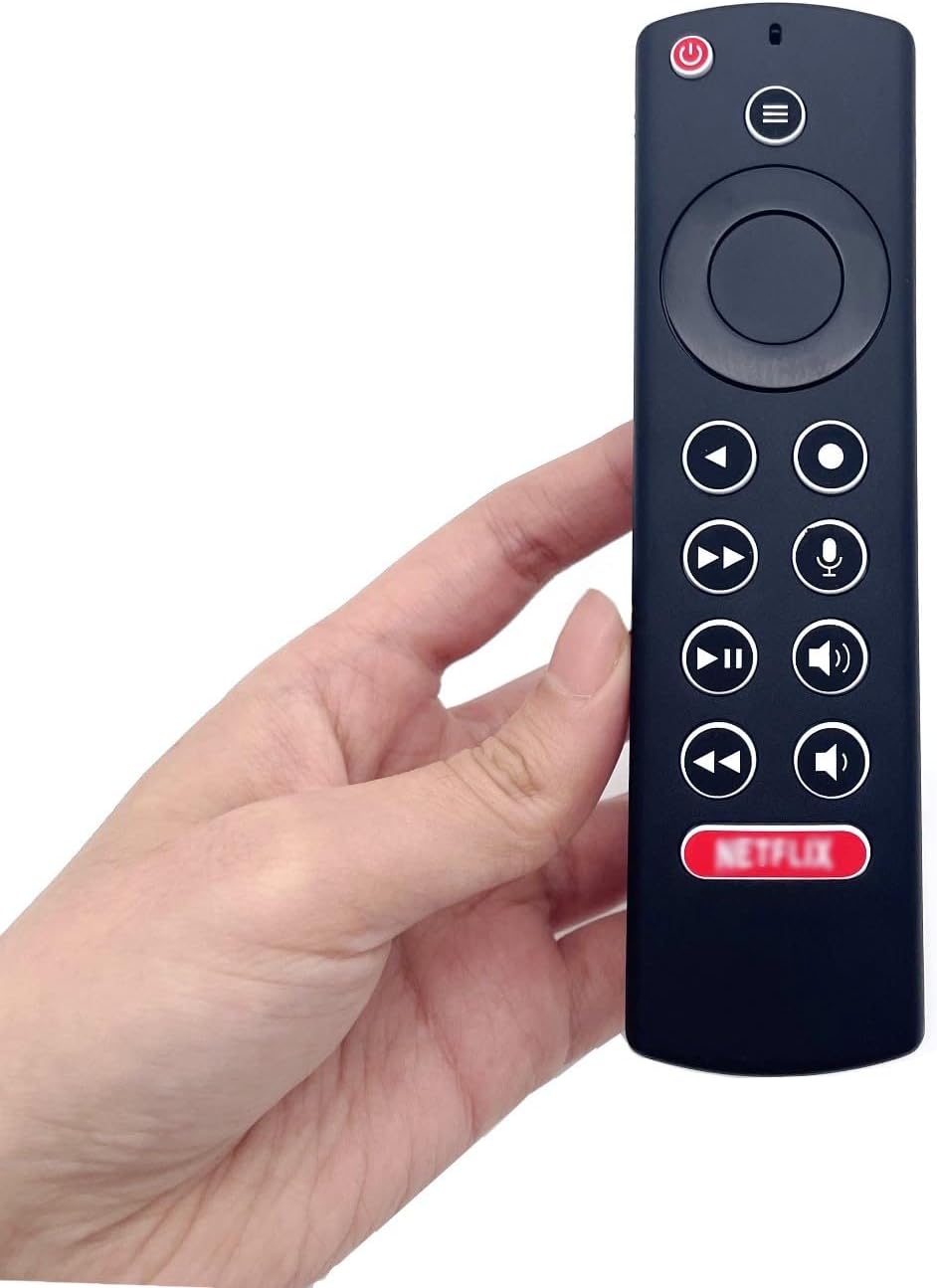
Image: The JZK remote control held in a hand, highlighting its comfortable and ergonomic design.
Информация о гарантии
Specific warranty details for this JZK product are not provided in the product description. Please refer to the retailer's return policy or contact JZK customer support for information regarding warranty coverage and terms.
Поддерживать
For further assistance, troubleshooting, or inquiries about your JZK Voice Remote Control, please contact the retailer where you purchased the product or refer to the official JZK webСайт с вариантами поддержки клиентов.