
AKIA SCREENS AK-MOTORIZE110H2
Akia Screens Motorized Projector Screen User Manual
Model: AK-MOTORIZE110H2
Введение
This manual provides comprehensive instructions for the installation, operation, and maintenance of your Akia Screens Motorized Projector Screen. Designed for optimal viewing experience, this 110-inch diagonal screen features a 16:9 aspect ratio, MaxWhite 2 material, and is compatible with 4K, 8K, HD, and 3D projection. Its motorized function allows for convenient retraction and deployment via remote control or 12V trigger.
Информация по безопасности
Please read all safety warnings and instructions carefully before installation and operation to prevent injury and damage to the product. Retain this manual for future reference.
- Ensure the screen is installed by qualified personnel following local building codes.
- Do not attempt to disassemble or modify the screen motor or electrical components.
- Keep hands and objects clear of the screen casing during operation to avoid pinching or entanglement.
- Do not expose the screen to excessive moisture or extreme temperatures.
- Use only the provided power adapter and remote controls.
- This screen is NOT COMPATIBLE with Ultra Short Throw (UST) projectors.
Содержимое упаковки
Убедитесь, что все компоненты присутствуют и не повреждены при распаковке:
- Motorized Projector Screen Unit (110-inch)
- Инфракрасный (ИК) пульт дистанционного управления
- Wall Box Controller with built-in IR sensor
- Силовой кабель
- Installation Kit (mounting brackets, screws, anchors)
- Руководство пользователя (этот документ)

Image: The Akia Screens 110-inch motorized projector screen, showcasing the main unit along with the two remote controls and a connecting cable.
Продукт болееview
The Akia Screens motorized projector screen is designed for versatile installation and high-quality projection. Key features include:
- Прочный металл Casing: Houses the screen and motor, suitable for wall or ceiling installations.
- MaxWhite 2 Screen Material: A multi-layer weave with 1.1 gain and a 180-degree wide viewing angle, optimized for 4K Ultra HD, 8K, and Active 3D projection. It is GreenGuard and GreenGuard GOLD Certified.
- Black Backing: Eliminates light penetration for a brighter, sharper image.
- Black Masking Borders: Standard black borders enhance picture contrast and absorb projector overshoot.
- Tubular Motor: Ensures smooth and quiet operation for screen retraction and deployment.

Изображение: Крупный план views of the screen's durable black metal casing and the black masking borders that frame the projection surface.

Image: Illustration of the MaxWhite 2 screen material, highlighting its black backing and certifications like GreenGuard and ISF, indicating quality and low chemical emissions.
Настраивать
1. Mounting the Screen
The screen can be installed on a wall or ceiling. Ensure the mounting surface is strong enough to support the screen's weight (approximately 24 lbs for the 110-inch model).
- Измерьте и отметьте: Determine the desired mounting location. Use a level to mark the positions for the mounting brackets. Refer to the screen's overall width (105.5 inches) and product dimensions (102.8"W x 63.87"H) for accurate placement.
- Отверстия для сверления: Drill pilot holes at the marked locations. Use appropriate drill bits for your wall or ceiling material.
- Установить кронштейны: Secure the mounting brackets using the provided screws and anchors. Ensure they are firmly attached.
- Hang Screen: Carefully lift the screen and attach it to the installed mounting brackets. Ensure it is securely seated.
2. Подключение питания
Plug the power cable into the screen's power input and then into a standard electrical outlet. The screen is designed for plug-and-play operation.
3. Remote Control and Wall Box Setup
The screen comes with an Infrared (IR) remote and a wall box controller. The wall box controller has a built-in IR sensor and an RJ50 port for the 12V trigger feature.
- ИК-пульт: Point the IR remote directly at the IR sensor on the wall box controller for operation.
- Wall Box Controller: Mount the wall box controller in a convenient location. It can be detached for a cleaner look if you primarily use the IR remote or an optional RF remote (sold separately).
4. 12V Trigger Feature (Optional)
The 12V trigger feature allows the screen to automatically deploy or retract in synchronization with your projector's power cycle. This requires a projector with a 12V trigger output.
- Connect a 12V trigger cable (not included, typically supplied with projector or purchased separately) from your projector's 12V output to the RJ50 port on the screen's wall box controller.
- Once connected, the screen will automatically lower when the projector is turned on and retract when the projector is turned off.

Image: The screen's control system, illustrating the infrared (IR) remote and the wall box controller with its RJ50 port for the 12-volt trigger connection.
Инструкция по эксплуатации
Использование пульта дистанционного управления
The included IR remote control allows for easy operation of the screen.
- Кнопка ВВЕРХ: Press to retract the screen fully into its casing.
- Кнопка ВНИЗ: Press to deploy the screen fully.
- Кнопка СТОП: Press to stop the screen at any desired position during deployment or retraction.
Programmable Vertical Drop Position
The screen features a user-friendly programmable vertical drop position for customized viewвысоты.
- Deploy the screen to your desired lower limit using the DOWN button.
- Press and hold the STOP button on the remote or wall box controller for approximately 5 seconds until the screen jogs slightly. This sets the new lower limit.
- To reset to factory default, consult the full technical manual or contact customer support.
Обслуживание
Proper care will ensure the longevity and performance of your projector screen.
- Очистка поверхности экрана: The MaxWhite 2 screen material is easy to clean. Use a soft cloth dampened with mild soap and water. Gently wipe the screen surface. Do not use abrasive cleaners, solvents, or harsh chemicals, as these can damage the screen.
- Casing Maintenance: Протрите металлическую детальasinг с сухим или слегка гamp ткань для удаления пыли.
- Уход за двигателем: The motorized mechanism is maintenance-free. Do not lubricate or attempt to service the motor.
- Хранилище: When not in use for extended periods, ensure the screen is fully retracted into its casing to protect the surface from dust and damage.
Поиск неисправностей
| Проблема | Возможная причина | Решение |
|---|---|---|
| Screen does not respond to remote. |
|
|
| Screen stops unexpectedly during operation. |
|
|
| Screen is wavy or has creases. |
|
|
| 12V trigger not working. |
|
|
Технические характеристики
| Особенность | Деталь |
|---|---|
| Номер модели | АК-МОТОРИЗЕ110Н2 |
| Размер экрана (диагональ) | 110 дюймов |
| Viewing Area (H x W) | 54 дюймов x 96 дюйма |
| Соотношение сторон | 16:9 HD Format |
| Overall Extended Size (H x W) | 68.6 дюймов x 105.5 дюйма |
| Размеры изделия (C)asing) | 102.8 дюймов (Ш) x 63.87 дюйма (В) |
| Материал экрана | MaxWhite 2 (1.1 Gain, 180° Viewing Angle, Black Backed) |
| Совместимость | 4K Ultra HD, 8K, Active 3D (Not compatible with UST projectors) |
| Сертификаты | GreenGuard, GreenGuard GOLD, UL 2818 |
| Система управления | IR Remote, Wall Box Controller, 12V Trigger (RJ50) |
| Тип крепления | Настенное и потолочное крепление |
| Вес товара | 24 фунта |
| Casinг Материал | Металл |
| Страна происхождения | Китай |
| Дата первой доступности | 1 августа 2024 г. |
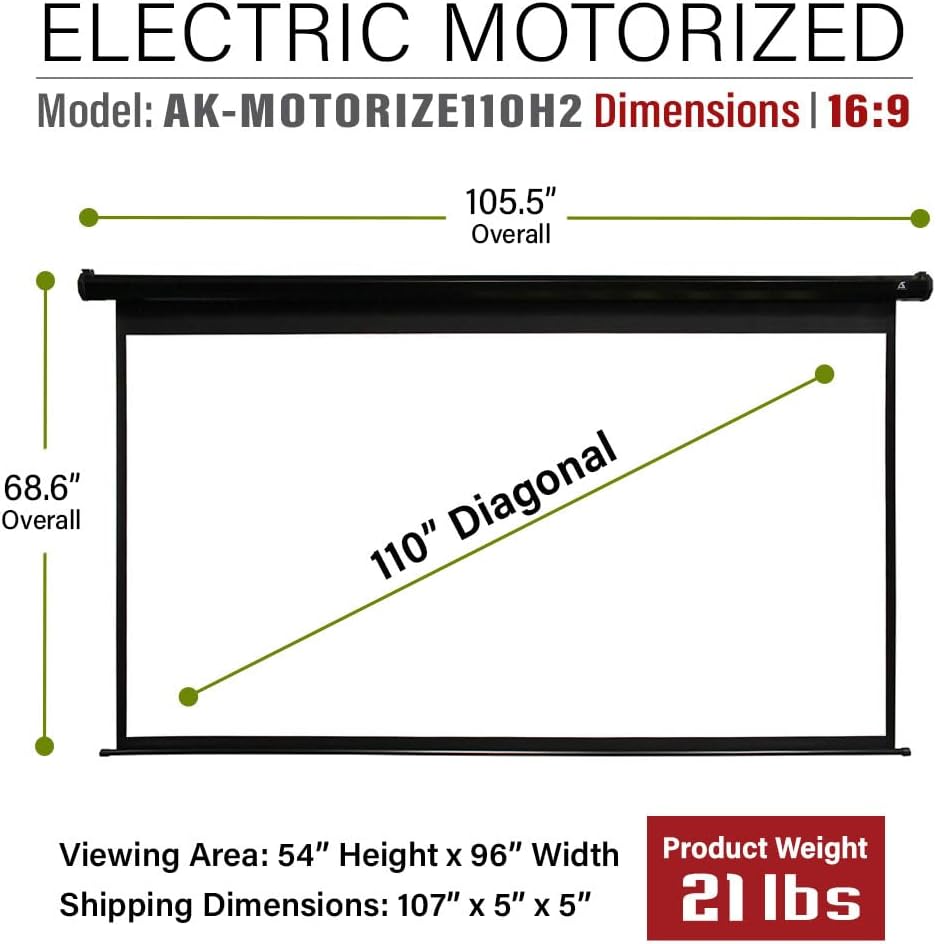
Image: A technical diagram illustrating the overall and viewing dimensions of the 110-inch motorized projector screen.
Гарантия и поддержка
Akia Screens provides comprehensive support for its products.
- Гарантия: 2-Year Manufacturer's Warranty from an ISO9001 certified manufacturer (since 2004).
- Техническая поддержка: Lifetime Technical Support available via Email, Web Chat, or Toll-Free phone call. Support is provided by a U.S. Based Professional Service Team.
For assistance, please visit the official Akia Screens webсайт или обратитесь к контактной информации, предоставленной в документации к вашему продукту.

Image: A visual representation of Akia Screens' U.S. based customer support team, highlighting the 2-year warranty and lifetime technical support.
Ask a question about this manual
Ask about setup, troubleshooting, compatibility, parts, safety, or missing instructions. Manuals+ will review the question and use this page’s manual context to help answer it.