
1. Введение
This manual provides essential instructions for the installation, setup, and operation of your TONGOU Wi-Fi Smart Switch 1P+N DIN Rail DIY with Power Monitoring. This device allows you to transform traditional household appliances into smart, connected devices, offering remote control, voice control, and energy consumption monitoring through the Smart Life or Tuya application.

Image 1.1: TONGOU Wi-Fi Smart Switch integrated into a smart home system, showing app control and Wi-Fi connectivity.
2. Информация по технике безопасности
WARNING: Electrical installation should only be performed by qualified personnel. Incorrect installation can lead to electric shock, fire, or property damage.
- Перед установкой или техническим обслуживанием всегда отключайте питание от главного автоматического выключателя.
- Убедитесь, что устройство установлено в сухом месте, вдали от влаги и экстремальных температур.
- Убедитесь, что томtage and current ratings of the switch match your electrical system requirements.
- Do not exceed the maximum current rating of 6A for this model.
- Убедитесь, что все соединения проводов надежны и правильно изолированы.
3. Содержимое упаковки
Проверьте наличие всех предметов в упаковке:
- 1 x TONGOU Wi-Fi Smart Switch (Model: With Power Monitoring 6A)
- 1 х Руководство пользователя
4. Технические характеристики
| Особенность | Спецификация |
|---|---|
| Бренд | ТОНГОУ |
| Номер модели | With Power Monitoring 6A |
| Рабочий объемtage | Переменное напряжение 90–240 В, 50/60 Гц |
| Тип беспроводной связи | Wi-Fi 2.4 GHz (5/4 GHz not supported) |
| Текущий рейтинг | 6 А |
| Максимальная пропускная способность проводки | 10 mm² (Power side and Load side) |
| Тип крепления | Монтаж на DIN-рейку |
| Размеры (Д x Ш x В) | 9 х 2 х 8 см |
| Масса | 120 грамм |
| Контактный материал | Silver-plated relay contacts |
| Режим работы | Вкл/Выкл |
| Сертификаты | CE |
| Рабочая температура | До 80 градусов Цельсия |
5. Установка
The TONGOU Wi-Fi Smart Switch is designed for DIN rail mounting. Follow these steps for proper installation:
- Отключение питания: Before starting any electrical work, ensure the main power supply to the circuit is turned off at the circuit breaker.
- Монтаж: Mount the smart switch onto a standard 35mm DIN rail. The device occupies one position (18mm width).
- Проводка: Connect the power input (N for Neutral, L for Live) to the top terminals labeled 'Power'. Connect the load output (N for Neutral, L for Live) to the bottom terminals labeled 'Load'. The maximum wiring capacity is 10 mm² for both power and load sides. Ensure correct polarity.
- Защита от замыкания: It is recommended to install an upstream residual current circuit breaker (RCBO/A type, 30mA/10kA) to protect the circuit.
- Безопасные соединения: Use a screwdriver to securely tighten all wire connections.

Image 5.1: Wiring diagram illustrating the connection of the TONGOU Wi-Fi Smart Switch to a circuit with an upstream circuit breaker and a light bulb as a load.
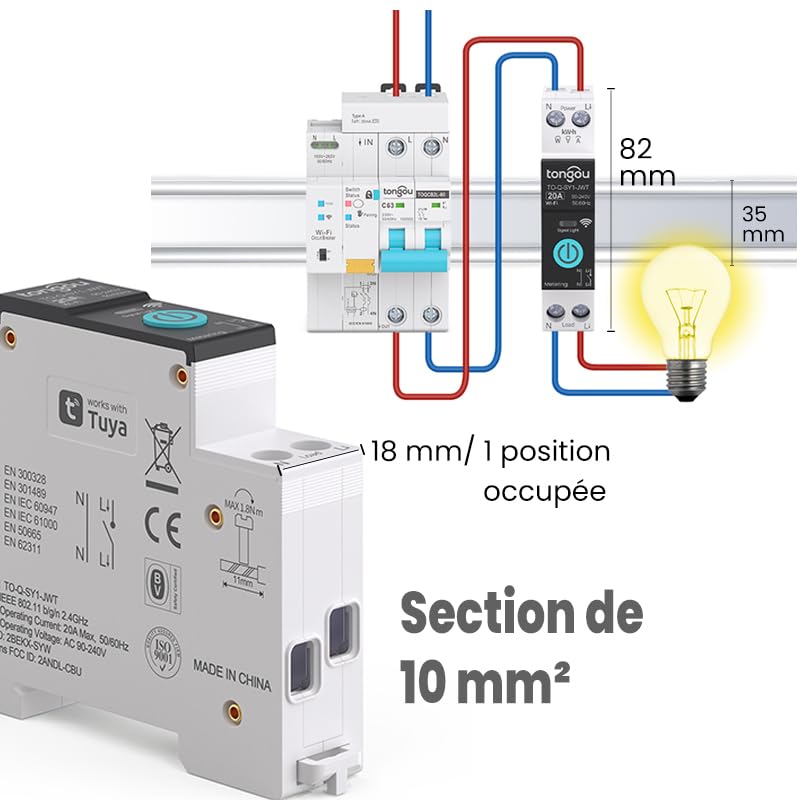
Image 5.2: Close-up of the smart switch showing its dimensions (82mm height, 35mm depth, 18mm width) and indicating a 10 mm² wiring section capacity.
6. Настройка
To enable smart functionalities, connect your TONGOU Wi-Fi Smart Switch to the Smart Life or Tuya application.
- Загрузите приложение: Download the "Smart Life" or "Tuya Smart" application from the App Store (iOS) or Google Play Store (Android).
- Зарегистрироваться/Войти: Откройте приложение и зарегистрируйте новую учетную запись или войдите в существующую.
- Войдите в режим сопряжения: After restoring power to the switch, press and hold the main button on the device for 5 to 10 seconds until the signal light blinks rapidly in blue. This indicates the device is in pairing mode.
- Добавить устройство в приложение: In the Smart Life/Tuya app, tap the "+" icon (usually in the top right corner) to add a new device. The app should automatically discover the switch. If not, manually select "Electrical" > "Circuit Breaker (Wi-Fi)" or similar.
- Подключитесь к Wi-Fi: Follow the in-app instructions to connect the device to your 2.4 GHz Wi-Fi network. Примечание: The device only supports 2.4 GHz Wi-Fi; 5 GHz networks are not compatible.
- Переименовать устройство: После подключения вы можете переименовать устройство для более удобной идентификации (например, «Светильник в гостиной»).

Image 6.1: Visual guide showing how to press and hold the button for 5-10 seconds until the blue indicator light blinks rapidly, signifying pairing mode.

Image 6.2: Screenshot of the Smart Life/Tuya app showing the login/register screen, a Wi-Fi router, and the process of adding a discovered "WiFi Din Rail Switch" device.
7. Операционная
Once the smart switch is successfully paired, you can control it and monitor energy usage through the app or voice commands.
7.1. Удаленное управление через приложение
Open the Smart Life or Tuya app. Select your TONGOU Smart Switch from the device list. You can:
- Turn the connected appliance On or Off remotely from anywhere.
- Set up various timer modes:
- Режим синхронизации: Schedule specific on/off times for daily or weekly routines.
- Режим обратного отсчета: Установите таймер обратного отсчета, по истечении которого устройство выключится.
- Cyclic Timing Mode: Настройте повторяющиеся циклы включения/выключения.
- Astronomical Timing Mode: Автоматизация на основе времени восхода и захода солнца.
7.2. Голосовое управление
The TONGOU Smart Switch is compatible with Amazon Alexa and Google Assistant. To enable voice control:
- Link your Smart Life/Tuya account to Amazon Alexa or Google Home app.
- Откройте для себя новые устройства.
- Используйте голосовые команды, такие как:
- «Алекса, включи [имя устройства]»
- «Окей, Google, выключи [имя устройства]»

Image 7.1: An Amazon Echo device displaying a voice waveform, indicating it is processing a command to turn off a lamp.
7.3. Мониторинг энергопотребления
The smart switch provides real-time and historical energy consumption data:
- View текущий в реальном времени, объемtagт. е. и энергопотребление подключенной нагрузки.
- Access historical data (hourly, daily, monthly, yearly) to track energy usage patterns.
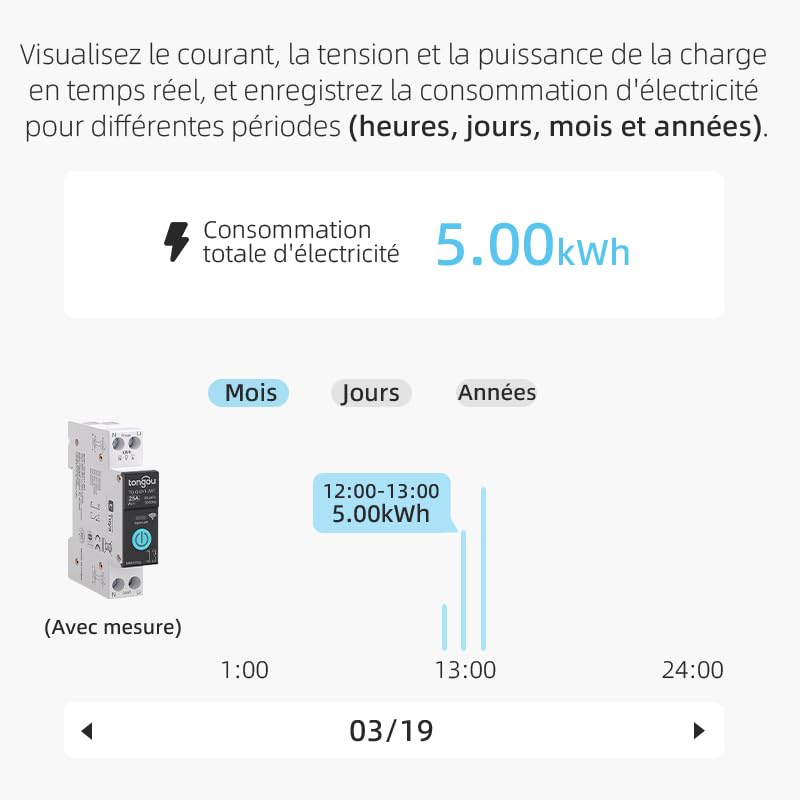
Image 7.2: A graphical representation within the app showing total electricity consumption (5.00 kWh) and a bar chart illustrating hourly consumption data for a specific date.
8. Техническое обслуживание
To ensure optimal performance and longevity of your TONGOU Wi-Fi Smart Switch:
- Содержите устройство в чистоте и не допускайте попадания на него пыли. Для чистки используйте сухую мягкую ткань.
- Не используйте жидкие чистящие средства или растворители.
- Для предотвращения перегрева обеспечьте надлежащую вентиляцию вокруг устройства.
- Регулярно проверяйте надежность соединения проводов, особенно после первоначальной установки.
9. Поиск Неисправностей
If you encounter issues with your TONGOU Wi-Fi Smart Switch, refer to the following common problems and solutions:
| Проблема | Возможная причина | Решение |
|---|---|---|
| Устройство не подключается к Wi-Fi | Incorrect Wi-Fi band (5GHz), weak signal, incorrect password, device not in pairing mode. | Ensure your Wi-Fi is 2.4 GHz. Move the device closer to the router. Re-enter Wi-Fi password carefully. Put the device back into pairing mode (rapid blue blinking). |
| Устройство в приложении офлайн | Wi-Fi отключен, питание отключеноtagе, проблемы с маршрутизатором. | Check your Wi-Fi router and internet connection. Verify the device has power. Re-pair if necessary. |
| Голосовое управление не работает | Учетная запись не привязана, устройство не обнаружено, неверные команды. | Ensure Smart Life/Tuya account is linked to Alexa/Google Home. Discover devices in the voice assistant app. Use the exact device name. |
| Данные мониторинга энергопотребления неточны или отсутствуют. | Неправильная проводка, неисправность устройства. | Double-check wiring according to the installation diagram. Contact support if the issue persists. |
| Device not responding to manual button press | Отсутствие питания, внутренняя неисправность. | Check power supply to the device. If power is present and the device is unresponsive, contact support. |
10. Гарантия и поддержка
For warranty information and technical support, please refer to the documentation provided with your purchase or contact TONGOU customer service through their official channels. Keep your purchase receipt as proof of purchase.