
1. Введение
This manual provides essential information for setting up, operating, and maintaining your HP Series 5 27-inch FHD Monitor. Please read these instructions carefully before using your monitor to ensure optimal performance and safety.
The HP Series 5 27-inch FHD Monitor is designed for comfortable viewing with features like Eye Safe certification, 99% sRGB color accuracy, IPS technology for wide viewing angles, a 100 Hz refresh rate, and an anti-glare screen. Its micro-edge design offers an immersive visual experience.
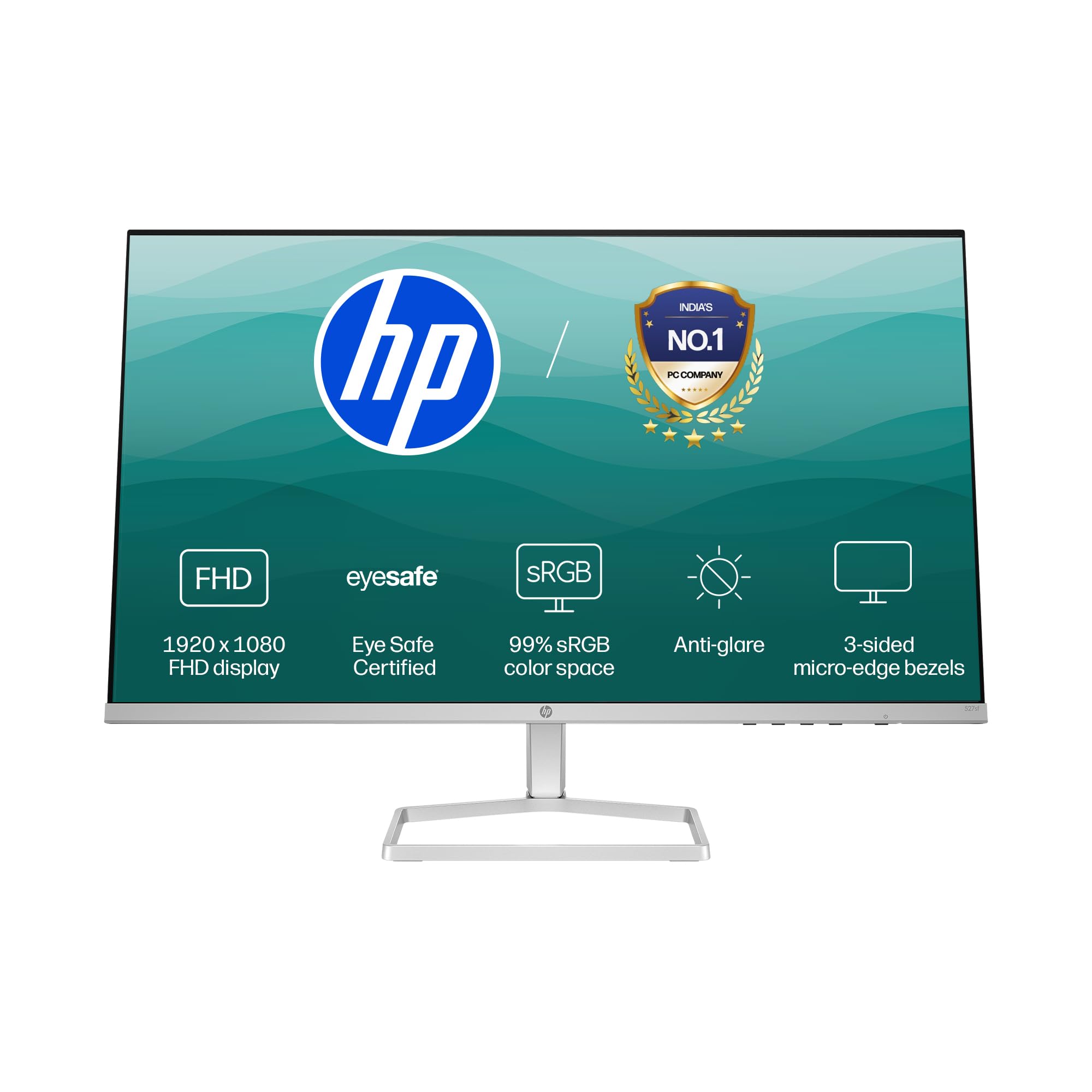
Image: HP Series 5 27-inch FHD Monitor, showcasing its sleek design on a desk.
2. Что в коробке
Убедитесь, что все компоненты присутствуют в упаковке:
- HP Series 5 27-inch FHD Monitor
- Подставка для монитора (основание и горловина)
- HDMI-кабель
- Адаптер питания
- Шнур питания переменного тока
- Документация (руководство по быстрой настройке, гарантийный талон)

Image: Illustration of the monitor and its included accessories: monitor, HDMI cable, power adapter, and AC power cord.
3. Инструкции по настройке
3.1 Сборка подставки для монитора
- Осторожно извлеките компоненты монитора и подставки из упаковки.
- Прикрепите подставку к панели монитора. Убедитесь, что она надёжно зафиксировалась со щелчком.
- Прикрепите основание подставки к её шейке. Затяните все прилагаемые винты, которые обычно расположены на нижней стороне основания.
- Поместите собранный монитор на устойчивую ровную поверхность.
3.2 Подключение монитора
The monitor supports both HDMI and VGA connections.
- Подключение питания: Connect the power adapter to the monitor's power input port, then plug the AC power cord into the adapter and a wall outlet.
- Видео соединение:
- For HDMI: Connect one end of the HDMI cable to an HDMI port on your computer and the other end to one of the two HDMI 1.4 ports on the monitor.
- For VGA: Connect one end of the VGA cable to the VGA port on your computer and the other end to the VGA port on the monitor.
- Убедитесь, что все кабели надежно подключены.

Изображение: сзади view of the HP Series 5 monitor, highlighting the VGA port and two HDMI 1.4 ports for device connectivity.
4. Работа с монитором
4.1 Включение/выключение питания
Чтобы включить или выключить монитор, нажмите кнопку питания, обычно расположенную в правом нижнем углу рамки или на задней панели монитора. Индикатор питания загорится, когда монитор будет включен.
4.2 Навигация по экранному меню (OSD)
Use the physical buttons on the monitor (typically on the bottom right or rear) to access and navigate the On-Screen Display (OSD) menu. This menu allows you to adjust various display settings.
- Выбор входа: Use the OSD or a dedicated input button to switch between connected devices (e.g., HDMI 1, HDMI 2, VGA). The monitor may also auto-detect active inputs.
- Контраст яркости: Настройте эти параметры в соответствии с вашими потребностями. viewing environment. The monitor offers 300 nits brightness for clear visuals.
- Настройки цвета: Fine-tune color temperature, gamma, and other color parameters. The monitor provides 99% sRGB color accuracy for vivid and realistic colors.
- Режимы изображения: Select from preset picture modes optimized for different content types (e.g., Standard, Gaming, Movie).

Image: The HP Series 5 monitor showcasing its bright display, emphasizing 300 nits brightness for clear visuals.

Image: The HP Series 5 monitor displaying rich and realistic colors, highlighting its 99% sRGB color accuracy.
4.3 Характеристики комфорта для глаз
The monitor is equipped with HP Eye Ease and Eyesafe certification, which limits blue light emissions to reduce eye strain without compromising color accuracy. This feature is always-on and does not require OSD adjustments.

Image: The HP Series 5 monitor displaying a dynamic scene, demonstrating its low blue light feature for comfortable extended viewинж.
4.4 IPS Technology and Refresh Rate
IPS (In-Plane Switching) technology ensures consistent image accuracy and vivid colors across wide 178-degree horizontal and vertical viewing angles. The 100 Hz refresh rate provides smooth scrolling and fluid motion, enhancing your viewопыт.

Image: The HP Series 5 monitor displaying a colorful jungle scene, highlighting the vivid colors and crystal-clear viewing from all angles due to IPS technology.
5. Техническое обслуживание
5.1 Очистка монитора
- Перед чисткой всегда выключайте монитор и отсоединяйте шнур питания.
- Слегка используйте мягкую безворсовую ткань.ampпромыть водой или неабразивным очистителем для экранов.
- Аккуратно протрите экран и внешние поверхности. Избегайте чрезмерного давления.
- Do not use alcohol, ammonia-based cleaners, or abrasive materials, as these can damage the anti-glare coating and plastic surfaces.
5.2 Общий уход
- Не кладите тяжелые предметы на монитор или его кабели.
- Держите монитор вдали от прямых солнечных лучей, источников тепла и чрезмерной влажности.
- Обеспечьте надлежащую вентиляцию вокруг монитора во избежание перегрева.
- Utilize the integrated cable containment features to manage wires and reduce clutter.

Изображение: сзади view of the HP Series 5 monitor, illustrating its design for less clutter around the workspace with integrated cable management.
6. Поиск Неисправностей
Если у вас возникли проблемы с монитором, воспользуйтесь следующими распространенными решениями:
- Нет питания: Убедитесь, что шнур питания надежно подключен к монитору и к исправной розетке. Проверьте подключение адаптера питания.
- Нет изображения/сигнала: Verify that the video cable (HDMI or VGA) is correctly connected to both the monitor and your computer. Ensure the correct input source is selected via the OSD menu. Try restarting your computer.
- Мерцающее или искаженное изображение: Check the video cable for damage or loose connections. Ensure your computer's display resolution and refresh rate are compatible with the monitor's specifications.
- Display Anomalies (e.g., light bleeding): While minor variations can occur, if you notice significant or distracting light bleeding, especially from the edges, ensure the monitor is properly seated on its stand and that no external pressure is being applied to the screen. If the issue persists, contact HP support.
- Кнопки не реагируют: Unplug the monitor's power cord, wait 15 seconds, then plug it back in and try again.
7. Технические характеристики
| Особенность | Спецификация |
|---|---|
| Бренд | HP |
| Номер модели | 94F45AA |
| Размер экрана | 27 дюйма (68.6 см) |
| Разрешение | FHD 1080p (1920 x 1080) |
| Соотношение сторон | 16:9 |
| Описание поверхности экрана | Антибликовое покрытие |
| Коэффициент контрастности | 1500:1 |
| Частота обновления | 100 Гц |
| Тип дисплея | LCD (IPS Panel) |
| Viewугол наклона | 178 градусов (горизонтально/вертикально) |
| Яркость изображения | 300 нит |
| Время отклика | 5 миллисекунды |
| Связность | 2 x HDMI 1.4, 1 x VGA |
| Адаптивная синхронизация | FreeSync |
| Характеристики продукта | Flicker-Free, HP Eye Ease with Eyesafe certification |
| Размеры товара (Д x Ш x В) | 18.8 см x 60.8 см x 43.7 см |
| Вес товара | 3.2 Килограмма |
| СКП | 197498944876 |
8. Информация о гарантии
This HP Series 5 27-inch FHD Monitor comes with a 3-летняя гарантия на месте. Please retain your proof of purchase for warranty claims. For detailed terms and conditions, refer to the warranty card included in your product packaging or visit the official HP support webсайт.
9 Поддержка
For further assistance, technical support, or service inquiries, please contact HP Customer Support. You can find contact information on the official HP webсайте или в документации, прилагаемой к вашему монитору.
For ergonomic setup guidance, refer to the HP Display Center software, which can help you customize your comfort settings.
Производитель: HP, HP India Sales Pvt. Ltd.
Контактная информация импортера: HP India Sales Private Limited, No. 24, Kothari Arena, Hosur Main Road, Adugodi, Bangalore, Karnataka, India, 560030
10. Экологическая информация
The HP Series 5 monitor is designed with sustainability in mind:
- Designed from recycled materials and ocean-bound plastics.
- EPEAT® registered.
- Сертифицировано ENERGY STAR®.

Image: The HP Series 5 monitor displayed with environmental elements, emphasizing its construction from recycled materials and ocean-bound plastics, EPEAT registration, and ENERGY STAR certification.