
Введение
This manual provides essential information for the safe and efficient use of your HP 15 Professional Slim High-Performance Laptop. Please read these instructions carefully before using your device. Keep this manual for future reference.
1. Начальная настройка
1.1 Распаковка и подключение питания
Carefully remove the laptop and all accessories from the packaging. Connect the provided AC adapter to the laptop's power port and then to a power outlet. It is recommended to fully charge the battery before first use.

Image: The HP 15 laptop shown from the front, with the power adapter connected to the side. This illustrates the initial connection for charging.
1.2 Первая загрузка и настройка операционной системы
Press the power button to turn on the laptop. Follow the on-screen instructions to complete the Windows 11 Home operating system setup. This includes selecting your region, connecting to a Wi-Fi network, and creating a user account.

Image: The HP 15 laptop open, displaying the Windows 11 desktop interface, indicating successful operating system initialization.
2. Работа с ноутбуком
2.1 Включение/выключение питания и спящий режим
- Включение питания: Нажмите кнопку питания, расположенную на панели клавиатуры.
- Выключение: Нажмите кнопку «Пуск», затем «Питание» и выберите «Выключить».
- Спящий режим: Закройте крышку или нажмите кнопку «Пуск», затем «Питание» и выберите «Спящий режим».
2.2 Клавиатура и сенсорная панель
The laptop features a full-size island-style QWERTY keyboard and a multi-touch touchpad. Use the touchpad for navigation and gestures. Refer to Windows 11 settings for touchpad customization.
2.3 Связь
Your HP 15 laptop offers various connectivity options:
- Wi-Fi: Supports Realtek Killer Wi-Fi 6 (802.11ax) for high-speed wireless internet access.
- Bluetooth: Integrated Bluetooth 5.3 for connecting wireless peripherals like headphones and mice.
- USB-порты:
- Two (2) USB 3.2 Gen 1.0 Type-A ports (5 Gbps signaling rate).
- One (1) USB 3.2 Gen 1.0 Type-C port (5 Gbps signaling rate, data transfer only; charging or external monitors not supported).
- HDMI: One (1) HDMI v1.4b output port for connecting to external displays.
- Аудиоразъем: One (1) headphone/microphone combo port.
Изображение: вид сбоку view of the HP 15 laptop, highlighting the various input/output ports for external device connectivity.
2.4 Аудио и камера
- Аудио: Equipped with dual speakers for audio output and HD Audio support.
- Камера: Features an HP True Vision 720p HD camera with integrated dual array digital microphones, suitable for video calls and online meetings.

Image: The HP 15 laptop displaying a video conference call, demonstrating the use of the integrated camera and microphone.
3. Техническое обслуживание и уход
3.1 Чистка ноутбука
- Экран: Слегка используйте мягкую безворсовую ткань.ampСмочите экран водой или очистителем для экранов. Не распыляйте жидкость непосредственно на экран.
- Клавиатура и корпус: Используйте мягкую сухую ткань. Для удаления стойких загрязнений используйте слегка мягкую ткань.amp можно использовать ткань, следя за тем, чтобы в отверстия не попала влага.
- Вентили: Периодически проверяйте и аккуратно очищайте вентиляционные отверстия, чтобы предотвратить скопление пыли, которое может негативно влиять на охлаждение.
3.2 Уход за аккумулятором
To maximize battery lifespan, avoid extreme temperatures and prolonged full discharge or full charge states. For long-term storage, charge the battery to approximately 50%.
3.3 Обновления программного обеспечения
Regularly check for and install Windows updates and HP driver updates to ensure optimal performance, security, and compatibility. Access Windows Update via Settings > Windows Update.
3.4 Экологические соображения
This laptop is built with recycled materials, including ocean-bound plastic. Please dispose of the device and its components responsibly at the end of its life cycle, following local regulations for electronic waste.
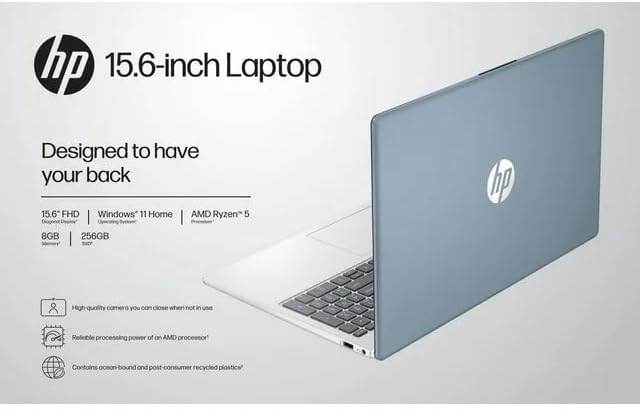
Image: The HP 15 laptop shown from the rear, illustrating its design and potential ventilation areas for maintenance.
4. Устранение распространенных неполадок
This section addresses common problems you might encounter. For more complex issues, refer to the HP support webсайт.
4.1 No Power or Laptop Not Turning On
- Убедитесь, что адаптер переменного тока надежно подключен к ноутбуку и рабочей розетке.
- Проверьте работоспособность розетки, подключив к ней другое устройство.
- Попробуйте использовать другую розетку.
- Если аккумулятор полностью разряжен, дайте ему зарядиться не менее 30 минут, прежде чем пытаться включить устройство.
4.2 Проблемы с отображением
- Пустой экран: Connect an external monitor via HDMI to check if the issue is with the laptop's display or the graphics output.
- Тусклый дисплей: Adjust screen brightness using the function keys (usually F2/F3 or similar icons) or through Windows display settings.
- Неправильное разрешение: Adjust the display resolution in Windows Settings > System > Display.
4.3 Проблемы с подключением по Wi-Fi или Bluetooth
- Ensure Wi-Fi and Bluetooth are enabled in Windows Settings > Network & internet or Devices > Bluetooth & devices.
- Перезагрузите маршрутизатор/модем для устранения проблем с Wi-Fi.
- Update wireless drivers through HP Support Assistant or Device Manager.
- Forget and reconnect to the Wi-Fi network or re-pair the Bluetooth device.
4.4 Audio Not Working
- Check volume levels in Windows and ensure speakers are not muted.
- Verify that the correct audio output device is selected in Windows Sound settings.
- Обновите аудиодрайверы.
- Test with headphones to determine if the issue is with the internal speakers or the audio output.
5. Технические характеристики продукта
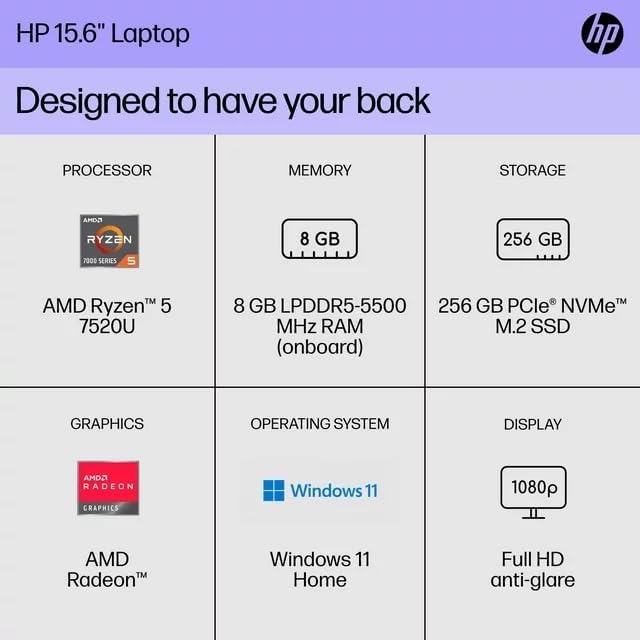
The following are the technical specifications for the HP 15 Professional Slim High-Performance Laptop (Model 15):
| Особенность | Деталь |
|---|---|
| Название модели | 15 л.с. |
| Процессор | AMD Ryzen 5 7520U (up to 4.3 GHz max boost, 4 cores, 8 threads) |
| Графика | AMD Radeon Graphics (интегрированная) |
| Память (ОЗУ) | 8 ГБ DDR4 SDRAM |
| Хранилище | SSD-накопитель PCIe NVMe M.2 емкостью 256 ГБ |
| Отображать | 15.6-inch diagonal, Full HD (1920 x 1080), micro-edge, anti-glare, 250 nits, 45% NTSC |
| Операционная система | Windows 11 Домашняя |
| Беспроводное подключение | Realtek Killer Wi-Fi 6 (2x2), Bluetooth 5.3 |
| Порты |
|
| Камера | Камера HP True Vision 720p HD со встроенными двунаправленными цифровыми микрофонами |
| Аудио | Dual speakers, HD Audio |
| Клавиатура | Full-size island-style QWERTY keyboard |
| Силовые устройства | Адаптер переменного тока |
| СКП | 196337455771 |
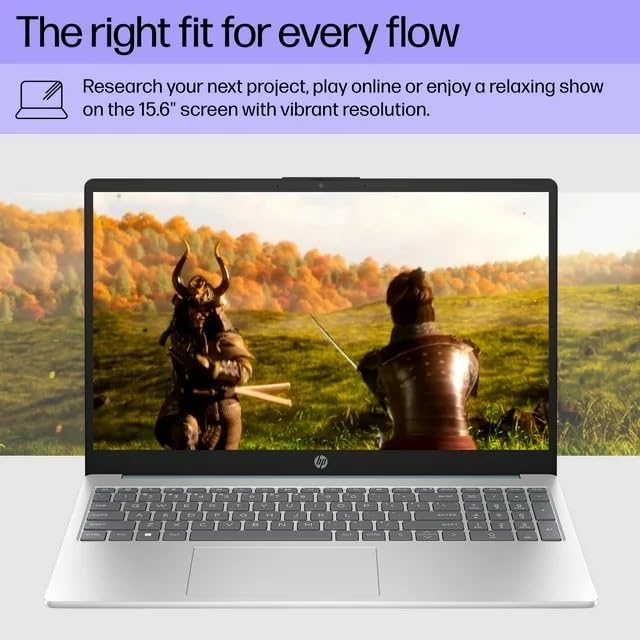
Image: A visual representation of the HP 15 laptop, complementing the detailed specifications listed.
6. Информация о гарантии
This HP 15 laptop is a renewed product and comes with a 90-дневная ограниченная гарантия. This warranty covers defects in materials and workmanship under normal use. For specific terms and conditions, please refer to the warranty documentation included with your product or contact HP support.
7. Поддержка клиентов
Для получения дополнительной помощи, технической поддержки или загрузки обновленных драйверов и программного обеспечения посетите официальный сайт поддержки HP. website. You can typically find support resources by searching for "HP Support" and your specific model number (HP 15) on their webсайт.
Интернет-ресурсы: https://support.hp.com