1. Продукт закончилсяview и особенности
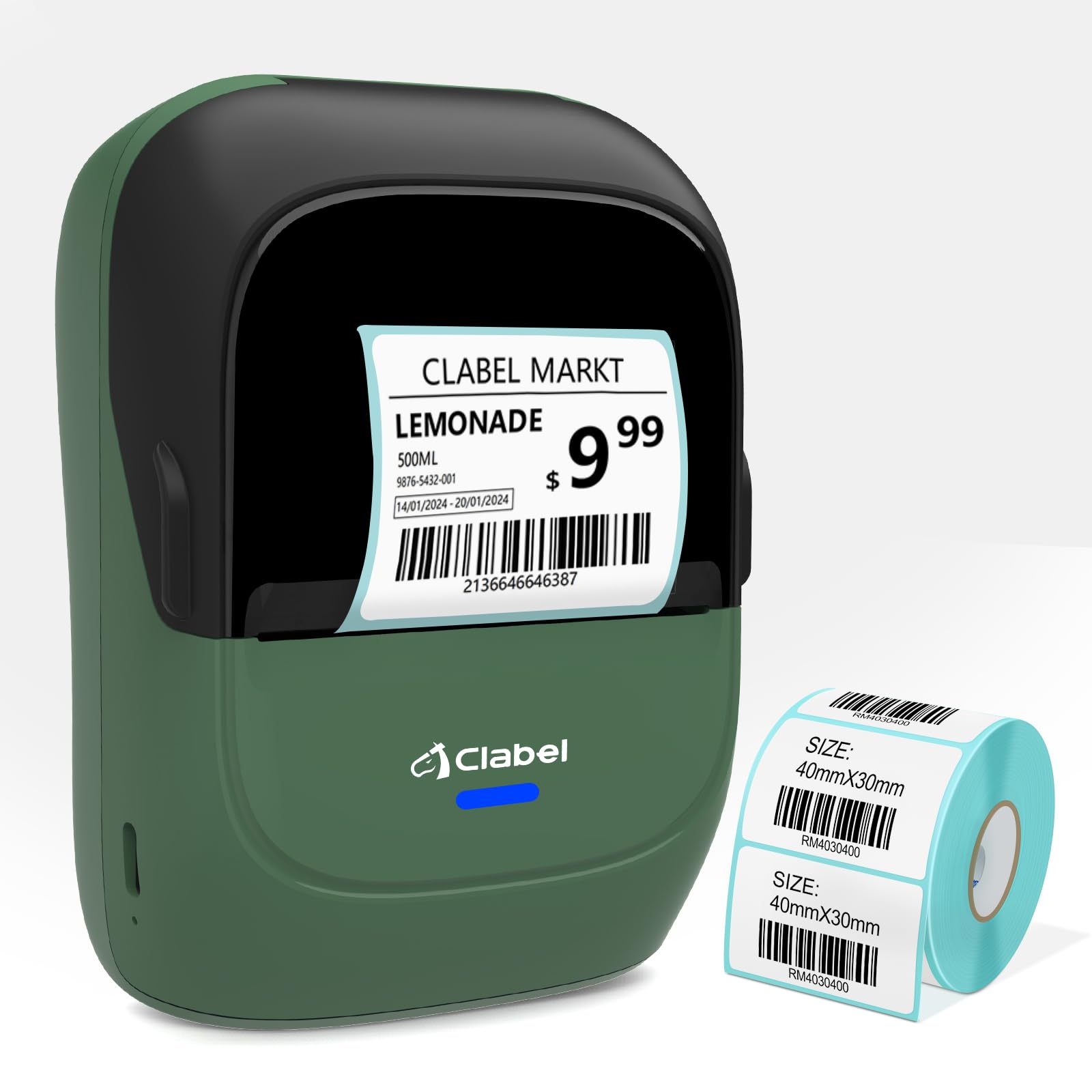
The CLABEL 221B Thermal Label Printer is a portable, inkless label maker designed for various labeling needs in home, business, and office environments. It offers high-quality printing and flexible connectivity options.
- Inkless High-quality Printing: Utilizes direct thermal technology, eliminating the need for ink or toner. Equipped with high-speed chips for high-definition printing. Supports label widths from 25-50mm (0.98"-1.96").
- No Bound Labels, 100% Cost-Saving Freedom: Compatible with affordable, non-proprietary thermal label paper, offering flexibility in label choice.
- Portable Label Maker Machine: Lightweight (8.4 ounces) and compact design for easy transport. Compatible with iOS, Android, and PC via Bluetooth or USB cable. Note: Not suitable for fast charging adapters.
- Simple but Powerful APP: Download the "Clabel trade" app from Google Play or App Store. Features ready-to-use label templates and allows creation and saving of custom templates. (Note: Not for shipping labels).
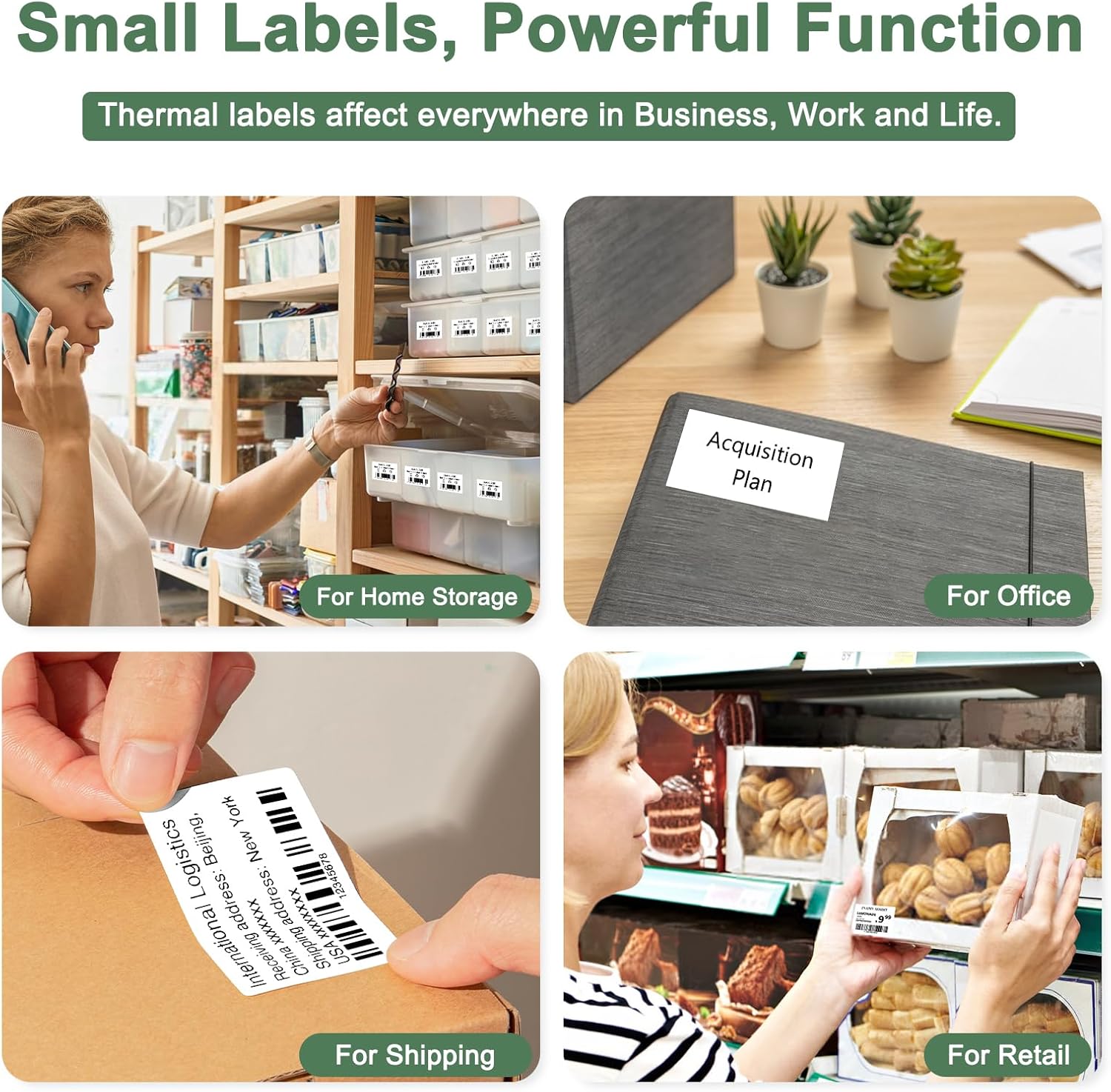
- Широко применяется: Suitable for small businesses (clothing, crafts, retail, jewelry), home organization, and labeling addresses, barcodes, QR codes, prices, dates, ingredients, and products.
2. Руководство по установке
2.1. Загрузка этикеточной бумаги
- Ensure the printer is fully charged before use.
- Open the top cover by squeezing the pressure points and pulling upwards.
- Place the roll of label paper into the compartment.
- Push the blue switch lock down to unlock the paper compartment.
- Slide the plastic baffle left to securely hold the label paper in place.
- Push the blue switch lock up to lock the plastic baffle.
- Pull out part of the label paper, then close the top cover.

Image: Step-by-step guide demonstrating how to correctly install label paper into the CLABEL 221B Thermal Label Printer, showing opening the cover, placing the roll, adjusting the baffle, and closing the cover.
Video: Official seller video demonstrating the process of installing labels into the CLABEL 221B Thermal Label Printer, including opening the cover, inserting the label roll, adjusting the paper guides, and closing the cover.
2.2. App Download and Connection (Smartphone)
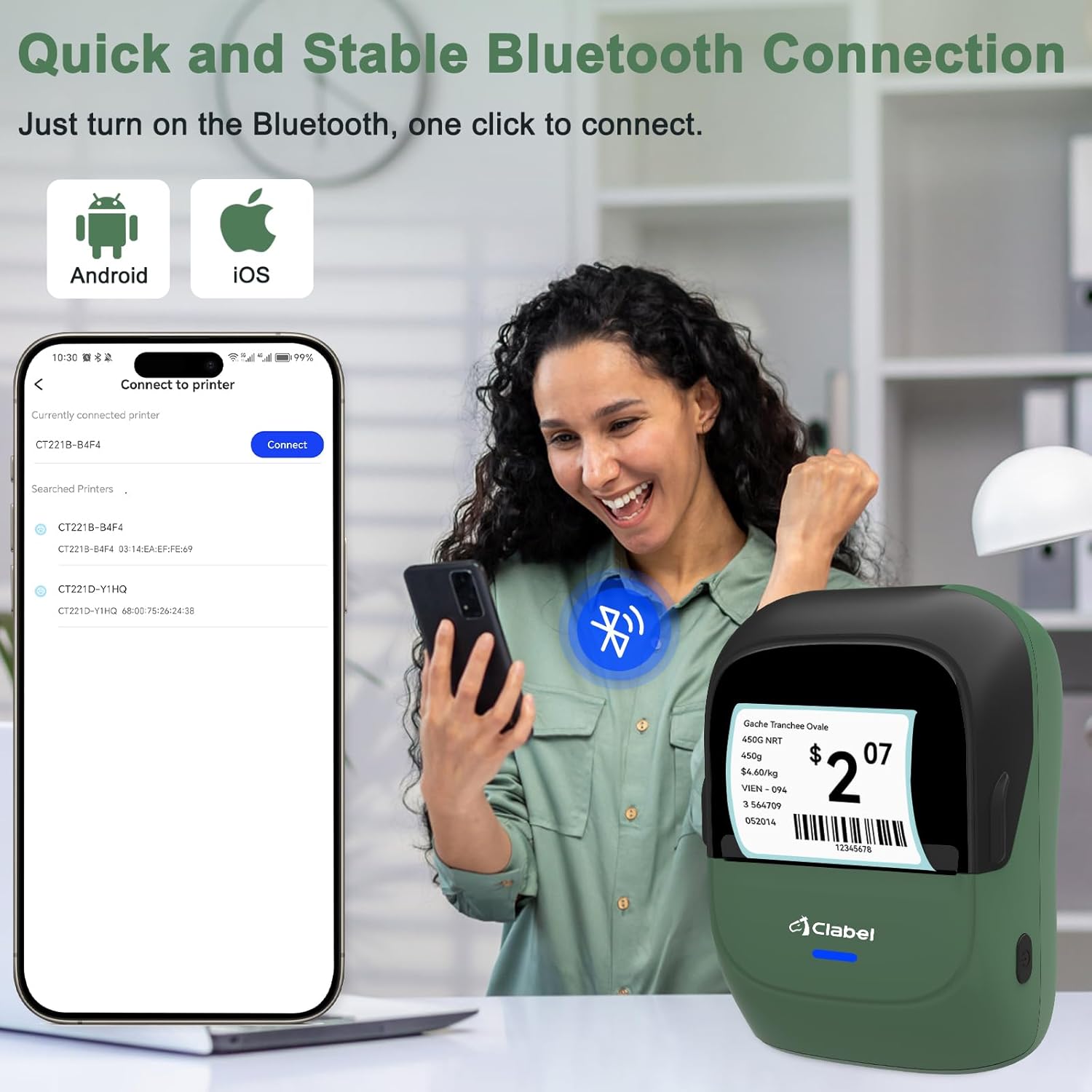
- Download the "Clabel trade" app from Google Play (for Android) or App Store (for iOS).
- Turn on the printer by long-pressing the power button. The blue light will blink.
- Включите Bluetooth на вашем смартфоне.
- Open the "Clabel trade" app and tap "Disconnected" or the connection icon.
- Select the printer name (e.g., "CT221B-4HZN") from the list to connect.
- Once connected, you can edit your label and print.

Image: Visual guide showing the steps to connect the CLABEL 221B printer to a smartphone using the "Clabel trade" app via Bluetooth, from turning on the printer to selecting it in the app.
2.3. Software Download and Connection (PC)
- Включите принтер.
- Подключите принтер к компьютеру с помощью USB-кабеля.
- Download and install the "Clabel trade" software from the official CLABEL webсайт.
- Open the software, create a new label, edit it, and select the "Clabel-CT221B" printer to print.

Image: Visual guide detailing the process of connecting the CLABEL 221B printer to a Windows PC via USB, installing the software, and preparing to print a label.
Video: Official seller video demonstrating how to set up the PM220 (similar model) label maker on Windows via USB cable, including driver installation and printing from the application.
3. Инструкция по эксплуатации
3.1. Создание и печать этикеток
Once connected via Bluetooth or USB, use the "Clabel trade" app or PC software to design your labels. The app offers various templates and customization options for text, barcodes, QR codes, and images.
- Open the "Clabel trade" app or PC software.
- Select an existing template or create a new one.
- Add text, images, barcodes, or QR codes as needed.
- Adjust font, size, and layout to your preference.
- Предварительноview Проверьте этикетку, чтобы убедиться, что она соответствует вашим требованиям.
- Tap "Print" or click the print icon to send the label to the printer.

Image: Screenshots of the "Clabel trade" app interface, showing options for customizing labels with text, barcodes, QR codes, and various templates for personalization.
3.2. Tearing Off Printed Labels
After printing, gently pull the label upwards against the printer's cutting edge to tear it off cleanly.
Video: Official seller video demonstrating how to tear off printed labels from the CLABEL 221B Thermal Label Printer for a perfect cut.
4. Техническое обслуживание
- Зарядка: Use the provided USB-C cable to charge the printer. Avoid using fast charging adapters as they may damage the device. A full charge can support continuous printing of approximately 30 rolls of labels.
- Уборка: Regularly clean the print head with a soft, lint-free cloth to ensure optimal print quality.
- Хранилище: Храните принтер в прохладном, сухом месте, вдали от прямых солнечных лучей и экстремальных температур.
5. Поиск Неисправностей
- Проблемы с подключением: If the printer does not connect via Bluetooth, ensure Bluetooth is enabled on your device and the printer is powered on. Try restarting both the printer and your device.
- Проблемы с качеством печати: If print quality is poor, check the label roll for proper installation and ensure the print head is clean. Adjust print density settings in the app/software if available.
- Функциональность приложения: If you encounter problems with the "Clabel trade" app, refer to the app's help section or feedback option for solutions.
- Label Recognition: The printer is designed to automatically detect label types. If it fails to recognize a new label roll, try re-inserting it or restarting the printer.
6. Технические характеристики
| Особенность | Деталь |
|---|---|
| Бренд | ЭТИКЕТКА |
| Название модели | CT221BH |
| Номер модели товара | CT221BHWGS |
| Технология связи | Bluetooth, USB |
| Технология печати | Термальный |
| Специальная характеристика | Легкий |
| Цвет | Green (for this variant) |
| Вывод на принтер | Монохромный |
| Максимальная скорость печати, монохромная | 55 частей на миллион |
| Вес товара | 0.53 грамм |
| Размеры продукта | 5 х 10 х 10 см |
| Совместимые устройства | Смартфоны (iOS, Android), ПК |
| Максимальный размер носителя | 50 мм (ширина) |
| Maximum Print Resolution Black and White | 203 точек на дюйм |
7. Гарантия и поддержка
The CLABEL 221B Thermal Label Printer comes with a Гарантия 2 год.
For further support or inquiries, please refer to the manufacturer's contact information or visit their official webсайт.
- Производитель: ЭТИКЕТКА
- Контактная информация производителя: xin an jie dao xing dong she qu 71 qu, fan shen gong ye da sha liu xian yi lu san xiang 42-2 hao, shen zhen, Guangdong, 518000, CN
- CLABEL Store: Visit the CLABEL Store on Amazon
8. Продуктовые медиа
8.1. Изображения продукта