
Руководство пользователя автомагнитолы Hikity 9 дюйма на базе Android 15
Model: B0CQLNWC4S for Toyota Prius C (2012-2014)
1. Продукт закончилсяview
This Hikity car radio is an advanced infotainment system designed for Toyota Prius C models from 2012 to 2014. It features a 9-inch Incell touchscreen, Android 15 operating system, 4GB RAM, and 128GB ROM, providing a smooth and responsive user experience. Key functionalities include wireless CarPlay and Android Auto, Bluetooth 5.0, FM/RDS radio, GPS navigation, Wi-Fi connectivity, steering wheel control support, and compatibility with an AHD backup camera.

Image 1.1: The Hikity 9-inch car radio seamlessly integrated into a Toyota Prius C dashboard, displaying navigation and media playback.
2. Что в коробке
Перед началом установки убедитесь, что все компоненты присутствуют:
- Android Stereo for Toyota Prius C
- Backup Camera/CAM-IN Cable
- Power Cable/RCA Cable
- GPS-антенна
- Микрофон
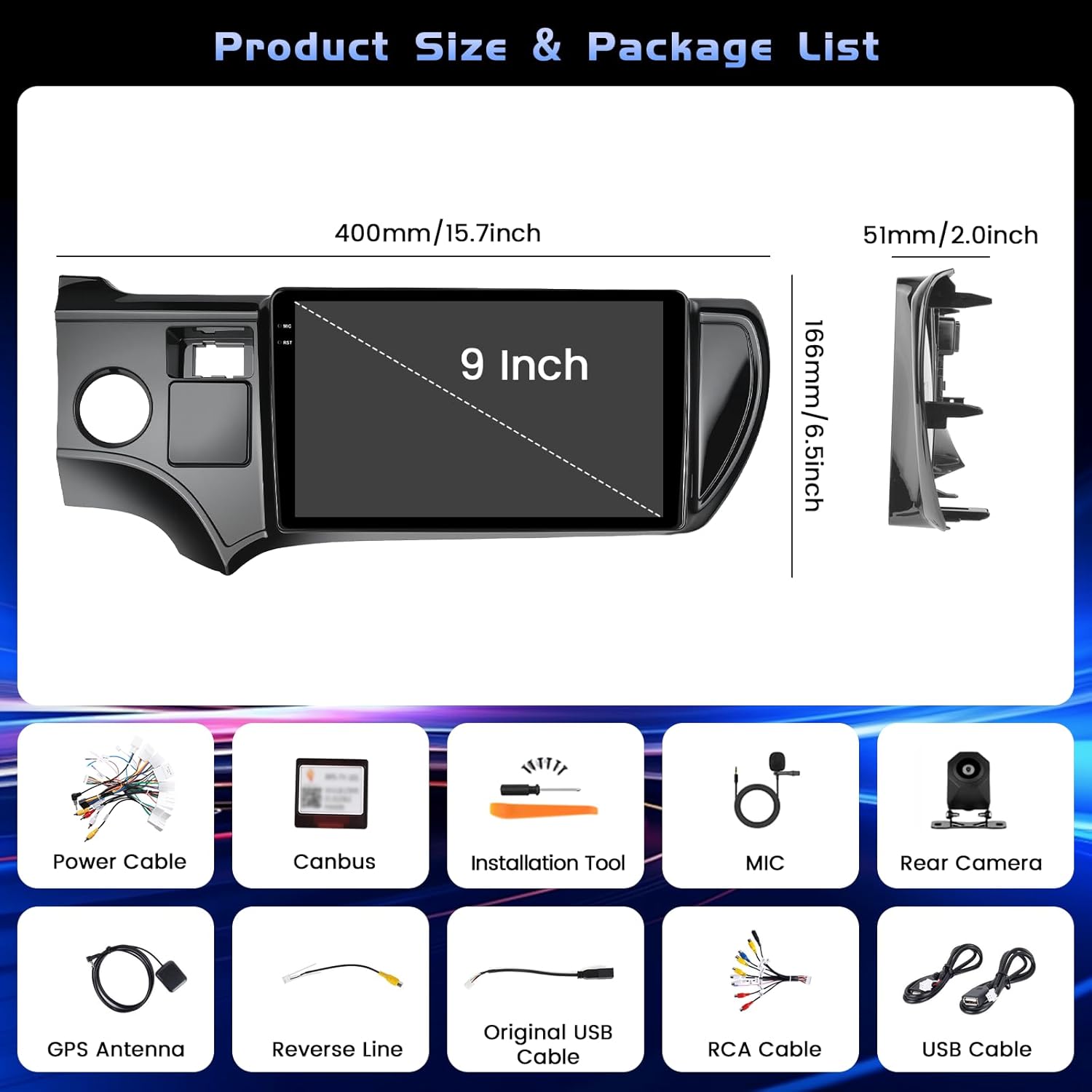
Image 2.1: All included components of the Hikity car radio system.
3. Настройка и установка
Professional installation is recommended for optimal performance and to avoid damage to your vehicle or the unit. Ensure the vehicle's power is disconnected before starting installation.
3.1 Подключение проводки
Carefully connect all cables according to the provided wiring diagram. Pay close attention to the power and ground connections to prevent electrical issues. The backup camera requires specific wiring to function correctly.
Video 3.1: Detailed instructions on how to connect the backup camera to the car radio system.
For the backup camera, connect the 'BACK' line from the main harness to the positive pole of your car's reversing light. Connect the camera's power cable to the reversing light's positive and negative poles. The video signal cable from the camera connects to the 'CAM-IN' port on the head unit.

Image 3.2: Wiring diagram for the backup camera connection.
3.2 Первоначальное включение питания
After all connections are secure, reconnect the vehicle's power. The unit should power on automatically. Follow any on-screen prompts for initial setup, such as language selection and time zone.
4. Инструкция по эксплуатации
4.1 Базовая навигация по пользовательскому интерфейсу
The system features an intuitive touchscreen interface. Swipe left or right to navigate between home screens and access various applications. The top bar displays status icons for Wi-Fi, Bluetooth, GPS, and time.

Изображение 4.1: оконченоview of the user interface with various app icons and customizable themes.
4.2 Bluetooth-соединение
To connect your smartphone via Bluetooth for hands-free calls and audio streaming:
- Go to the 'Settings' menu on the car radio.
- Select 'Bluetooth' and ensure it is enabled.
- На смартфоне включите Bluetooth и выполните поиск доступных устройств.
- Select the car radio's Bluetooth name (e.g., 'BLINK_UNW2652') from your phone's list.
- Подтвердите запрос на сопряжение на обоих устройствах.

Image 4.2: Bluetooth dialing screen and connection status.
4.3 Беспроводной CarPlay и Android Auto
This unit supports both wireless CarPlay and Android Auto for seamless smartphone integration. Connect your mobile phone to the car infotainment system via Bluetooth first, then launch the 'S-Play' application on the car radio to initiate the connection.
Video 4.3: Guide on how to use CarPlay with the car radio.

Изображение 4.4: Беспроводной интерфейс CarPlay и Android Auto.
4.4 GPS-навигация
The unit features a dual navigation system supporting both online and offline maps. Connect to Wi-Fi to download offline maps or use online navigation for real-time traffic updates.

Image 4.5: GPS navigation interface with online and offline map options.
4.5 Управление рулевым колесом (SWC)
The car radio supports your vehicle's original steering wheel controls. To configure them:
- Connect the SWC wires (KEY1/KEY2) from the car radio harness to the corresponding wires in your vehicle's wiring.
- Access the 'Steering Wheel Key Learning' function in the car radio's settings (usually under 'Factory Setup' with password 1234).
- Следуйте инструкциям на экране, чтобы назначить функции каждой кнопке на рулевом колесе.

Image 4.6: Steering Wheel Control learning interface.
4.6 Функциональность разделения экрана
The unit supports split-screen mode, allowing you to run two applications simultaneously. This feature can be enabled or disabled in the 'Factory Setup' settings (password 1234) under 'Split screen function'. Once enabled, you can drag compatible apps to either side of the screen.
4.7 FM/RDS-радио
Access the FM/RDS application to listen to radio stations. The RDS (Radio Data System) feature displays station information where available.
5. Техническое обслуживание
Чтобы обеспечить долговечность и оптимальную работу вашей автомобильной магнитолы, следуйте следующим рекомендациям по техническому обслуживанию:
- Очистка экрана: Для протирки сенсорного экрана используйте мягкую безворсовую ткань. Избегайте абразивных чистящих средств или агрессивных химикатов, которые могут повредить покрытие экрана.
- Обновления программного обеспечения: Periodically check for software updates through the system's settings to ensure you have the latest features and bug fixes.
- Условия окружающей среды: Не подвергайте устройство воздействию экстремальных температур, прямых солнечных лучей в течение длительного времени или чрезмерной влажности.
- Целостность кабеля: Regularly inspect all visible cables for any signs of wear or damage.
6. Поиск Неисправностей
If you encounter issues with your car radio, refer to the following common solutions:
- Нет питания: Check all power connections. Ensure the vehicle's fuse for the radio is intact.
- Пустой экран: Perform a soft reset by pressing the RST button (if available) or disconnecting and reconnecting the vehicle's battery for a few minutes.
- Камера заднего вида не работает: Verify all camera wiring, especially the 'BACK' trigger wire and power connections. Ensure the correct camera input type (AHD, CVBS-N, etc.) is selected in 'Factory Setup' > 'Backcar Source Settings'.
- Управление на рулевом колесе не реагирует: Re-perform the 'Steering Wheel Key Learning' procedure as described in Section 4.5. Ensure the SWC wires are correctly connected.
- Проблемы с подключением Bluetooth/CarPlay/Android Auto: Ensure Bluetooth is enabled on both devices. Forget the device on both the phone and car radio, then attempt to pair again. For CarPlay/Android Auto, ensure the 'S-Play' app is running and your phone is compatible.
- Нет звука: Check speaker connections and ensure the volume is not muted or set too low. Verify equalizer settings.
7. Технические характеристики
| Особенность | Деталь |
|---|---|
| Бренд | Хикити |
| Название модели | Автомобильное радио на Андроиде |
| Операционная система | Андроид 15 |
| Память | 4 ГБ ОЗУ + 128 ГБ ПЗУ |
| Размер экрана | 9 дюйма |
| Тип дисплея | Incell Full Touchscreen LCD |
| Разрешение | 1280*720 |
| Связность | Bluetooth 5.0, USB, Wi-Fi (5G), Wireless CarPlay, Android Auto |
| Навигация | Dual GPS (Online and Offline Maps) |
| Режим аудиовыхода | Stereo (32-EQ) |
| Совместимые транспортные средства | Toyota Prius C 2012-2014 |
| Размеры изделия (Д x Ш x В) | 15.94" x 10.24" x 2.36" |
| Вес товара | 1 Килограмм |

Image 7.1: Details of the Incell Full Lamination Screen technology.
8. Гарантия и поддержка
8.1 Информация о гарантии
Эта автомобильная магнитола Hikity поставляется в комплекте с Гарантия 1 год Гарантия действует с даты покупки. Гарантия распространяется на производственные дефекты и неисправности при нормальной эксплуатации. Для предъявления гарантийных претензий сохраните чек о покупке.
8.2 Поддержка клиентов
For technical assistance, troubleshooting, or warranty inquiries, please contact Hikity customer support through the retailer where the product was purchased. You may also find additional support resources on the official Hikity webсайт.