
Губай 41074
Goobay 41074 USB-C Sync & Charge Cable Instruction Manual
Модель: 41074
1. Введение
This manual provides instructions for the Goobay 41074 USB-C Sync & Charge Cable. This cable is designed for high-speed data transfer, fast charging, and video/audio transmission between compatible USB-C enabled devices.

Image 1.1: The Goobay 41074 USB-C Sync & Charge Cable, featuring a USB-A connector on one end and a USB-C connector on the other. The image also highlights key specifications such as USB-C compatibility, 1-meter length, 60W power delivery, and 20x faster speed than USB 2.0.
2. Особенности продукта
- Быстрая зарядка: Supports power delivery up to 60 W (20 V / 3 A) for rapid charging of compatible USB-C devices.
- SuperSpeed+ Data Transfer: Achieves data transfer rates up to 10 Gbit/s, which is 20 times faster than USB 2.0.
- USB 3.2 Gen 2 Standard: Utilizes the latest USB 3.2 Gen 2x2 standard for efficient data handling.
- Реверсивный разъем USB-C: The USB-C plug can be inserted in either orientation.
- Video & Audio Transmission: Capable of transmitting video and audio content to external displays with a USB-C input.
- Универсальное использование: Suitable for transferring movies, music, videos, and various files.

Изображение 2.1: Подробный view of the Goobay USB-C cable, highlighting its USB-A and USB-C connectors and indicating its 1-meter length, 60W power delivery, and 10 Gbps data transfer speed.
3. Содержимое упаковки
В комплект входит следующий товар:
- 1x Goobay 41074 USB-C Sync & Charge Cable (1 meter)
4. Настройка
To set up your Goobay 41074 USB-C cable, follow these general steps:
- Определить порты: Locate the appropriate USB-A and USB-C ports on your devices (e.g., computer, charger, smartphone, monitor).
- Подключаемые устройства: Insert the USB-A end of the cable into a compatible USB-A port on your host device (e.g., computer, wall charger).
- Подключите устройство с разъемом USB-C: Insert the USB-C end of the cable into the USB-C port of your target device (e.g., smartphone, tablet, laptop, monitor). The USB-C connector is reversible, allowing for easy connection in either direction.
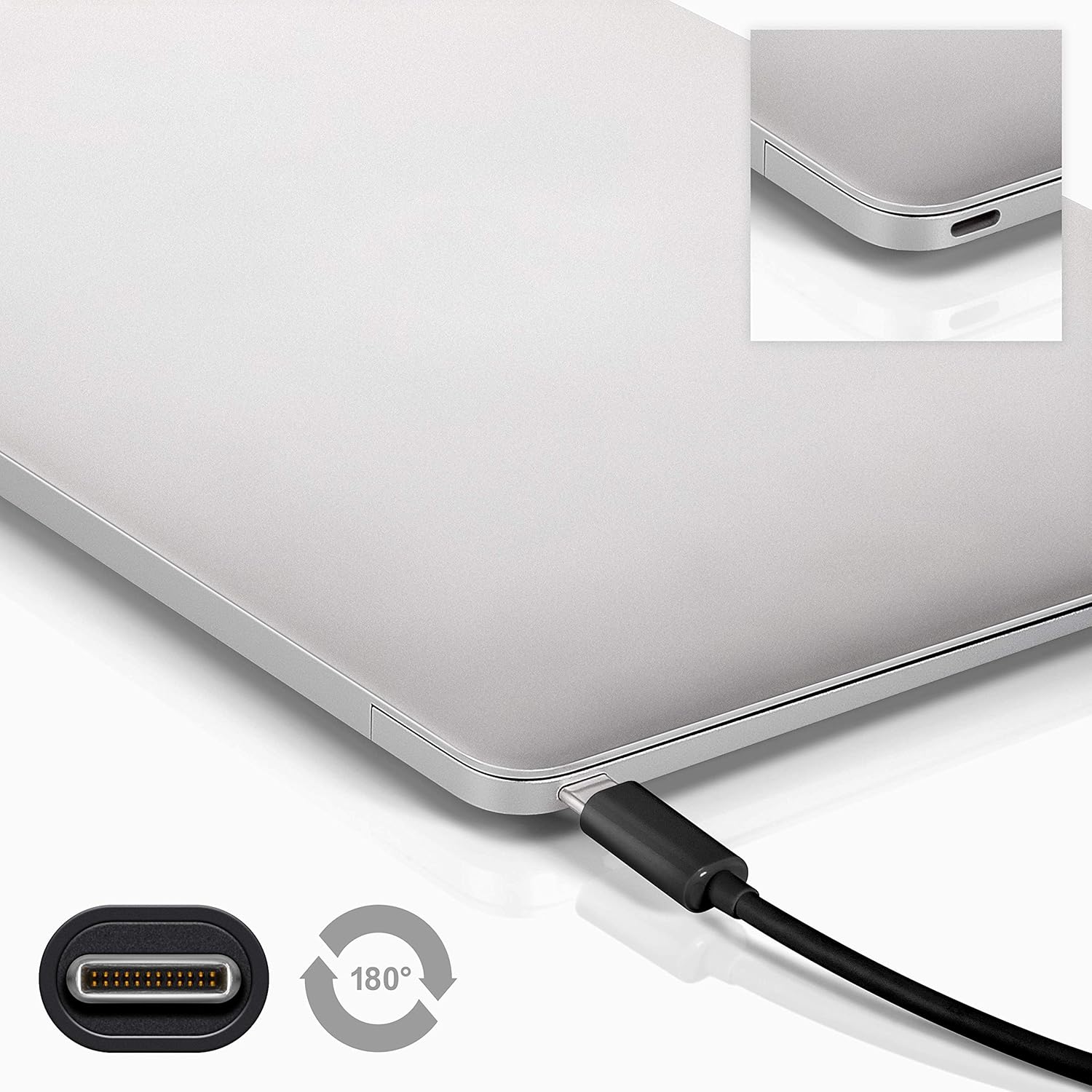
Image 4.1: A Goobay USB-C cable connected to a laptop, demonstrating the reversible nature of the USB-C connector and its ease of use. A close-up of the USB-C port is also shown.
5. Инструкция по эксплуатации
5.1. Зарядные устройства
To charge a USB-C enabled device:
- Connect the USB-A end of the cable to a compatible USB wall charger or power adapter.
- Connect the USB-C end of the cable to your USB-C device (e.g., smartphone, tablet, laptop).
- Ensure the power adapter is plugged into a working power outlet. Your device should begin charging.
5.2. Передача данных
To transfer data between a computer and a USB-C device:
- Подключите конец кабеля с разъемом USB-A к свободному порту USB-A на вашем компьютере.
- Подключите конец кабеля USB-C к устройству USB-C.
- Your computer should recognize the connected device. Follow the on-screen prompts on your computer and device to manage data transfer (e.g., select 'File Transfer' mode on your smartphone).

Image 5.1: A Goobay USB-C cable connecting a smartphone to a laptop, illustrating its use for data transfer between devices.
5.3. Video and Audio Output
To transmit video and audio to an external display:
- Connect the USB-A end of the cable to your source device (e.g., laptop with a USB-A port that supports video output via an adapter, or a docking station).
- Connect the USB-C end of the cable to a compatible monitor or television with a USB-C input that supports video.
- Ensure your source device and display are configured correctly for video output.
6. Техническое обслуживание
- Хранилище: Храните кабель в прохладном, сухом месте, вдали от прямых солнечных лучей и экстремальных температур. Не скручивайте кабель в тугую бухту и не сгибайте его под острым углом во избежание внутренних повреждений.
- Уборка: Disconnect the cable from all devices and power sources before cleaning. Use a soft, dry, lint-free cloth to gently wipe the cable and connectors. Avoid using liquid cleaners or abrasive materials.
- Умение обращаться: Always grasp the connector head when plugging or unplugging the cable. Avoid pulling on the cable itself, as this can damage the internal wires or the connector.
- Инспекция: Периодически проверяйте кабель и разъёмы на наличие следов износа, потёртостей или повреждений. При обнаружении повреждений прекратите использование и замените кабель.
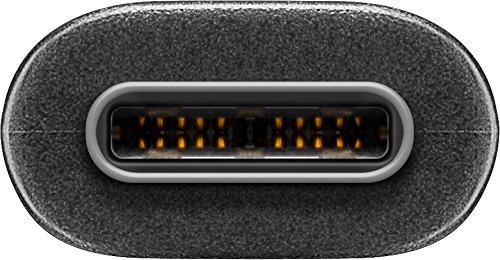
Изображение 6.1: Крупный план view of the USB-C connector, showing its internal pins. Regular inspection of connectors helps ensure proper function and longevity.
7. Поиск Неисправностей
7.1. Устройство не заряжается
- Проверьте соединения: Ensure both ends of the cable are securely plugged into the device and the power source.
- Проверьте источник питания: Confirm that the wall outlet or power adapter is functioning correctly. Try another power source if available.
- Совместимость с устройством: Ensure your device supports charging via USB-C and that the power adapter provides sufficient wattage.
- Try Another Cable/Port: If possible, test with a different USB-C cable or a different port on your power source/device to isolate the issue.
7.2. Передача данных невозможна.
- Проверьте соединения: Ensure the cable is firmly connected to both the computer and the USB-C device.
- Настройки устройства: On your USB-C device (e.g., smartphone), check if it's set to 'File Transfer' or 'MTP' mode after connecting to the computer.
- Распознавание компьютера: Verify that your computer's operating system recognizes the connected device. You may need to install specific drivers for your device.
- Port Functionality: Test the USB-A port on your computer with another known working device/cable.
7.3. No Video/Audio Output
- Совместимость: Ensure both your source device (e.g., laptop) and the external display support video output over USB-C. Not all USB-C ports support this feature.
- Ввод данных на дисплей: Select the correct input source on your monitor or television.
- Настройки системы: Check your computer's display settings to ensure the external monitor is detected and configured correctly (e.g., extended display, duplicate display).
8. Технические характеристики
| Особенность | Спецификация |
|---|---|
| Бренд | Губэй |
| Номер модели | 41074 |
| Тип разъема 1 | USB Type-A (штекер) |
| Тип разъема 2 | USB Type-C (штекер) |
| Тип кабеля | USB |
| USB Стандартный | USB 3.2 Gen 2 (SuperSpeed+) |
| Скорость передачи данных | До 10 Гбит / с |
| Подача электроэнергии | Up to 60 W (20 V / 3 A) |
| Длина кабеля | 1 Метр |
| Цвет | Черный |
| Совместимые устройства | Monitors, Televisions, USB-C enabled devices |
| Специальная характеристика | Fast Charging, Video & Audio Transmission |
9. Гарантия и поддержка
Для получения информации о гарантии и технической поддержке, пожалуйста, обратитесь к документации, прилагаемой к вашей покупке, или посетите официальный сайт Goobay. webСохраните чек о покупке для предъявления гарантийных претензий.
Ask a question about this manual
Ask about setup, troubleshooting, compatibility, parts, safety, or missing instructions. Manuals+ will review the question and use this page’s manual context to help answer it.