
Макском FW58
Инструкция по эксплуатации смарт-часов Maxcom FW58 Vanad Pro
Модель: FW58
1. Введение
Thank you for choosing the Maxcom FW58 Vanad Pro Smartwatch. This manual provides essential information for setting up, operating, and maintaining your device. The FW58 Vanad Pro is designed to enhance your daily life by offering comprehensive health monitoring, seamless communication, and robust activity tracking capabilities. Its lightweight design and customizable features make it an ideal companion for both busy individuals and active sports enthusiasts.
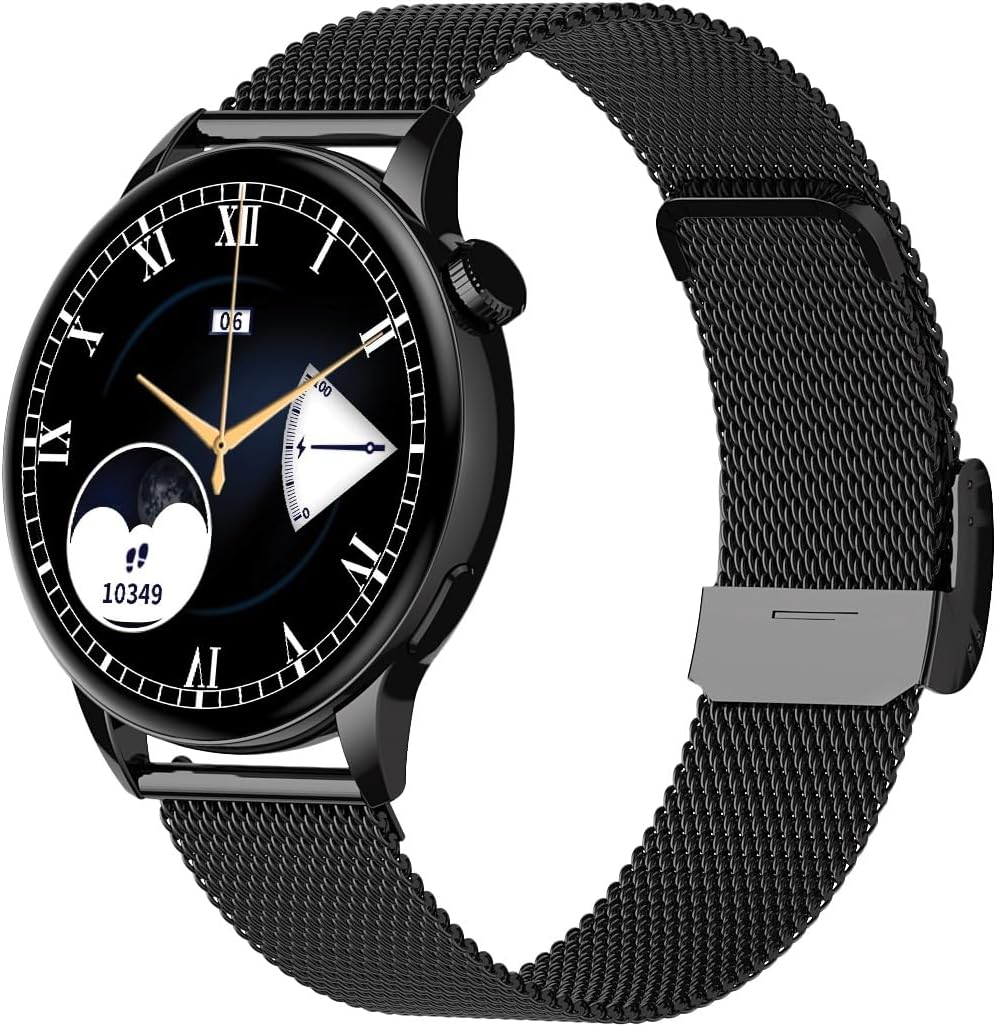
Image 1.1: Maxcom FW58 Vanad Pro Smartwatch, showcasing its elegant design with a black mesh strap and a classic watch face.
2. Настройка
2.1. Содержимое упаковки
Прежде чем начать, убедитесь, что в посылке присутствуют все предметы:
- Maxcom FW58 Vanad Pro Smartwatch
- Магнитный зарядный кабель
- Additional Silicone Strap
- Руководство пользователя (этот документ)
2.2. Зарядка умных часов
Для оптимальной работы полностью зарядите смарт-часы перед первым использованием.
- Подключите магнитный зарядный кабель к контактам зарядки на задней панели смарт-часов. Убедитесь, что контакты правильно совпадают.
- Подключите USB-конец кабеля к стандартному USB-адаптеру питания (рекомендуется 5 В/1 А) или к USB-порту компьютера.
- На дисплее часов будет отображаться статус зарядки. Полная зарядка обычно занимает около 2 часов.

Изображение 2.1: Сзади view of the Maxcom FW58 Smartwatch, highlighting the optical sensor for health monitoring and the magnetic charging contacts.
2.3. Сопряжение со смартфоном
To unlock all features, pair your smartwatch with the dedicated Maxcom smartwatch application on your smartphone.
- Download the official Maxcom smartwatch application from your smartphone's app store (e.g., Google Play Store or Apple App Store). Искать "Maxcom Smartwatch" or refer to the QR code in the quick start guide if provided.
- Убедитесь, что Bluetooth включен на вашем смартфоне.
- Open the Maxcom app and follow the on-screen instructions to add a new device.
- Select "FW58" from the list of available devices. Confirm the pairing request on both your phone and the smartwatch.
3. Эксплуатация умных часов
3.1. Основная навигация
The Maxcom FW58 features a responsive touchscreen and a side button/crown for navigation.
- Сенсорный экран: Проведите пальцем влево/вправо, вверх/вниз для навигации по меню и функциям. Коснитесь, чтобы выбрать.
- Боковая кнопка/корона: Нажмите, чтобы включить экран, вернуться на главный экран или получить доступ к меню приложения. Поверните колесико (если есть), чтобы прокручивать списки или настраивать параметры.

Изображение 3.1: Боковая сторонаfile of the Maxcom FW58 Smartwatch, illustrating the physical crown and button for intuitive control and navigation.
3.2. Возможности связи
- Совершение/прием звонков: Once paired, you can answer incoming calls directly from your smartwatch. You can also initiate calls from your watch's call log or contacts (synced via the app).
- Уведомления: Receive real-time notifications for SMS messages, app alerts, emails, social media updates, and news directly on your wrist. Manage notification settings through the Maxcom app.
3.3. Мониторинг здоровья
The smartwatch provides various health metrics to help you monitor your well-being.
- Частота сердечных сокращений: Непрерывный или по запросу мониторинг частоты сердечных сокращений.
- Артериальное давление: Measure your blood pressure (for reference only, not a medical device).
- Кислород в крови (SpO2): Следите за уровнем насыщения крови кислородом.
- Отслеживание сна: Автоматически отслеживает режим вашего сна, включая фазу глубокого сна, фазу поверхностного сна и время бодрствования.
3.4. Отслеживание активности и спортивные режимы
Отслеживайте свою ежедневную активность и конкретные тренировки.
- Ежедневные дела: Records steps taken, calories burned, and distance traveled (mileage).
- Спортивные режимы: Select from various sports modes such as fitness, hiking, running, badminton, cycling, and football to track specific workout data.
3.5. Управление музыкой
Control music playback on your connected smartphone directly from your smartwatch. Play, pause, skip tracks, and adjust volume without needing to access your phone.
3.6.Настройка
Персонализируйте использование своих умных часов.
- Циферблаты: Choose from over 100 pre-installed watch face models or download more via the Maxcom app to match your style or mood.
- Стиль меню: Customize the layout and appearance of your smartwatch menu.
- Замена ремешка: Easily change between the included mesh and silicone straps to suit different occasions or activities.

Image 3.2: A digital watch face on the Maxcom FW58 Smartwatch, showing steps and heart rate data.

Image 3.3: The Maxcom FW58 Smartwatch showcasing a dynamic and colorful digital watch face option.
4. Техническое обслуживание
4.1. Чистка смарт-часов
Регулярная чистка помогает поддерживать внешний вид и функциональность устройства.
- Протирайте экран и корпус мягкой безворсовой тканью.
- Для стойких пятен слегка разотритеampСмочите ткань водой. Избегайте использования едких химикатов и абразивных материалов.
- Для обеспечения точных показаний регулярно очищайте область датчика на задней панели часов.
4.2. Уход за аккумулятором
Чтобы продлить срок службы батареи:
- Избегайте экстремальных температур.
- Не оставляйте часы полностью разряженными на длительное время.
- Заряжайте устройство, используя только прилагаемый зарядный кабель.
4.3. Водонепроницаемость (IP67)
The Maxcom FW58 Vanad Pro Smartwatch is rated IP67, meaning it is protected against dust ingress and can withstand immersion in water up to 1 meter for up to 30 minutes. While it is suitable for daily use and splashes, it is not recommended for swimming, diving, or high-pressure water activities.
5. Поиск Неисправностей
Если у вас возникли проблемы со смарт-часами, попробуйте следующие решения:
| Проблема | Решение |
|---|---|
| Часы не включаются | Ensure the watch is fully charged. Press and hold the side button for 5-10 seconds. |
| Невозможно подключиться к смартфону | Ensure Bluetooth is on. Restart both the watch and phone. Clear app cache/data. Try pairing again. |
| Неточные показания о состоянии здоровья | Ensure the watch is worn snugly on your wrist. Clean the sensor area. Remain still during measurements. |
| Уведомления не получены | Check app notification permissions on your phone. Ensure the watch is connected via Bluetooth. Verify notification settings within the Maxcom app. |
5.1. Сброс настроек к заводским
If problems persist, you may need to perform a factory reset. This will erase all data on the smartwatch and restore it to its original settings. Navigate to 'Settings' on your smartwatch, then look for 'System' or 'Reset' options.
6. Технические характеристики
| Особенность | Деталь |
|---|---|
| Номер модели | ФВ58 |
| Размер дисплея | 1.5 дюймов |
| Срок службы батареи | 6-10 days (intensive use) |
| Масса | 46 г |
| Размеры корпуса | 44 х 38 х 10 мм |
| Размер ремешка | 255 х 20 мм |
| Водостойкость | IP67 (до 1 метра в течение 30 минут) |
| Связность | Bluetooth |
| В комплекте ремни | Mesh and Silicone |
7. Гарантия и поддержка
7.1. Информация о гарантии
Maxcom products are manufactured to the highest quality standards. For detailed warranty terms and conditions, please refer to the warranty card included with your purchase or visit the official Maxcom webСохраните чек о покупке для предъявления гарантийных претензий.
7.2. Поддержка клиентов
If you require further assistance or have questions not covered in this manual, please contact Maxcom customer support:
- Webсайт: Visit the official Maxcom support website for FAQs, software updates, and contact forms.
- Электронная почта/Телефон: Refer to the contact information provided on the Maxcom webсайте или упаковке вашего продукта.
Ask a question about this manual
Ask about setup, troubleshooting, compatibility, parts, safety, or missing instructions. Manuals+ will review the question and use this page’s manual context to help answer it.