
Zenwire E520h
Zenwire E520h Projector User Manual
Model: E520h | Brand: Zenwire
1. Введение
This manual provides detailed instructions for the setup, operation, and maintenance of your Zenwire E520h projector. Please read this manual thoroughly before using the device to ensure proper functionality and to maximize your viewопыт.
The Zenwire E520h is a Full HD 1080p projector with 4K support, featuring Android 9.0, dual-band WiFi (2.4/5 GHz), and Bluetooth 5.0 for versatile home theater entertainment.
2. Содержимое упаковки
Проверьте наличие всех предметов в упаковке:
- Zenwire E520h Projector
- Пульт дистанционного управления (батарейки в комплект не входят)
- Силовой кабель
- HDMI-кабель
- AV Cable (stereo)
- Руководство пользователя

The image above displays the Zenwire E520h projector along with its standard accessories: a remote control, power cable, HDMI cable, and AV cable. These components are essential for setting up and operating your projector.
3. Продукт закончилсяview
Familiarize yourself with the various parts and connections of your Zenwire E520h projector.

Это изображение обеспечивает всестороннее view of the projector from different angles, highlighting the lens, control panel, ventilation grilles, and various input/output ports located on the sides and rear of the device.

The Zenwire E520h projector supports a wide range of multimedia devices, including streaming sticks (Roku, Fire TV, Chromecast), external audio systems, USB storage, gaming consoles (Xbox, PlayStation), mobile devices (phones, tablets), DVD players, and computers (laptops, desktops) via its various input ports.
4. Настройка
4.1 Размещение
Position the projector on a stable, flat surface. Ensure adequate ventilation around the device. The optimal projection distance ranges from 1.2 to 6 meters, allowing for screen sizes from 36 to 200 inches.

This image demonstrates how varying the distance between the projector and the screen affects the projected image size, showing examples for 45, 120, and 200-inch displays.
4.2 Подключение питания
Подключите кабель питания к разъему питания проектора, а затем вставьте его в подходящую электрическую розетку.
4.3 Первоначальное включение питания
Нажмите кнопку питания на проекторе или пульте дистанционного управления, чтобы включить устройство. Проектор загрузится в операционную систему Android 9.0.
5. Инструкция по эксплуатации
5.1 Фокусировка и коррекция трапецеидальных искажений
Adjust the focus ring around the lens until the image is clear. Use the 4D keystone correction feature to adjust the image shape if the projector is not perfectly perpendicular to the screen. This can be done via the remote control or on-screen settings.

This image illustrates the process of adjusting the focus ring on the projector lens and demonstrates the effect of keystone correction on the projected image, ensuring a rectangular display even when the projector is angled.
5.2 Android 9.0 Smart System
The projector runs on Android 9.0, allowing direct access to streaming applications like YouTube, Netflix, HBO, and Spotify. Navigate the interface using the remote control.

The image above shows the projector's smart interface, featuring a grid of popular streaming applications, demonstrating the integrated Android 9.0 system's capability to run apps directly.
5.3 Беспроводное подключение (Wi-Fi и Bluetooth)
Wi-Fi: Connect to your home network using the integrated 2.4/5 GHz WiFi. This enables Miracast and Airplay for wireless screen mirroring from iOS, Android, and Windows devices.

This image illustrates the projector's wireless connectivity, showing it mirroring content from a smartphone and tablet, and highlighting its compatibility with iOS, Android, and Windows 10 devices for screen sharing.
Bluetooth 5.0: Pair with external Bluetooth speakers, soundbars, or headphones for enhanced audio. Go to the settings menu to manage Bluetooth devices.
5.4 Проводное подключение
Проектор оснащен несколькими портами для проводного подключения:
- HDMI (x2): Connect laptops, gaming consoles, Blu-ray players, or streaming devices.
- USB: Воспроизведение медиафайлов непосредственно с USB-накопителей.
- СРЕДНИЙ: Подключайте старые устройства с помощью прилагаемого AV-кабеля.
- Mini-Jack: Для вывода внешнего аудиосигнала.
- Micro-SD/TF Card Reader: For playing media from memory cards.
6. Техническое обслуживание
6.1 Очистка объектива
Аккуратно протрите линзу проектора мягкой безворсовой тканью, специально предназначенной для оптических поверхностей. Не используйте абразивные чистящие средства и не прилагайте чрезмерных усилий.
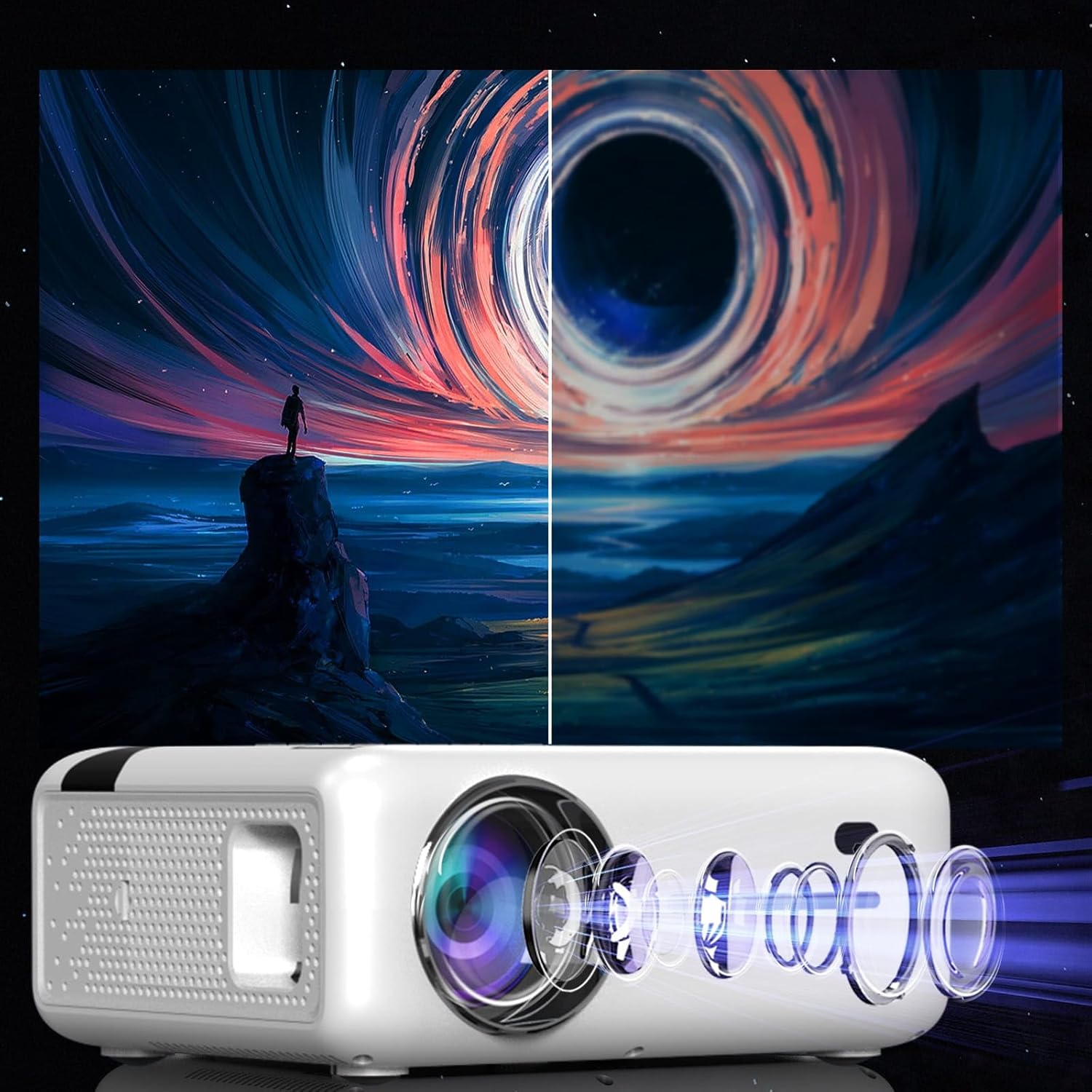
This diagram illustrates the multi-element lens system of the projector, highlighting the precision optics that require careful handling during cleaning to maintain image quality.
6.2 Вентиляция
Ensure that the projector's ventilation openings are not blocked to prevent overheating. Regularly check for dust accumulation and clean if necessary using compressed air.
6.3 Хранение
When not in use for extended periods, store the projector in a cool, dry place, away from direct sunlight and excessive dust. Use the original packaging or a protective case.
7. Поиск Неисправностей
| Проблема | Возможная причина | Решение |
|---|---|---|
| Изображение не отображается | Кабель питания отсоединен, неправильный источник входного сигнала, защитная крышка объектива надета. | Check power connection, select correct input source (HDMI, USB, etc.), remove lens cap. |
| Размытое изображение | Focus not adjusted, keystone incorrect. | Отрегулируйте кольцо фокусировки, используйте коррекцию трапецеидальных искажений. |
| Нет звука | Volume too low, incorrect audio output selected, external device muted. | Increase projector volume, check audio settings, ensure external device is not muted. |
| Проблемы с подключением к Wi-Fi | Incorrect password, router too far, interference. | Verify WiFi password, move projector closer to router, check for other wireless devices. |
8. Технические характеристики
| Особенность | Деталь |
|---|---|
| Модель | Zenwire E520h |
| Собственное разрешение | 1920 x 1080p (Full HD) |
| Поддерживаемое разрешение | До 4К |
| Яркость | 9000 lumens (300 ANSI) |
| Коэффициент контрастности | 2000:1 |
| Операционная система | Андроид 9.0 |
| Wi-Fi | 2.4/5 GHz (Miracast, Airplay support) |
| Bluetooth | 5.0 |
| Связность | 2x HDMI, USB, AV, Mini-Jack, Micro-SD/TF |
| Размер проекции | 36 - 200 дюймов |
| Расстояние проекции | 1.2 - 6 метров |
| Коррекция трапецеидальных искажений | 4D (manual and auto) |
| Томtage | 230 Вольт |
| Размеры (упаковка) | 23 х 18.5 х 10.5 см |
| Вес (упаковка) | 1.2 кг |
9. Гарантия и поддержка
For warranty information and technical support, please refer to the contact details provided with your purchase documentation or visit the official Zenwire webСохраните чек о покупке для предъявления гарантийных претензий.
Ask a question about this manual
Ask about setup, troubleshooting, compatibility, parts, safety, or missing instructions. Manuals+ will review the question and use this page’s manual context to help answer it.