
1. Введение
This manual provides detailed instructions for the safe and efficient operation of your MARKLIFE P50 Portable Bluetooth Thermal Label Maker Machine. Please read this manual thoroughly before using the device and retain it for future reference. The P50 is designed for creating various labels using thermal printing technology, connecting wirelessly via Bluetooth to mobile devices or via USB to Windows PCs.
2. Содержимое упаковки
Убедитесь, что все перечисленные ниже предметы входят в комплект. Если какие-либо предметы отсутствуют или повреждены, обратитесь в службу поддержки клиентов.
- Машина для изготовления этикеток MARKLIFE P50
- 3 Label Tapes (2 rolls of 1.57" x 1.18" white gap labels, 1 roll of 2" x 2" circle gap labels)
- Зарядный кабель USB-C
- Руководство пользователя (этот документ)
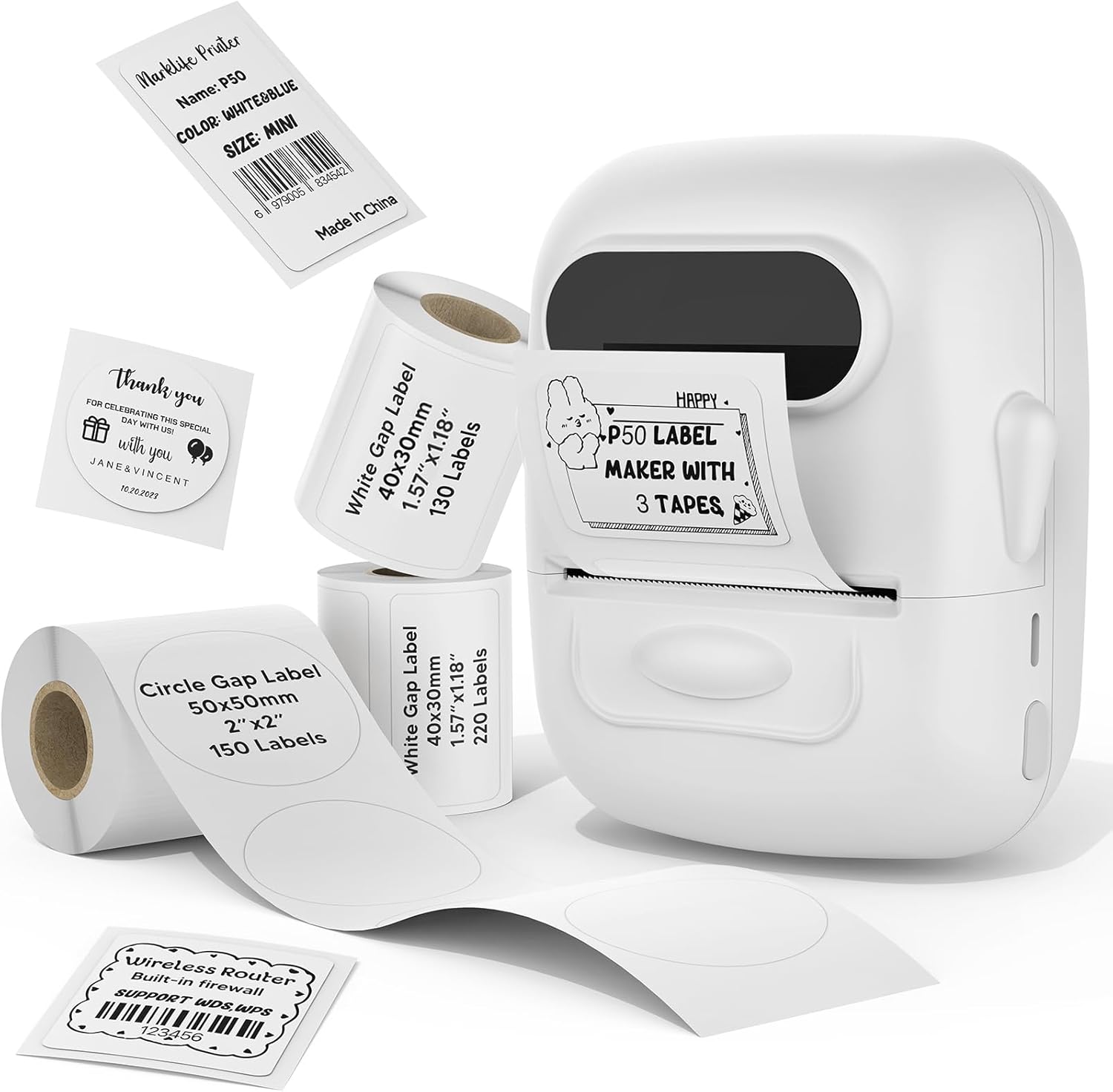
Image: The MARKLIFE P50 label maker machine shown with various label rolls and printed labels, including a barcode label (example: 6979005834542) and a "Thank You" label. This illustrates the device and its primary function of printing labels.
3. Продукт закончилсяview
The MARKLIFE P50 is a compact and portable thermal label printer designed for various labeling needs. It connects wirelessly via Bluetooth to your smartphone or tablet, and also supports USB connection to Windows PCs. The device utilizes thermal printing technology, meaning it does not require ink cartridges, only thermal label paper.
Основные характеристики:
- Термальная печать: No ink required, prints in black and white.
- Беспроводное подключение: Bluetooth 4.0 for mobile devices (Android & iOS).
- Совместимость с ПК: USB connection and online software for Windows PCs.
- Широкая совместимость этикеток: Supports label widths from 0.59 inches to 2.24 inches.
- Портативная конструкция: Lightweight and equipped with a built-in 1200mAh rechargeable battery for on-the-go use.
- Smart App Functions: Features voice and image recognition, barcode scanning, PDF batch printing, and photo printing on labels.

Image: A hand placing the compact MARKLIFE P50 label maker into a small handbag, emphasizing its portable design. Icons indicate its portability, built-in 1200mAh battery, and Type-C charging capability.
4. Настройка
4.1 Зарядка устройства
Before initial use, fully charge the P50 label maker. Connect the provided USB-C cable to the charging port on the device and the other end to a compatible USB power adapter (not included) or a computer USB port. The charging indicator light will provide status feedback.
4.2 рулона этикеток для загрузки
- Откройте крышку отсека для этикеток.
- Insert the label roll with the printing surface facing upwards, ensuring it is aligned correctly within the guides.
- Pull a small portion of the label paper out past the printing slot.
- Close the label compartment cover firmly.
- Press the power button twice quickly to initiate automatic label calibration. The printer will feed a small amount of label paper to detect the label size.

Image: A visual guide demonstrating the process of loading label rolls into the P50 label maker. It also illustrates the compatible label widths, ranging from 0.59 inches to 2.24 inches, and contrasts it with fixed-size label makers.
4.3 Установка приложения и сопряжение по Bluetooth
- Загрузите приложение: Искать "MARKLIFE" in your mobile device's app store (iOS App Store or Google Play Store) and install the official application.
- Включение питания: Press and hold the power button on the P50 label maker until the indicator light turns on.
- Включить Bluetooth: Убедитесь, что Bluetooth включен на вашем мобильном устройстве.
- Сочетание: Open the MARKLIFE app. The app should automatically detect the P50 printer. Follow the on-screen prompts to connect. No Wi-Fi connection is required for mobile pairing.
5. Инструкция по эксплуатации
5.1 Basic Label Creation and Printing (Mobile App)
- Ensure the P50 is powered on and connected to the MARKLIFE app via Bluetooth.
- Within the app, select a template or create a new label design. The app offers various templates for clothing labels, price labels, cable labels, jewelry labels, address labels, and ingredient labels.
- Персонализируйте свою этикетку, добавив текст, изображения, штрихкоды или QR-коды.
- Adjust print density and photo quality settings as needed.
- Предварительноview the label to ensure accuracy.
- Tap the "Print" button in the app to send the design to the P50 label maker.

Image: The P50 label printer positioned next to a laptop and a smartphone, demonstrating its connectivity with both mobile and PC devices. The laptop screen displays label design software, and the smartphone shows the MARKLIFE app interface.
5.2 Расширенные функции приложения
- Voice and Image Recognition: Convert spoken words or images into editable text for your labels.
- Сканирование штрих-кода: Scan existing barcodes (e.g., 0123456789005) to generate new ones or integrate them into your designs.
- PDF Batch Printing: Print multiple labels from a PDF document.
- Фотопечать: Insert and print photos directly onto labels.
- OCR Scanner: Use your phone's camera as an OCR scanner within the app to extract text from documents for labeling.
- Облачное хранилище: Save your label designs to the cloud for easy access and reprinting.
5.3 Подключение к ПК (Windows)
For Windows PC users, connect the P50 label maker via the USB-C cable. Download and install the dedicated software from the official MARKLIFE website. This software allows for label design and printing directly from your computer.
5.4 Пакетная печать
The P50 supports batch printing, allowing you to print multiple copies of the same label or a series of different labels efficiently. This feature is managed through the MARKLIFE app or PC software.

Image: The P50 label maker actively printing a continuous roll of labels, demonstrating its batch printing capability. The labels shown are price tags with barcodes (example: 123456), indicating efficient production for business use.
6. Техническое обслуживание
- Очистка печатающей головки: Регулярно очищайте термоголовку печатающей головки мягкой безворсовой тканью, слегка протирая её.ampened with isopropyl alcohol. Ensure the device is powered off and cool before cleaning.
- Внешняя очистка: Wipe the exterior of the device with a soft, dry cloth. Avoid using abrasive cleaners or solvents.
- Хранилище: Храните этикеточный принтер в прохладном, сухом месте, вдали от прямых солнечных лучей и экстремальных температур.
- Уход батареи: Чтобы продлить срок службы аккумулятора, избегайте его частой полной разрядки. Регулярно заряжайте устройство, даже если оно не используется в течение длительного времени.
- Хранение этикеток: Храните термоэтикетки в прохладном, темном месте, чтобы предотвратить преждевременное выцветание или деградацию.
7. Поиск Неисправностей
7.1 Общие проблемы и решения
| Проблема | Возможная причина | Решение |
|---|---|---|
| Принтер не включается | Низкий заряд батареи или проблема с питанием. | Charge the device using the provided USB-C cable. Ensure the charging cable and adapter are functioning correctly. |
| Невозможно подключиться через Bluetooth | Bluetooth is off, device is out of range, or app issue. |
|
| Низкое качество печати или пустые этикетки | Incorrect label loading, dirty print head, or low-quality labels. |
|
| Этикетки подаются неправильно или застревают. | Improper label loading or foreign objects in the paper path. |
|
8. Технические характеристики
| Особенность | Деталь |
|---|---|
| Название модели | P50 LABEL PRINTER |
| Бренд | МАРКЛАЙФ |
| Технология печати | Термальный |
| Вывод на принтер | Монохромный (черно-белый) |
| Технология связи | Bluetooth, USB |
| Совместимые устройства | Android, iOS mobile devices, Windows PC |
| Метод контроля | Приложение |
| Максимальный размер носителя | 2.24 дюйма (57 мм) |
| Поддерживаемые ширины меток | 0.59 inches - 2.24 inches (15mm - 57mm) |
| Аккумулятор | Встроенная аккумуляторная батарея емкостью 1200 мАч |
| Порт зарядки | USB-порт типа C |
| Размеры продукта | 4 х 3 х 2 дюйма (прибл.) |
| Вес товара | 6 унции (приблизительно) |
9. Гарантия и поддержка
9.1 Ограниченная гарантия
The MARKLIFE P50 Label Maker Machine comes with a limited warranty. Please refer to the warranty card included in your package or contact MARKLIFE customer support for specific terms and conditions. This warranty typically covers manufacturing defects under normal use.
9.2 Поддержка клиентов
For technical assistance, troubleshooting, or warranty claims, please contact MARKLIFE customer support through the official website or the contact information provided in your product packaging. Please have your model number (P50) and purchase details ready when contacting support.


