
1. Введение
This manual provides detailed instructions for the installation, operation, and maintenance of your Real HD A-Series 16 Channel PoE IP Camera System. This system includes the ARN-1610S 4K H.265 NVR and 12 ANV-L7012R 4MP IP Dome Weatherproof Cameras. Please read this manual thoroughly before using the product to ensure proper setup and functionality.
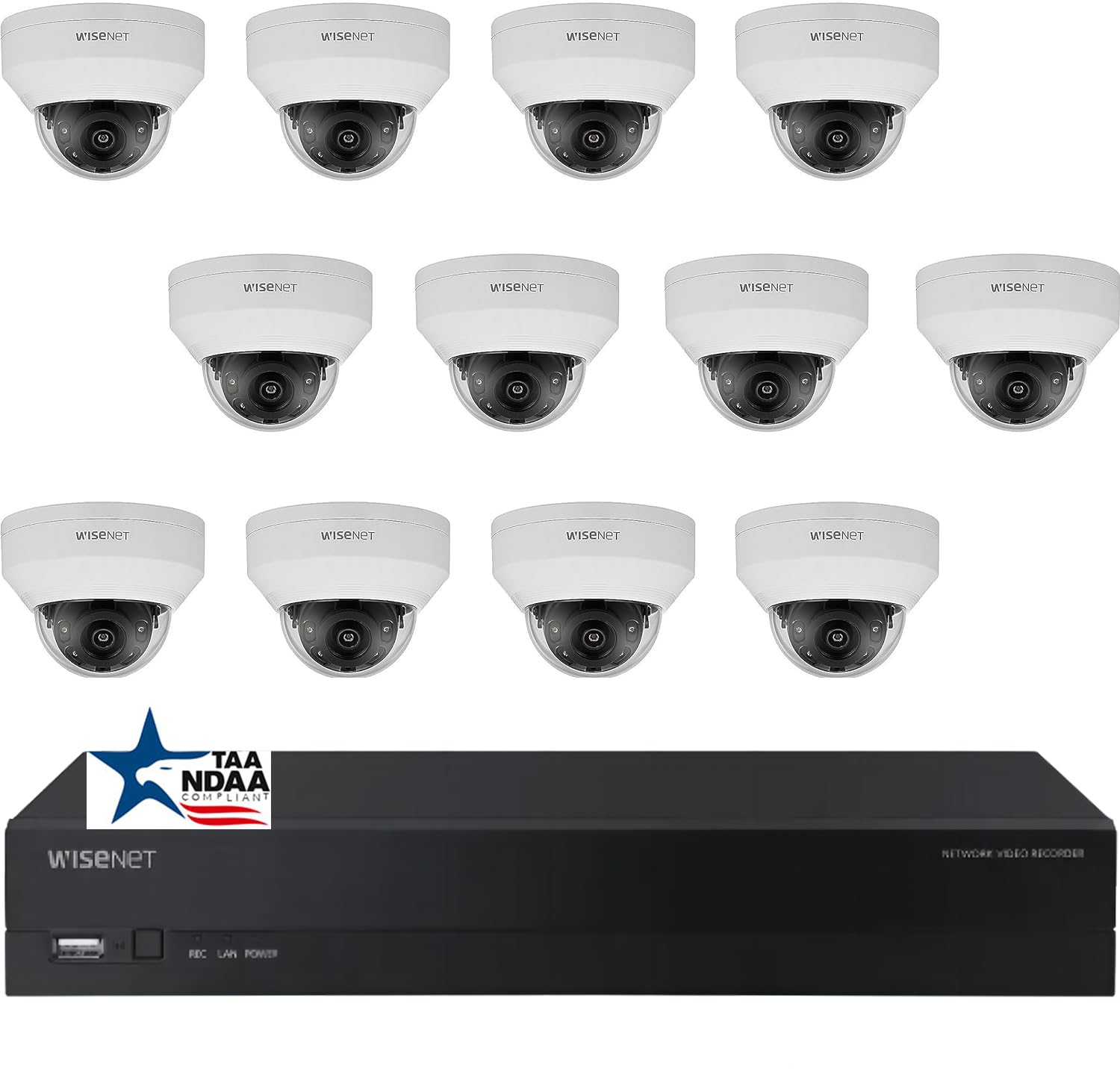
Изображение: Оверview of the Real HD A-Series 16 Channel PoE IP Camera System, showing the NVR and dome cameras.
2. Информация по технике безопасности
Всегда соблюдайте основные меры предосторожности при использовании данного изделия, чтобы снизить риск возгорания, поражения электрическим током и травм. Сохраните это руководство для дальнейшего использования.
- Используйте только адаптер питания, указанный для данного устройства.
- Do not expose the NVR to rain or moisture.
- Для предотвращения перегрева видеорегистратора обеспечьте надлежащую вентиляцию.
- Не пытайтесь разбирать или модифицировать изделие.
- Если вы не уверены в каких-либо этапах установки, ее должны выполнять квалифицированные специалисты.
3. Содержимое упаковки
Убедитесь, что все перечисленные ниже предметы присутствуют в вашей посылке. Если какие-либо предметы отсутствуют или повреждены, обратитесь к продавцу.
- 1 x ARN-1610S 16 Channel PoE NVR with 4TB HDD
- 12 x ANV-L7012R 4MP IP Dome Weatherproof Cameras
- Адаптер питания для NVR
- USB-мышь
- Краткое руководство пользователя
- Крепежные винты и дюбели для камер
Примечание: Ethernet cables for connecting cameras to the NVR are not included and must be purchased separately.
4. Настройка
4.1 NVR Overview

Изображение: Спереди view of the ARN-1610S NVR, showing LED indicators and USB ports.

Изображение: сзади view of the ARN-1610S NVR, displaying PoE ports, VGA, HDMI, LAN, and power input.
4.2 камера надview

Изображение: Спереди view of the ANV-L7012R 4MP IP Dome Camera.
4.3 Системное подключение
Чтобы подключить NVR и камеры, выполните следующие действия:
- Подключение монитора/телевизора: Connect a monitor or TV to the NVR's HDMI or VGA port. For optimal performance, a 1080P monitor/TV is recommended.
- Подключить мышь: Подключите входящую в комплект USB-мышь к одному из USB-портов NVR.
- Подключить камеры: Connect the IP cameras to the NVR's PoE ports using Ethernet cables. The NVR provides power and data through these ports.
- Connect Router (Optional for Remote Access): Connect the NVR's LAN port to your network router using an Ethernet cable for remote viewвозможности.
- Подключите питание: Подключите адаптер питания видеорегистратора к видеорегистратору, а затем к розетке.

Image: Connection diagram illustrating how to connect the NVR to a monitor, mouse, cameras, router, and power source.
4.4 Mobile App Setup (Wisenet Mobile)
To access your surveillance system remotely, download the Wisenet Mobile app:
- Scan the QR code below with your smartphone or tablet.
- Download and install the Wisenet Mobile app from Google Play Store or Apple App Store.
- Follow the in-app instructions to add your NVR by scanning the QR code displayed on the NVR's monitor interface.

Image: QR codes for downloading the Wisenet Mobile app from Гугл Плей и Магазин приложений Apple.
5. Инструкция по эксплуатации
5.1 NVR Interface Basics
Upon powering on, the NVR will boot up and display the live view from connected cameras. Use the USB mouse to navigate the on-screen menus. Right-click to access the main menu, which includes options for live view, playback, recording settings, system configuration, and more.
5.2 Режимы записи
NVR поддерживает различные режимы записи:
- Непрерывная запись: Записи 24/7.
- Запись при обнаружении движения: Записывает только при обнаружении движения в поле зрения камеры. view.
- Запланированная запись: Records during specific times of the day or week.
- Запись по тревоге: Records when an alarm event (e.g., sensor trigger) occurs.
Configure these settings in the NVR's menu under Запись > Расписание or Event > Motion Detection.
5.3 Advanced Image Features
Your cameras are equipped with advanced image processing features to enhance video quality:
- WDR (широкий динамический диапазон): Balances extremely bright and dark areas in the same scene to provide clear images.
- 3DNR (3D Digital Noise Reduction): Reduces image noise, especially in low-light conditions, for clearer video.
- BLC (компенсация задней засветки): Improves the visibility of objects in front of a strong backlight.
- Умный ИК: Automatically adjusts the intensity of the infrared LEDs to prevent overexposure of objects close to the camera, ensuring clear night vision.

Image: Visual comparison demonstrating the effects of WDR, 3DNR, and BLC on video quality.

Image: Comparison illustrating the improved clarity and balanced illumination provided by Smart IR compared to ordinary IR night vision.
6. Техническое обслуживание
6.1 Очистка
- Камеры: Периодически прочищайте объектив камеры мягкой тряпкой.amp ткань. Избегайте абразивных чистящих средств.
- Сетевой видеорегистратор: Keep the NVR free from dust. Ensure ventilation openings are not blocked.
6.2 обновлений прошивки
Проверьте производителя website periodically for firmware updates. Firmware updates can improve performance, add new features, or fix bugs. Follow the instructions provided with the firmware update carefully.
6.3 Управление жестким диском
The NVR is equipped with a 4TB surveillance-grade hard drive. The system is configured to overwrite the oldest recordings when the hard drive is full. You can adjust recording retention settings in the NVR menu.
7. Поиск Неисправностей
| Проблема | Возможная причина | Решение |
|---|---|---|
| Нет изображения на мониторе | Ненадежное кабельное соединение, неправильный источник входного сигнала, видеорегистратор не включен. | Check HDMI/VGA cable, ensure monitor is on correct input, verify NVR power. |
| Камера не отображает видео. | Ethernet cable issue, camera not powered, camera fault. | Check Ethernet cable connection to NVR PoE port, try a different port/cable. |
| Невозможно получить удаленный доступ к NVR | NVR not connected to router, network configuration issues, app setup error. | Ensure NVR is connected to router, check network settings on NVR, re-add NVR to mobile app. |
| Плохое ночное зрение | Dirty lens, IR obstruction, camera placement. | Clean camera lens, ensure no objects are blocking the IR illuminators, adjust camera angle. |
8. Технические характеристики
ARN-1610S NVR
- Каналы: 16 Channel PoE
- Сжатие видео: H.265
- Видеовыход: 4K (3840 x 2160 пикселей)
- Хранилище: 4TB Surveillance Hard Drive (Pre-installed)
- USB-порты: 2
- Аппаратный интерфейс: Ethernet
- Операционная система: Hanwha A Series NVR OS
- Источник питания: Проводной электрический
- Размеры: 18 x 20 x 16 дюйма
ANV-L7012R IP Dome Camera
- Разрешение: 4 МП (2560 х 1440 пикселей)
- Объектив: Фиксированный объектив 2.8mm
- Поле View: 100° Horizontal Field of View (HFoV), 108° Viewугол наклона
- Диапазон ночного видения: До 65 футов
- Погодный рейтинг: IP67
- Особые характеристики: Night Vision, Built-in Microphone, WDR, 3DNR, BLC, Smart IR
- Рабочая температура: от -30 °C до 60 °C (от -22 °F до 140 °F)
- Технология оптического датчика: КМОП
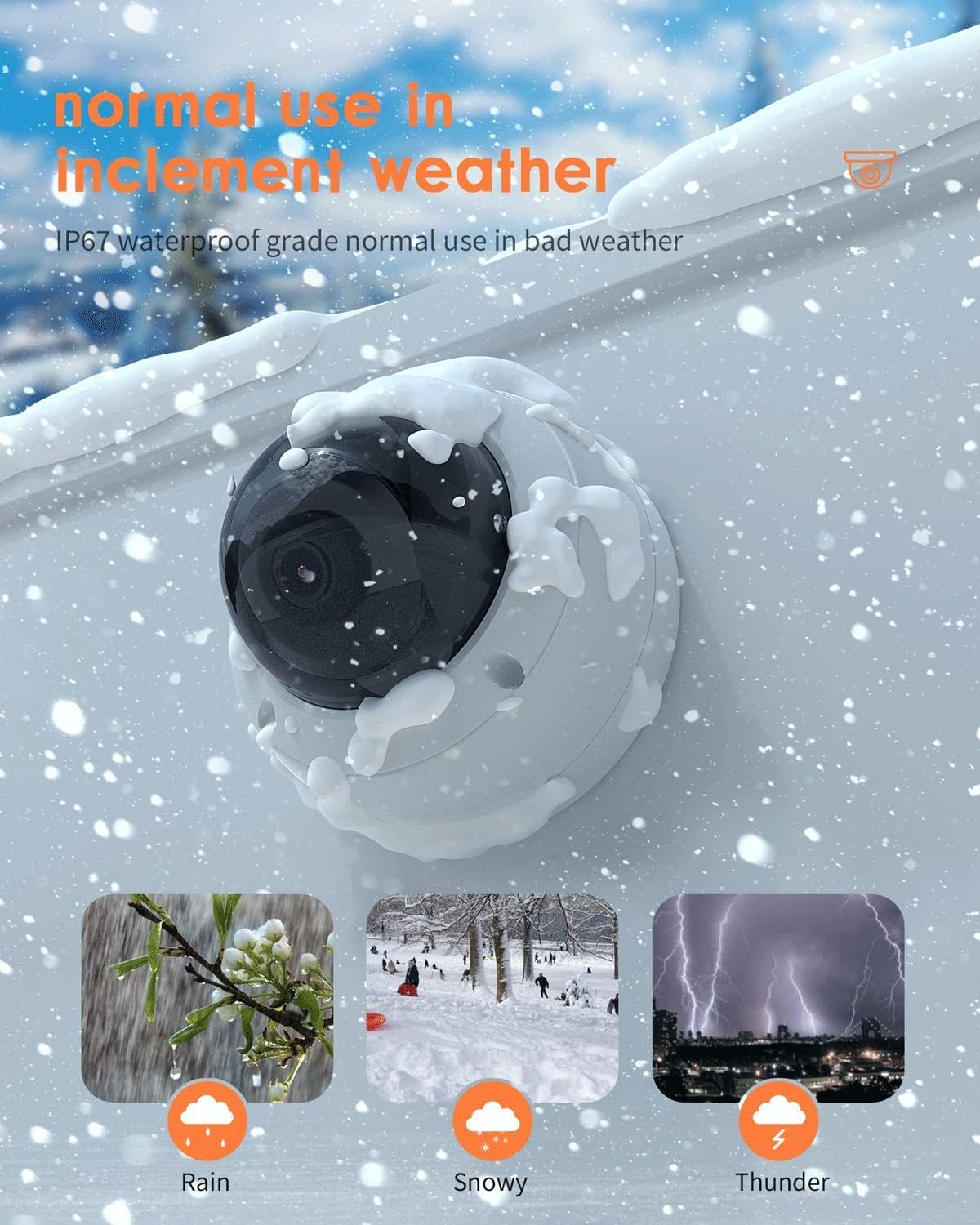
Image: The ANV-L7012R camera demonstrating its IP67 weatherproof capability in various conditions including rain, snow, and thunder.
9. Гарантия и поддержка
9.1 Информация о гарантии
This product comes with a standard manufacturer's warranty. Please refer to the warranty card included in your package or visit the Real HD official webПодробные условия гарантии см. на сайте. Сохраните чек о покупке в качестве подтверждения покупки для предъявления гарантийных претензий.
9.2 Техническая поддержка
If you encounter any issues that cannot be resolved using the troubleshooting guide, please contact Real HD customer support. Contact information can be found on the Real HD webсайте или на упаковке вашего продукта.