
1. Введение
This manual provides instructions for the proper setup, operation, and maintenance of your Tera 3106-2 1D USB Wired Barcode Scanner. Please read this manual thoroughly before using the device to ensure optimal performance and longevity.
2. Продукт закончилсяview
The Tera 3106-2 is a high-speed, accurate 1D barcode scanner designed for various applications including retail, small businesses, libraries, and warehouses. It features a plug-and-play USB connection and supports multiple customization options.

Рисунок 2.1: The Tera 3106-2 scanner is designed to be eye-safe, operating without a visible laser.
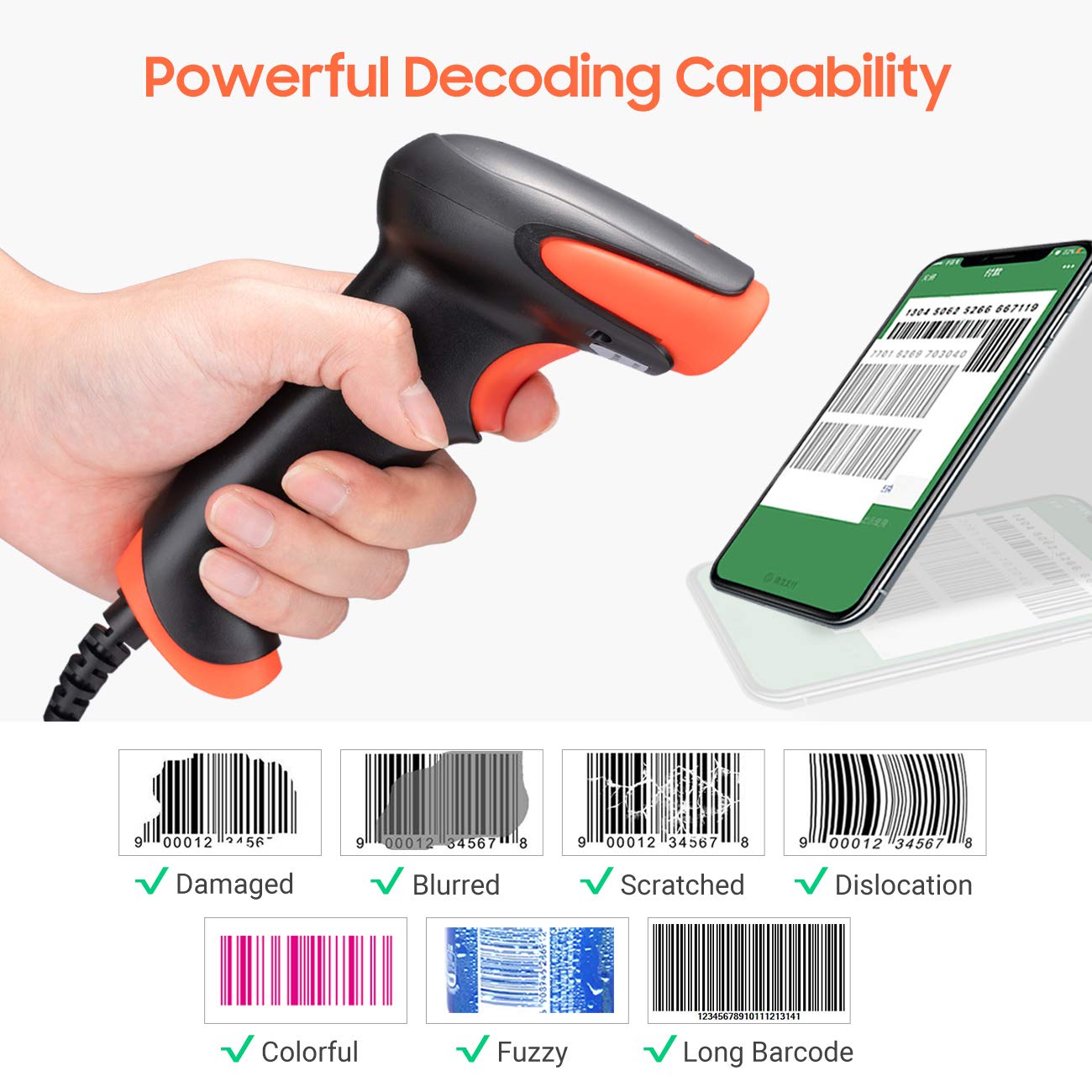
Рисунок 2.2: The scanner offers powerful decoding capabilities, accurately reading damaged, blurred, scratched, dislocated, colorful, fuzzy, and long 1D barcodes.
3. Содержимое упаковки
- Tera 3106-2 Barcode Scanner x1
- Руководство пользователя х1
4. Настройка
The Tera 3106-2 barcode scanner is designed for simple plug-and-play operation. No additional drivers or software installation is required for most systems.
- Подключите USB-кабель: Plug the USB cable of the scanner into an available USB 2.0 port on your computer (desktop or laptop).
- Распознавание системы: Your operating system (Windows, Linux, macOS, iOS, Android) will automatically detect and install the necessary device drivers. This process may take a few moments.
- Готов к использованию: Once the system indicates that the device is ready, the scanner can be used with applications such as Word, Excel, Novell, or other common software that accepts keyboard input.

Рисунок 4.1: The scanner is compatible with various devices and operating systems, including Windows, Linux, macOS, iOS, and Android.
5. Инструкция по эксплуатации
5.1 Базовое сканирование
To scan a barcode, aim the scanner's light beam at the center of the barcode. A successful scan will typically be indicated by an audible beep and/or a visual confirmation (e.g., LED indicator). The decoded data will appear in the active input field on your connected device.
5.2 Режимы сканирования
Сканер поддерживает два основных режима сканирования:
- Ручное сканирование: Press the trigger button to initiate a scan. This is the default mode.
- Auto Continuous Scanning: The scanner continuously emits a scan beam, automatically reading barcodes presented to it without needing to press the trigger.
To switch between these modes, refer to the configuration barcodes provided in the supplementary user guide or quick start sheet that came with your scanner. Scan the appropriate barcode to change the mode.
6. Возможности настройки
The Tera 3106-2 scanner offers various customization settings to adapt to your specific needs. These settings are typically configured by scanning special barcodes found in the included user guide.
- Префикс/Суффикс: Добавляйте пользовательские символы до или после отсканированных данных.
- Объем: Adjust the sound level of the scan confirmation beep.
- Терминатор: Configure the character sent after the barcode data (e.g., Carriage Return, Tab).
- Upper/Lower Case: Convert scanned data to all uppercase or all lowercase.
- Язык клавиатуры: Select the appropriate keyboard layout for your region. Supported languages include English, Spanish, German, French, Italian, Japanese, and more.
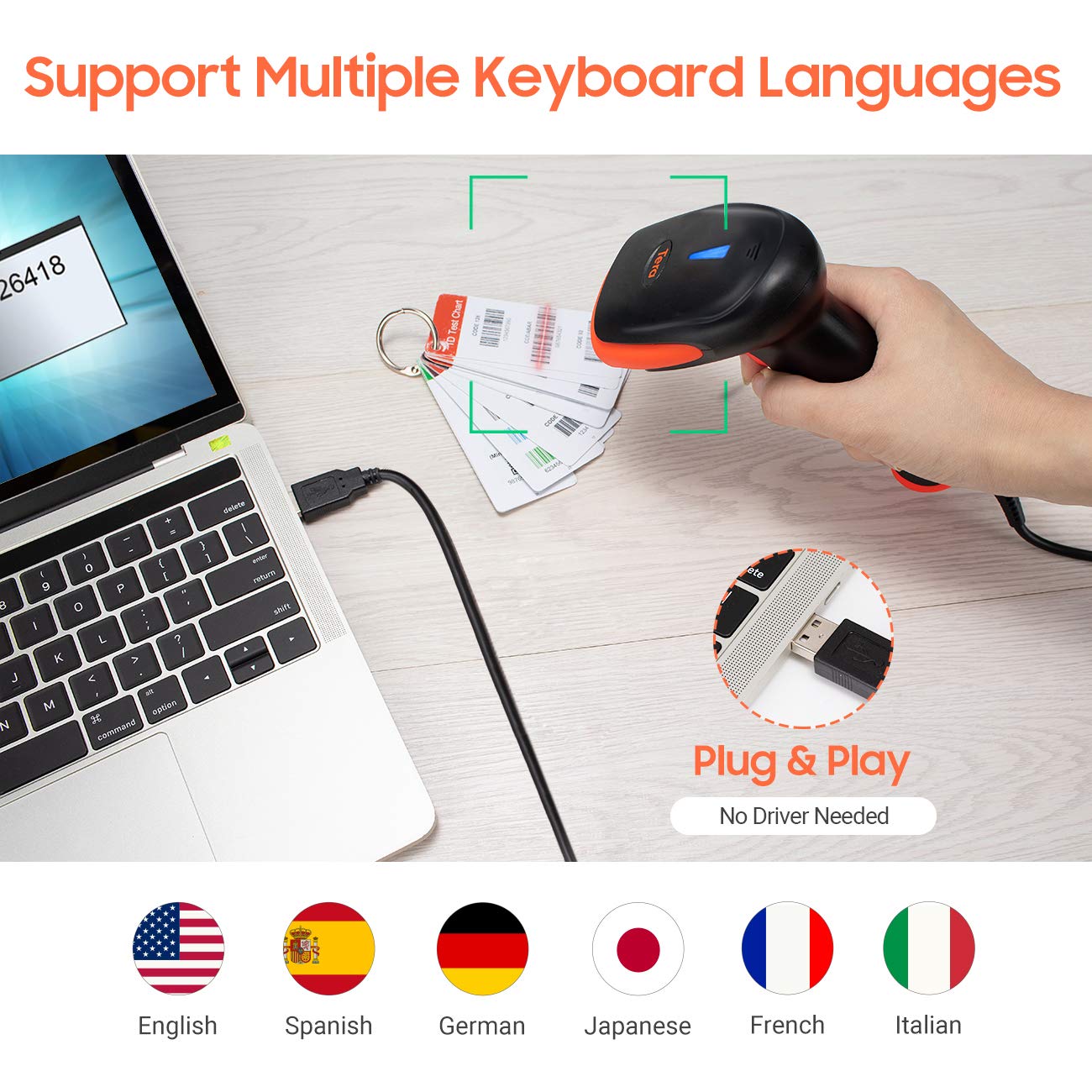
Рисунок 6.1: The scanner supports multiple keyboard languages for diverse international use.

Рисунок 6.2: Customize barcode output by adding prefixes, suffixes, or hiding specific digits.
7. Поддерживаемые штрихкоды
This scanner is compatible with a wide range of 1D barcode symbologies, including but not limited to:
- UPC&EAN (UPC-A, UPC-E, EAN-8, EAN-13)
- Code 39, CODE32, Code 93, CODE11, Code 128, UCC-EAN128
- ISSN, ISBN
- CODABAR, MSI
- Interleaved 2 of 5, Matrix 2 of 5, Industrial 2 of 5
- И многое другое.
The scanner also supports reading 1D barcodes directly from digital screens.
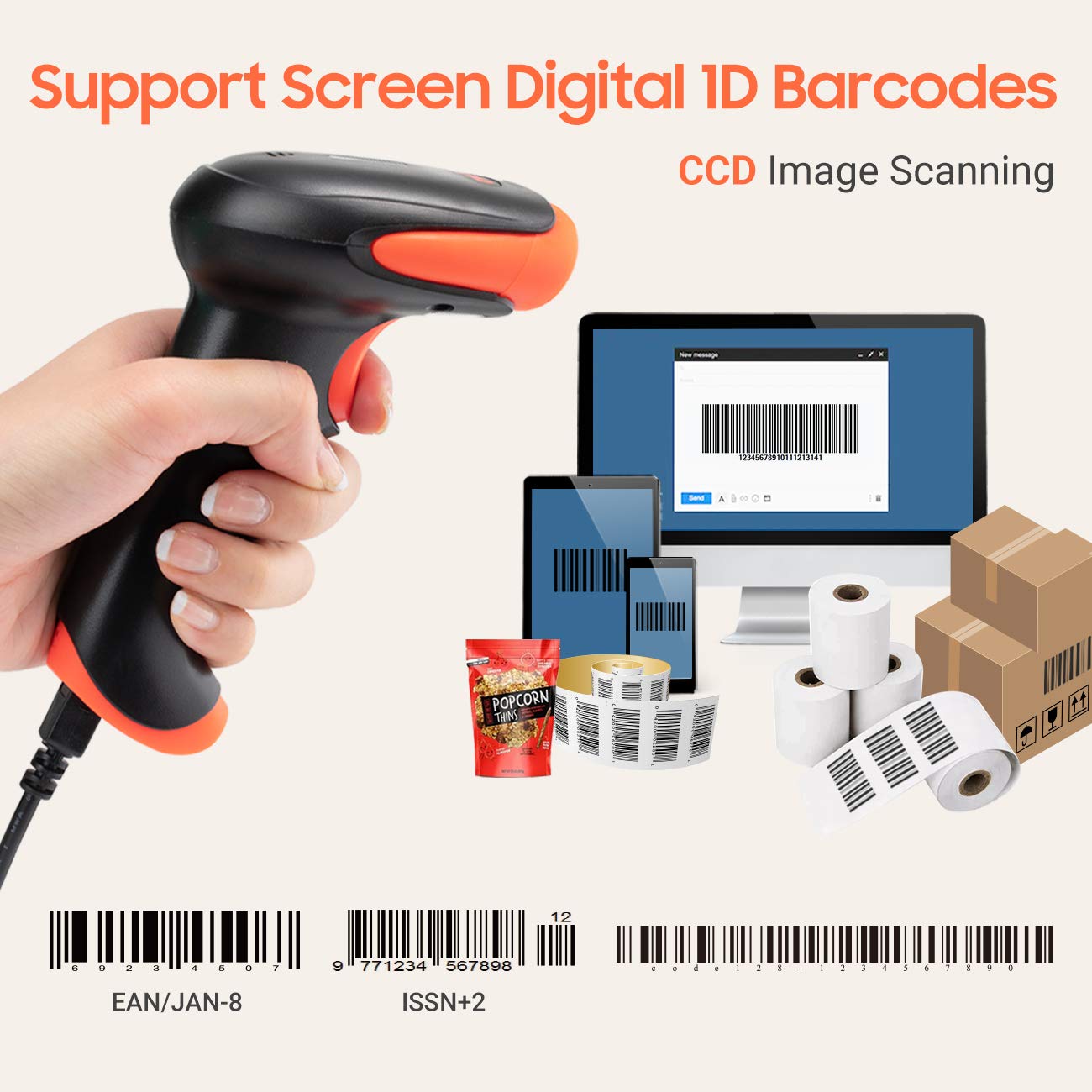
Рисунок 7.1: The scanner supports reading 1D barcodes from various sources, including digital screens and printed labels.
8. Техническое обслуживание
- Уборка: Для очистки внешней поверхности сканера используйте мягкую сухую ткань. Для очистки сканирующего окна используйте мягкую безворсовую ткань, слегка протерев ее.ampОбработайте водой или мягким неабразивным чистящим средством. Избегайте использования агрессивных химикатов.
- Хранилище: Храните сканер в прохладном, сухом месте, защищенном от прямых солнечных лучей и экстремальных температур.
- Умение обращаться: Avoid dropping the scanner or subjecting it to strong impacts. Do not attempt to disassemble the device.
9. Поиск Неисправностей
| Проблема | Возможная причина | Решение |
|---|---|---|
| Сканер не включается и не реагирует. | USB-кабель подключен неправильно или USB-порт неисправен. | Убедитесь, что USB-кабель надежно подключен как к сканеру, так и к компьютеру. Попробуйте использовать другой USB-порт. |
| Сканер считывает штрихкоды медленно или неточно. | Barcode is damaged, blurred, or poorly printed. Insufficient lighting. Scanner window is dirty. | Ensure the barcode is clear and well-lit. Clean the scanner window. Try scanning from a different angle or distance. |
| Scanner does not read barcodes from digital screens. | Screen brightness is too low or glare is present. | Increase screen brightness. Adjust the angle of the scanner to minimize glare. Ensure the barcode is fully displayed on the screen. |
| Scanned data appears incorrectly (e.g., wrong characters, missing digits). | Incorrect keyboard language setting. Prefix/suffix or other data formatting settings are active. | Verify the keyboard language setting matches your computer's keyboard layout. Review and adjust prefix/suffix or other data formatting settings using the configuration barcodes. |
| Сканер издает звуковой сигнал, но данные не передаются. | Приложение не в фокусе или не принимает входные данные. | Ensure the cursor is in the desired input field of your application. Test with a simple text editor like Notepad. |
10. Технические характеристики
| Особенность | Деталь |
|---|---|
| Модель | 3106-2 |
| Тип сканирования | 1D Laser (Eye Safe) |
| Связность | Проводной USB (USB 2.0) |
| Скорость сканирования | До 300 сканирований в секунду |
| Коэффициент ошибок | 1 in 5 million scans |
| Совместимые устройства | Настольный компьютер, ноутбук |
| Совместимые системы | Windows, Linux, macOS, iOS, Android |
| Источник питания | Электрический (через USB) |
| Размеры продукта (Д x Ш x В) | 7.9 x 19.3 x 10.4 сантиметров |
| Поддерживаются одномерные штрихкоды. | UPC&EAN, UPC-A, UPC-E, Code 39, CODE32, Code 93, CODE11, Code 128, UCC-EAN128, EAN-8, EAN-13, ISSN, ISBN, CODABAR, MSI, Interleaved 2 of 5, Matrix 2 of 5, Industrial 2 of 5, etc. |
11. Гарантия и поддержка
For warranty information, technical support, or service inquiries, please refer to the contact details provided with your purchase documentation or visit the official Tera webсайт. Пожалуйста, сохраните доказательство покупки для гарантийных претензий.