
Calibrite CCDISSL
Руководство пользователя Calibrite Display SL (CCDISSL)
Model: CCDISSL
Введение
The Calibrite Display SL (CCDISSL) is an advanced standard luminance (SL) sensor designed for precise display calibration. It is recommended for professionals and enthusiasts involved in still image and video editing who require industry-standard color accuracy. This device ensures that your LCD displays render colors consistently and accurately, which is crucial for critical visual work.

Image: The Calibrite Display SL device shown alongside its compact retail packaging.
Что в коробке?
Verify that all components are present in your Calibrite Display SL package:
- Colorimeter with adjustable weight: The primary display calibration device.
- Переходник USB-C на USB-A: For versatile connectivity with various computer ports.
- Travel storage pouch: A protective pouch to keep your device safe from dust and damage during transport or storage.

Image: The recyclable packaging of the Calibrite Display SL, highlighting its eco-friendly design.
Настраивать
Follow these steps to set up your Calibrite Display SL for the first time:
- Установка программного обеспечения: Download and install the Calibrite PROFILER software from the official Calibrite website. This software is compatible with both Mac and Windows operating systems.
- Подключите устройство: Connect the Calibrite Display SL colorimeter to your computer using the provided USB-C cable. If your computer only has USB-A ports, use the included USB-C to USB-A adapter.
- Расположите устройство: For display calibration, position the device flat against your monitor screen. The adjustable weight helps keep it securely in place. Ensure the sensor lens is facing the screen.
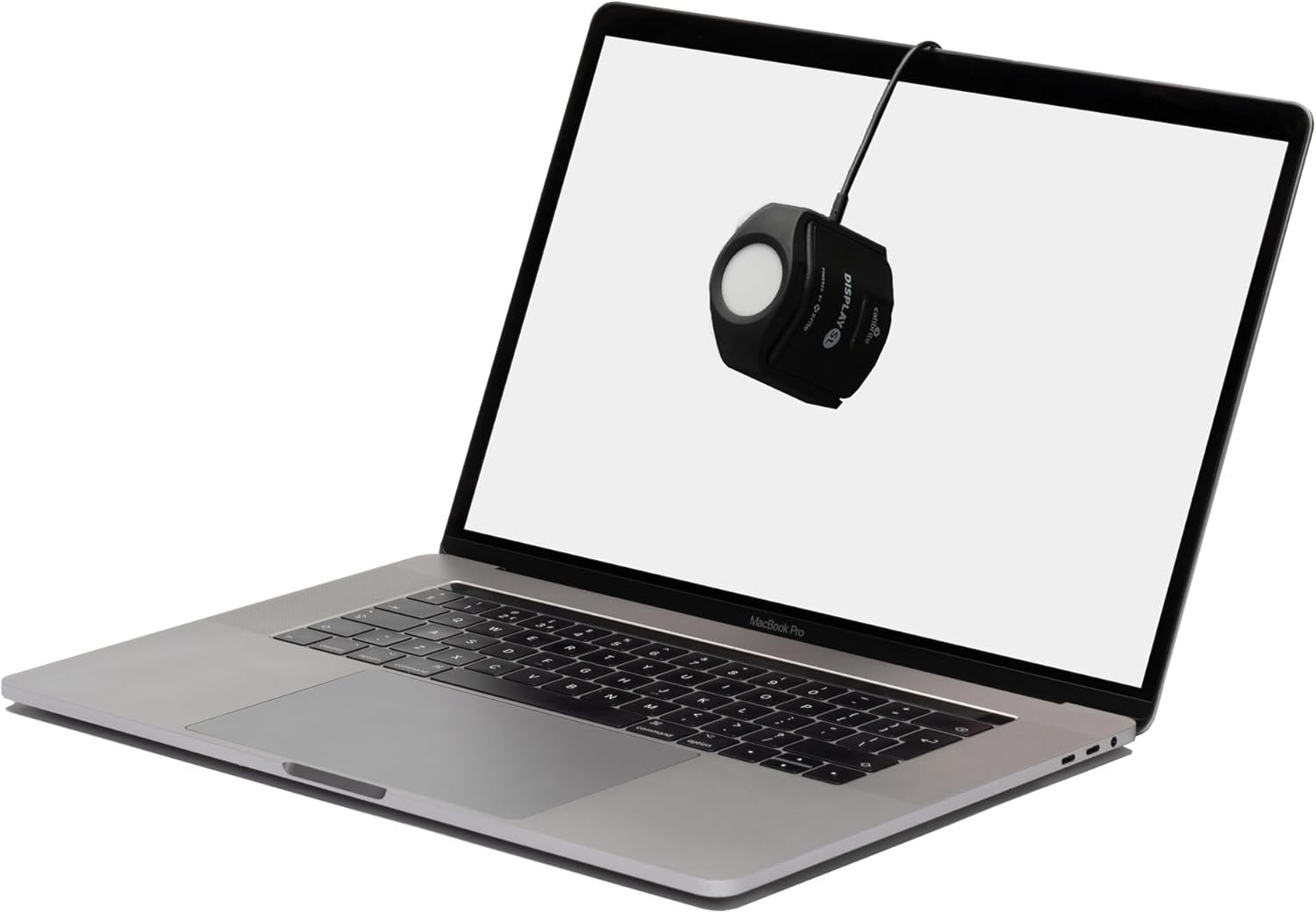
Image: The Calibrite Display SL positioned on a laptop screen, ready for calibration.

Image: The Calibrite Display SL hanging on an iMac display, demonstrating its placement during calibration.
Инструкция по эксплуатации
The Calibrite PROFILER software guides you through the calibration process. Here are the general steps:
- Запустить программное обеспечение: Open the Calibrite PROFILER application on your computer.
- Select Display: If you have multiple displays connected, the software will allow you to select which display you wish to calibrate. The Calibrite Display SL can calibrate multiple displays connected to the same computer.
- Следуйте инструкциям на экране: The software will provide step-by-step instructions for placing the colorimeter on your screen and running the calibration sequence. This typically involves displaying a series of color patches for the device to read.
- Профиfile Создание: Upon completion, the software will create an ICC profile for your display, ensuring accurate color reproduction.
- Projector Calibration: The device can also be used for projector calibration. For this, the device is typically placed on a tripod and aimed at the projected image.

Image: A user interacting with the Calibrite PROFILER software while the Display SL calibrates a monitor.
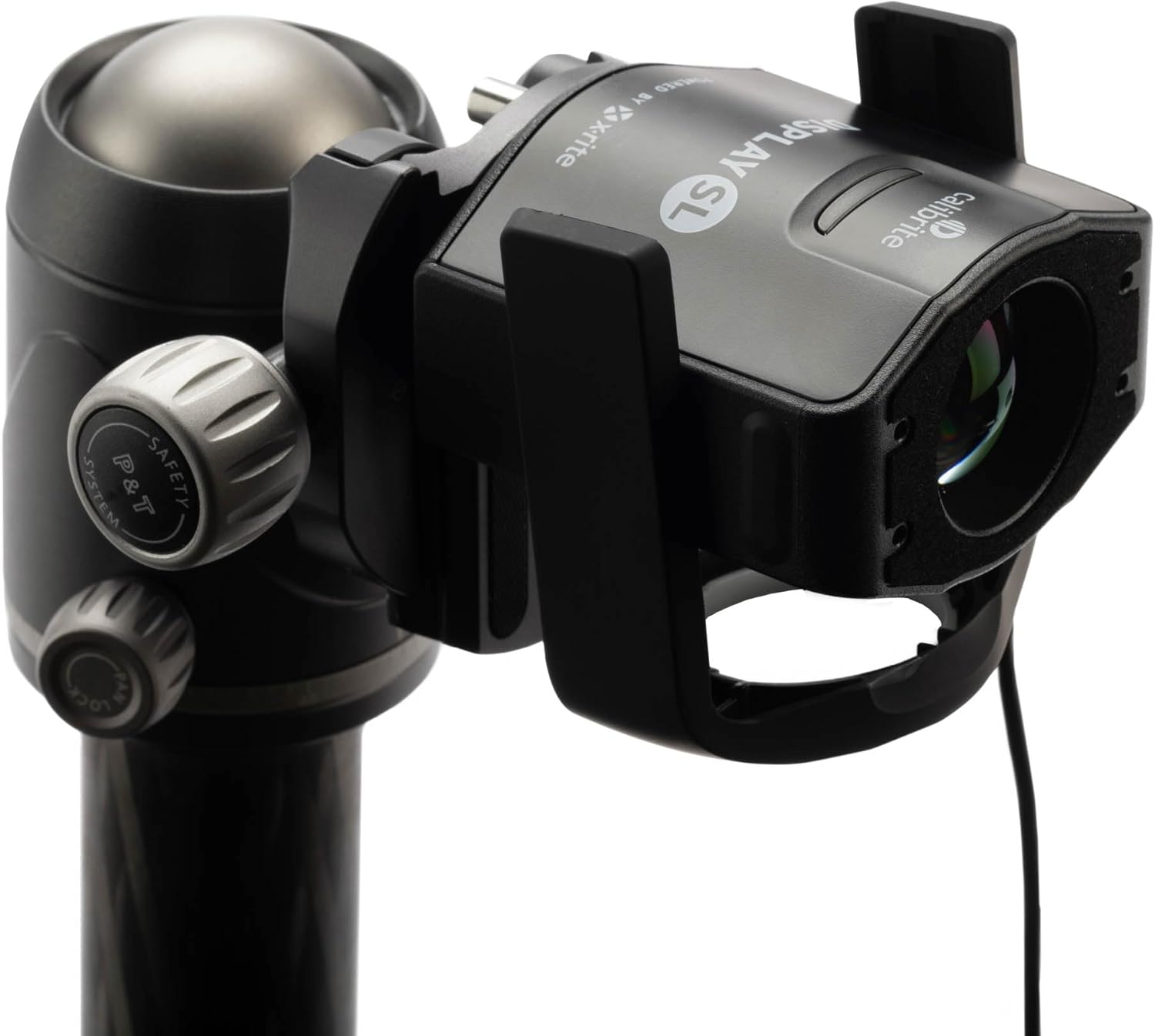
Image: The Calibrite Display SL mounted on a tripod, illustrating its use for projector calibration.
Обслуживание
To ensure the longevity and accuracy of your Calibrite Display SL, follow these maintenance guidelines:
- Уборка: Gently wipe the exterior of the device with a soft, dry, lint-free cloth. Avoid using harsh chemicals or abrasive materials.
- Сенсорная линза: Keep the sensor lens clean and free of dust or fingerprints. Use a lens cleaning cloth specifically designed for optics if necessary.
- Хранилище: When not in use, store the device in its travel storage pouch to protect it from dust and physical damage.
- Обновления программного обеспечения: Regularly check for updates to the Calibrite PROFILER software to ensure optimal performance and compatibility with new operating systems or display technologies.

Изображение: Подробный view of the Calibrite Display SL's sensor lens, emphasizing the importance of keeping it clean.
Поиск неисправностей
If you encounter issues with your Calibrite Display SL, consider the following common solutions:
| Проблема | Возможная причина | Решение |
|---|---|---|
| Устройство не распознано компьютером. | Ненадежное USB-соединение, неисправный USB-порт, проблема с драйвером. | Ensure USB cable is securely connected. Try a different USB port. Restart your computer. Reinstall Calibrite PROFILER software. |
| Calibration results are inaccurate or inconsistent. | Sensor lens is dirty, ambient light interference, incorrect display settings. | Clean the sensor lens. Perform calibration in a consistent lighting environment. Ensure your display is warmed up (at least 30 minutes). Reset display to factory settings before calibration if possible. |
| Calibrite PROFILER software fails to launch or crashes. | Software corruption, operating system incompatibility, conflicting software. | Ensure your operating system meets the software requirements. Reinstall the software. Check for software updates. Disable any conflicting background applications. |
| Display color appears yellow/red after calibration. | Incorrect calibration targets, display hardware limitations. | Review your calibration target settings (e.g., white point, gamma). Ensure your display is capable of achieving the desired color space. Recalibrate. |
If these steps do not resolve your issue, please refer to the official Calibrite support resources.
Технические характеристики
- Номер модели: CCDISSL
- Размеры продукта: 1.5 x 2.56 x 2.6 дюйма
- Вес товара: 4.9 унции
- Связь: USB-C (with included USB-A adapter)
- Тип датчика: Advanced SL (Standard Luminance)
- Поддерживаемые дисплеи: Current LCD displays, suitable for still image and video editing.
- Совместимость программного обеспечения: Calibrite PROFILER for Mac and Windows OS.
- Производитель: Calibrite
- Первая доступная версия: 14 июня 2023 г.
Гарантия и поддержка
For detailed warranty information and technical support, please visit the official Calibrite webили обратитесь в службу поддержки клиентов. Сохраните чек о покупке для предъявления гарантийных претензий.
Official Calibrite Store: Calibrite Amazon Store
Ask a question about this manual
Ask about setup, troubleshooting, compatibility, parts, safety, or missing instructions. Manuals+ will review the question and use this page’s manual context to help answer it.