
Lorex N883A64B
Lorex N883A64B 16-Channel 4K Pro Series NVR
Руководство пользователя
Введение
This manual provides detailed instructions for the installation, operation, and maintenance of your Lorex N883A64B 16-Channel 4K Pro Series Network Video Recorder (NVR). Please read this manual thoroughly before using the product to ensure proper setup and optimal performance. Keep this manual for future reference.
The Lorex N883A64B NVR is designed to record and manage video from up to 16 4K Ultra HD security cameras, offering advanced features like person and vehicle detection, extensive local storage, and real-time 4K recording at 30 frames per second.
Что в коробке?
- Lorex N883A64B 16-Channel 4K Pro Series NVR (Recorder)
- Адаптер питания
- USB-мышь
- Ethernet-кабель
- HDMI-кабель
- Краткое руководство пользователя
Основные характеристики
- Ultra HD 4K Resolution Recording: Records video at 4K resolution up to 30 frames per second, providing smooth, real-time footage. Supports digital zoom for enhanced clarity.
- Local Storage with No Monthly Fees: Equipped with 2 hard drive bays, supporting up to 2 x 10TB of storage space. Features a security-grade hard drive designed for 24/7 recording and storage mirroring for continuous data backup.
- Advanced Person and Vehicle Detection: Reduces false alarms by sending push notifications only when motion from a person or vehicle is detected. Includes Smart Искать quick review of motion-triggered events.
- Plug-and-play PoE Installation: Integrated Power-over-Ethernet (PoE) ports simplify camera connection, requiring only a single Ethernet cable per camera for both power and video transmission.
- Secure Access Anytime, Anywhere: Access your security system remotely via the Lorex Cloud app on mobile devices or the Lorex Cloud client on computers. View live feeds, watch recorded playback, and receive motion-triggered notifications.
Руководство по настройке
1 Распаковка и первоначальный осмотр
Carefully remove all components from the packaging. Inspect the NVR and accessories for any signs of damage. If any items are missing or damaged, contact Lorex customer support immediately.
2. NVR Overview

Рисунок 1: Front panel of the Lorex N883A64B NVR, showing the Lorex logo, status indicators, channel numbers, control buttons (prev, next, play, pause, stop, shift, rec, fn, esc), a directional pad, and a USB port.

Рисунок 2: Rear panel of the Lorex N883A64B NVR, displaying the power input, cooling fan, 16 PoE ports, alarm input/output terminals, VGA, RS232, HDMI, USB 3.0, Ethernet, and audio input/output ports.
3. Подключение сетевого видеорегистратора (NVR)
- Подключение к монитору: Use the provided HDMI cable to connect the NVR's HDMI output port to an HDMI input on your monitor or TV. Alternatively, use a VGA cable for VGA connections.
- Подключите мышь: Подключите USB-мышь к одному из USB-портов на видеорегистраторе (переднем или заднем).
- Подключиться к сети: Connect an Ethernet cable from the NVR's LAN port to your router or network switch. This is essential for remote access and network features.
- Подключить камеры: Connect your Lorex IP cameras to the PoE ports on the rear of the NVR using Ethernet cables. Each camera will receive power and transmit video data through a single cable.
- Включение питания: Подключите адаптер питания к разъёму питания сетевого видеорегистратора, а затем к розетке. Видеорегистратор включится автоматически.
4. Первоначальная настройка
При первой загрузке NVR проведет вас через мастер настройки. Следуйте инструкциям на экране, чтобы:
- Set up a secure password for the administrator account.
- Настройте параметры даты и времени.
- Adjust network settings (DHCP is recommended for most home networks).
- Initialize the hard drive(s) for recording.
- Сканируйте и добавляйте подключенные IP-камеры.
Эксплуатация NVR
1. Жить View
После настройки видеорегистратор будет отображать изображение в режиме реального времени. view со всех подключенных камер. Вы можете переключаться между режимами одной камеры. view, multi-camera grids (e.g., 4-channel, 9-channel, 16-channel), and sequence modes using the on-screen controls or the NVR's front panel buttons/mouse.
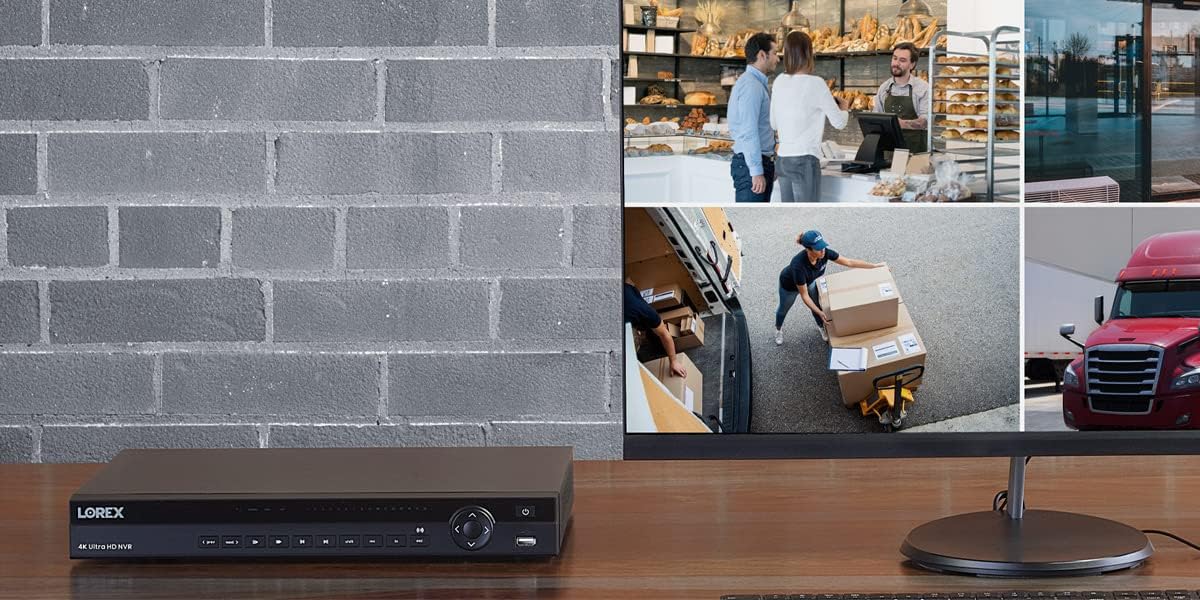
Рисунок 3: Бывшийample setup showing the Lorex NVR connected to a monitor, displaying a multi-view grid of surveillance camera feeds from various locations.
2. Запись и воспроизведение
- Непрерывная запись: The NVR is configured for 24/7 continuous recording by default, utilizing its security-grade hard drive.
- Запись при обнаружении движения: Configure specific channels to record only when motion is detected. With advanced person and vehicle detection, this reduces unnecessary recordings and saves storage space.
- Запланированная запись: Set up custom recording schedules based on time of day or day of the week.
- Воспроизведение: Доступ к записанному footage by navigating to the playback menu. Use the timeline to select specific dates and times. Utilize the Smart Search feature to quickly filter and review motion events.
3. Удаленный доступ (облако Lorex)
The Lorex Cloud platform allows you to access your NVR remotely from anywhere with an internet connection.
- Загрузите приложение: Download the Lorex Cloud app from your mobile device's app store (iOS/Android) or the Lorex Cloud client for your computer (Windows/macOS).
- Завести аккаунт: Register for a Lorex Cloud account if you don't already have one.
- Добавьте свое устройство: Follow the in-app instructions to add your NVR by scanning the QR code on the NVR or manually entering its device ID.
- Функции доступа: После подключения вы можете view live feeds, play back recorded video, receive push notifications for motion events, and configure certain NVR settings remotely.

Рисунок 4: The Lorex Cloud application interface displayed across various devices including a laptop, desktop monitor, tablet, and smartphone, demonstrating remote access capabilities for surveillance systems.
Обслуживание
- Регулярная уборка: Аккуратно протрите корпус видеорегистратора мягкой сухой тканью. Не используйте жидкие чистящие средства или аэрозоли. Убедитесь, что вентиляционные отверстия очищены от пыли и мусора.
- Обновления прошивки: Периодически проверяйте поддержку Lorex. webСайт для обновления прошивки. Поддержание прошивки вашего видеорегистратора в актуальном состоянии обеспечивает оптимальную производительность, безопасность и доступ к новым функциям.
- Состояние жесткого диска: The NVR's hard drive is designed for 24/7 operation. Monitor its health through the NVR's system settings. Consider backing up critical footagе периодически.
- Безопасность пароля: Regularly change your NVR and Lorex Cloud account passwords to strong, unique combinations to prevent unauthorized access.
Поиск неисправностей
| Проблема | Возможная причина | Решение |
|---|---|---|
| Нет видеовыходного сигнала на мониторе. | Отсоединен кабель HDMI/VGA, на мониторе выбран неправильный вход, сетевой видеорегистратор не включен. | Check cable connections. Ensure monitor is set to the correct input source. Verify NVR power indicator is on. |
| Камеры не отображают видео. | Loose Ethernet cable, camera not powered, camera not added/initialized, network issue. | Ensure Ethernet cables are securely connected to PoE ports. Check camera status indicators. Re-scan for cameras in NVR settings. Verify network connectivity. |
| Невозможно получить удаленный доступ к NVR. | NVR not connected to internet, incorrect network settings, firewall blocking connection, Lorex Cloud account issue. | Verify NVR has internet access. Check network settings (DHCP/Static IP). Ensure router firewall is not blocking ports (refer to Lorex support for port forwarding if needed). Re-login to Lorex Cloud app. |
| Запись и воспроизведение запрещены. | Hard drive not initialized, hard drive full, recording schedule not set, motion detection not configured. | Initialize hard drive in NVR settings. Check hard drive capacity and configure overwrite settings. Verify recording schedules and motion detection settings for relevant channels. |
Технические характеристики
| Особенность | Деталь |
|---|---|
| Номер модели | Н883А64Б |
| Каналы | 16 |
| Разрешение записи | Up to 4K (8MP) per channel |
| Частота кадров записи | 30fps (real-time) at 4K |
| Размер жесткого диска | 4 TB (expandable up to 2 x 10TB) |
| PoE-порты | 16 |
| Видеовыходы | HDMI, VGA |
| USB-порты | Да (для мыши, резервная копия) |
| Связность | Ethernet |
| Размеры | 20.47 x 16.22 x 6.77 дюйма |
| Масса | 10.73 фунта |
| Производитель | Lorex |
| Страна происхождения | Китай |
Совместимость
The Lorex N883A64B NVR is compatible with a wide range of Lorex IP cameras. Compatible models include, but are not limited to:
E581CB, E581CD, E861ABB, E891AB, LNB8111, LNB8921, LNB8973, LNB9232, LNB9242B, LNB9252B, LNB9272, LNB9282B, LNE8950AB, LNE8964ABW, LNE8974, LNE9242B, LNE9252B, LNZ32P12S, LNZ32P4, LNZ3522, LNZ44P12B, LNZ44P4B, LNB3143, LNB3153, LNB3163, LNB3321, LNB3373, LNB4163, LNB4321, LNB4421, LND3152, LND3374B, LND4750AB, LND4751AB, LNE3142RB, LNE3162, LNE4162, LNE4322, LNE4422, E841CA, E841CAB, E841CD, E881AP, LNB8963BW, LNB9292B, LNE9282B, LNE9292B, LNZ81P25.
Гарантия и поддержка
This Lorex N883A64B NVR is a renewed product. Please refer to the specific warranty terms provided by the seller or Amazon Renewed at the time of purchase. Typically, renewed products come with a limited warranty.
For technical support, troubleshooting assistance, or warranty inquiries, please contact Lorex customer support or the seller from whom you purchased the renewed product. You can often find support contact information on the Lorex official webчерез сайт или через данные вашего заказа на Amazon.
Интернет-ресурсы: For the latest manuals, software downloads, and FAQs, visit the official Lorex support webсайт: www.lorex.com/support
Ask a question about this manual
Ask about setup, troubleshooting, compatibility, parts, safety, or missing instructions. Manuals+ will review the question and use this page’s manual context to help answer it.