
1. Введение
The MARKLIFE P50 Label Maker Machine is a mini portable Bluetooth thermal label printer designed for a wide range of labeling needs. It utilizes thermal printing technology, supporting black and white printing, and is ideal for creating labels for addresses, clothing, jewelry, retail barcodes, small businesses, home organization, and office use. This manual provides comprehensive instructions for setting up, operating, and maintaining your P50 label maker.

Image: The MARKLIFE P50 label maker shown with different types of labels, including a "Thank You" label, a "Grapefruit Juice" label, and rolls of white gap, circle gap, and clear gap labels. An example label shows "Wireless Printer Built-in firewall SUPPORT WDS,WPS 123456".
2. Что в коробке
Upon unboxing your MARKLIFE P50 Label Maker, verify that all components are present:
- Машина для изготовления этикеток MARKLIFE P50
- Labels (typically includes 3 tapes: 1.57"x1.18" white gap, 2"x2" circle gap, and 1.57"x0.79" transparent gap labels)
- Зарядный кабель USB-C
3. Руководство по установке
3.1 Зарядка устройства
The P50 label maker features a built-in 1200mAh rechargeable battery for portable use. Before first use, ensure the device is fully charged.
- Подключите прилагаемый зарядный кабель USB-C к зарядному порту на этикеточном принтере.
- Другой конец кабеля подключите к совместимому USB-адаптеру питания (не входит в комплект) или к USB-порту компьютера.
- The charging indicator light will show the charging status. Refer to the device's LED indicator guide for specific light behaviors (e.g., solid light for charging, off when fully charged).
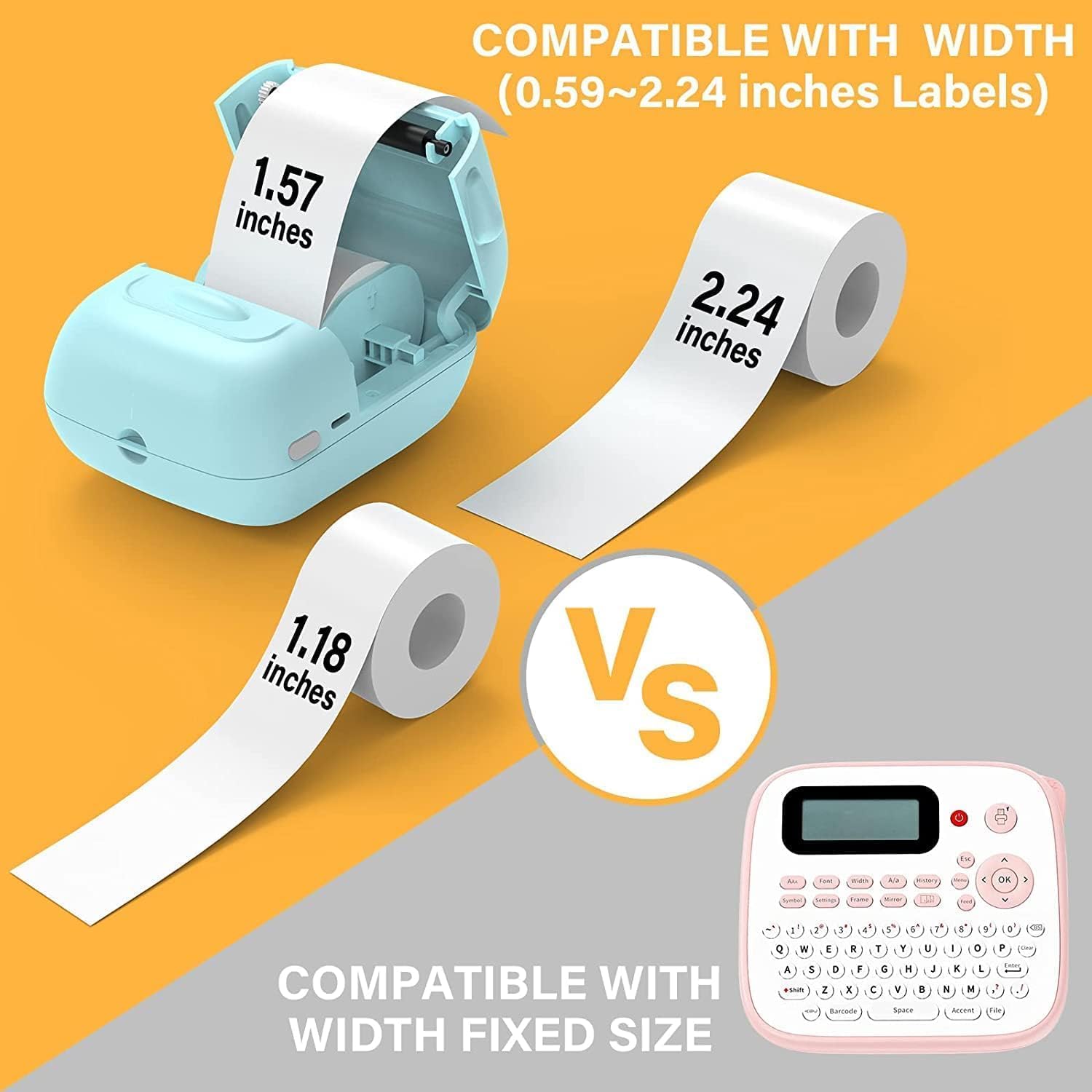
Image: A person placing the compact MARKLIFE P50 label maker into a handbag, highlighting its portability. Icons indicate "Portable", "Built-in 1200mAh Battery", and "Type-c Charging".
3.2 Загрузка этикеток
The P50 label maker supports label widths ranging from 0.59 inches to 2.24 inches. Ensure you use compatible thermal labels.
- Откройте крышку отсека для этикеток на устройстве.
- Insert the label roll with the printing surface facing upwards, ensuring the roll is properly seated in the compartment.
- Pull a small portion of the label paper out of the slot, extending it slightly beyond the cutting edge.
- Close the label compartment cover firmly until it clicks into place. The printer will automatically detect the label size.

Image: Three rolls of labels are displayed, illustrating the different sizes available: 1.57"x0.78" (40x20mm) clear gap, 1.57"x1.18" (40x30mm) white gap, and 2"x2" (50x50mm) circle gap labels. The image emphasizes that these rolls "Meet More Needs".
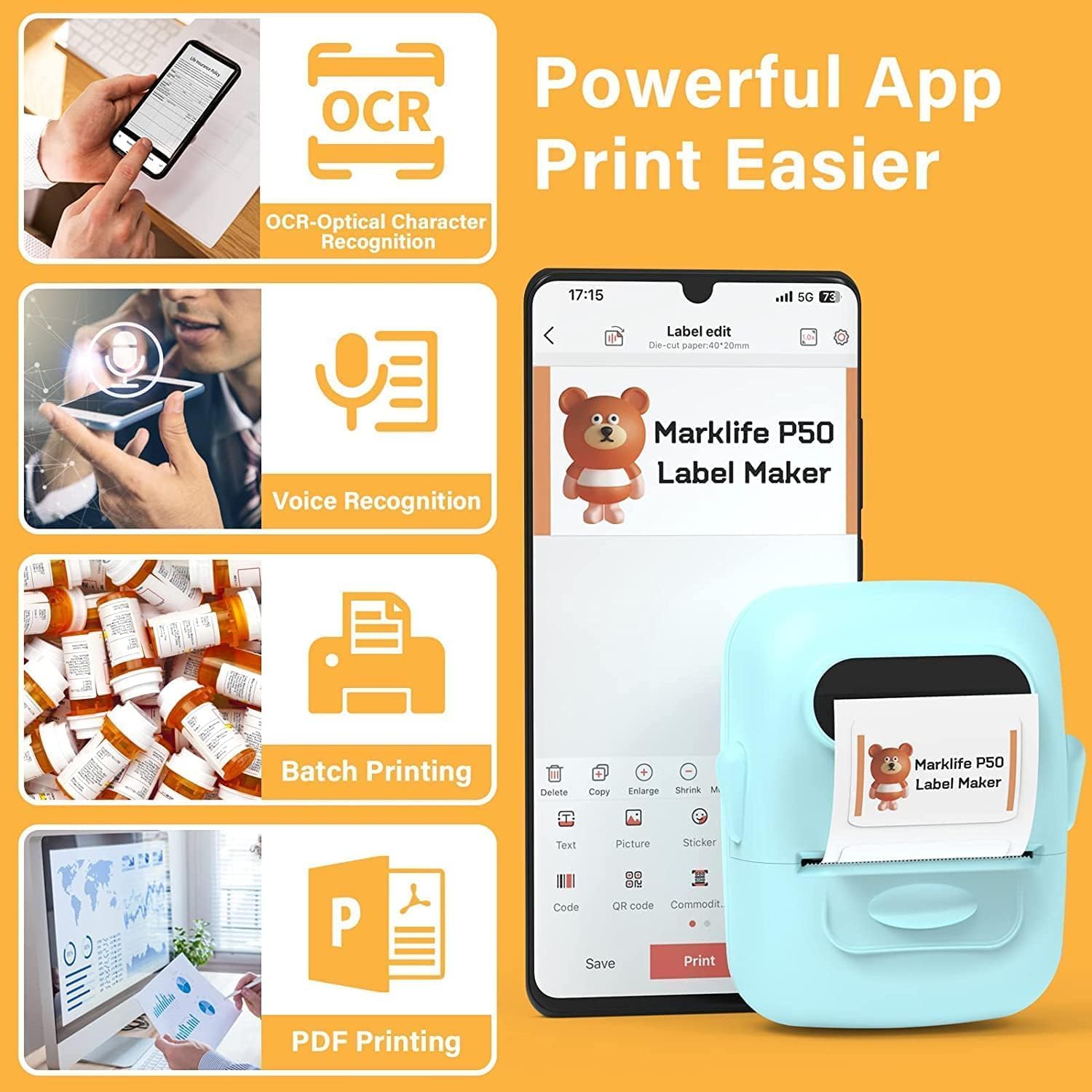
Image: The MARKLIFE P50 label maker is shown with a roll of labels, indicating compatibility with widths from 0.59 to 2.24 inches. It contrasts with a traditional label maker that has a fixed label size.
3.3 Connecting to Your Device (Smartphone/PC)
The P50 label maker offers wireless connectivity via Bluetooth for smartphones and USB connection for Windows PCs.
3.3.1 Подключение к смартфону (Bluetooth)
- Download the "Marklife" application from your smartphone's app store (available for Android and iOS).
- Убедитесь, что Bluetooth включен на вашем смартфоне.
- Turn on the P50 label maker.
- Open the Marklife app. The app will automatically search for and connect to the label maker via Bluetooth 4.0 within approximately 33 feet.
3.3.2 Подключение к ПК (USB)
For Windows PC users, online software is available. Refer to the official MARKLIFE website or the app's help section for download and installation instructions for the PC software.
4. Инструкция по эксплуатации
4.1 Marklife App Features
The Marklife app provides a powerful and user-friendly interface for label creation:
- OCR (оптическое распознавание символов): Scan text from images to convert it into editable text for your labels.
- Распознавание голоса: Convert spoken words into text for quick label input.
- Пакетная печать: Print multiple copies of the same label efficiently.
- Печать PDF-файлов: Печатайте этикетки непосредственно из PDF-документов.
- Image Insertion: Insert your own photos or images onto labels.
- Генерация штрихкодов/QR-кодов: Scan existing barcodes to generate new ones or create custom QR codes.
- Шаблоны: Access a variety of pre-designed templates for different label types (clothing, price, cable, jewelry, address, ingredients, etc.).

Image: The MARKLIFE P50 label maker is shown printing a long strip of barcode labels, demonstrating its "Batch Printing" capability. An example barcode shown is "123456".

Image: A smartphone screen displays the Marklife app interface, highlighting features such as OCR (Optical Character Recognition), Voice Recognition, Batch Printing, and PDF Printing. The P50 label maker is shown next to the phone, printing a label.
4.2 Создание и печать этикеток
- Создайте свою этикетку: Open the Marklife app and select a template or start a new design. Use the various editing tools to add text, images, barcodes, and other elements.
- Настройте параметры: Before printing, you can adjust print density and photo quality settings within the app to enhance the print job.
- Печать: Once your design is complete, tap the "Print" button in the app. The label maker will quickly print your label.
- Вырезанная этикетка: Manually tear or cut the printed label from the printer's output slot.

Image: The MARKLIFE P50 label maker is shown printing a clothing tag with "NAME DRESS SIZE:16S/64A PRICE: $7.00" and a barcode "0123456789005". Other examples include labels on handmade soap and bakery items, demonstrating diverse applications.
5. Техническое обслуживание
Proper maintenance ensures the longevity and optimal performance of your MARKLIFE P50 Label Maker.
- Очистка печатающей головки: Регулярно очищайте термоголовку печатающей головки мягкой безворсовой тканью, слегка протирая её.ampened with isopropyl alcohol. Ensure the device is off and cool before cleaning.
- Очистка внешней части: Wipe the exterior of the device with a soft, dry cloth. Avoid using abrasive cleaners or solvents.
- Хранение этикеток: Store thermal labels in a cool, dry place away from direct sunlight and heat to prevent premature fading or damage.
- Уход батареи: For long-term storage, charge the battery to about 50% and store in a cool, dry place. Recharge every few months to maintain battery health.
6. Поиск Неисправностей
If you encounter issues with your P50 label maker, refer to the following common problems and solutions:
| Проблема | Возможная причина | Решение |
|---|---|---|
| Принтер не включается. | Низкий заряд батареи или она совсем не заряжена. | Подключите устройство к источнику питания с помощью кабеля USB-C и зарядите его. |
| Невозможно подключиться через Bluetooth. | Bluetooth is off on phone, app not open, or printer is too far. | Ensure Bluetooth is enabled on your phone, the Marklife app is open, and the printer is within 33 feet. Restart both devices if necessary. |
| Labels are blank or faded. | Label roll inserted incorrectly (upside down) or print head is dirty. | Re-insert the label roll with the printing surface facing up. Clean the thermal print head as described in the Maintenance section. |
| Labels are misaligned or partially printed. | Label roll not properly seated or sliding within the compartment. | Open the label compartment, ensure the roll is pushed to the right and seated firmly. Close the cover. The printer should auto-calibrate. If issues persist, try re-calibrating via the app if available. |
| App crashes or requires frequent restarts for printing. | Software glitch or app cache issue. | Force close the Marklife app and reopen it. Clear the app's cache or reinstall the app if the problem persists. Ensure your phone's operating system is up to date. |
7. Технические характеристики
| Особенность | Деталь |
|---|---|
| Бренд | МАРКЛАЙФ |
| Название модели | P50 LABEL PRINTER |
| Технология печати | Термальный |
| Технология связи | Bluetooth, USB |
| Максимальный размер носителя | 2 inches (compatible with 0.59" - 2.24" width labels) |
| Максимальное разрешение черно-белой печати | 300 точек на дюйм |
| Вывод на принтер | Монохромный (черно-белый) |
| Метод контроля | Приложение (Android, iOS) |
| Специальная характеристика | Lightweight, Portable, Scan function via app |
| Вес товара | 1.39 фунта |
| Размеры продукта | 4"Д x 3"Ш x 2"В |
| Аккумулятор | Built-in 1200mAh (rechargeable via USB-C) |
8. Гарантия и поддержка
MARKLIFE products are manufactured to high-quality standards. For warranty information, technical support, or service inquiries, please contact MARKLIFE customer support directly. Details can typically be found on the official MARKLIFE website or within the Marklife application's help section.
Сохраните чек о покупке для предъявления претензий по гарантии.