
1. Введение
Thank you for choosing the EBTOOLS 2.4G Wireless Keyboard and Mouse combo. This product is designed for comfortable and efficient use with its low-noise operation, adjustable DPI settings, and reliable 2.4G wireless connectivity. This manual provides detailed instructions for setup, operation, and maintenance to ensure optimal performance.
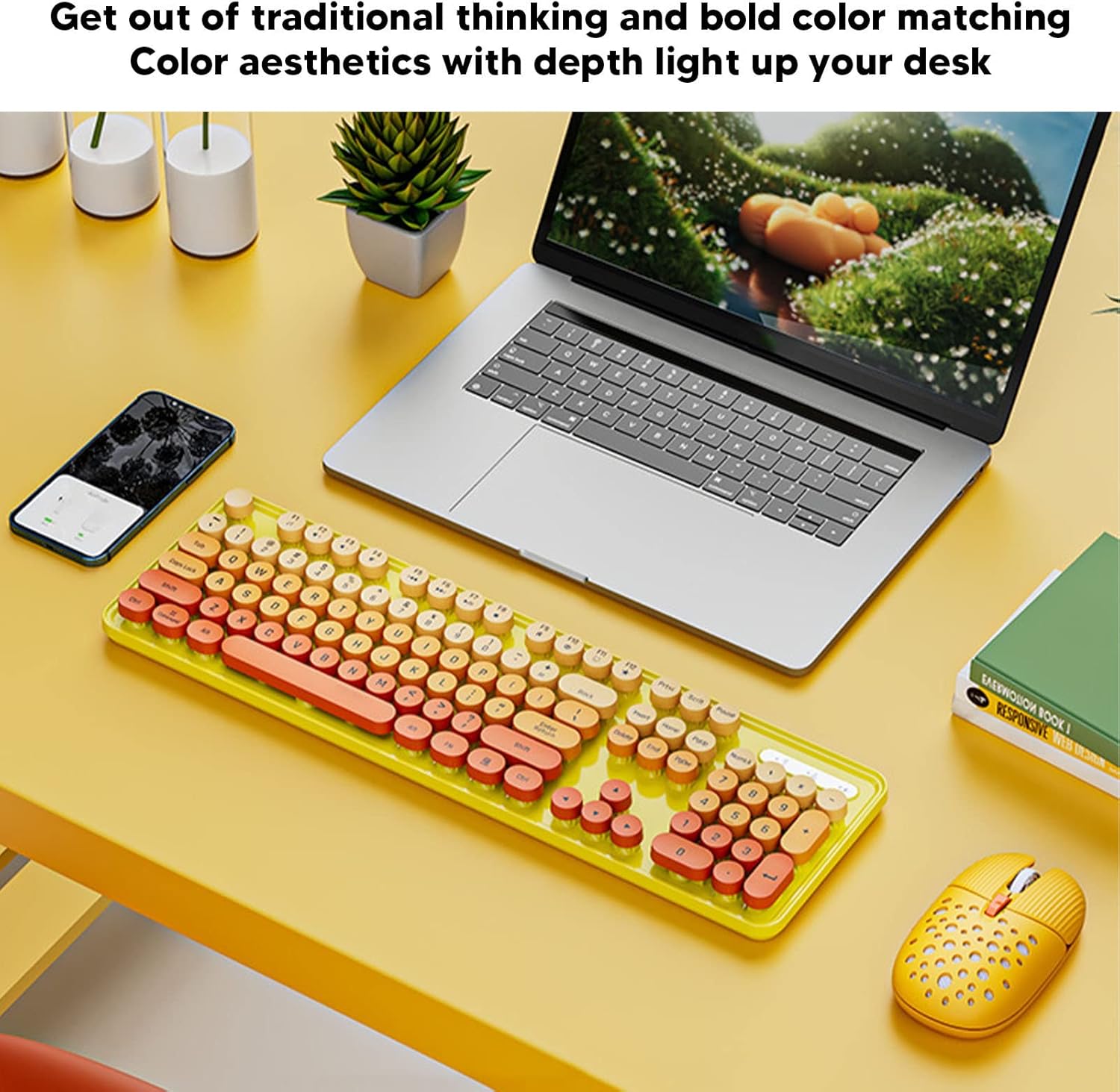
Image: The EBTOOLS 2.4G Wireless Keyboard and Mouse in mixed color yellow, displayed on a desk alongside a laptop and smartphone, showcasing его дизайн и компактный форм-фактор.
2. Содержимое упаковки
- 1 x EBTOOLS 2.4G Wireless Keyboard
- 1 x EBTOOLS 2.4G Wireless Mouse
- 1 x USB Receiver (typically stored in the mouse battery compartment)
- Руководство пользователя (этот документ)
3. Инструкции по настройке
3.1. Установка аккумулятора
The keyboard and mouse require batteries for operation. Please ensure you have 1 AA battery for the keyboard and 1 AA battery for the mouse (batteries are not included).
- Найдите батарейный отсек на нижней стороне клавиатуры.
- Откройте крышку батарейного отсека.
- Insert the AA battery according to the polarity indicators (+/-) inside the compartment.
- Плотно закройте крышку батарейного отсека.

Image: The underside of the EBTOOLS keyboard with the battery compartment open, showing where to insert the AA battery.
3.2. Подключение USB-приемника
The keyboard and mouse share a single 2.4G USB receiver for wireless connection.
- Locate the USB receiver. It is typically stored in the battery compartment of the mouse for safekeeping.
- Извлеките USB-приемник из слота для хранения.
- Plug the USB receiver into an available USB port on your computer (desktop PC, laptop, etc.).
- The system should automatically detect and install the necessary drivers. This is a plug-and-play device.

Image: A diagram illustrating the compatibility of the keyboard and mouse with various systems, including desktop PCs, laptops, and other computers, highlighting its plug-and-play functionality.

Image: An illustration demonstrating the 2.4G wireless connection mode for the keyboard and mouse, emphasizing the ability to connect two devices wirelessly with a single receiver.
4. Инструкция по эксплуатации
4.1. Настройка DPI мыши
The mouse features three adjustable DPI (Dots Per Inch) settings to suit your preference and task requirements. You can cycle through these settings by pressing the DPI button, usually located near the scroll wheel on the mouse.
- 800 точек на дюйм: Подходит для выполнения точных задач или для медленного перемещения курсора.
- 1600 точек на дюйм: Стандартные настройки для общего использования.
- 2400 точек на дюйм: Идеально подходит для быстрого перемещения курсора, например, в играх или при навигации по большим экранам.
4.2. Использование мультимедийных клавиш
The keyboard is equipped with 18 multimedia keys for quick access to various functions. These keys are typically activated by pressing the Fn key in combination with the corresponding function key (F1-F12) or dedicated multimedia keys.

Изображение: Подробный view of the EBTOOLS keyboard layout, highlighting the standard keys and the 18 multimedia keys, along with their respective functions such as volume control, media playback, and quick access to applications.
Common multimedia functions include:
- Volume Down / Up / Mute
- Play / Pause / Previous Track / Next Track
- Home / My Computer / Mail / Favorites
- Other system-specific functions
5. Техническое обслуживание
5.1. Уборка
To maintain the longevity and appearance of your keyboard and mouse:
- Протрите поверхности мягкой сухой тканью.
- Для удаления стойких загрязнений слегкаampСмочите ткань водой или мягким чистящим средством. Избегайте использования агрессивных химикатов.
- Для удаления пыли и мусора из пространства между клавишами клавиатуры используйте сжатый воздух.
5.2. Замена батареи
When the keyboard or mouse becomes unresponsive or exhibits intermittent connectivity, it may be time to replace the batteries. Follow the battery installation steps in Section 3.1.

Image: An illustration depicting the energy-saving features of the keyboard and mouse, emphasizing lower power consumption and extended battery life for continuous use.
6. Поиск Неисправностей
| Проблема | Решение |
|---|---|
| Клавиатура/мышь не отвечает |
|
| Прерывистое соединение |
|
| Курсор мыши хаотичен или движется неплавно |
|
7. Технические характеристики
| Особенность | Деталь |
|---|---|
| Бренд | ЭБТУЛС |
| Цвет | Mixed Color Yellow |
| Технология связи | 2.4G Radio Frequency Wireless |
| Специальная характеристика | Низкий уровень шума при работе |
| Совместимые устройства | Personal Computer (Desktop PC, Laptop) |
| Операционная система | Major PC Operating Systems |
| Ориентация руки (мыши) | Двусторонний |
| Требуются батареи | Yes (1 AA for keyboard, 1 AA for mouse) |
| Количество клавиш (клавиатура) | 104 |
| Источник питания | Питание от батареи |
| Раскладка клавиатуры | QWERTY |
| Настройки DPI мыши | 800, 1600, 2400 (регулируемая) |
| Материал | АБС |
8. Официальные видеоролики о продукте
8.1. Keyboard and Mouse Overview
Видео: Оверview of the EBTOOLS Keyboard and Mouse, demonstrating its features and design. This video is provided by the seller, Zhiyavex-US.
8.2. Yunseity Wireless Keyboard and Mouse Demonstration
Video: A demonstration of the Yunseity Wireless Keyboard and Mouse, showcasing its functionality and user experience. This video is provided by the seller, Zhiyavex-US.
9. Гарантия и поддержка
EBTOOLS products are designed for reliability and performance. For any questions, technical support, or warranty inquiries, please refer to the contact information provided with your purchase or visit the official EBTOOLS webсайт. Пожалуйста, сохраните доказательство покупки для гарантийных претензий.
The product comes with a standard return policy of 30 days from the date of purchase for refund or replacement, as per seller terms.