Введение
This manual provides detailed instructions for the installation, operation, and maintenance of your XTRONS TAD128 10.1-inch Double Din Android Car Stereo. Please read this manual thoroughly before using the product to ensure proper function and safety.
Продукт болееview
The XTRONS TAD128 is an advanced 10.1-inch QLED IPS touch screen head unit designed for vehicle integration. It features GPS navigation, support for Wireless and Wired CarPlay and Android Auto, Bluetooth 5.4, a built-in Digital Sound Processor (DSP), and includes an ADAS camera for enhanced driving safety.

Image: The 10.1-inch QLED IPS display of the XTRONS TAD128 car stereo, showcasing vibrant colors and wide viewing angles. The display features 1280x800 pixels resolution and G+G touch screen technology.
Включенные аксессуары
Убедитесь, что в комплект поставки входят все следующие предметы:
- 1 x ADAS Camera
- 1 x жгут проводов ISO
- 1 x кабель камеры
- 1 кабеля RCA
- 2 х USB-кабель
- 1 х GPS-антенна
- 1 x Rear Output Cable
- 1 х клейкая площадка
- 2 x Fitting Kits
- 8 х Винта
- 1 x Руководство пользователя (этот документ)
- 1 х Инструкция по установке
Настройка и установка
Важный: Before beginning installation, ensure your vehicle's ignition is off and the key is removed. Disconnect the vehicle's battery to prevent electrical shorts.
Проверка совместимости
This unit is designed for a standard double DIN slot with dimensions of 100mm (Height) x 178mm (Width) x 108mm (Depth). Ensure your vehicle has a compatible double DIN slot.

Image: Diagram illustrating the dimensions of the XTRONS TAD128 unit and comparing a double DIN slot with a single DIN slot. The unit requires a 178x100mm slot. Note: Custom fit fascia and ISO cable/CANBus box may be required for specific car models.
Основные этапы сборки
Follow these steps to assemble the TAD128 monitor and the main unit. Refer to the separate "Installation Instruction" document for detailed wiring diagrams and vehicle-specific guidance.
- Подключите кабель питания: Connect the ribbon cable from the main unit to the monitor. Ensure the connector is fully seated.
- Align Monitor: Pick up the monitor and align the spring buckles on the back of the monitor with the corresponding slots on the main unit.
- Безопасный монитор: Gently push the monitor down onto the main unit until the spring buckles engage and lock the monitor into place.
- Окончательная проверка: Verify that the monitor is securely attached to the main unit.

Image: Four-step visual guide for assembling the TAD128 monitor to the main unit. Steps show connecting the power cable, aligning spring buckles, securing the monitor, and releasing hands.
Floating Panel Mechanism Adjustment
The TAD128 features a floating panel design allowing for vertical adjustment and tilt/swivel to optimize viewing angles and avoid blocking vehicle vents or controls.
- Вертикальная регулировка: The screen can be adjusted vertically by up to 60mm to achieve a comfortable viewпозиция.
- Наклон и поворот: The screen can be tilted and swiveled up to 30 degrees for optimal visibility from various seating positions.

Image: Visual representation of the floating panel mechanism, demonstrating 60mm vertical adjustment and up to 30-degree tilt and swivel capabilities for the screen.
Инструкция по эксплуатации
Включение/выключение питания и базовая навигация
Press the power button (usually a physical button or a touch icon on the screen) to turn the unit on or off. Navigate the interface using the QLED IPS touch screen. The intuitive UI provides access to various functions.
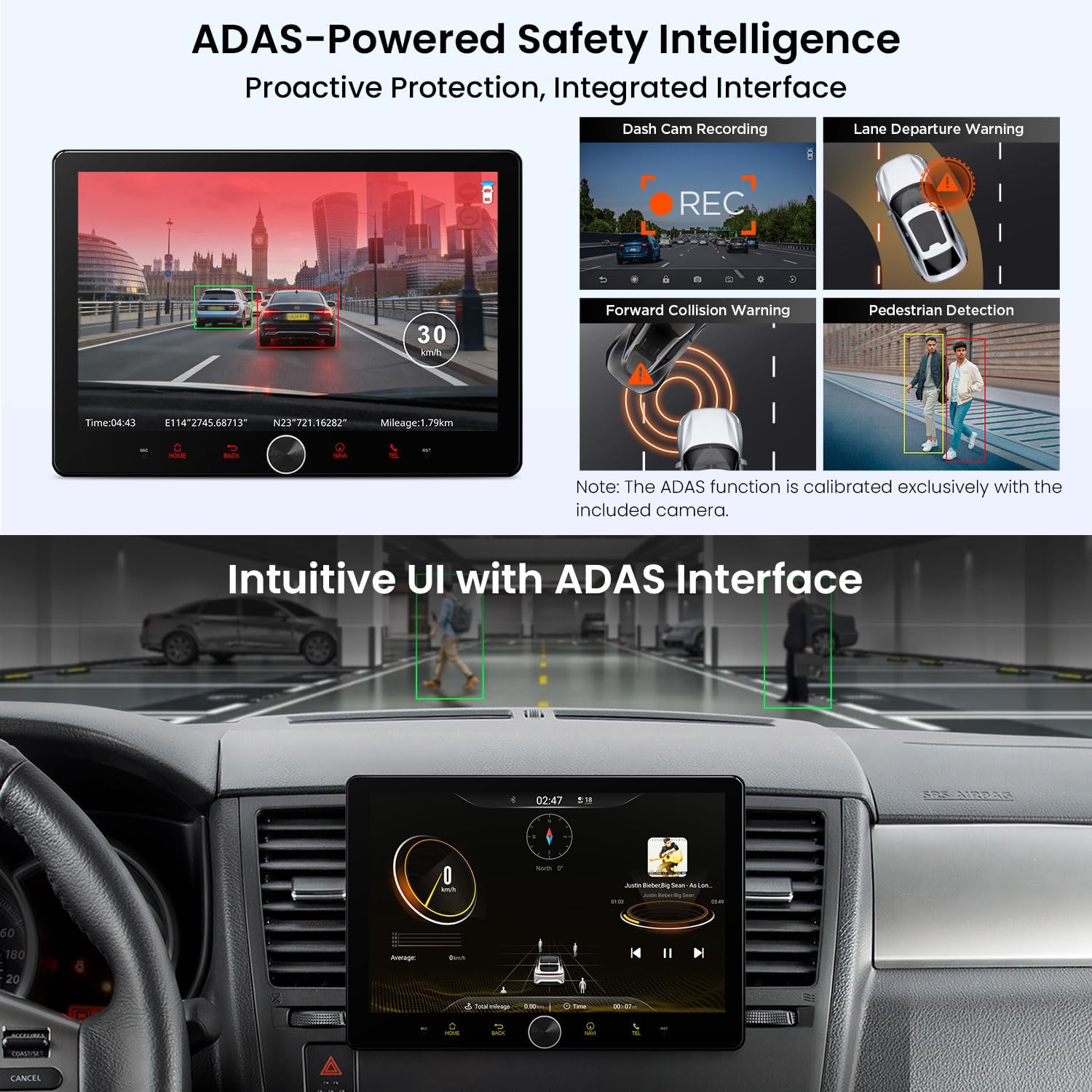
Image: Screenshot of the XTRONS TAD128's intuitive user interface, showing various applications and controls. This image also highlights the ADAS interface with dash cam recording, forward collision warning, lane departure warning, and pedestrian detection features.
Smartphone Connectivity (CarPlay & Android Auto)
The unit supports both Wireless and Wired CarPlay for iPhone users, and Wireless and Wired Android Auto for Android device users. This allows seamless integration of your smartphone's features onto the car stereo display.
- Беспроводное соединение: Enable Bluetooth and Wi-Fi on your smartphone. Pair your phone with the TAD128 via Bluetooth. Follow the on-screen prompts to initiate Wireless CarPlay or Android Auto.
- Проводное подключение: Connect your smartphone to the unit using a USB cable. The system should automatically detect and launch CarPlay or Android Auto.
Once connected, you can access GPS navigation, make hands-free calls, stream music, and use voice assistants (Siri/Google Assistant) directly from the head unit.

Image: Display showing the CarPlay and Android Auto interfaces on the XTRONS TAD128 screen, demonstrating how smartphones connect wirelessly or via wire to access apps like Phone, Music, Maps, and Messages.
Функциональность Bluetooth 5.4
Utilize Bluetooth 5.4 for stable and fast wireless connections. This enables hands-free calling with noise cancellation and high-quality audio streaming from your paired devices.
- Сочетание: Go to the Bluetooth settings on the TAD128 and your phone. Искать available devices and select "XTRONS TAD128" to pair.
- Звонки по громкой связи: Once paired, you can answer, make, and end calls directly from the head unit.
- Потоковое аудио: Play music from your phone through the car stereo speakers.
Цифровой звуковой процессор (DSP)
The built-in DSP allows for advanced audio customization. Access the DSP settings to fine-tune equalization, balance, fader, and other sound parameters to optimize your listening experience.

Image: Screenshot of the XTRONS TAD128's audio interface, showing options for fine-tuning DSP settings, playing local files, browsing AM/FM radio, streaming via Bluetooth, and exploring digital radio.
ADAS Camera and Safety Alerts
Connect the included ADAS (Advanced Driver-Assistance System) camera to enable real-time safety features. The ADAS function is calibrated exclusively with the included camera.
- Предупреждение о выезде с полосы движения (LDW): Provides alerts if the vehicle drifts out of its lane without signaling.
- Предупреждение о лобовом столкновении (FCW): Warns the driver of potential frontal collisions.
- Запись видеорегистратора: Записи, управляющие едойtage, which can be useful for incident documentation.
- Обнаружение пешеходов: Assists in identifying pedestrians in the vehicle's path.
These features are designed to enhance driver awareness and safety, especially during long journeys.
Dual-Band Wi-Fi (2.4GHz/5.8GHz)
The unit supports dual-band Wi-Fi for flexible and reliable internet connectivity. The 2.4GHz band offers wider coverage, while the 5.8GHz band provides higher speeds and lower latency, ideal for streaming and system updates.
Управление на рулевом колесе
If your vehicle supports it, the TAD128 can integrate with your existing steering wheel controls. This allows you to adjust volume, change tracks, answer calls, and perform other functions without taking your hands off the wheel. Refer to the installation instructions for wiring details.
Картинка в картинке (PIP)
The Picture-in-Picture feature allows you to view a video or navigation simultaneously with another application, enhancing multitasking capabilities without interrupting your primary task.

Изображение: Составное изображениеasing various advanced features: Advanced DSP Audio settings, Bluetooth 5.4 connectivity for calls and music, Dual-Band Wi-Fi (2.4GHz and 5.8GHz), and Steering Wheel Control integration.
Обслуживание
- Очистка экрана: Аккуратно протрите экран мягкой безворсовой тканью. Для удаления стойких пятен слегка потрите.ampСмочите ткань водой или безопасным для экранов чистящим средством. Избегайте использования агрессивных химикатов и абразивных материалов.
- Обновления программного обеспечения: Periodically check for software updates from the XTRONS official webсайт для обеспечения оптимальной производительности и доступа к новым функциям.
- Общий уход: Не подвергайте устройство воздействию экстремальных температур, прямых солнечных лучей в течение длительного времени или чрезмерной влажности.
Поиск неисправностей
| Проблема | Возможная причина/решение |
|---|---|
| Блок не включается. | Check power connections and vehicle's fuse box. Ensure the vehicle battery is connected. |
| Ни звука. | Проверьте подключение динамиков. Проверьте уровни громкости и настройки DSP. Убедитесь, что выбран правильный источник звука. |
| Проблемы с подключением Bluetooth. | Ensure Bluetooth is enabled on both the unit and your phone. Delete previous pairings and re-pair. Restart both devices. |
| CarPlay/Android Auto не подключается. | For wired connection, try a different USB cable. For wireless, ensure Bluetooth and Wi-Fi are active and paired. Check phone settings for CarPlay/Android Auto permissions. |
| Сигнал GPS слабый или неточный. | Убедитесь, что антенна GPS установлена правильно и имеет свободное пространство. view из неба. Избегайте препятствий. |
| Функции ADAS не работают. | Verify the ADAS camera is correctly connected and calibrated. Ensure the camera lens is clean and unobstructed. |
Технические характеристики
- Бренд: ЭКСТРОНС
- Модель: ТАД128
- Размер экрана: 10.1 дюйма
- Тип дисплея: QLED IPS Touch Screen, 1280x800 Pixels
- Процессор: Advanced processor with 3 TOPS AI computing capability
- Память: 4 ГБ оперативной памяти DDR4
- Хранилище: 64GB High-speed storage
- Связь: Bluetooth 5.4, Dual-Band Wi-Fi (2.4GHz/5.8GHz), USB
- Особые характеристики: GPS Navigation, Wireless/Wired CarPlay, Wireless/Wired Android Auto, Built-in DSP, ADAS Camera Support, Steering Wheel Control, Picture-in-Picture
- Совместимые устройства: Смартфон, iPhone
- Тип обслуживания автомобиля: Машина
- Габариты блока (основного блока): 100 мм (высота) x 178 мм (ширина) x 108 мм (глубина)
Информация о гарантии
XTRONS products typically come with a manufacturer's warranty. For specific warranty terms, duration, and claim procedures, please refer to the warranty card included with your product or visit the official XTRONS webСохраните чек о покупке для предъявления гарантийных претензий.
Поддержка клиентов
If you encounter any issues not covered in this manual or require further assistance, please contact XTRONS customer support. You can usually find contact information (email, phone, or support portal) on the official XTRONS webсайте или через вашего розничного продавца.
Интернет-ресурсы: For additional FAQs, software updates, and detailed product information, visit the official XTRONS webсайт: www.xtrons.com