
Введение
This manual provides detailed instructions for the safe and efficient use of your Plimpton PlimPad P3 10.1-inch Android 12 Tablet. Please read this manual thoroughly before operating the device and keep it for future reference.
Продукт болееview
The Plimpton PlimPad P3 is a 10.1-inch tablet featuring the Android 12 operating system. It is designed for general use, offering a balance of performance and portability.
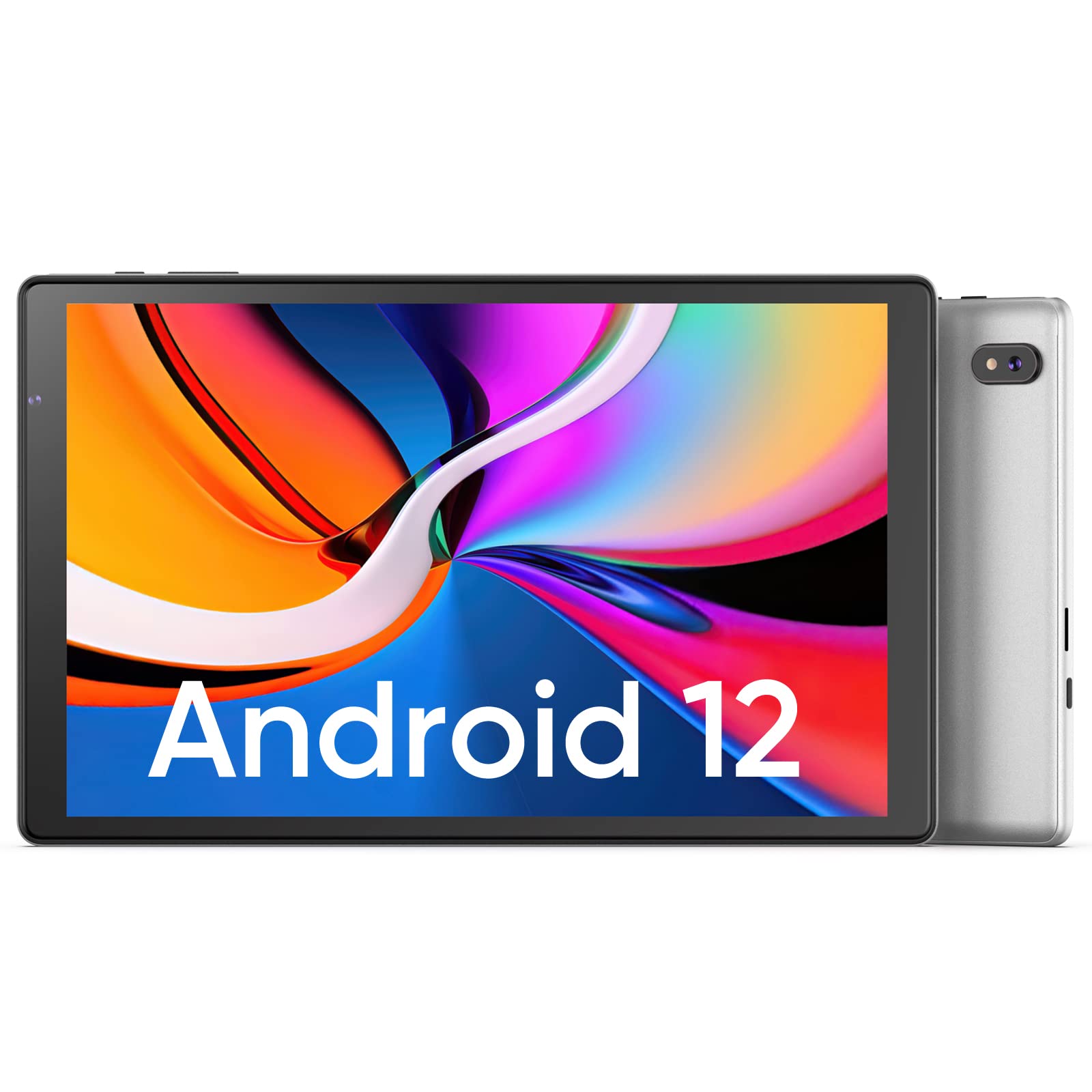
Изображение: спереди и сзади view of the Plimpton PlimPad P3 Tablet.
Основные характеристики:
- Операционная система: Android 12 for a personalized and secure user experience.
- Отображать: 10.1-inch HD IPS LCD with 1280x800 resolution for clear visuals.
- Производительность: Powered by an Allwinner A133 1.5GHz 4-core CPU with 4GB RAM for smooth operation.
- Хранилище: 64GB internal storage, expandable up to 1TB via microSD card.
- Связь: Dual-band Wi-Fi 6 (5GHz+2.4GHz) and Bluetooth 5.0.
- Аудио: Dual speakers for an enhanced audio experience.
- Аккумулятор: Аккумулятор емкостью 6000 мАч обеспечивает длительное время работы.
- Дизайн: Premium silver metal body for efficient heat dissipation and a slim profile.

Image: Visual representation of key features including metal body, 10.1-inch screen, split screen functionality, and 6000mAh battery capacity.
Руководство по настройке
1. Первоначальная зарядка
Before first use, fully charge the tablet using the provided USB charger and 1.8M USB Type-C cable. Ensure the tablet is powered off during initial charging. Using non-original chargers may lead to compatibility issues.

Image: Details on battery capacity, charging port, and cable length.
2. Включение/выключение питания
- Для включения: Нажмите и удерживайте кнопку питания, расположенную сбоку планшета, пока не загорится экран.
- Чтобы выключить: Press and hold the power button, then select "Power off" from the options that appear on the screen.
3. Wi-Fi соединение
The tablet supports Wi-Fi 6 with dual-band (5GHz and 2.4GHz) connectivity for stable internet access. To connect to Wi-Fi:
- Перейти к Настройки.
- Выбирать Сеть и интернет.
- Кран Wi-Fi и включите его.
- Выберите нужную сеть из списка и введите пароль, если потребуется.

Изображение: Оверview of Wi-Fi 6, Bluetooth 5.0, and dual-band network support.
4. Подключение по Bluetooth.
Для подключения устройств Bluetooth:
- Убедитесь, что ваше устройство Bluetooth находится в режиме сопряжения.
- Перейти к Настройки на вашем планшете.
- Выбирать Подключенные устройства, затем Настройки подключенияи нажмите Bluetooth.
- Turn Bluetooth on and select your device from the list to pair.
5. SD Card Installation and Initialization
The tablet supports microSD cards up to 1TB. Always insert or remove the SD card when the tablet is powered off to prevent data corruption.
- Выключите планшет.
- Найдите слот для карты microSD на планшете.
- Аккуратно вставьте карту microSD до щелчка.
- Включите планшет.
- For the tablet to recognize a new SD card, it may require initialization. Refer to the on-screen prompts or the detailed instructions in the included Japanese manual for the initialization procedure.
6. Installing a Protective Case
To protect your tablet, you may wish to install a compatible protective case. The following video demonstrates how to install a tablet into a case and utilize its stand function.
Video: Demonstration of installing a tablet into a protective case and using the stand function.
Инструкция по эксплуатации
1. Функции ОС Android 12
The PlimPad P3 runs on Android 12, offering an optimized and user-friendly interface with enhanced privacy controls.
- Персонализированный пользовательский интерфейс: Customize your desktop display style with new UI designs.
- Управление конфиденциальностью: New privacy features allow you to manage your data and permissions easily.
- Google Services & Apps: Access stable Google services and install popular third-party applications like LINE, YouTube Kids, Yahoo, and Twitter.
- Доступность: Features include automatic text-to-speech and an eye protection mode.

Image: Highlights of Android 12 OS features such as improved UI, privacy management, and simplified data transfer.
2. Настройки дисплея
- Разрешение: The 10.1-inch IPS LCD offers a 1280x800 resolution for vivid colors and wide viewуглы.
- Режим защиты глаз: Activate this mode in settings to reduce eye strain during prolonged use.
3. Настройки звука
The tablet is equipped with dual speakers for surround sound. Adjust volume using the physical volume buttons or through the sound settings in the Android OS.

Image: Illustration of the tablet's dual stereo speakers and Bluetooth 5.0 connection for reduced interference.
4. Беспроводное проецирование
The tablet supports wireless projection to compatible smart TVs. Refer to your smart TV's manual for instructions on enabling screen mirroring or casting, then initiate the connection from your tablet's display settings.
Обслуживание
1. Уход за аккумулятором
- To maximize battery life, close unnecessary applications running in the background.
- Избегайте воздействия на планшет экстремальных температур.
- For optimal performance, use the original charger and cable.
2. Управление хранением
- Регулярно очищайте кэш и ненужные файлы. fileдля поддержания бесперебойной работы.
- While the tablet has 4GB RAM and 64GB ROM, it is not designed for memory-intensive applications such as high-end games or professional photo editing software (e.g., Photoshop).
- Используйте слот для карты microSD для дополнительного хранения мультимедийных файлов. fileс и документы.
Поиск неисправностей
Распространенные проблемы и решения:
- Низкая производительность:
- Закройте фоновые приложения.
- Clear app caches.
- Обеспечьте достаточно свободного места для хранения.
- Note that this tablet is not optimized for demanding games or applications like Genshin Impact.
- Проблемы с зарядкой:
- Use only the original Plimpton charger and USB Type-C cable.
- Убедитесь, что порт зарядки чистый и на нем нет мусора.
- Other Type-C chargers may not be compatible.
- SD-карта не распознана:
- Ensure the tablet is powered off when inserting or removing the SD card.
- A new SD card may require initialization. Refer to the included manual for steps.
- Повреждение экрана:
- In case of a cracked or damaged screen, please contact customer support for the best resolution.
- Consider using a P3 Pro dedicated reinforced glass screen protector for added durability.
- No SIM Card Compatibility:
- This is a Wi-Fi model tablet and is not compatible with SIM cards for cellular data.
Технические характеристики
| Особенность | Деталь |
|---|---|
| Бренд | Плимптон |
| Название модели | Плимпад P3 |
| Операционная система | Андроид 12 |
| Процессор | Allwinner ARM Cortex A133, 1.8 GHz 4-core |
| БАРАН | 4 ГБ |
| Внутреннее хранилище | 64 ГБ |
| Расширяемое хранилище | MicroSD up to 1 TB |
| Размер экрана | 10.1 дюймов |
| Тип дисплея | IPS-ЖК-дисплей |
| Разрешение дисплея | 1280x800 |
| Соотношение сторон | 16:10 |
| Сенсорный экран | Да |
| Wi-Fi | Wi-Fi 6 (Dual-band 5GHz+2.4GHz) |
| Bluetooth | Блютус 5.0 |
| Передняя камера | Да |
| Задняя камера | 8 МП |
| Емкость аккумулятора | 6000 мАч (литий-ионный) |
| Масса | 520 грамм |
| Цвет | Серебро |
Гарантия и поддержка
Информация о гарантии
Your Plimpton PlimPad P3 tablet comes with a 24-month free exchange warranty from the date of purchase. If any defects occur within this period, a new product exchange will be provided.
Поддержка клиентов
For any inquiries or support needs, please contact us through Amazon:
- On the product page, locate the store name "Plimpton Direct" below the "Add to Cart" button.
- Нажмите на "Plimpton Direct".
- In the upper right corner of the store page, click on "Ask a question" Отправить сообщение.
Содержимое упаковки
The following items are included in your Plimpton PlimPad P3 package:
- PlimPad P3 Tablet
- USB-зарядное устройство
- 1.8M USB Type-C Cable
- Руководство по эксплуатации на японском языке