
1. Введение
The Zenwire Portable External CD/DVD Drive with SD Card Reader and USB-C Hub (Model SY885) is a versatile 4-in-1 device designed to enhance your computer's capabilities. It functions as a CD/DVD player and recorder, an SD card reader, and a USB hub. This device features USB 3.0 for fast data transfer and offers Plug & Play functionality, eliminating the need for driver installation. Its compact design makes it suitable for both stationary and mobile use, providing convenient data and multimedia management across various operating systems.
2. Содержимое упаковки
Проверьте наличие всех предметов в упаковке:
- Zenwire Portable External CD/DVD Drive (Model SY885)
- Кабель USB-A — USB-C
- Кабель USB-A-USB-A
- Руководство пользователя
- Адаптер SD-карты
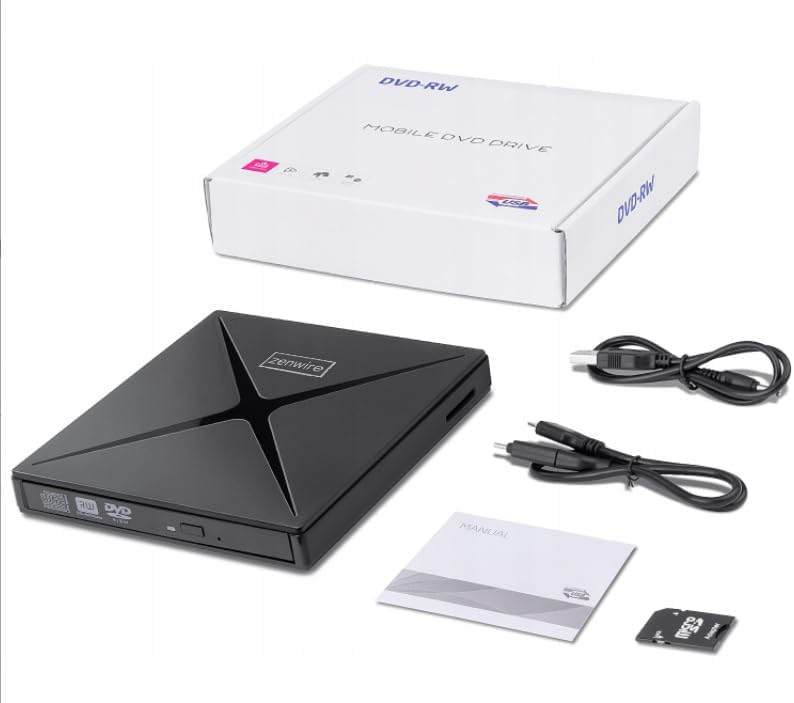
Рисунок 2.1: Содержимое упаковки
3. Продукт закончилсяview
The Zenwire SY885 combines multiple functionalities into one compact device. It features a CD/DVD drive, an SD card reader, and two USB ports for expanded connectivity.
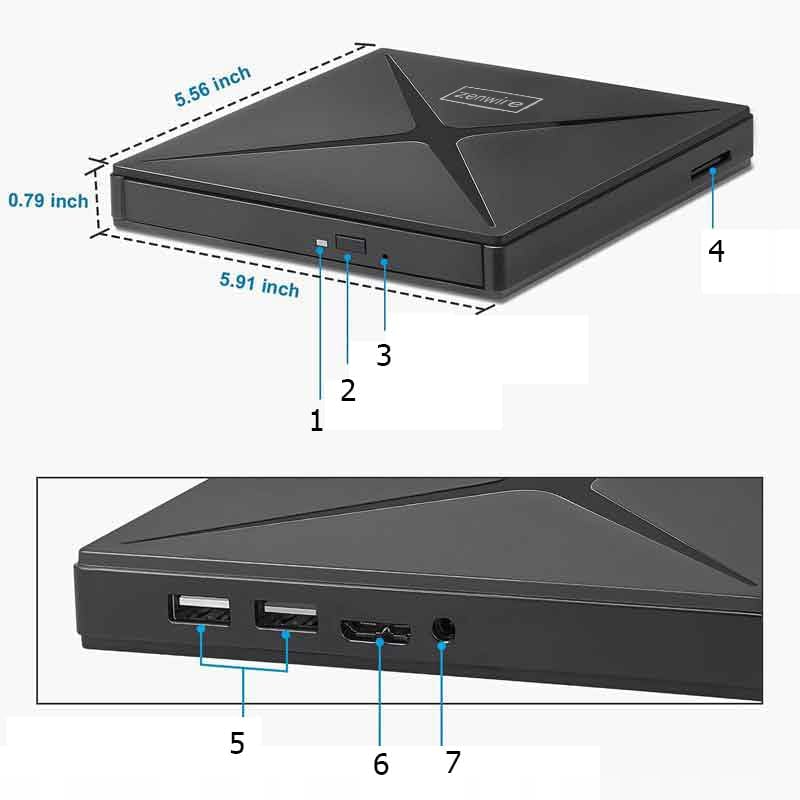
Figure 3.1: Device Ports and Features
- Кнопка извлечения: Нажмите, чтобы открыть лоток для диска.
- Световой индикатор: Illuminates when the device is powered on or active.
- Порты USB-A (2x): Для подключения USB-периферийных устройств.
- Слот для SD-карты: For inserting SD and Micro SD cards (with adapter).
- Порт USB-C: Main connection to your computer.

Рисунок 3.2: Габариты устройства
4. Настройка
The Zenwire SY885 features Plug & Play functionality, requiring no driver installation for most operating systems.
4.1 Подключение устройства
- Connect the provided USB-C cable to the USB-C port on the Zenwire drive.
- Connect the other end of the USB-C cable to an available USB-C port on your computer. If your computer only has USB-A ports, use the provided USB-A to USB-A cable and connect it to a USB-A port on your computer.
- The indicator light on the drive will illuminate, confirming power. Your operating system should automatically detect and configure the device.

Figure 4.1: Connecting the Drive to a Laptop
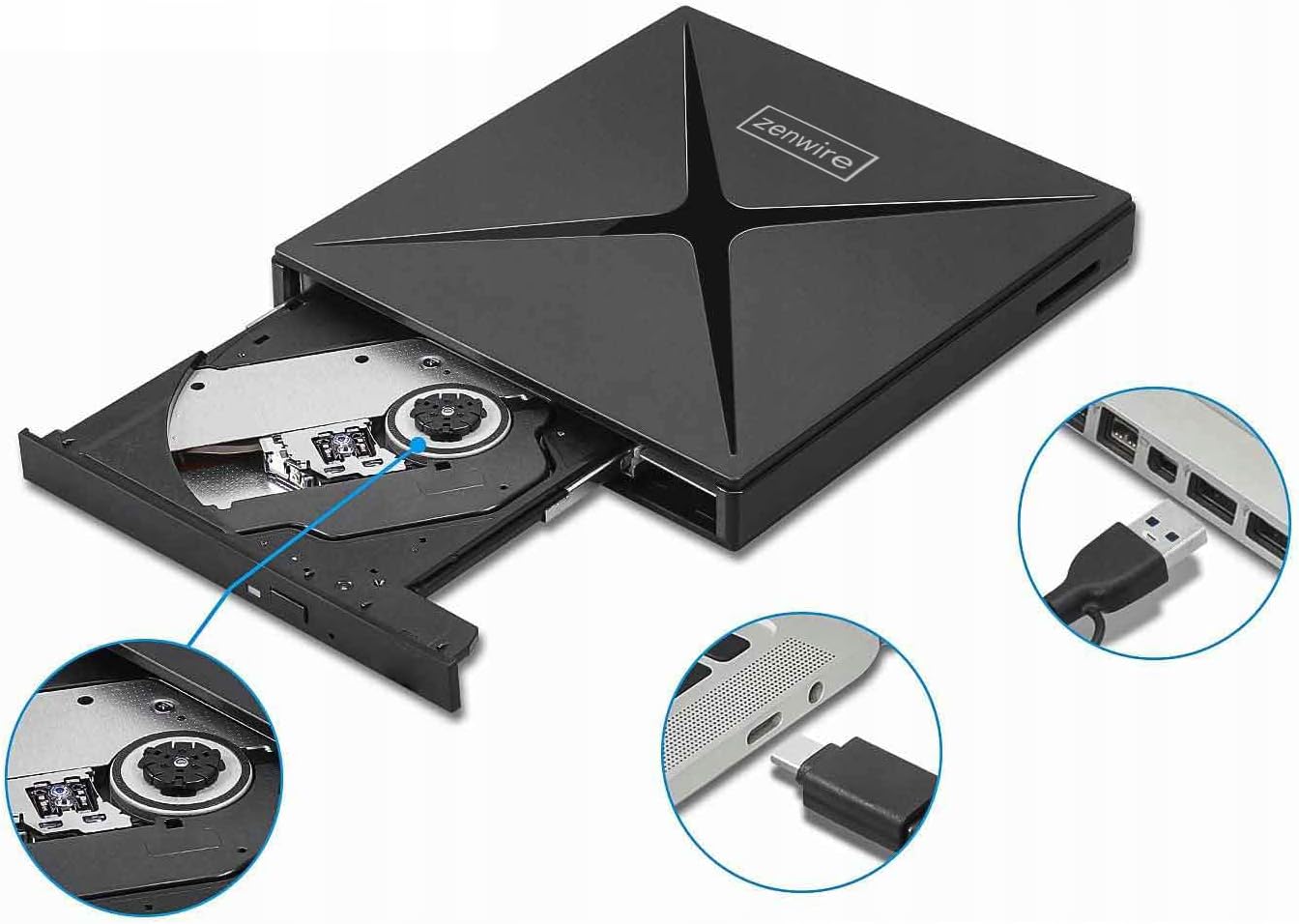
Рисунок 4.2: Варианты подключения USB-A и USB-C
5. Инструкция по эксплуатации
5.1 Using the CD/DVD Drive
- Убедитесь, что накопитель подключен к компьютеру.
- Press the Eject button on the front of the drive to open the disc tray.
- Аккуратно поместите компакт-диск или DVD-диск на лоток, убедившись, что он расположен по центру.
- Аккуратно задвиньте лоток обратно в привод до щелчка.
- Your computer's operating system should detect the disc. You can then access its contents through File Проводник (Windows) или Finder (Mac).
- To eject the disc, press the Eject button again or use the software eject function in your operating system.
5.2 Using the SD Card Reader
- Убедитесь, что накопитель подключен к компьютеру.
- Insert an SD card directly into the SD card slot on the side of the drive. For Micro SD cards, use the provided SD card adapter.
- Вставьте карту до щелчка.
- Your computer will recognize the SD card as a removable storage device.
- To safely remove the SD card, eject it through your operating system's software function before physically pulling it out.
5.3 Использование USB-концентратора
- Убедитесь, что накопитель подключен к компьютеру.
- Connect USB peripherals such as a mouse, keyboard, USB flash drive, or external hard drive to the two USB-A ports on the side of the Zenwire drive.
- The connected devices will function as if they were directly connected to your computer.

Figure 5.1: Data Transfer via the Drive
6. Совместимость
The Zenwire SY885 is designed for broad compatibility with various operating systems and computer types.
- Операционные системы: Windows 11/10/8/8.1/7/Vista/XP, Mac OS (10.14 Mojave or higher), Linux.
- Аппаратная платформа: Laptops, Desktop PCs, All-in-One PCs.

Рисунок 6.1: Совместимость операционных систем

Figure 6.2: Device Compatibility with Various Computers
7. Техническое обслуживание
To ensure the longevity and optimal performance of your Zenwire SY885, follow these maintenance guidelines:
- Уборка: Use a soft, dry cloth to clean the exterior of the drive. Do not use liquid cleaners or abrasive materials. For the disc tray, use a specialized CD/DVD lens cleaner if necessary, following its instructions.
- Хранилище: Store the drive in a cool, dry place away from direct sunlight and extreme temperatures. When not in use, keep the disc tray closed to prevent dust accumulation.
- Умение обращаться: Handle the drive carefully to avoid physical damage. Do not drop or expose it to excessive force.
- Уход за дисками: Always use clean, scratch-free CDs and DVDs. Avoid touching the data surface of discs.
8. Поиск Неисправностей
If you encounter issues with your Zenwire SY885, refer to the following common problems and solutions:
| Проблема | Возможная причина | Решение |
|---|---|---|
| Компьютер не обнаружил привод | Loose connection, insufficient power, incompatible USB port. | Ensure the USB cable is securely connected to both the drive and the computer. Try a different USB port on your computer. Ensure the USB port provides sufficient power (e.g., a direct port on the computer, not an unpowered hub). |
| Disc not reading/writing | Dirty or scratched disc, incorrect disc type, drive lens dirty. | Clean the disc with a soft cloth. Try a different disc. Ensure the disc type is supported (CD-R, CD-RW, DVD-R, DVD-RW). Consider using a CD/DVD lens cleaner. |
| SD-карта не обнаружена | Card not inserted correctly, damaged card, incompatible card format. | Reinsert the SD card firmly. Try a different SD card. Ensure the card is not locked (write-protected). Check if the card format is supported by your operating system. |
| USB peripherals not working via hub | Insufficient power, faulty peripheral, drive not fully connected. | Ensure the main drive is properly connected and receiving power. Try connecting the peripheral directly to the computer. Some high-power devices may require a powered USB hub. |
| Медленная скорость передачи данных | Connected to USB 2.0 port, system overload. | Ensure the drive is connected to a USB 3.0 or USB-C port on your computer for optimal speeds. Close unnecessary applications to free up system resources. |
9. Технические характеристики
| Особенность | Описание |
|---|---|
| Номер модели | SY885 |
| Бренд | Зенвайр |
| аппаратный интерфейс | USB 2.0, USB Type-C |
| Optical Memory Write Speed | 12x |
| Optical Memory Read Speed | 8X DVD |
| Скорость передачи данных | 60 мегабит в секунду (USB 3.0) |
| Платформа | Ноутбук, настольный ПК |
| Материал | Drive + SD Card Reader + USB-C Hub |
| Совместимость с операционными системами | Windows 11/10/8/8.1/7/Vista/XP, macOS 10.14 Mojave or higher, Linux |
| Размеры (приблизительные) | 15 см x 14 см x 1.8 см (5.91 дюйма x 5.56 дюйма x 0.79 дюйма) |
10. Гарантия и поддержка
Zenwire products are designed for reliability and performance. For warranty information and technical support, please refer to the documentation included with your purchase or visit the official Zenwire webСохраните чек о покупке для предъявления гарантийных претензий.