
1. Введение
This manual provides essential information for the proper installation, operation, and maintenance of your SUNMI T2s Lite 15.6-inch Android Point of Sale (POS) system. Please read this manual thoroughly before using the device to ensure optimal performance and safety. Keep this manual for future reference.
2. Информация по технике безопасности
- Не подвергайте устройство воздействию экстремальных температур, влажности или прямых солнечных лучей.
- Не роняйте устройство и не подвергайте его сильным ударам.
- Use only the power adapter supplied with the device. Using an incorrect adapter may cause damage or fire.
- Не пытайтесь разбирать или ремонтировать устройство самостоятельно. Обратитесь к квалифицированному специалисту.
- Держите устройство вдали от воды или других жидкостей.
- Обеспечьте надлежащую вентиляцию вокруг устройства во время работы.
3. Содержимое упаковки
Проверьте наличие всех предметов в упаковке:
- SUNMI T2s Lite POS Terminal
- Адаптер питания
- Силовой кабель
- Краткое руководство пользователя (если применимо)
- Гарантийный талон (если применимо)
Если какие-либо предметы отсутствуют или повреждены, немедленно свяжитесь с продавцом.
4. Продукт закончилсяview
The SUNMI T2s Lite is an integrated Android-based POS system designed for retail environments. It features a 15.6-inch capacitive touchscreen display and various connectivity options.
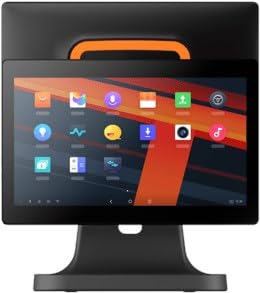
Рисунок 4.1: Передний view of the SUNMI T2s Lite POS system. This image displays the main 15.6-inch touchscreen, which is the primary interface for operating the device. The design is compact and suitable for various retail settings.
4.1 ключевых компонента
- 15.6-дюймовый сенсорный дисплей: High-resolution (1920x1080) capacitive touch interface.
- Кнопка питания: Located typically on the side or rear for turning the device on/off.
- USB-порты: For connecting peripherals such as barcode scanners, external printers, or cash drawers.
- Порт Ethernet: Для проводного сетевого подключения.
- Потребляемая мощность: Для подключения адаптера питания.
- Фронтальная камера: For specific applications requiring image capture.
5. Настройка
5.1 Распаковка и размещение
- Осторожно извлеките устройство и все принадлежности из упаковки.
- Place the POS terminal on a stable, flat surface in a well-ventilated area.
- Ensure there is sufficient space around the device for cable connections and heat dissipation.
5.2 Подключение питания
- Подключите кабель питания к адаптеру питания.
- Plug the power adapter into the power input port on the back of the SUNMI T2s Lite.
- Другой конец кабеля питания подключите к заземленной розетке.
5.3 Initial Boot and Network Connection
- Press and hold the power button until the screen lights up. The device will boot into the Android operating system.
- Следуйте инструкциям на экране для первоначальной настройки, включая выбор языка и часового пояса.
- Wi-Fi-соединение: Перейти к Настройки > Сеть и Интернет > Wi-Fi, выберите свою сеть и введите пароль.
- Ethernet-подключение: Connect an Ethernet cable from your router/switch to the Ethernet port on the device. The device should automatically connect to the wired network.
5.4 Подключение периферийных устройств
- USB-устройства: Plug USB peripherals (e.g., barcode scanner, external printer, cash drawer) into the available USB ports. The system will typically recognize them automatically.
- Bluetooth-устройства: Перейти к Настройки > Подключенные устройства > Bluetooth, enable Bluetooth, and pair with your desired device.
6. Инструкция по эксплуатации
6.1 Включение/выключение питания
- Для включения: Нажмите и удерживайте кнопку питания, пока не загорится экран.
- Чтобы выключить: Press and hold the power button until a power menu appears. Select "Power off" and confirm. Alternatively, a short press of the power button will put the device to sleep.
6.2 Использование сенсорного экрана
- Кран: Для выбора элемента или активации кнопки.
- Нажмите и удерживайте: To open context menus or drag items.
- Проведите пальцем по экрану: To scroll through lists or navigate between screens.
- Масштабирование сведением пальцев: Чтобы увеличить или уменьшить масштаб изображений или web страниц.
6.3 Навигация в ОС Android
- Главный экран: The central hub for your applications and widgets.
- Панель приложений: Получите доступ ко всем установленным приложениям.
- Панель уведомлений: Проведите вниз от верхней части экрана, чтобы view уведомления и быстрые настройки.
- Настройки: Configure Wi-Fi, Bluetooth, display, sound, and other system options.
6.4 Basic POS Functions
The specific POS functions will depend on the software application installed on your device. Refer to the documentation provided with your POS software for detailed instructions. Generally, you will:
- Launch your POS application from the home screen or app drawer.
- Войдите в систему, используя свои учетные данные пользователя.
- Process transactions using the touchscreen and connected peripherals (e.g., scanning items, accepting payments).
- Print receipts if an external or integrated printer is configured.
7. Техническое обслуживание
7.1 Очистка устройства
- Перед чисткой всегда выключайте устройство и отключайте его от сети.
- Используйте мягкую, безворсовую ткань, слегкаampДля протирки экрана и внешних поверхностей используйте воду или мягкое неабразивное чистящее средство.
- Не распыляйте жидкости непосредственно на устройство.
- Избегайте использования едких химикатов, растворителей и абразивных материалов.
7.2 Обновления программного обеспечения
Regularly check for and install system and application updates to ensure optimal performance, security, and access to new features. You can usually find system updates in Настройки > Система > Обновление системы.
7.3 Хранение
When not in use for extended periods, store the device in a cool, dry place, away from direct sunlight and extreme temperatures. If storing for a long time, ensure the battery is charged to about 50% to prolong its lifespan.
8. Поиск Неисправностей
В этом разделе рассматриваются распространённые проблемы, с которыми вы можете столкнуться. Если у вас возникнут более сложные проблемы, обратитесь в службу поддержки.
- Устройство не включается:
- Убедитесь, что адаптер питания надежно подключен к устройству и к исправной розетке.
- Убедитесь, что розетка исправна.
- Try holding the power button for 10-15 seconds to force a restart.
- Touchscreen is unresponsive:
- Перезагрузите устройство.
- Убедитесь, что экран чистый и на нем нет мусора или жидкости.
- Проблемы с подключением к сети (Wi-Fi/Ethernet):
- Check if the Wi-Fi is enabled and you are connected to the correct network with the right password.
- For Ethernet, ensure the cable is properly connected and your router/switch is working.
- Перезагрузите маршрутизатор/модем.
- Peripherals (e.g., printer, scanner) not working:
- Убедитесь, что периферийное устройство правильно подключено к соответствующему порту.
- Check if the peripheral has its own power supply and is turned on.
- Verify that the necessary drivers or software for the peripheral are installed and configured within your POS application.
9. Технические характеристики
The following are key technical specifications for the SUNMI T2s Lite:
| Особенность | Спецификация |
|---|---|
| Бренд | Сунми |
| Производитель | Сонми |
| Встроенное разрешение дисплея | 1920x1080 пикселей |
| Технология связи | Bluetooth, Ethernet, USB, WLAN |
| Описание камеры | Фронтальный |
| ASIN | B0B53FLFT8 |
10. Гарантия и поддержка
The SUNMI T2s Lite POS system comes with a standard manufacturer's warranty. Please refer to the warranty card included in your package for specific terms and conditions, including warranty period and coverage details.
For technical support, service, or warranty claims, please contact your authorized SUNMI dealer or the customer support channel specified in your purchase documentation. Ensure you have your product model number (T2s Lite) and ASIN (B0B53FLFT8) ready when contacting support.