
plustek OF8300i AI
Руководство пользователя пленочного сканера Plustek OpticFilm 8300i Ai
Model: OF8300i AI
Введение
The Plustek OpticFilm 8300i Ai is a high-resolution film scanner designed to convert 35mm film and slides into digital format. This manual provides comprehensive instructions for setting up, operating, maintaining, and troubleshooting your scanner, ensuring optimal performance and longevity.
Digitizing your film and slides helps preserve precious memories from fading colors, decomposition, or fungal attacks. The OpticFilm 8300i Ai is equipped with advanced features and software to achieve high-quality digital archives.

Figure 1: Plustek OpticFilm 8300i Ai Film Scanner with included software and calibration targets.
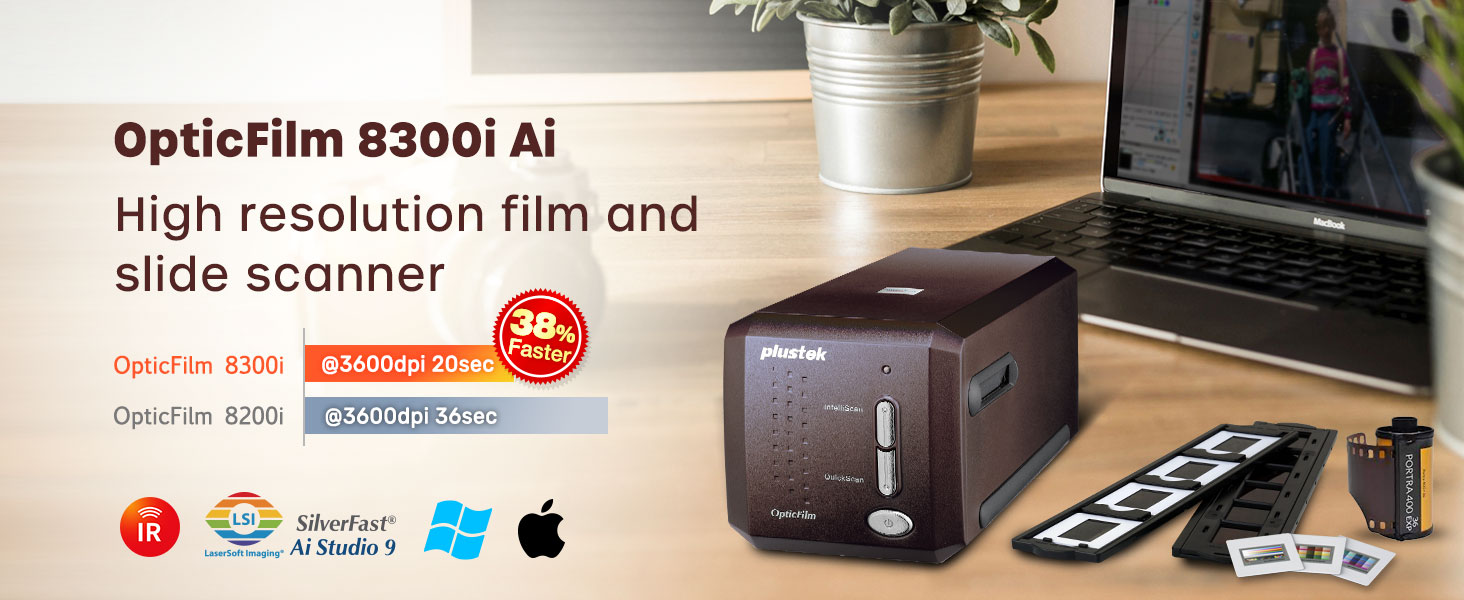
Рисунок 2: Болееview of the Plustek OpticFilm 8300i Ai, highlighting its high resolution and improved scanning speed.
Видео 1: Вводный видеороликasing the features and capabilities of the Plustek OpticFilm 8300i Ai film scanner, including its ability to digitize various 35mm film types and its advanced image correction features.
Настраивать
1. Распаковка и содержимое
Аккуратно извлеките все компоненты из коробки. Убедитесь, что все перечисленные ниже предметы присутствуют:
- Plustek OpticFilm 8300i Ai Scanner Unit
- SilverFast Ai Studio 9 Software (via USB flash drive and activation card)
- Plustek QuickScan Plus Software (via USB flash drive)
- Держатель пленки 35 мм
- Установленный держатель слайда
- 3-slide 35mm IT8 Calibration Target
- USB-кабель
- Адаптер питания
- Краткое руководство пользователя
- Чехол для переноски

Figure 3: All components included in the Plustek OpticFilm 8300i Ai package.
2. Установка программного обеспечения
The scanner comes bundled with SilverFast Ai Studio 9 and Plustek QuickScan Plus. Use the provided USB flash drive for installation. An optical disc drive is not required.
- Вставьте USB-флеш-накопитель в компьютер.
- Follow the on-screen instructions to install SilverFast Ai Studio 9 and Plustek QuickScan Plus.
- For SilverFast activation, locate the SilverFast 9 card in the box. It contains the scanner's serial number and activation webсайт.
- Visit the SilverFast account activation website and select your scanner model (OpticFilm 8300i).
- Verify the model name and enter the serial number. The serial number can be found on the back of the scanner or on the SilverFast card.
- If you do not have a MySilverFast account, fill out the registration form to create one. If you already have an account, log in.
- Complete your basic information and register.
- You will receive a registration confirmation email. Your license will be added to your MySilverFast account.

Figure 4: SilverFast activation card with serial number.
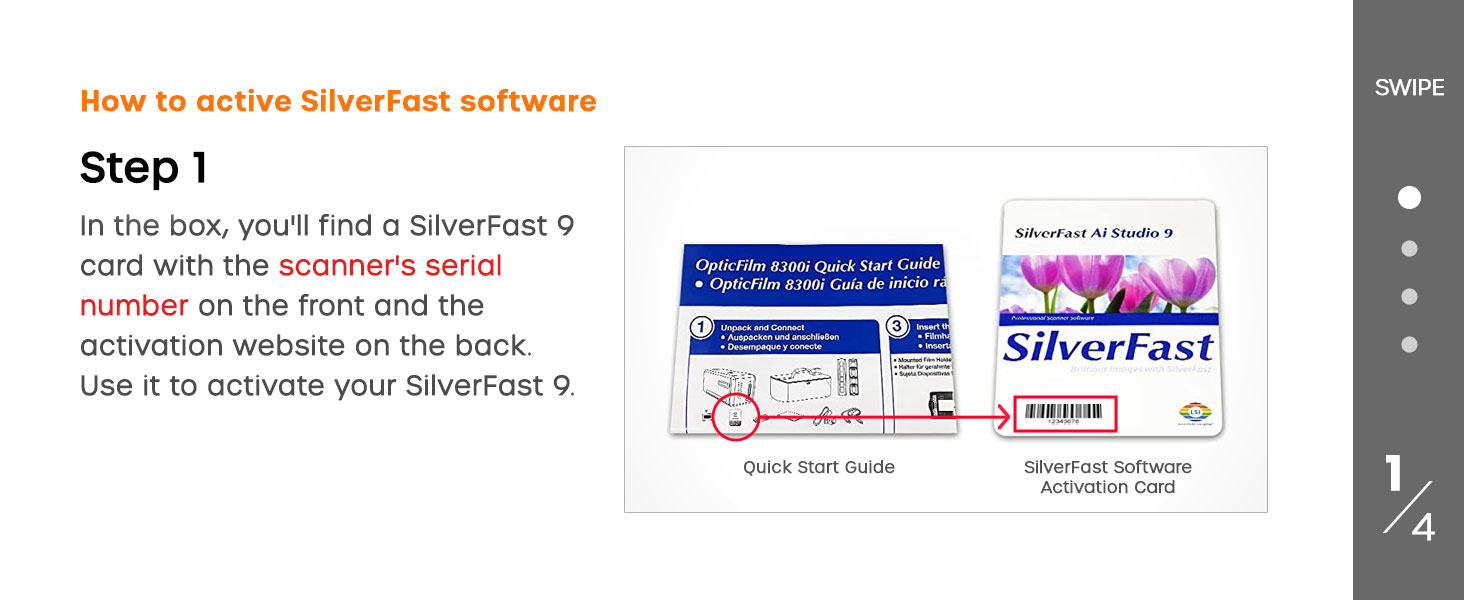
Figure 5: Selecting your scanner model on the activation webсайт.
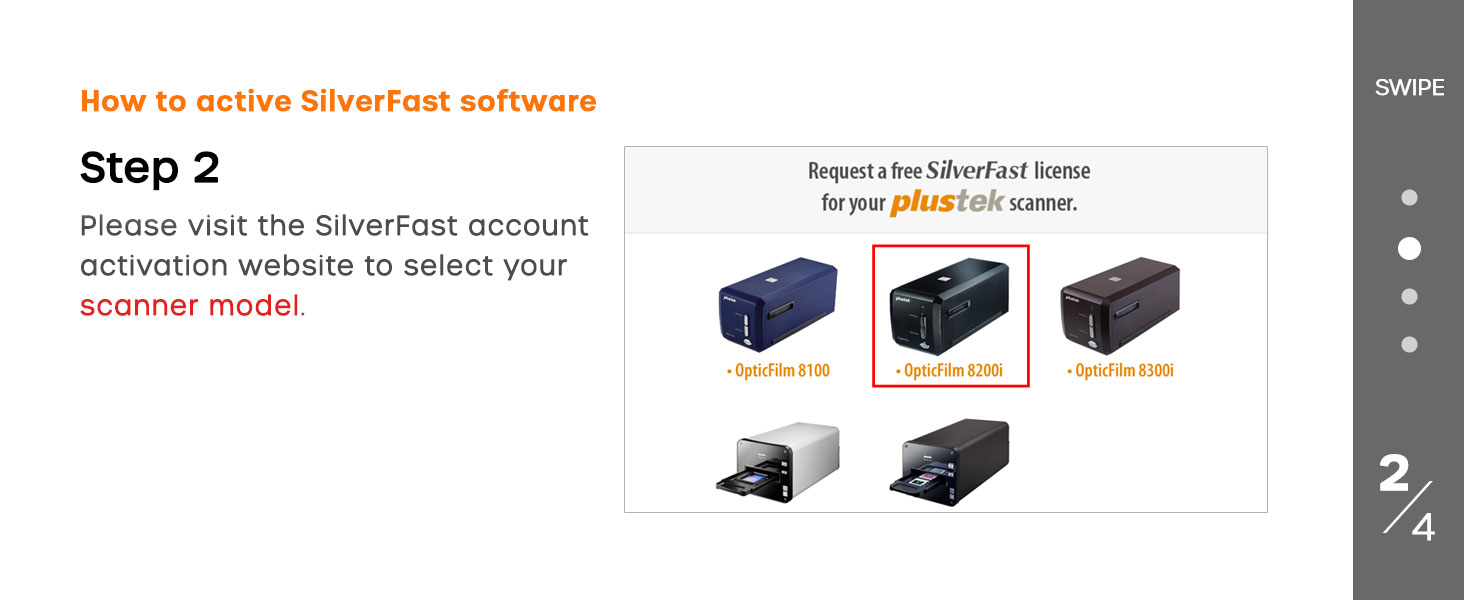
Figure 6: Entering the scanner serial number for activation.
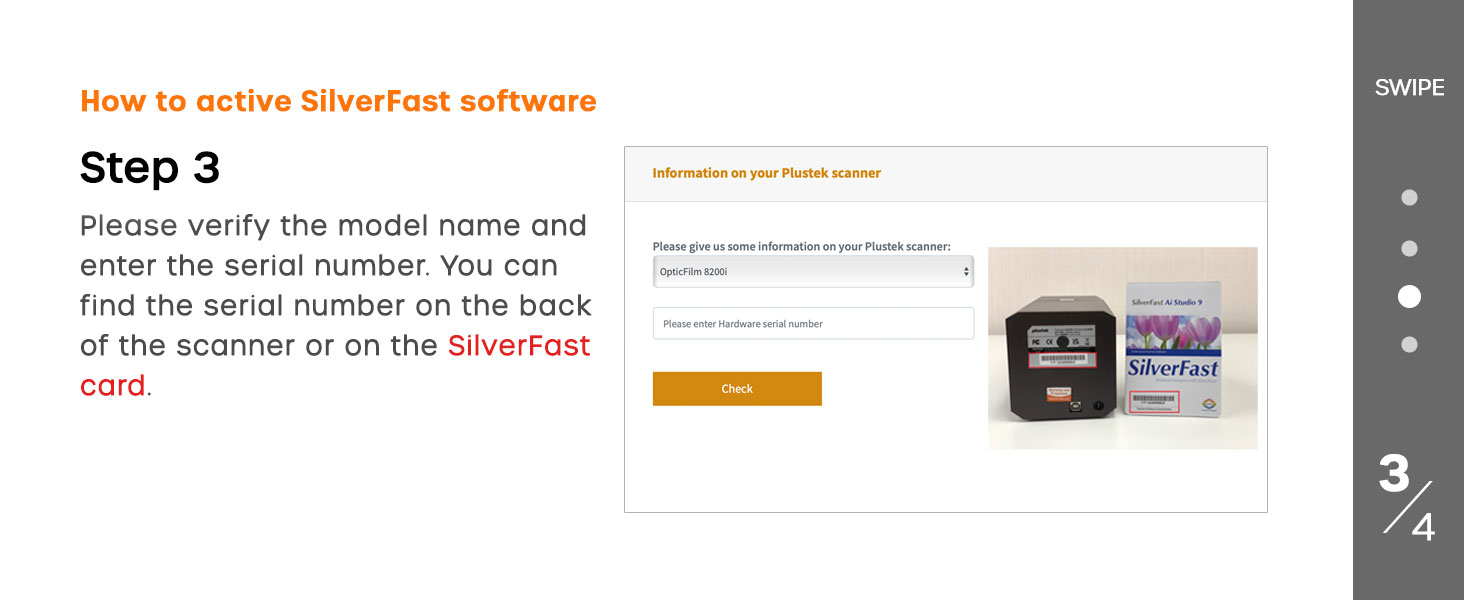
Figure 7: SilverFast account login or registration.
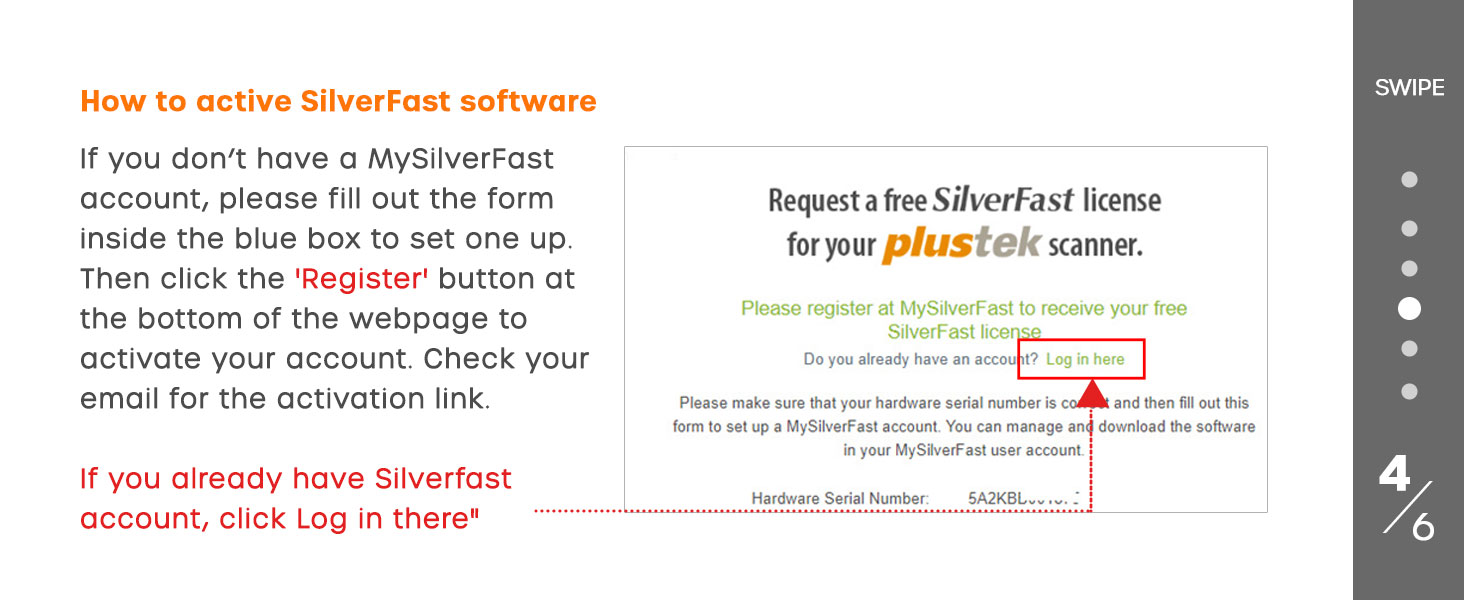
Figure 8: SilverFast account registration form.

Figure 9: SilverFast registration confirmation.
3. Подключение оборудования
- Разместите сканер на устойчивой, ровной поверхности.
- Подключите USB-кабель сканера к свободному USB-порту вашего компьютера.
- Connect the power adapter to the scanner's power input and then plug it into a power outlet.
- Включите сканер с помощью кнопки питания.
Инструкция по эксплуатации
1. Loading Film and Slides
Use the appropriate film or slide holder for your media type. Ensure the film or slides are clean and free of dust before loading.
- For 35mm film strips, use the film holder. Carefully insert the film into the designated slots.
- For mounted 35mm slides, use the slide holder. Place each slide into its slot, ensuring correct orientation.
- Вставьте держатель с пленкой в щель сканера.

Figure 10: The scanner with film and slide holders, demonstrating how media is inserted.

Figure 11: The OpticFilm 8300i Ai offers 38% faster scanning speeds compared to previous models.
2. Scanning Process with Software
You can use either SilverFast Ai Studio 9 for advanced control or Plustek QuickScan Plus for simpler, faster scans.
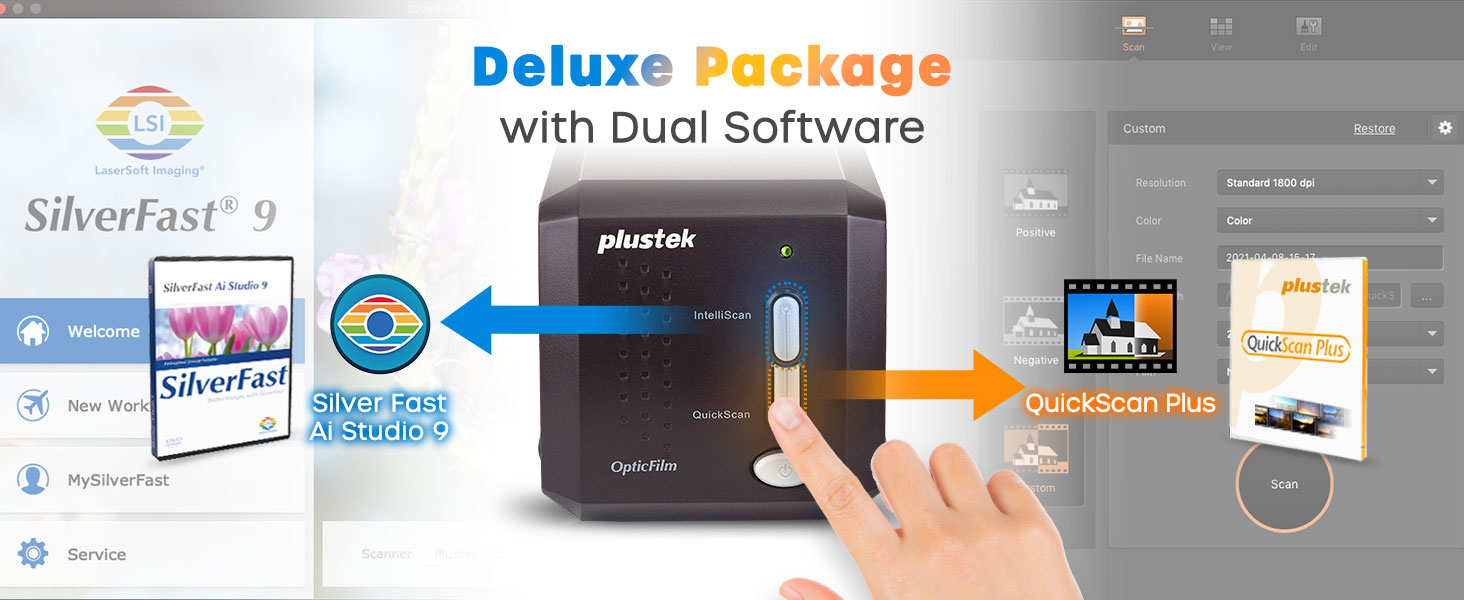
Figure 12: The scanner supports both SilverFast Ai Studio 9 for professional use and QuickScan Plus for ease of use.
Using SilverFast Ai Studio 9:
SilverFast offers extensive features for professional scanning and image optimization.
- Superb Scanning Resolution: The scanner provides a true 7200 dpi optical resolution, producing sharp and vivid images up to 68.9 megapixels.
- Advanced IT8 Calibration: Use the included 3-slide 35mm IT8 Calibration Target (ISO 12641-2 compliant 2019) for precise color calibration. This provides more measuring points for less interpolation, ensuring accurate color reproduction.
- iSRD (инфракрасное интеллектуальное удаление дефектов): This built-in infrared channel effectively removes dust and scratches from your scans. It works by performing a separate infrared scan to detect defects, then intelligently removes them from the final image without affecting important details. Note: iSRD does not work for B/W negatives as infrared rays cannot permeate the silver halide layer.
- Многократная экспозиция: This feature increases the dynamic range of your scans, allowing for smoother gradations and fine shadow detail, especially in challenging lighting conditions.
- HDRi (High Dynamic Range Imaging): Captures RAW data from analog originals, including the infrared channel, into a 64-bit color HDRi file or a 32-bit grey scan HDRi file. This helps protect precious pictures against destruction and loss by preserving maximum image information.
- 16-bit Histogram: Provides a graphic representation of statistical visuals, allowing for precise adjustment of black point, white point, and midtones. Supports RGB and CMYK modes, combined or separated color channels, and color cast removal.
- NegaFix: Optimizes scans from negative film by providing profiles for various film types, ensuring accurate color and contrast conversion.
- Режим эксперта: For advanced users, Expert Mode provides enhanced functionality and control tools for fine-tuning images, allowing for more detailed settings and protective layers.
- Built-in ICC Profile: The 8300i includes built-in ICC profiles for different slide films, including Kodachrome slides, ensuring consistent color representation from scan to print/display.

Figure 13: The 7200x7200 DPI optical resolution ensures high-quality digital images.

Figure 14: The advanced IT8 target ensures accurate color calibration.

Figure 15: Visual representation of IT8 calibration improving image color accuracy.

Figure 16: iSRD technology for automatic dust and scratch removal.

Figure 17: Diagram illustrating how iSRD uses an infrared channel to detect defects.

Figure 18: iSRD Step 1: Regular RGB scan.
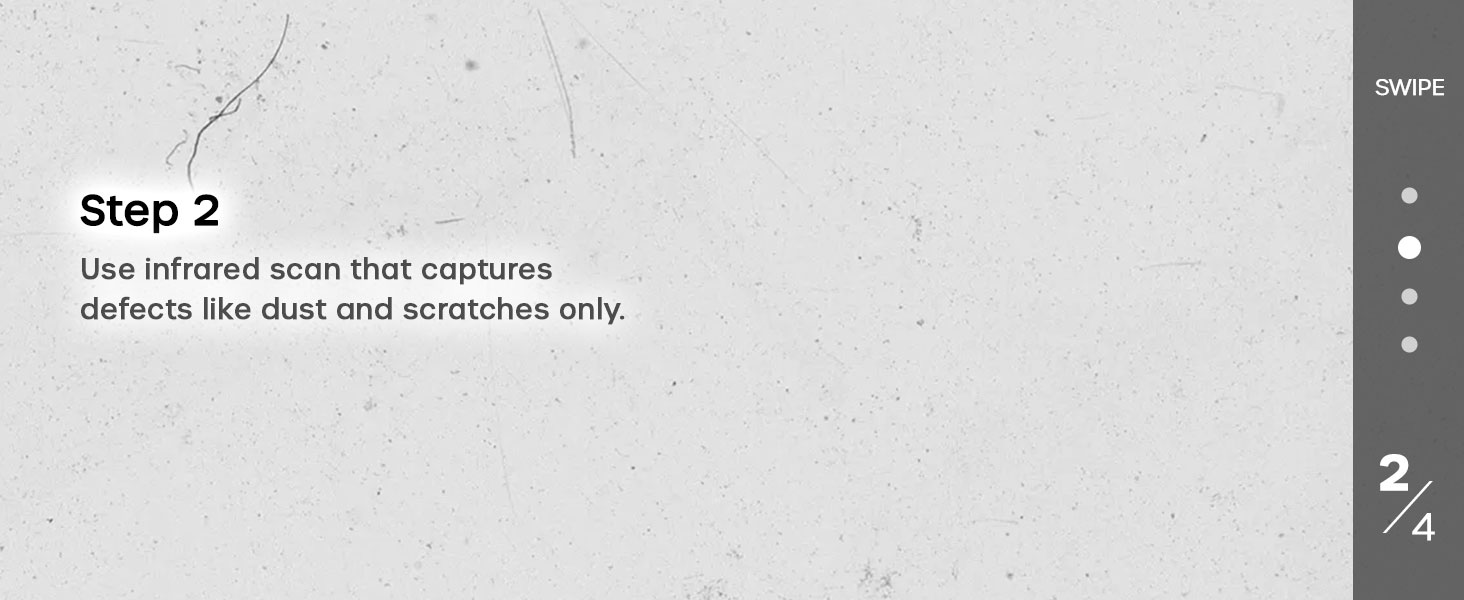
Figure 19: iSRD Step 2: Infrared scan for defects.

Figure 20: iSRD Step 3: Marking detected defects.

Figure 21: iSRD Step 4: Final image after defect removal.

Figure 22: Multi-Exposure enhances dynamic range for better detail in highlights and shadows.

Figure 23: HDRi preserves maximum image data for archival purposes.

Figure 24: The 16-bit Histogram provides detailed control over image tones.

Figure 25: Using the 16-bit Histogram for image error correction.

Figure 26: Expert Mode provides granular control over scanning parameters.
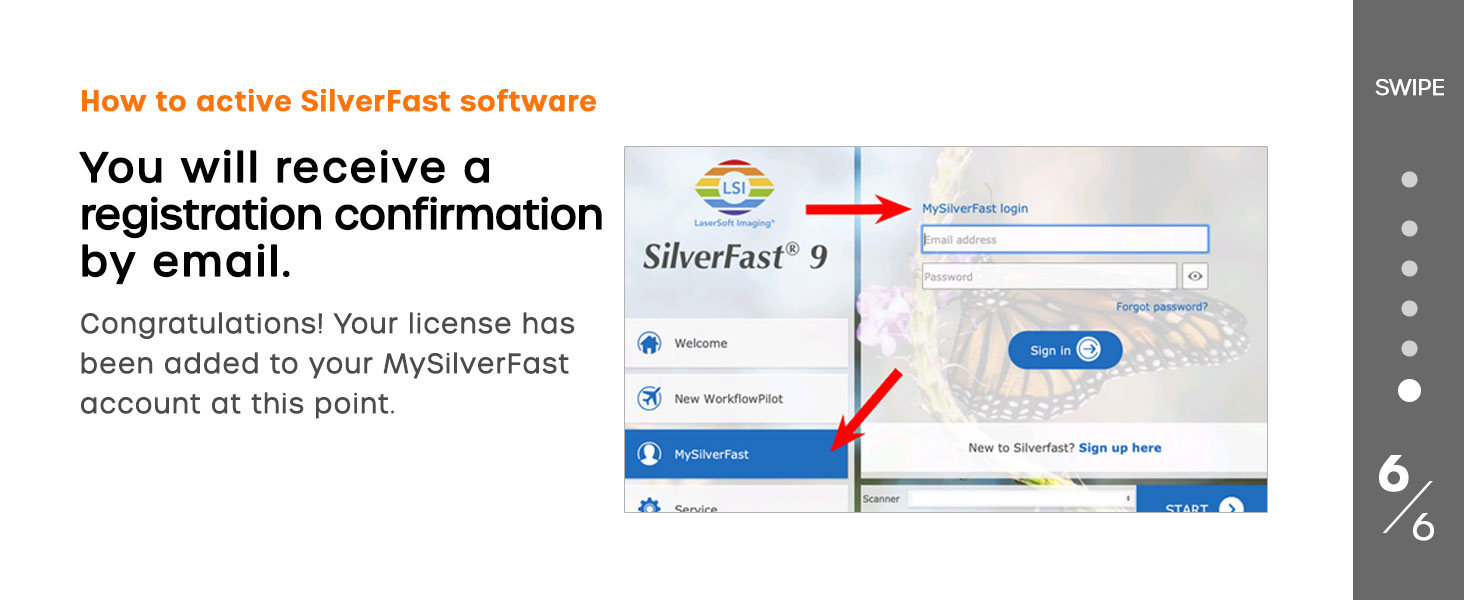
Figure 27: Expert Mode offers advanced settings for fine-tuning scans.
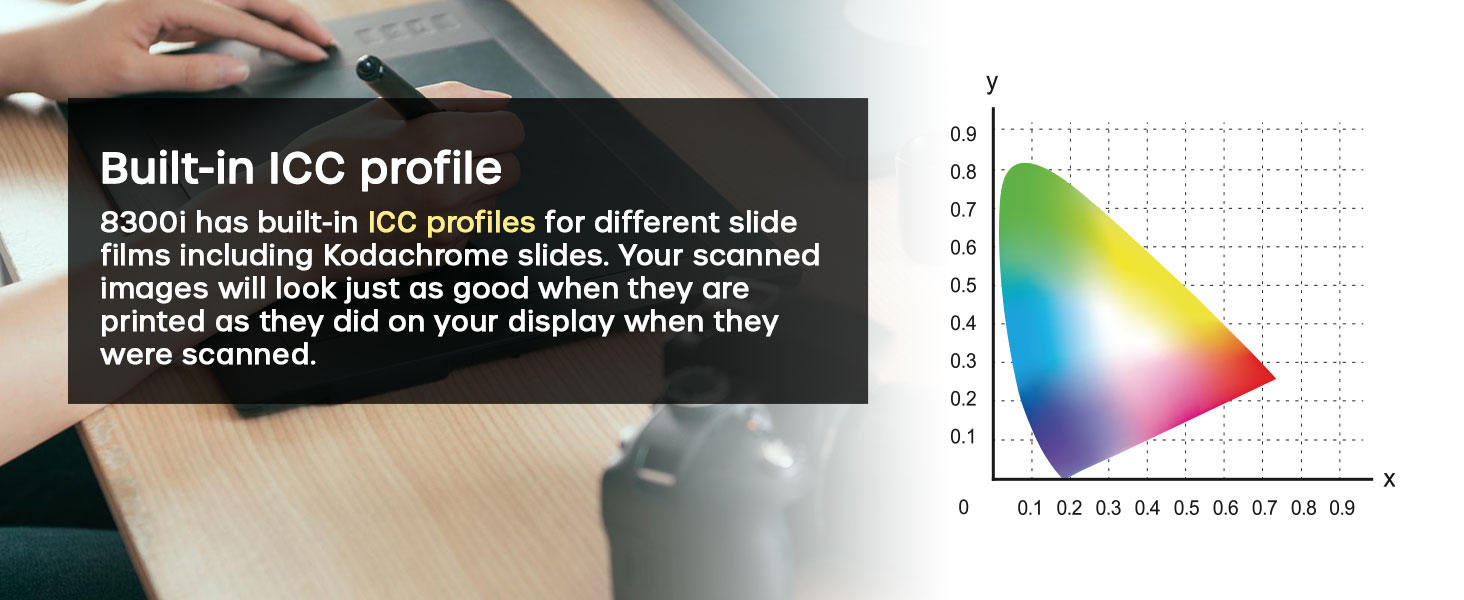
Figure 28: ICC profiles ensure color accuracy across devices.
Using Plustek QuickScan Plus:
For quick and easy digitization, QuickScan Plus provides a simplified interface. Select your media type (positive or negative), desired resolution, and output format, then initiate the scan.
3. Saving Scans
Both SilverFast and QuickScan Plus allow you to save scanned files in various formats, including JPEG, TIFF, and RAW (HDRi for SilverFast). Choose the format suitable for your needs (e.g., TIFF for maximum quality, JPEG for smaller file размеры).
Обслуживание
1. Очистка сканера
Regular cleaning helps maintain scan quality and prolong the scanner's life.
- Экстерьер: Протрите внешнюю поверхность мягкой, сухой, безворсовой тканью. Не используйте абразивные чистящие средства или растворители.
- Film/Slide Holders: Clean holders with a soft cloth or compressed air to remove dust and debris.
- Область сканирования: Use a can of compressed air to gently blow away dust from the film scanning area. Avoid touching the glass surface directly with your fingers. If necessary, use a lens cleaning cloth specifically designed for optical surfaces.
2. Предотвращение образования пыли
To minimize dust accumulation, store the scanner in its protective carrying case when not in use. Always handle film and slides by their edges to avoid fingerprints and dust transfer.
Поиск неисправностей
This section addresses common issues you might encounter. For more detailed troubleshooting, refer to the full user manual (PDF) available on the Plustek webсайт или обратитесь в службу поддержки клиентов.
| Проблема | Возможная причина | Решение |
|---|---|---|
| Сканер не обнаружен компьютером. | USB cable loose or faulty; drivers not installed correctly; scanner not powered on. | Ensure USB cable is securely connected. Reinstall scanner drivers. Verify scanner is powered on. Try a different USB port. |
| Poor scan quality (dust, scratches). | Dust/debris on film/slides or scanner glass; iSRD not enabled or configured correctly. | Clean film/slides and scanner glass. Enable and configure iSRD in SilverFast software. |
| Цвета указаны неточно. | Scanner not calibrated; incorrect film profile selected in software. | Perform IT8 color calibration using the provided target. Select the correct NegaFix profile for your film type in SilverFast. |
| Программное обеспечение дает сбои или зависает. | Outdated software version; system resource issues; software conflict. | Update SilverFast/QuickScan Plus to the latest version. Close other demanding applications. Restart computer and scanner. |
Технические характеристики
Key technical specifications for the Plustek OpticFilm 8300i Ai scanner:
| Особенность | Деталь |
|---|---|
| Название модели | OpticFilm 8300i Ай |
| Номер модели товара | OF8300i AI |
| Тип сканера | Фильм |
| Тип носителя | 35mm Slide, 35mm Film |
| Оптическое разрешение | 7200 точек на дюйм |
| Глубина цвета | 16 бита |
| Тип источника света | ВЕЛ |
| Технология связи | USB |
| Размеры продукта | 10.71 x 4.72 x 4.69 дюйма (27.2 x 12 x 11.9 см) |
| Вес товара | 6.03 фунта (2.74 кг) |
| Поддержка операционной системы | Windows 7/8/10/11 and Mac OS |

Figure 29: Feature comparison across different Plustek OpticFilm scanner models.
Информация о гарантии
Plustek products are covered by a manufacturer's warranty. Please refer to the warranty card included with your product or visit the official Plustek webПодробные условия гарантии, действующие в вашем регионе, можно найти на сайте.
Поддерживать
For technical assistance, product inquiries, or troubleshooting not covered in this manual, Plustek offers various support channels:
- US-based Expert Services: Available via phone or online support.
- Онлайн-поддержка Zendesk в режиме реального времени
- Онлайн-форма/Поддержка по электронной почте
- Consultant Support: For solution and SDK inquiries.
Please visit the official Plustek webсайт для получения самой актуальной контактной информации и ресурсов поддержки.

Figure 30: Plustek offers quality US-based technical support.
Ask a question about this manual
Ask about setup, troubleshooting, compatibility, parts, safety, or missing instructions. Manuals+ will review the question and use this page’s manual context to help answer it.